
Household invitations
When someone invites you into their household, the invitation is shown at the top of My tools, above everything else, until you decide.

The card names the household, who invited you, the role you would have (member or household admin) and when it was sent.
- 1 Decline removes the invitation. Nothing else changes.
- 2 Accept moves you into that household.
Think before you accept. Your data in the tools belongs to your current household. When you move:
- You see the new household’s data from then on.
- What you created in your old household stays there. You no longer see it.
- You are signed out of every tool and sign in there again.
An invitation is valid for 30 days. After that it disappears and you would need a new one.
A tool asks you to request access
A tool’s Request access link opens My tools with that tool at the top, in a card Access to ….
- Request access (or Request again, after a decline) sends the request, exactly as under Other tools.
- Not now hides the card. The tool stays under Other tools.
If you have requested the tool already, the card is replaced by a note that you get an email once an administrator decides. If you already have access, the note says so.
Overview
My tools is the first screen after signing in. It shows who you are signed in as and what you can open.
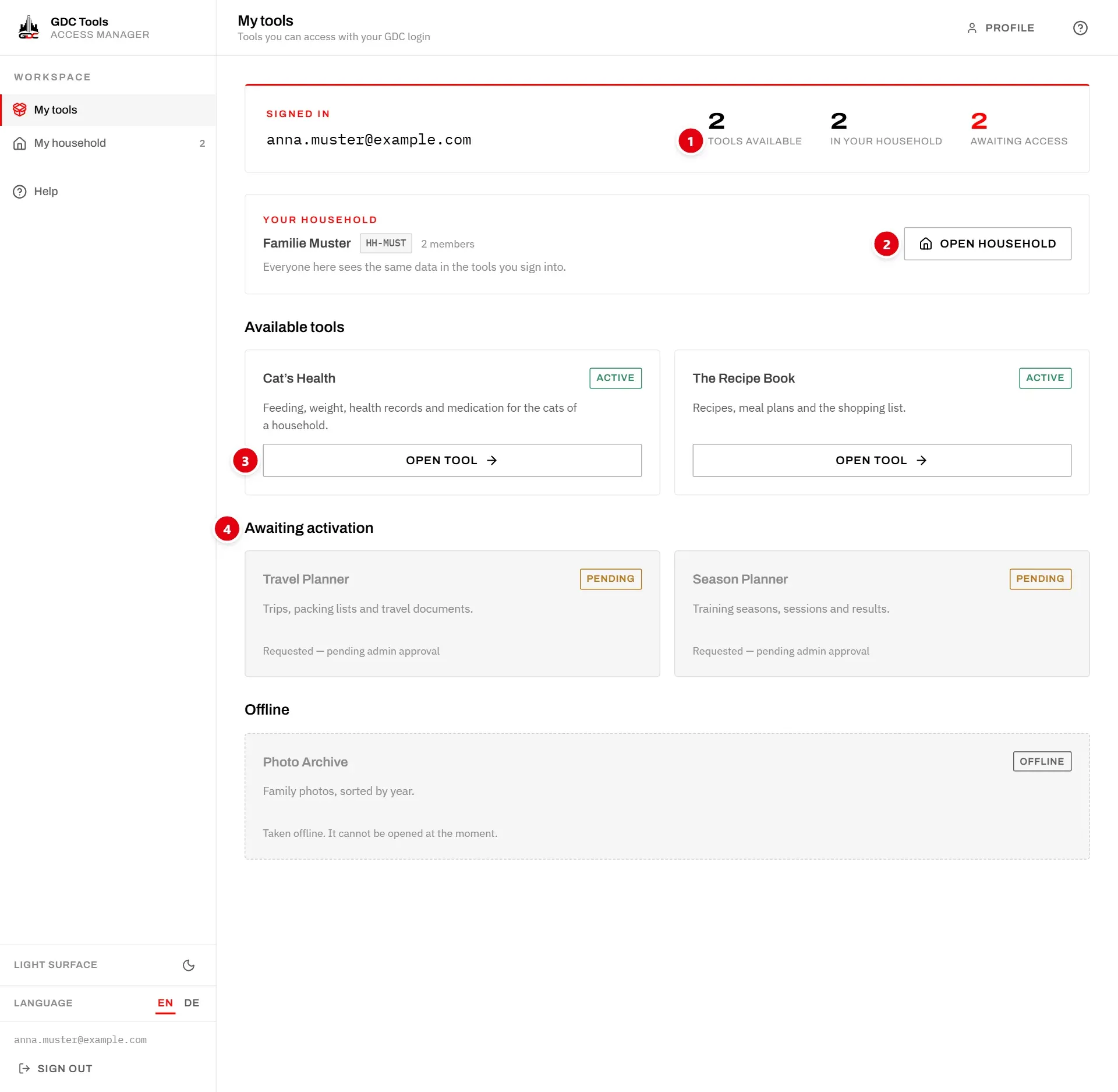
- 1 Signed in shows your email address and three numbers: Tools available (tools you can open), In your household (people who share your data) and Awaiting access (tools you requested that still wait for approval).
- 2 Your household, with Open household. See Your household.
- 3 Available tools, each with Open tool. See Available tools.
- 4 Awaiting approval: tools you requested that are not yet approved. See Awaiting approval.
Below them, Other tools lists the tools you can ask for. See Other tools.
Your household
The Your household card shows the name and ID of your household and how many members it has.
- With other members, it reminds you that everyone in it sees the same data in the tools.
- On your own, it says that what you create in tools is yours alone until someone joins.
Open household opens My household, where you see the members and, as a household admin, invite people. See My household.
Available tools
These are the tools an administrator has granted you. Each card shows the tool’s name, Active and a short description.
Open tool opens the tool in a new tab. Sign in there with the same email address and password as in the Tools Manager.
If you have no access yet, you see No tools available to you yet. Request access to the ones you need below. You ask for them under Other tools.
Awaiting approval
Every tool you have requested is listed here as Requested, with Requested — pending admin approval. The administrators were notified when you sent the request; there is nothing more to do.
When an administrator grants a tool, it moves up to Available tools, and you are told by email and in the notification bar. See Notifications. If an administrator declines, the tool goes back to Other tools. If you are waiting longer than expected, write to dev@gdc-world.de.
Other tools
Every tool you do not have access to yet is listed under Other tools, with the note Ask for access to a tool. The admins are notified, and you get an email once one of them decides.
- Choose Request access on the tool you need.
- The tool moves to Awaiting approval until an administrator decides.
If an administrator declined your last request, the card shows Declined and An admin declined your last request. Choose Request again to ask once more.
New tools are tried out first: while a tool is In development, only GDC administrators and testers see it and can request it. It appears here for everyone once it is live.
Offline

A tool that has been taken out of service is listed under Offline, with the note Taken offline. It cannot be opened at the moment. It cannot be opened or requested, and signing in to it is refused, even if you had access.
Your access is not lost: if the tool comes back, it is listed under Available tools again as before.
Notifications
When your access to a tool changes, a notice appears in the bar under the header, on every page, and you also get an email:
- Your access to … was granted. You can sign in to it now. My tools opens My tools.
- Your access request for … was declined. You can request the tool again under Other tools.
- Your access to … was removed. The tool is back under Other tools, and you can request it again.
× (Dismiss) hides a notice. With several notices, Dismiss all hides them all.