
What the Tools Manager is for
The GDC Tools Manager is where every GDC tool begins. Cat’s Health, The Recipe Book, Travel Planner, Season Planner and every tool that follows use one login: the one you create here. You do this once, and then the same email address and password open every tool you have access to.
Here you also decide who you share your data with. Everything you enter in a tool belongs to your household, and everyone in your household sees the same data.
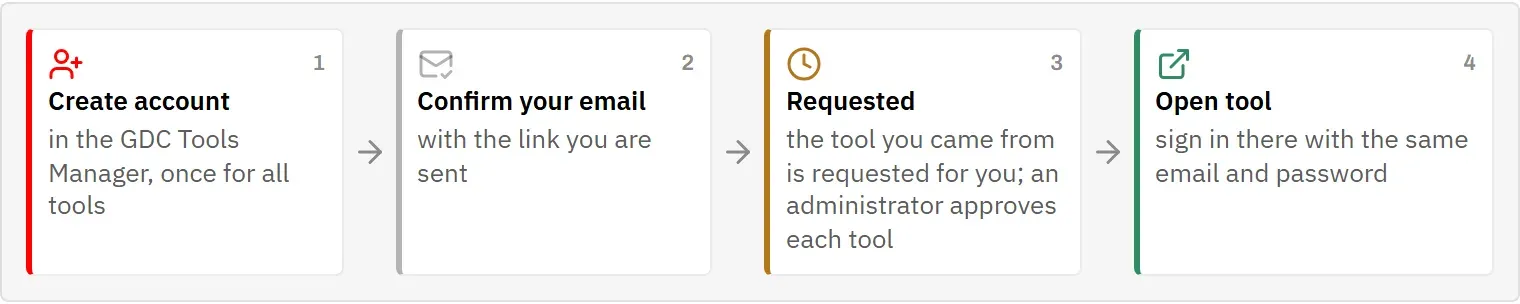
The steps, in order:
- Create your account.
- Confirm your email address.
- Get access to your tools. The tool you signed up from is requested for you; request any others on My tools. An administrator approves each one.
- Set up your household, or join one you were invited to.
- Open a tool and sign in there with the same email address and password.
Create your account
On the sign-in page, choose Create one. This opens Create your account.
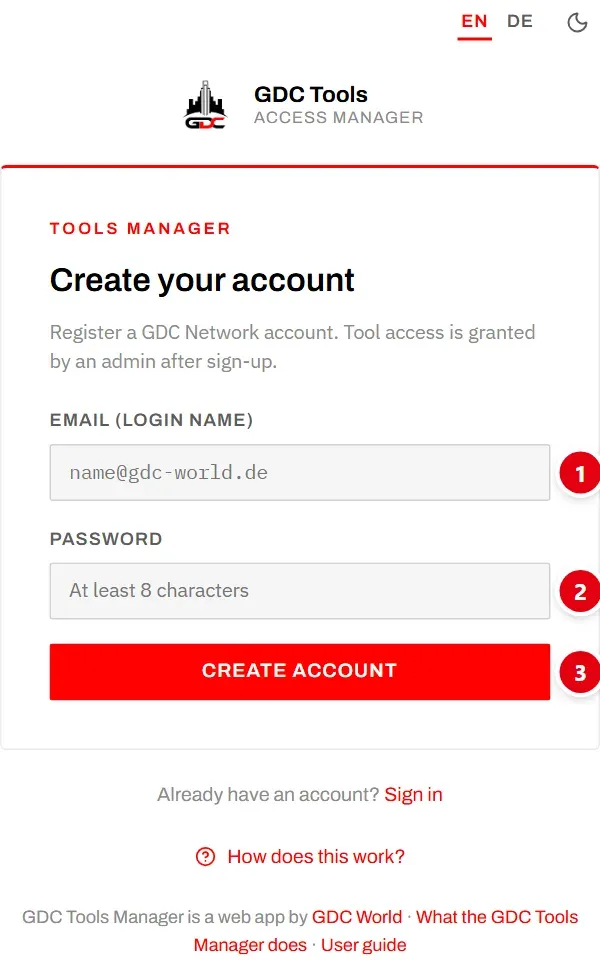
- 1 Email (login name): the address you will sign in with, here and in every tool.
- 2 Password: at least 8 characters.
- 3 Create account sends the form.
If you already have an account, use Sign in instead. One email address can only have one account.
Before Create account works, the form checks that you are not a robot. This usually happens by itself; sometimes you are asked to tick a box.
Coming from a tool? If you chose Create account on a tool’s sign-in page, the form shows Access to … with the tool’s name: once you have confirmed your email address, access to that tool is requested for you. You do not have to request it again on My tools.
Confirm your email address
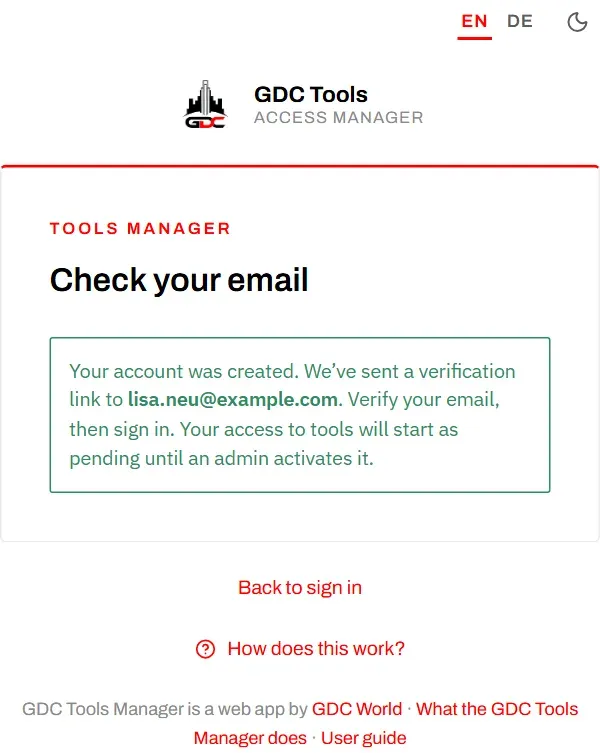
After signing up you see Check your email. We send a verification link to the address you entered.
The email comes from GDC Tools Manager (no-reply@gdc-world.net) with the subject Verify your GDC account:
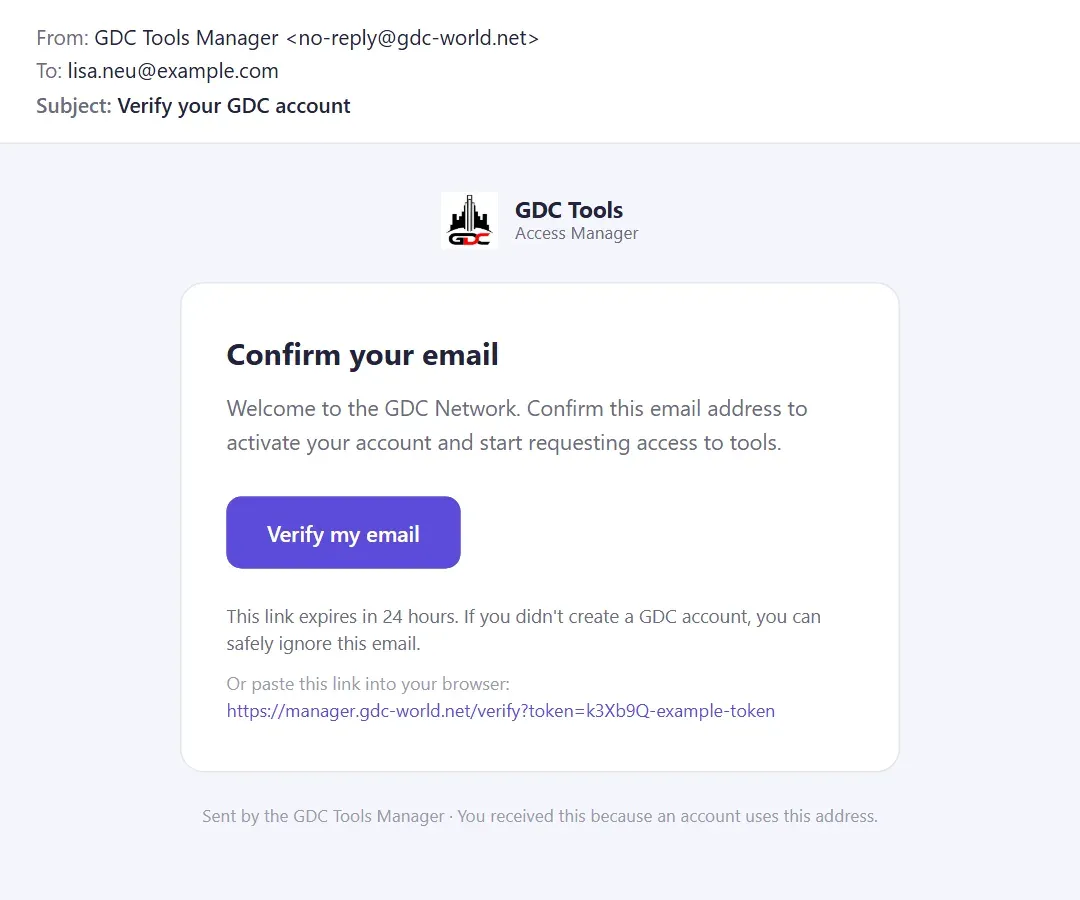
- Open the email and select the link. It is valid for 24 hours.
- The page Email verification confirms the address.
- Choose Go to sign in and sign in with your email address and password.
If you signed up from a tool, the page also says Access to … has been requested for you. The administrators are notified, as if you had requested it yourself.
Until the address is confirmed, signing in is refused with a reminder to verify it. If the link has expired or the email does not arrive, see Troubleshooting.
Approval of your tools
Every tool needs an administrator’s approval before you can open it.
- The tool you signed up from is requested for you as soon as you confirm your email address, if you chose Create account on that tool’s sign-in page. You will find it on My tools under Awaiting approval. There is nothing more to do.
- Any other tool is listed on My tools under Other tools. Choose Request access on each one you need.
Either way, the administrators are notified straight away.
While you wait, the tool is listed under Awaiting approval, marked Requested — pending admin approval. As soon as an administrator grants it, it moves up to Available tools, and you get an email and a notice at the top of the page. If the request is declined, the tool goes back to Other tools, and you can choose Request again. See My tools.
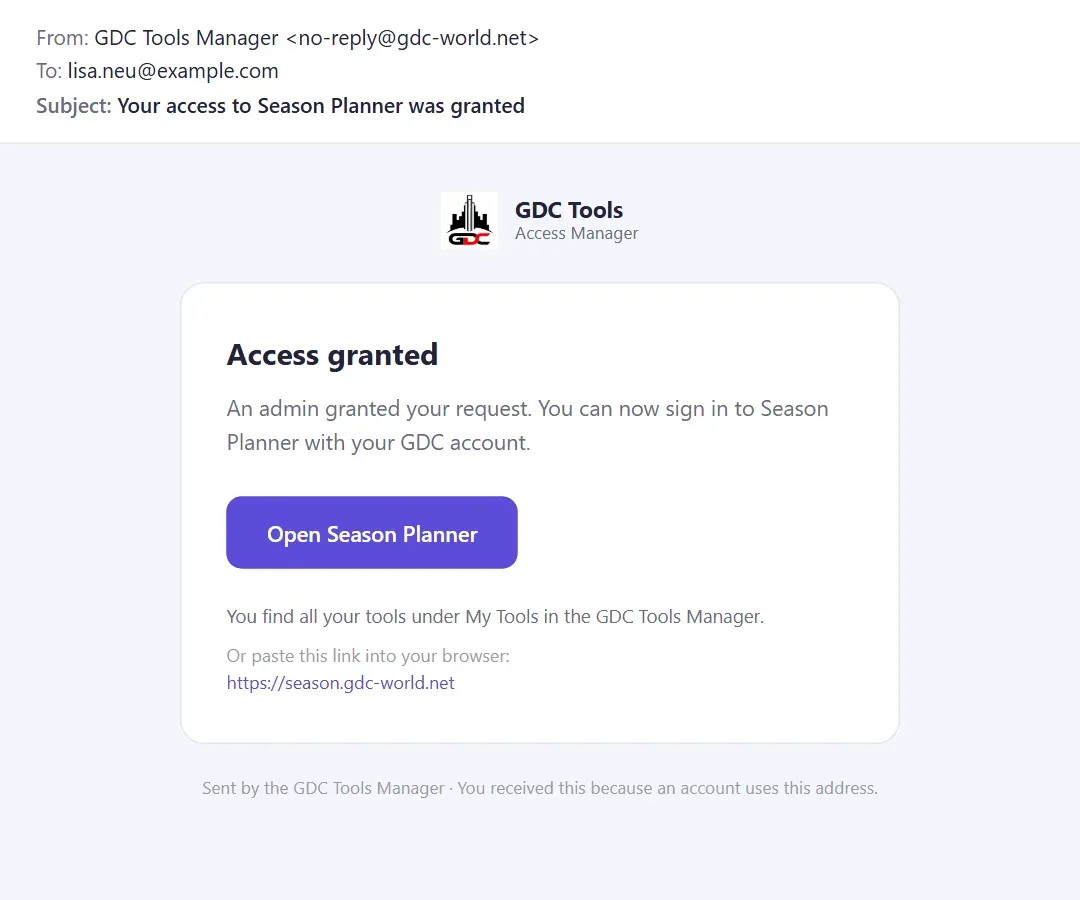
When an administrator grants your request, you get this email. Its button opens the tool:
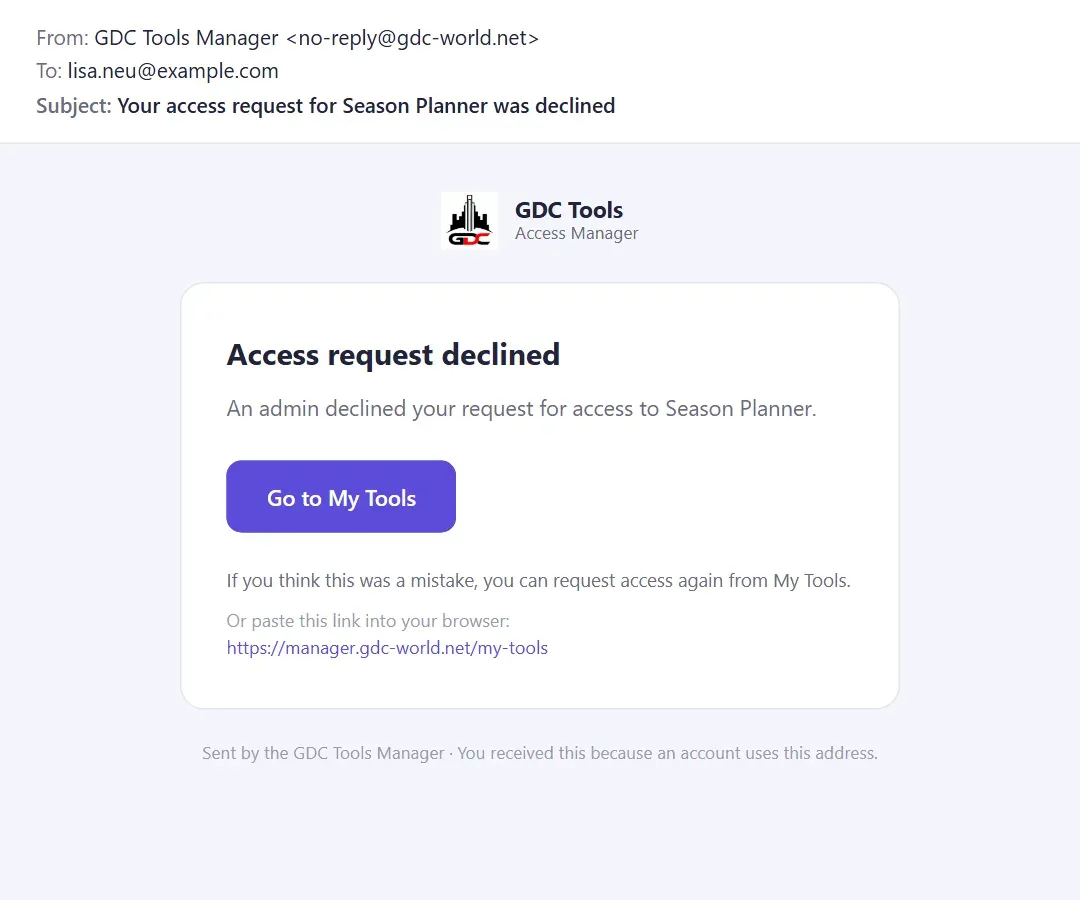
A declined request is announced the same way, with the subject Your access request for … was declined and a button to My tools, where you can request again:
If an administrator later removes your access, the subject is Your access to … was removed. See Emails you receive.
If you are waiting longer than you expected, write to dev@gdc-world.de.
Emails you receive
All emails come from GDC Tools Manager (no-reply@gdc-world.net) and are in English. Replies to it are not read; write to dev@gdc-world.de instead.
| Subject | When | What to do |
|---|---|---|
| Verify your GDC account | You signed up | Select Verify my email within 24 hours. See Confirm your email address. |
| Your access to … was granted | An administrator granted a tool | Open … opens the tool. Sign in there. |
| Your access request for … was declined | An administrator declined your request | You can request again on My tools. |
| Your access to … was removed | An administrator removed your access | You can request again on My tools. |
| Reset your GDC password | You chose Forgot password? | Select Choose a new password within 1 hour. See Troubleshooting. |
| You have been invited to … / Create your GDC account to join … | Someone invited you into their household | See Joining through an invitation. |
| Your GDC account was deleted | An administrator deleted your account | Nothing, unless you did not expect it. See Profile. |
If an email does not arrive, look in your spam or junk folder, and mark it as not spam so the next one arrives normally.
Your household
Every account belongs to exactly one household. When you sign up on your own, the Tools Manager creates a household just for you, named after your email address, and makes you its Household admin.
The tools store their data per household, not per person. So:
- Everyone in a household sees and edits the same data in every tool.
- Other households never see it.
- If you use the tools on your own, nothing more is needed.
- If you share, for example, the cats or the recipes with your family, bring them into your household: open My household and invite them. See My household.
The name of your household can be changed by a GDC administrator. Write to dev@gdc-world.de if you would like a name such as “Familie Muster”.
Joining through an invitation
If someone invites you into their household, you receive an email.
- You have no account yet: the link in the email opens Create your account with the note You were invited. Your email address is already filled in. Sign up with this exact address. You do not need to confirm your email this time: you are signed in straight away and are a member of the household.
- You already have an account: sign in. The invitation is waiting at the top of My tools. See My tools.
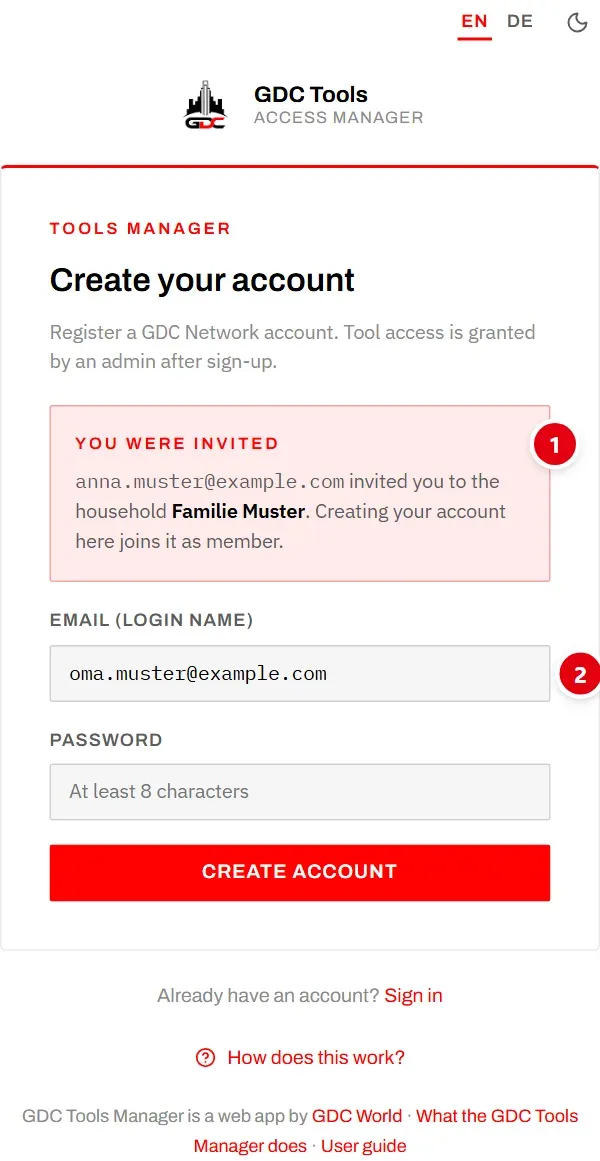
- 1 You were invited names the household and who invited you.
- 2 The invited address is filled in. Signing up with another address through this link is refused.
If you sign up without the link, your account works normally and the invitation waits for you on My tools.
Open a tool
On My tools, every tool under Available tools has an Open tool button. It opens the tool in a new tab.
In the tool, sign in with the same email address and password as here. The tool then shows the data of your household.
If a tool says that your access is awaiting admin approval, your request is still open. If it says that you have not requested access yet, or that your request was declined, it offers Request access (or Request again). The link opens My tools with that tool at the top, so one more click sends the request. See Approval of your tools.
The first steps
- Create your account and confirm your email address.
- Sign in. You land on My tools.
- If you share your data with others: open My household and invite them, or accept the invitation you received.
- Request the tools you need under Other tools. When a tool is listed under Available tools, choose Open tool and sign in there.
- Use ? at the top right of any screen when you want to know what it does. See Basics.