
The week
The planner is your household’s dinner calendar. Everyone in the household sees and edits the same plan.
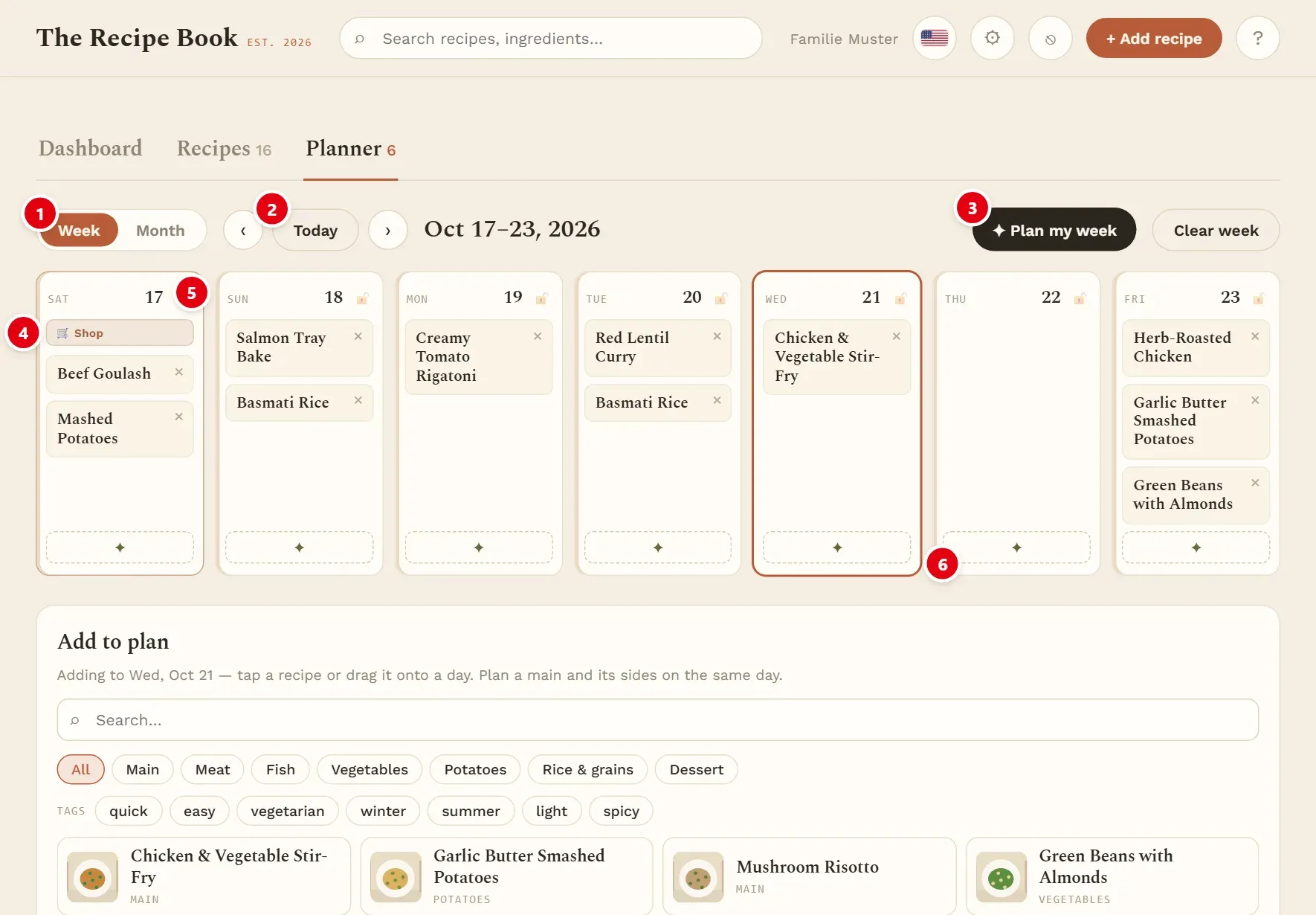
1 switches between Week and Month.
2 Today jumps back to the current week and selects today. The arrows ‹ and › beside it go one week back or forward.
3 Plan my week opens the planning assistant, which proposes dinners for a whole shopping cycle. See Planning assistant.
4 marks the grocery shopping day with Shop. The week always starts on this day, so one week reads as one shopping run.
5 the padlock button locks a day. See Lock a day.
6 the ✦ button suggests a dinner for just this one day. See Suggestions for one day.
Tap a day to select it (it gets a coloured frame). Recipes you tap in Add to plan go onto the selected day.
Add recipes
Below the week, Add to plan lists your recipes so you can put them on the calendar.
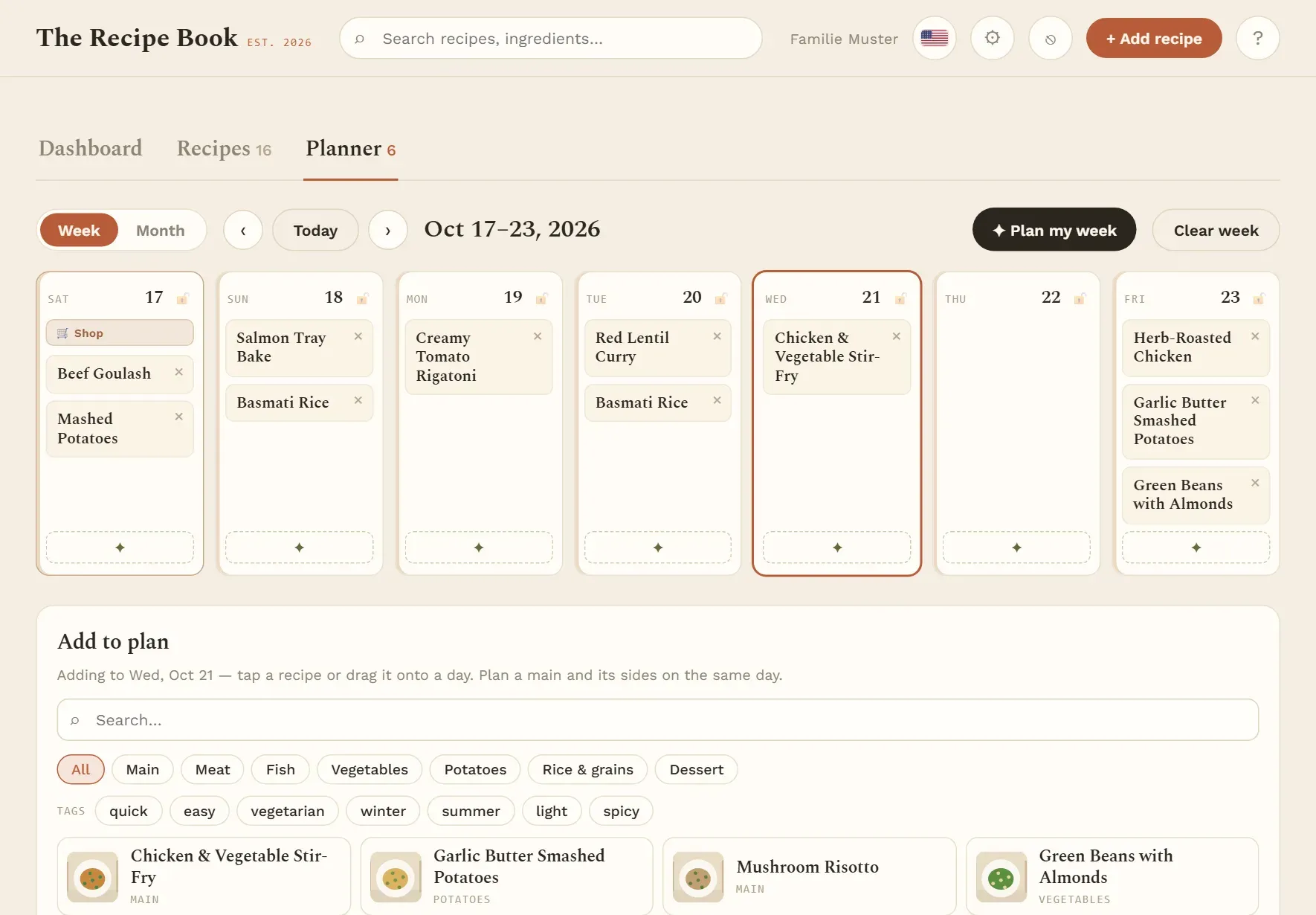
- Tap the day you want to plan.
- Find the recipe: type in Search (it searches titles, tags and ingredients), or tap a category or one or more tags to narrow the list.
- Tap the recipe. It is added to the selected day.
You can also drag a recipe from the list straight onto any day.
A day can hold several recipes. Plan a main and its sides on the same day, for example a meat dish, rice and a vegetable. The shopping list then covers all of them.
The list shows recipes in the Testing and Active phases. Archived recipes are left out, but anything already planned stays on the calendar. See Recipe phases.
Move and remove
Plans change. You can move a dish to another day or take it off the plan.
- Move: drag a dish onto another day. This works in the week and in the month.
- Remove: tap the × next to the dish. It is removed straight away, without a question.
- Open the recipe: tap the dish’s name.
Shopping day
The shopping day is the day you do your big grocery shop. A shopping cycle runs from one shopping day to the day before the next one. The shopping list covers exactly one cycle, so you buy everything for those days in one go.
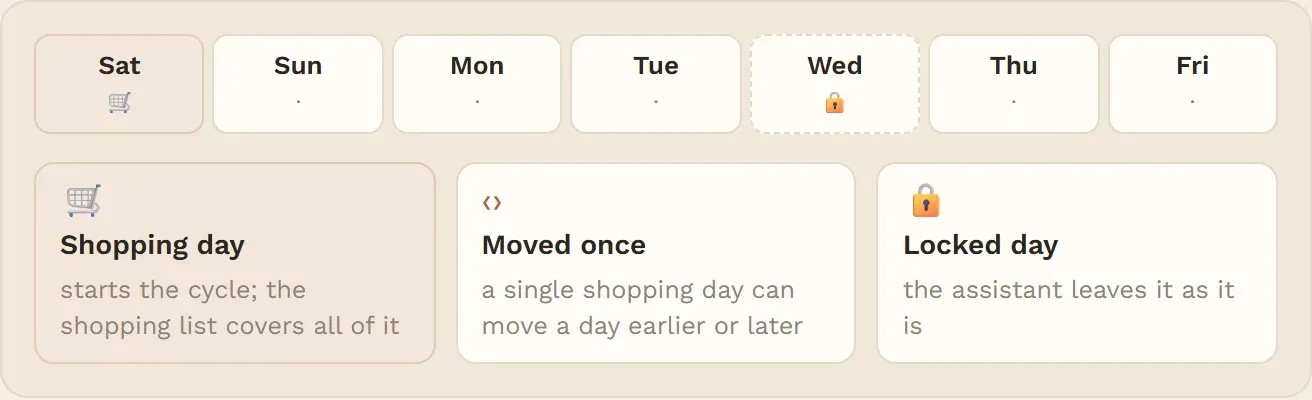
- The shopping day is marked Shop in the week and with a small trolley in the month.
- You choose the weekday in the planning assistant, under Grocery shopping day.
- If you shop on a different day just once (a holiday, for example), move only that one shopping day there. The regular weekday stays. See Shopping day.
Lock a day
Lock a day when its dinner is settled, for example a birthday dinner or an evening out. The planning assistant then leaves it alone.
- Tap the padlock button at the top right of the day.
- The padlock closes. Tap it again to unlock the day.
A locked day is skipped when the assistant proposes a plan, and Accept plan never changes it. It has no ✦ suggestion button, and clearing the week leaves it as it is. You can still add, move and remove dishes on it yourself. Locks are shared with everyone in your household.
The padlock is only in the week view.
Month view
The month view gives you the overview: what is planned over the next weeks, and where there are gaps.
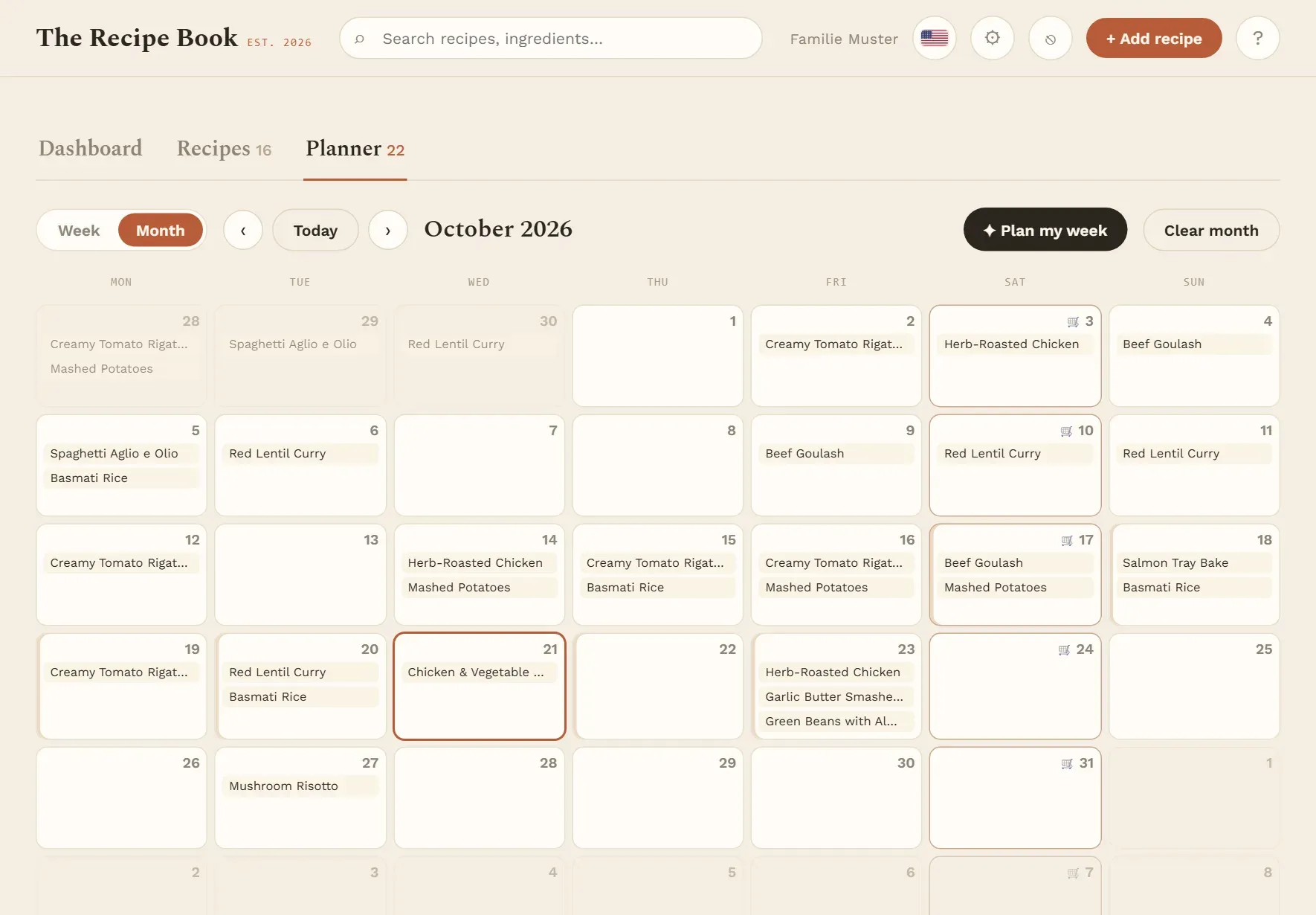
- The month starts on Monday. Days of the neighbouring months are shown faded.
- A small trolley marks each shopping day.
- Tap a day to select it, then tap a recipe in Add to plan, or drag a recipe onto a day.
- Drag a dish to move it to another day. Tap a dish to open the recipe.
- ‹ and › go one month back or forward.
Locking, removing with ×, the ✦ suggestion and the assistant’s proposal are only in the week view. Plan my week switches to the week view for you.
Clear
Clear empties the period on screen in one step, for example to start a week from scratch.
The button’s label tells you what it clears:
| Label | When it appears | What it clears |
|---|---|---|
| Clear week | Week view | The week shown |
| Clear cycle | Week view while the planning assistant is open or a proposal is waiting | The shopping cycle shown |
| Clear month | Month view | The month shown |
The faded days of the previous and next month in the month view are not cleared.
Before anything is removed, the app asks for confirmation and says how many dinners will go. Locked days keep their dishes: unlock a day first if you want to clear it too. When there is nothing to remove, the button is greyed out.