
Open the assistant
The planning assistant proposes dinners for a whole shopping cycle at once. You review the proposal day by day, change what you don’t like and then accept it. Nothing is saved until you do.
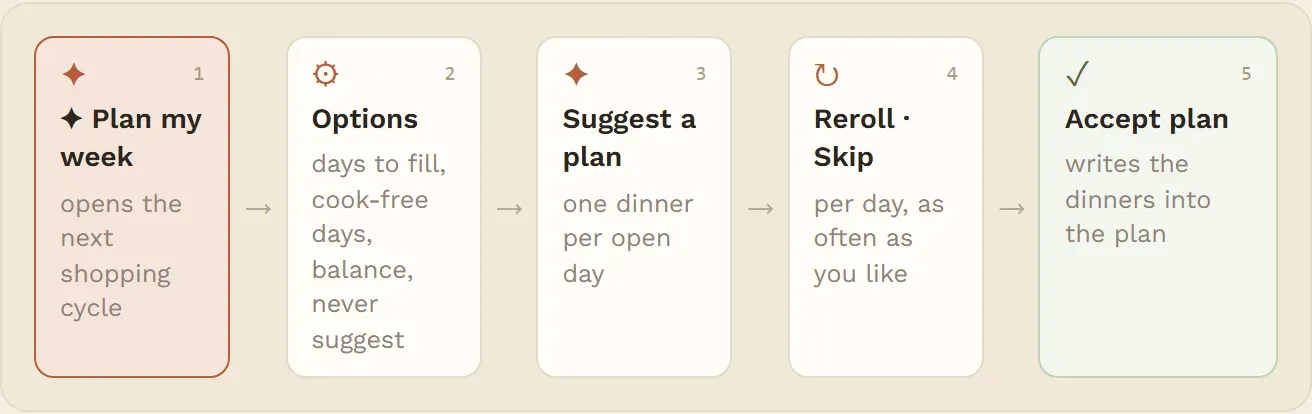
- In the Planner, tap Plan my week. The assistant opens above the calendar, and the button changes to Hide assistant.
- Check the options (see below).
- Tap Suggest a plan. The suggested dinners appear in the days of the week.
- Reroll or skip single days until you like the plan.
- Tap Accept plan.
The assistant plans the cycle on screen, shown at the top as Next shopping cycle with its dates. A cycle that has already started cannot be planned, so the assistant then takes the next one. For the remaining days of the current cycle, use the ✦ button on a day (see Suggestions for one day).
While the assistant is open, the week shows exactly that cycle, and ‹ › step one cycle at a time.
What the assistant may suggest:
- Only recipes in the Active phase. New recipes start in Testing and are not suggested until you make them Active. See Recipe phases.
- Only recipes whose category has a dinner role. The roles decide how a plate is put together: a Main dish stands alone; a Protein / meat, Side or Vegetable is combined with recipes of the other roles. Categories set to Not planned (desserts, drinks) are never suggested. See Categories.
- Each recipe at most once per proposal.
If no category has a role yet, the assistant says so and cannot suggest anything.
Shopping day
The assistant is where you set your grocery shopping day. It decides where each cycle starts and what the shopping list covers.
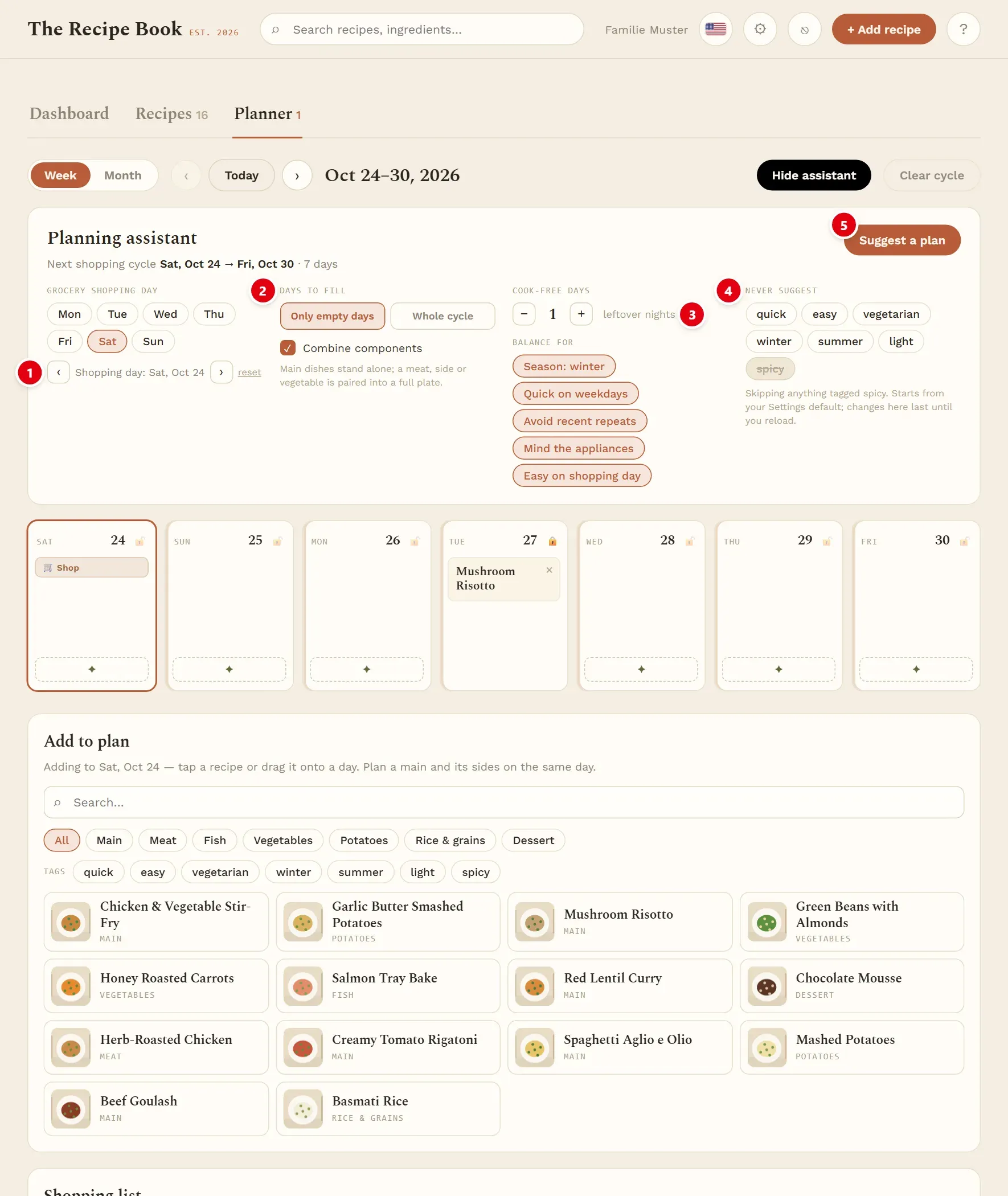
1 moves only this one shopping day a day earlier (the arrow › beside it moves it later).
2 Days to fill chooses which days get a suggestion.
3 Cook-free days sets the number of leftover nights.
4 Never suggest leaves out recipes with certain tags.
5 Suggest a plan builds the proposal.
The options are explained in the next sections.
- Grocery shopping day: tap a weekday to set your regular shopping day. The week view then starts on that day.
- Shopping day: below the weekdays, ‹ and › move only this cycle’s shopping day by one day. The cycle becomes a day shorter or longer, and the next one adjusts. reset puts it back on the regular weekday.
The shopping day applies to everyone in your household.
Options
The options control which days are filled and which dinners are preferred. If a proposal is already showing, it is rebuilt as soon as you change an option.
Days to fill:
- Only empty days: days that already have a dish stay as they are.
- Whole cycle: every day that is not locked is planned anew. Accepting replaces what was there.
- Combine components: when ticked, a plate can be a main dish on its own or two to three components (for example meat, side and vegetable). When not ticked, only main dishes on their own are suggested.
Cook-free days: use − and + to reserve 0 to 4 leftover nights. They are spread from the end of the cycle and shown as Cook-free. At least one day is always cooked.
Balance for shapes the choice. Tap a criterion to turn it off or on again:
- Season: summer or Season: winter (whichever it is now): prefers recipes tagged with the current season and avoids those tagged with the other one.
- Quick on weekdays: quick dishes (tagged quick, or 30 minutes or less) on work nights, longer cooking at the weekend.
- Avoid recent repeats: recipes that are already in the plan around this time come last.
- Mind the appliances: a plate never needs an appliance more often than it can be used at the same time, for example only one oven dish. The limits are set under Devices.
- Easy on shopping day: on the shopping day itself, quick and easy dishes are preferred and long ones avoided.
Then tap Suggest a plan.
The proposal
The proposal is a draft shown in the days of the week. You can change it as often as you like before saving it.
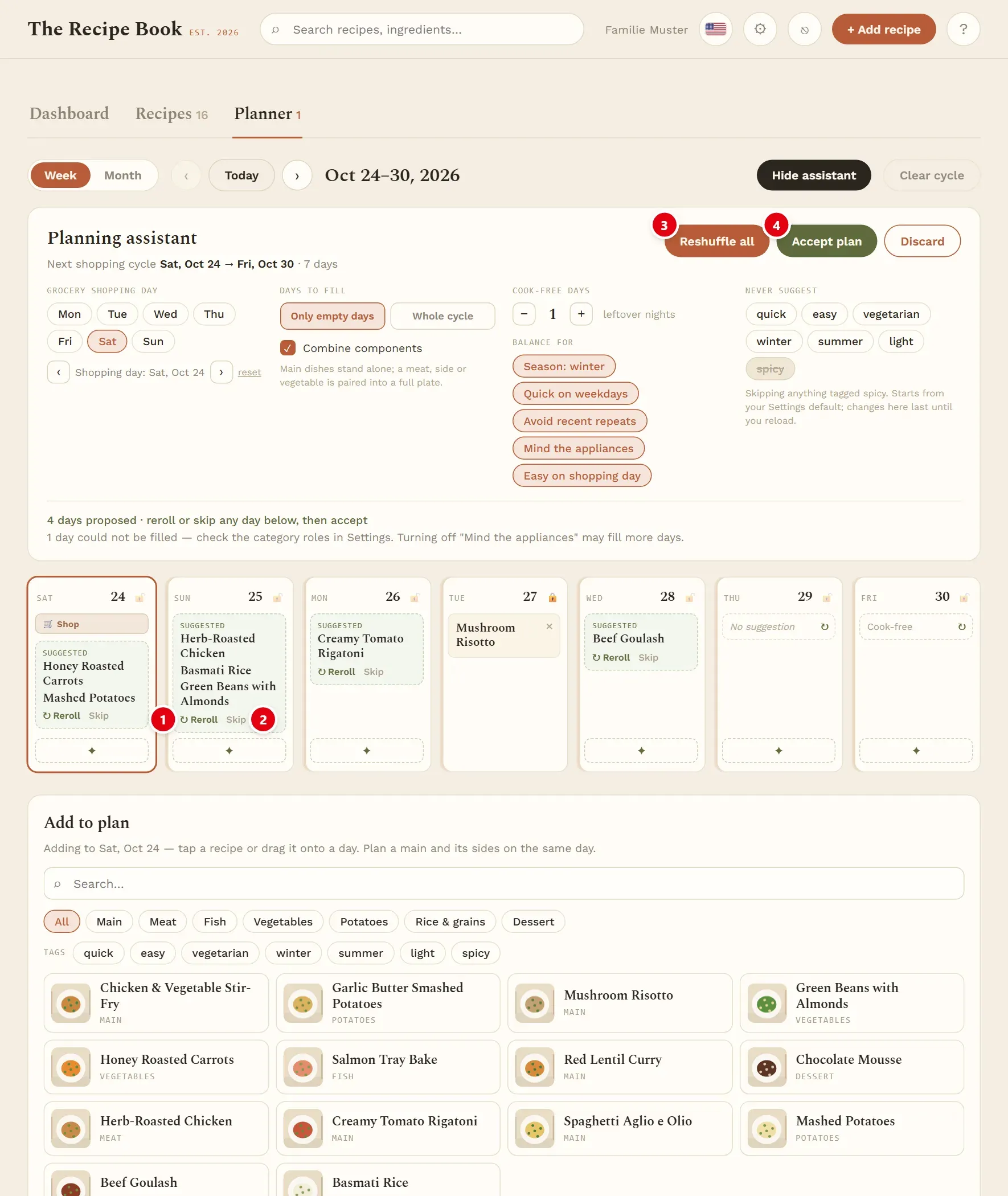
1 Reroll replaces this day’s suggestion with a different one.
2 Skip turns the day into a cook-free day.
3 Reshuffle all builds a completely new proposal.
4 Accept plan saves the suggested dinners into the plan. The assistant closes and the planner shows the planned cycle.
Other things you see:
- Suggested marks a proposed dinner; a plate can list several recipes.
- Cook-free marks a leftover night. Tap the round arrow to get a dinner for it after all.
- Days that already had dishes (with Only empty days) and locked days keep what they have.
- Discard throws the proposal away. Hiding the assistant keeps the proposal until you accept or discard it.
No suggestion
No suggestion means nothing suitable was left for that day. The line above the week then says how many days could not be filled. Common reasons:
- Too few Active recipes with a dinner role. Make more recipes Active, or check the roles under Categories.
- Never suggest excludes too much.
- Mind the appliances rules out the remaining combinations. Turning it off may fill more days.
Tap the round arrow on the day to try again, or add a recipe yourself from Add to plan. A day without a suggestion stays empty when you accept.
Suggestions for one day
Sometimes you only need an idea for one evening. The ✦ button at the bottom of every day in the week view suggests a dinner for just that day. It works in any week, with or without the assistant open. Locked days have no ✦ button.
- Tap ✦ on the day. A card marked Suggested appears.
- Use the buttons on the card:
- Reroll (round arrow): another suggestion.
- Plan it (tick): saves the suggestion. It replaces any dishes already on that day.
- Dismiss (cross): removes the suggestion; nothing is saved.
If nothing fits, the card says No suggestion. Remove it with Dismiss and add a recipe yourself.
The suggestion follows the same rules and options as the assistant and avoids recipes already planned nearby. On a day that is part of an open proposal, ✦ rerolls that day instead.
Never suggest
Some weeks you want to leave certain dishes out, for example nothing spicy while a guest is staying. Never suggest lists your tags.
Tap a tag to skip every recipe with that tag. It appears crossed out. Tap it again to allow it.
- The list starts from the default under Planning. Changes made here last until you reload the app.
- Skipped recipes can still be planned by hand.