
The header
The header at the top of every screen gets you everywhere in the app. The app has no separate menu, so everything starts here.

- 1 The name The Recipe Book takes you back to the main screen, to the tab you used last (Dashboard, Recipes or Planner).
- 2 The search box finds recipes by name or ingredient. It is shown on the three main tabs; on other screens a Back to all recipes link takes its place.
- 3 The name of your household, so you can see whose recipe book is open.
- 4 The flag switches the language between English and German.
- 5 The gear button ⚙ opens Settings.
- 6 The sign-out button signs you out on this device. Hold the pointer over it to see which email you are signed in with.
- 7 Add recipe opens the screen for adding a new recipe.
- 8 The ? button opens the help for the screen you are on.
Browser back works between screens, so you can always return to where you were.
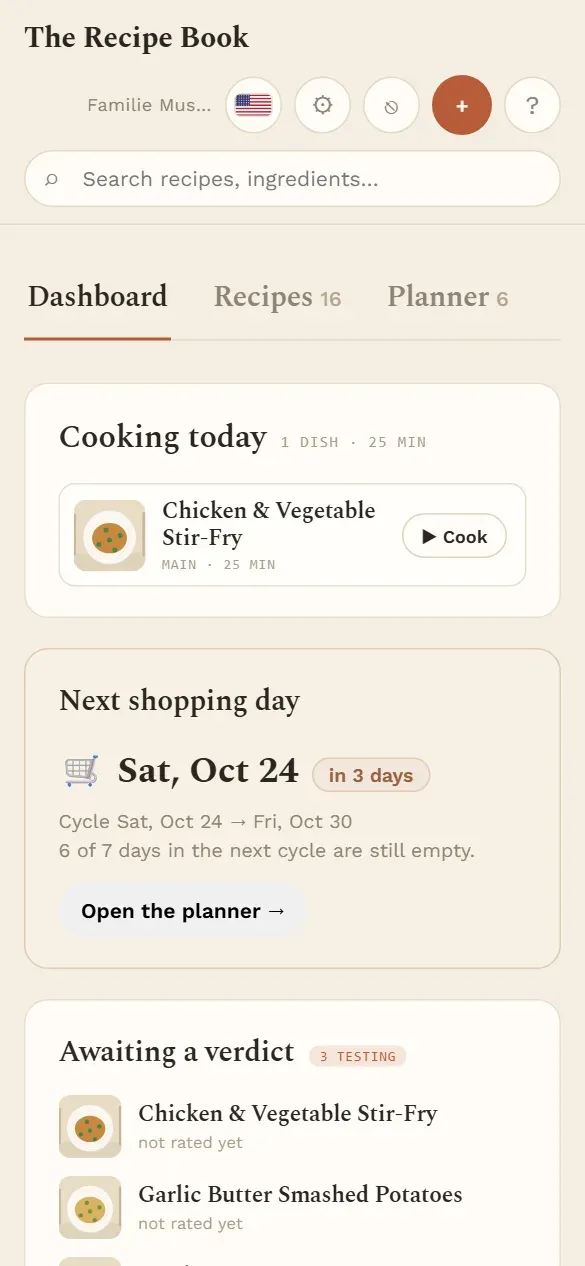
On a phone the header is arranged more compactly: the search box moves to its own line, and Add recipe becomes a round + button.
Help
The help explains the screen you are looking at, right where you need it. You do not have to search for the right page.
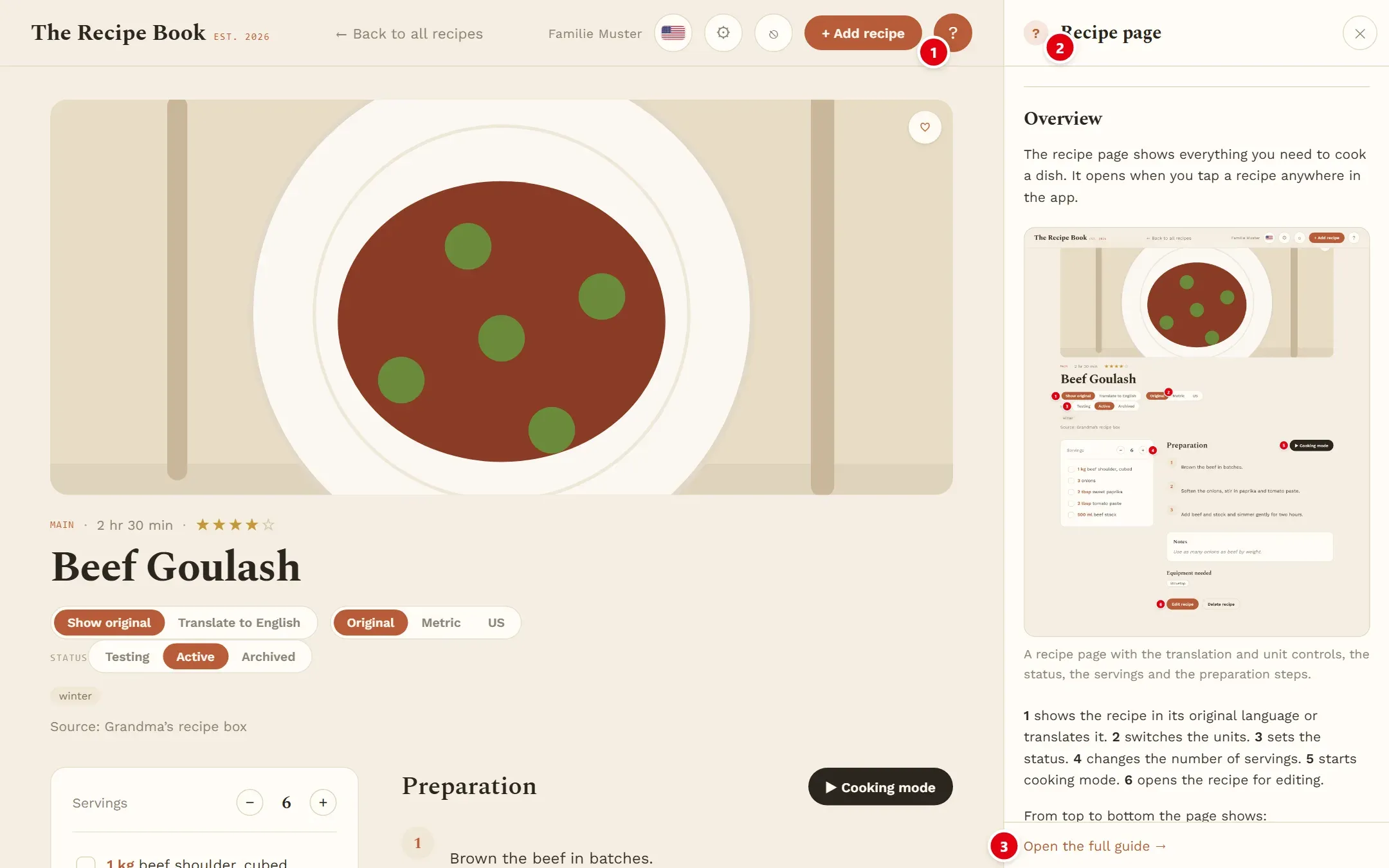
- 1 The ? button opens and closes the help. While the help is open, the button is highlighted.
- 2 The panel’s title names the topic for the current screen. If you switch screens with the help open, it switches with you.
- 3 Open the full guide opens the complete guide with all topics.
On a large screen the help sits beside the app. On an iPad or phone it slides in from the right; close it with the × button, the Esc key or by tapping outside it. The app remembers on each device whether you left the help open.
You can also reach the guide from Settings: under Guide, tap Open the guide.
Language
The app can be used in English or German. Tap the flag in the header to switch; the flag shows the language that is currently active.
The choice applies to this device only, so everyone in the household can use the app in their own language. A device that has never chosen a language shows the sign-in in your browser’s language, and after signing in uses the one chosen last in your household.
The language switch changes the app’s buttons and texts. Recipes keep the language they were saved in; how to show a recipe in the other language is explained under Translation.
Refreshing data
Everyone in your household works with the same data, often on several devices at once. The app keeps itself up to date, so you rarely have to do anything.
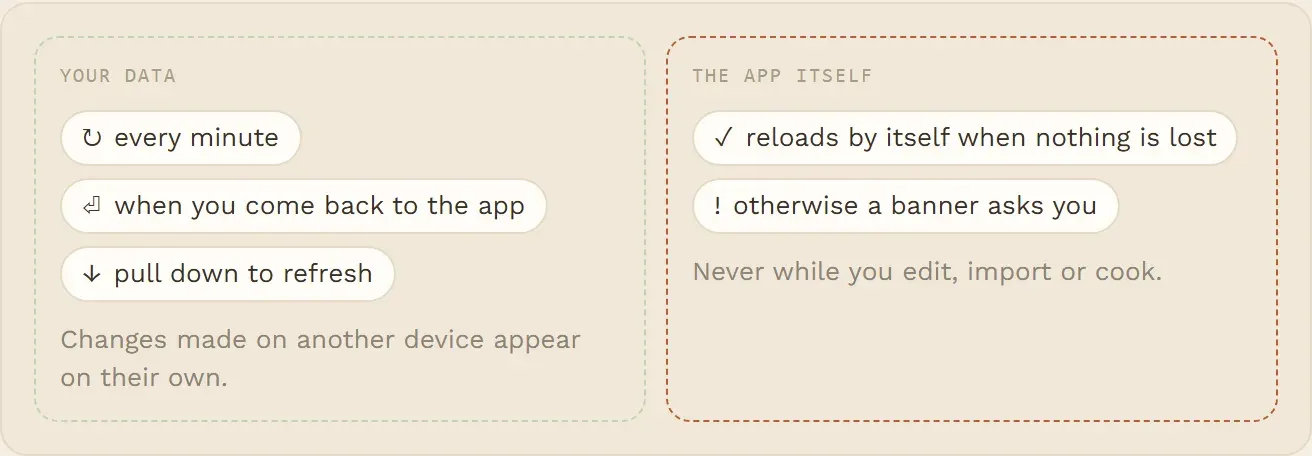
- While the app is open, it fetches the latest recipes, meal plan and settings every minute.
- When you come back to the app after more than a minute away, it fetches them straight away.
- On an iPad or phone you can refresh by hand: at the very top of a screen, pull down with one finger and let go. A spinner shows while it loads.
While you edit or add a recipe, or use Cooking mode, all of this is paused, so nothing you have typed is lost. They start again as soon as you are done.
Updates
From time to time a new version of the app is released. The app notices this by itself and loads the new version, so you do not have to reinstall anything.
When nothing would be lost, the app simply reloads. While you are editing or adding a recipe, or cooking one, it waits and shows a banner instead.
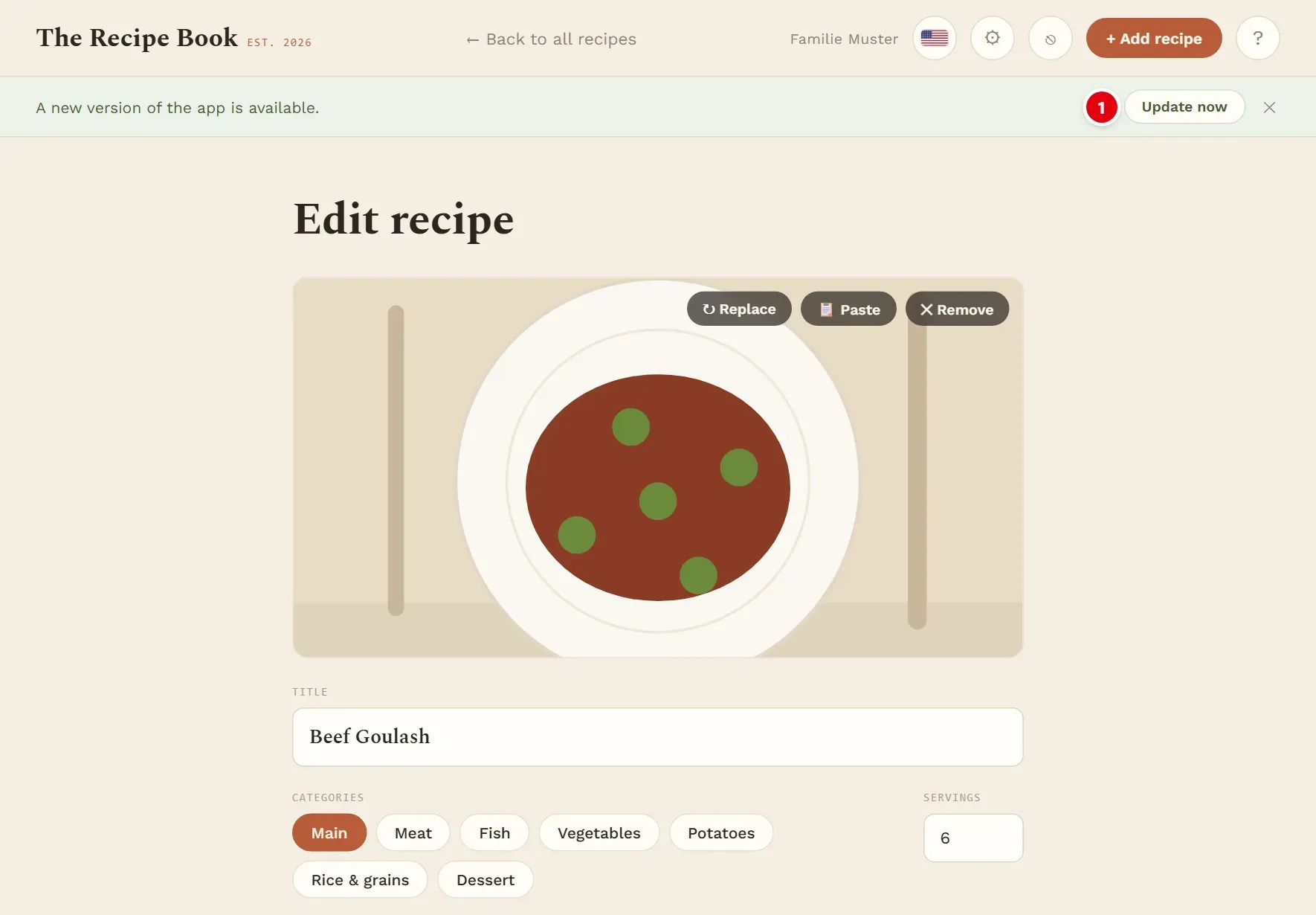
- 1 Update now loads the new version. Save your changes first, because anything not yet saved is lost.
The × at the end of the banner hides it until later; the new version is then loaded the next time it is safe.