
The fields
The recipe form is where a recipe’s details are written down. You see it in three places: as Review recipe after the app has read a recipe, as New recipe when you enter one by hand, and as Edit recipe when you tap Edit recipe on a recipe’s page.
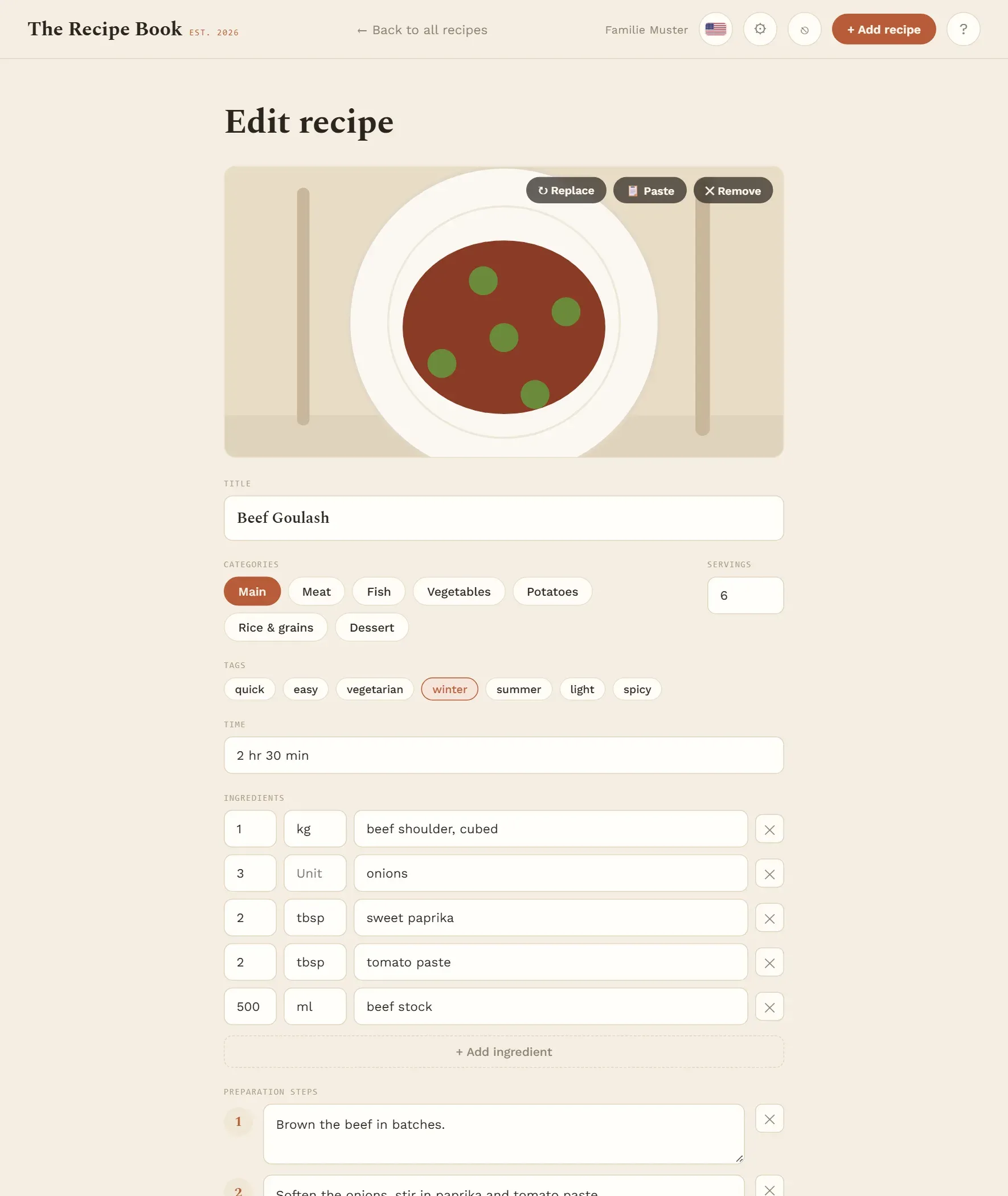
From top to bottom:
- Title: the recipe’s name. A recipe cannot be saved without one.
- Categories: what kind of dish it is. Tap to select; you can choose more than one. The categories help with filtering and tell the planning assistant how the dish fits into a dinner.
- Servings: how many people the amounts are for. The recipe page scales the amounts from this number (see Servings).
- Tags: extra labels such as “quick” or “winter”. Tap to select, as many as fit.
- Time: free text, for example “30 min”.
- Ingredients and Preparation steps: see below.
- Original source: the web address the recipe came from, if any.
- Notes: tips, variations, anything you want to remember.
- Equipment needed: the kitchen devices the recipe uses.
You manage the lists of categories, tags and devices in Settings. An entry with a dashed outline was removed there but is still on this recipe; tap it to take it off.
Photo
A photo makes a recipe easy to find in the lists. A recipe read from a link or photo usually brings its picture along.
Without a photo:
- Add a photo picks a picture from your device (on a phone or iPad, usually also the camera).
- Paste image inserts a picture you have copied, for example from a web page. On a computer, Ctrl+V anywhere on the form works too.
With a photo, three buttons sit on the picture:
- Replace picks a different picture.
- Paste inserts a copied picture instead.
- Remove takes the picture away.
Large photos are made smaller before upload, so they load quickly. If the form shows “Image unavailable — replace or remove it”, the original picture can no longer be loaded; replace or remove it.
Ingredients
Each ingredient has its own row with three boxes: Qty, Unit and Ingredient.
- Qty takes numbers with a point or a comma, such as 1.5 or 1,5. Leave it empty for “to taste”.
- Unit is for g, ml, tbsp and the like; leave it empty for items you count (“2 red peppers”).
- Ingredient is the name.
Add ingredient adds a row; the ✕ at the end of a row removes it. Rows without a name are dropped when you save. Keeping amount, unit and name apart is what lets the app scale and convert amounts and build the shopping list.
Steps
Preparation steps are the instructions, one box per step, in the order you cook them.
- Add step adds a step at the end; the ✕ removes one.
- To change the order, drag a step by its number. With a keyboard, select the number and use the up and down arrow keys.
- Empty steps are dropped when you save.
Equipment
Equipment needed lists the kitchen devices from your settings; tap the ones this recipe uses. They are shown at the end of the recipe, and the planning assistant uses them so that, for example, two oven dishes do not land on the same plate.
If the list is empty, the form says “No devices configured yet — add some in Settings.” Add devices under Devices.
Save
- Tap Save recipe (when editing: Save changes). The button stays greyed out until the recipe has a title.
- The recipe page opens with your changes.
A new recipe starts in the Testing phase (see Phases). Editing a recipe keeps its phase and rating.
Cancel leaves the form without saving anything. If saving fails, a message appears above the buttons and your entries stay in the form, so you can simply try again.