
Categories
Settings hold the lists you choose from when you describe a recipe, plus a few defaults for planning and units. They apply to your whole household. Open them with the gear button ⚙ in the header, or go to Settings.
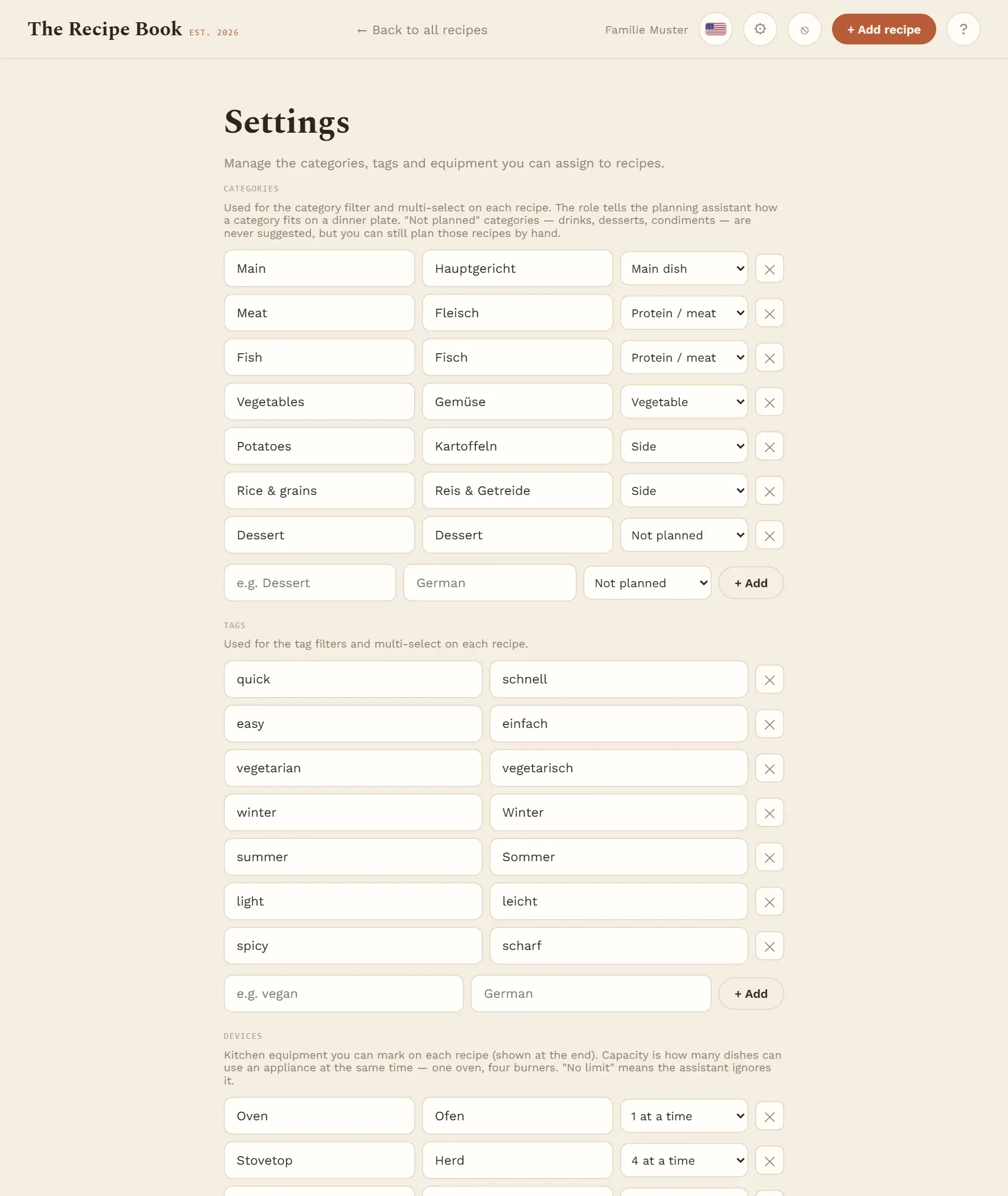
Categories say what kind of dish a recipe is. You filter by them on the Recipes screen, and the planning assistant uses them to put dinners together.
Each category has a row with three boxes:
- the name in English,
- the name in German (the app shows the one for your current language),
- its role on the dinner plate.
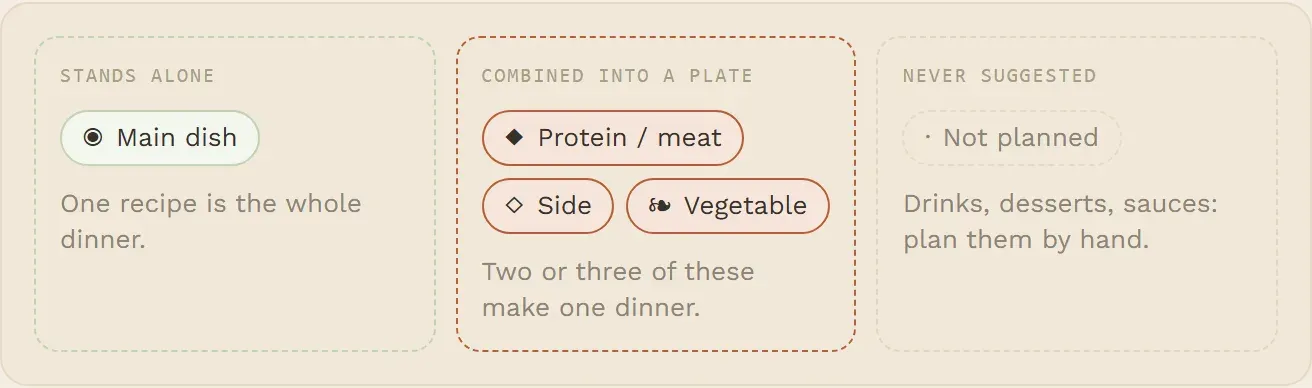
The role tells the planning assistant how a recipe of this category fits into a dinner:
- Main dish: one recipe is the whole dinner.
- Protein / meat, Side and Vegetable: two or three of these are combined into one dinner.
- Not planned: drinks, desserts, sauces and the like. The assistant never suggests them, but you can still plan them by hand.
To add a category:
- Type the English name in the empty row at the bottom (for example “Dessert”) and, if you like, the German one. Without a German name, the English one is used.
- Pick its role. A new category starts as Not planned, so nothing unexpected turns up in a suggested plan.
- Tap Add.
The ✕ at the end of a row removes a category. At least one category must remain.
Renaming and removing
This applies to categories, tags and devices alike.
- Renaming an entry changes its name everywhere, including on recipes that already use it.
- Removing an entry takes it off the list of choices. Recipes that already have it keep it. In such a recipe’s edit form the entry is shown with a dashed outline; tap it to take it off that recipe.
So if a category, tag or device is only badly named, rename it rather than remove it and add a new one.
Tags
Tags are extra labels such as “quick”, “vegetarian” or “winter”. A recipe can have as many as fit, and you filter by them on the Recipes screen. Tags are also what you can exclude from planning (see Planning).
Each tag has an English and a German name. Add one in the empty row at the bottom and tap Add; the ✕ removes one.
Devices
Devices are your kitchen equipment, such as the oven, stovetop or air fryer. You mark on each recipe which ones it needs; they are shown at the end of the recipe.
Besides the two names, each device has a capacity: how many dishes can use it at the same time.
- 1 at a time for an oven: the planning assistant will not put two oven dishes into one dinner.
- 4 at a time for a stovetop with four rings.
- No limit: the assistant ignores the device. New devices start like this, so they never restrict anything you did not intend.
Add a device in the empty row at the bottom and tap Add; the ✕ removes one.
Planning
Here you choose tags the planning assistant should never suggest, for example “party” or “Christmas”. Tap a tag to mark it; tap it again to clear the mark.
This list is the starting point for Never suggest each time you open the assistant. There you can still change it for a single week, without changing this default (see Never suggest). You can always plan such recipes by hand.
Units
Default units sets how ingredient amounts are shown when you open a recipe:
- Original: as written in the recipe.
- Metric: grams, millilitres, °C.
- US: cups, tablespoons, ounces, pounds, °F.
On each recipe page you can still switch for that recipe (see Translation and units).
Save
Changes on this page apply only once you tap Save settings at the bottom. Cancel leaves without saving.
Above the buttons, Guide with Open the guide leads to this guide, the same as the ? button in the header.