
Ways to add a recipe
There are four ways to get a recipe into your book. For a link, photo or PDF, the app reads the recipe for you (with AI) and fills in the form; you then check it and save.
Open the screen with Add recipe in the header (on a phone, the round + button), or go to Add a recipe.
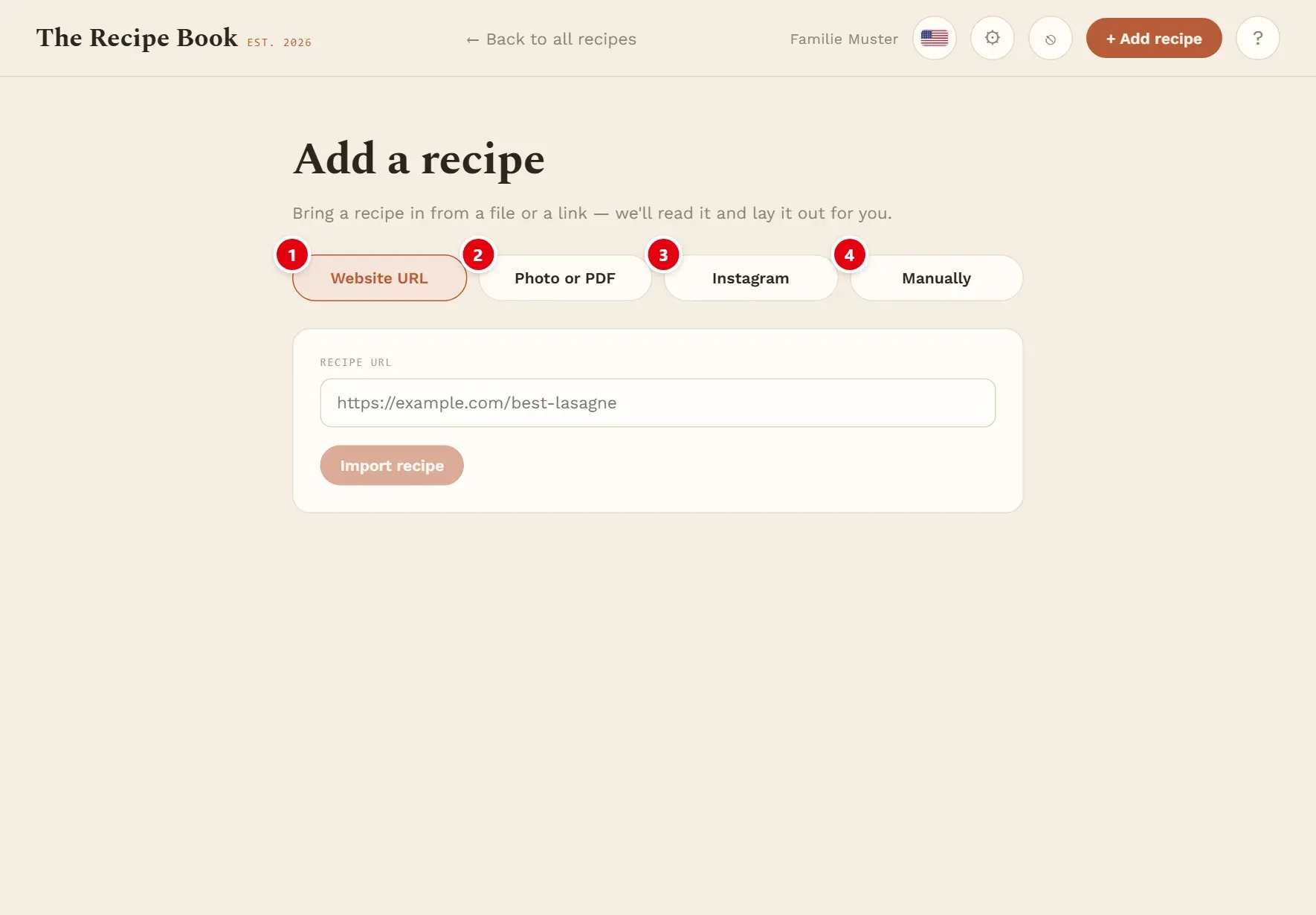
1 Website URL reads a recipe from a web page.
2 Photo or PDF reads a photo of a cookbook page or a recipe PDF.
3 Instagram reads the caption of an Instagram post.
4 Manually opens an empty form for typing a recipe in yourself.
From a link
Use this for a recipe you found on a website or on Instagram.
- Choose Website URL or Instagram.
- Copy the address of the page or post from your browser or the Instagram app, and paste it into Recipe URL (or Instagram post URL).
- Tap Import recipe, or press Enter.
The app picks up the recipe’s picture too, and suggests categories and tags from your own lists in Settings.
Good to know:
- Some websites protect themselves against automatic reading. They can take up to a minute; now and then one cannot be read at all.
- If the page holds no recipe, or sits behind a cookie or login wall, you get a message instead of a form.
- An Instagram post must be public. If a post cannot be read, try the recipe’s website instead, if it has one.
From a photo or PDF
Use this for a cookbook page, a handwritten card or a recipe saved as a PDF.
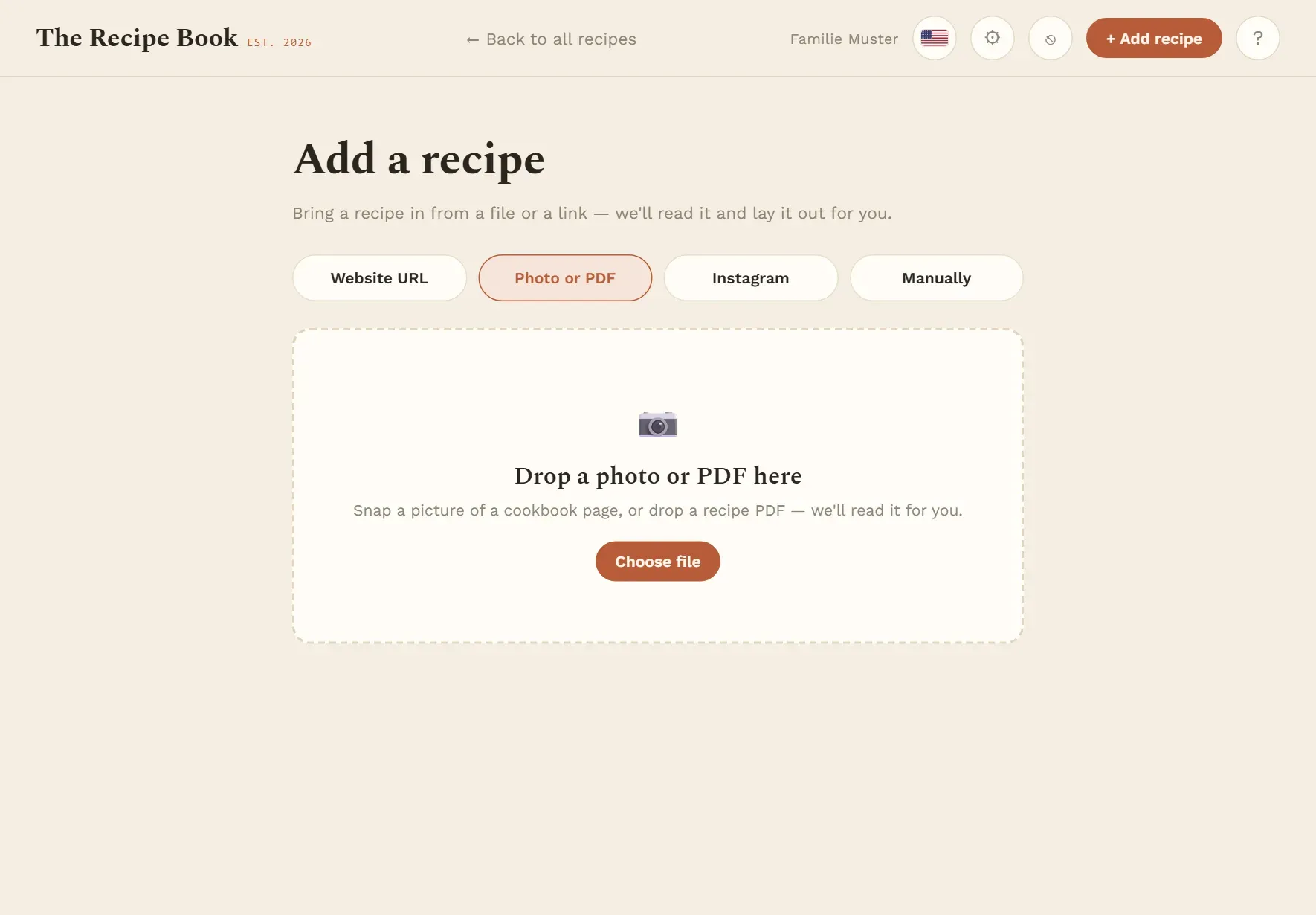
- Choose Photo or PDF.
- Tap Choose file and pick a photo or PDF. On a computer you can also drag the file onto the area. On a phone or iPad, choosing a file usually also offers the camera.
- A PDF is read straight away.
- A photo is shown first. If it lies sideways, turn it with Rotate left or Rotate right, then tap Import this photo. Choose another picks a different file.
The photo is saved with the recipe exactly as shown in the preview, so turn it upright first. The recipe itself can be read even from a sideways photo.
Good to know:
- Photos in JPG, PNG, WebP or GIF work. If a photo is refused as an unsupported format, save it as JPG and try again.
- A PDF needs real text in it. A scanned PDF is only a picture: take a photo of the page instead.
- Keep the page flat, well lit and sharp. If the text cannot be read clearly, you get a message rather than a guessed recipe.
By hand
For family recipes and anything that is not online, type the recipe in yourself.
- Choose Manually.
- Tap Start a blank recipe.
- Fill in the form (see Recipe form) and tap Save recipe.
While it reads
Reading a recipe takes a few seconds, sometimes longer. The screen Reading your recipe… shows what is happening, so you can see that it is still working.
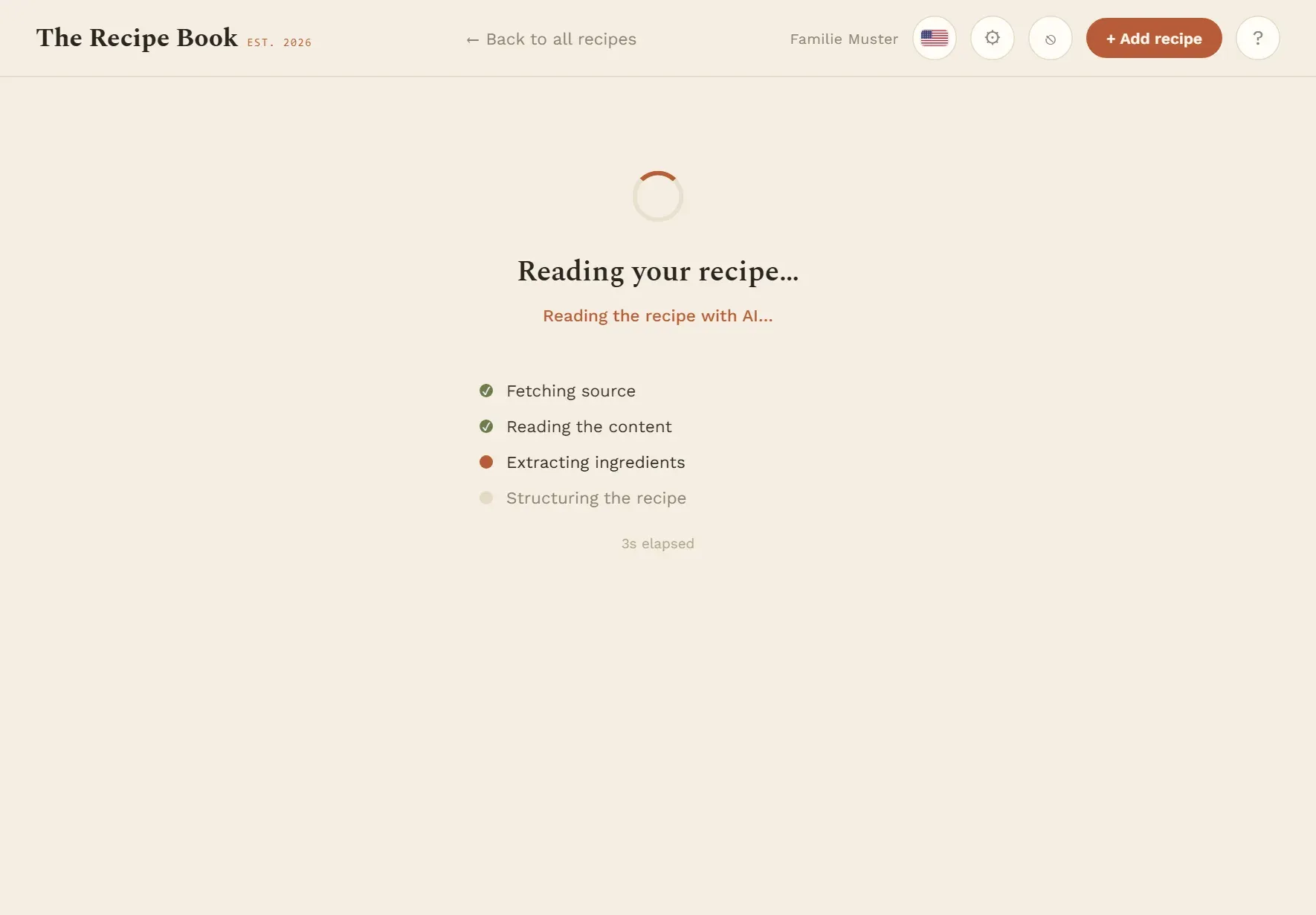
- The line under the heading says in plain words what is being done right now.
- The step list ticks off Fetching source, Reading the content, Extracting ingredients and Structuring the recipe.
- The seconds counter keeps running. After 15 seconds a hint reminds you that protected sites can take up to a minute.
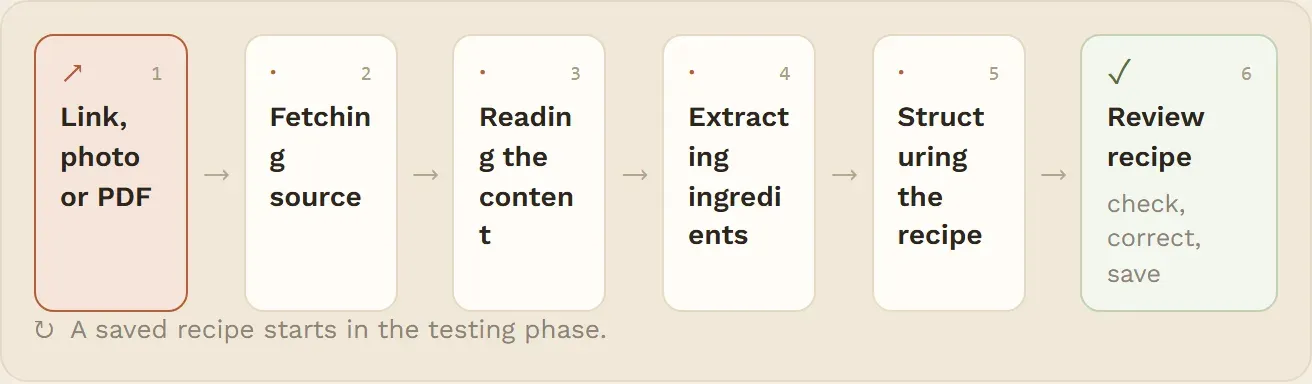
When it is done, the form opens for you to check. If something goes wrong, you are back on the first screen with a message saying why; try again, or choose another way.
Check and save
The AI is good but not perfect, so the recipe is never saved on its own. It opens in Review recipe, with the note “We extracted this recipe. Review the details and save.”
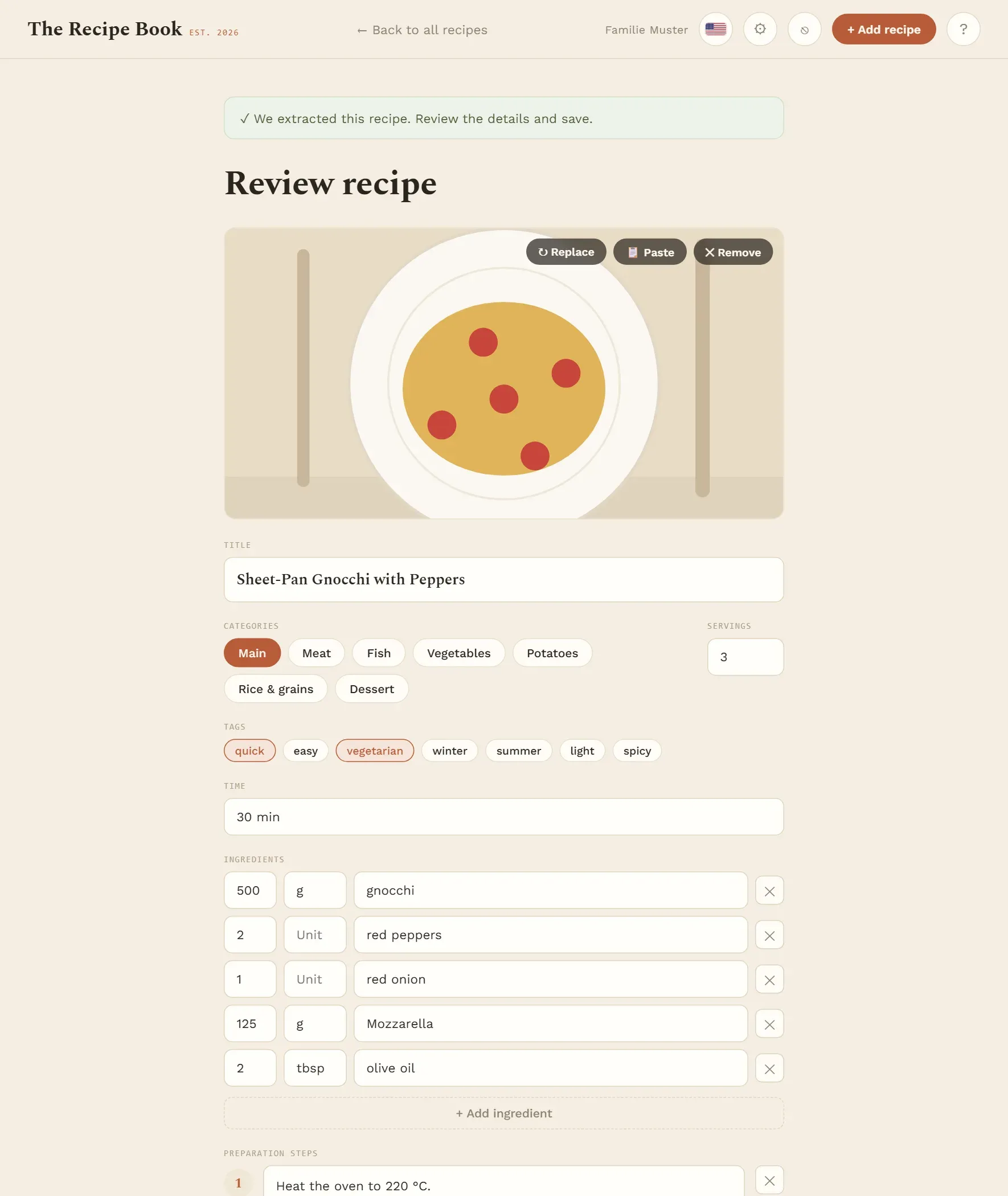
- Look over the title, amounts and steps, and correct what is wrong. The fields are explained in Recipe form.
- Tap Save recipe.
The new recipe opens straight away. It starts in the Testing phase until you have cooked it (see Phases). Cancel leaves without saving; the read recipe is then discarded.