
Signing in
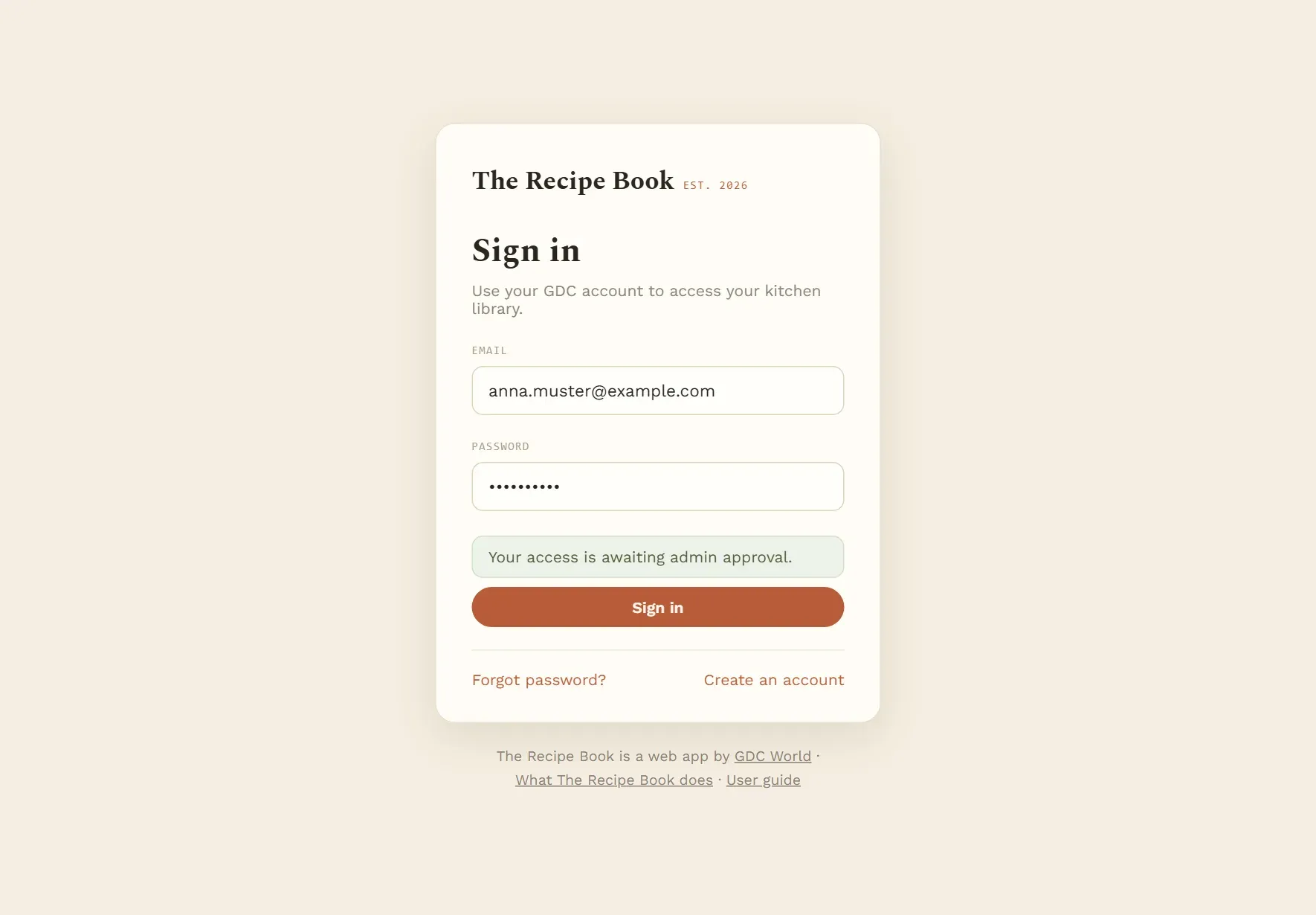
If signing in does not work, the sign-in screen shows a message below the password field. The table tells you what each message means and what to do.
| Message | What to do |
|---|---|
| Incorrect email or password. | Check both for typing errors. If you have forgotten the password, use Forgot password?. |
| Please verify your email before signing in. | Open the email you received when you registered and tap the confirmation link, then sign in again. After 48 hours without confirmation the account is deleted; then simply register again. |
| You have not requested access to The Recipe Book yet. | Tap Request access below the message. My tools in the GDC Tools Manager opens with The Recipe Book at the top; send the request there. See Approval. |
| Your access is awaiting admin approval. | An administrator still has to grant you access. You get an email when they decide; then sign in again. If it takes long, write to dev@gdc-world.de. |
| Your access request was declined. You can request it again. | Tap Request again below the message and send the request again under My tools in the GDC Tools Manager. |
| Your account is not assigned to a household yet. Contact your admin. | Ask dev@gdc-world.de to put you into a household. |
| Couldn’t reach the login service. Please try again. | Check that the device is online, then tap Sign in again. |
| Please enter your email and password. | Fill in both fields and try again. |
| Sign in failed. Please try again. | Wait a moment and try again. If it keeps happening, ask dev@gdc-world.de. |
| Login is not configured for this app. | The app is not set up correctly. Ask dev@gdc-world.de. |
| Login is misconfigured (unknown tool). Contact your admin. | The app is not set up correctly. Ask dev@gdc-world.de. |
If the robot check on the registration form does not load, check your connection or turn off content blockers for that page, then reload it.
If the app suddenly shows the sign-in screen although you were signed in, your session has ended. This happens after about a month without signing in, or when an administrator changed your access or your household. Simply sign in again.
Recipes do not load
If the recipes cannot be fetched when the app starts, the main screen shows Could not load recipes. (or a more specific message) and a Retry button.
- Check that the device is online.
- Tap Retry.
- If the message stays, close the app completely and open it again.
If it still does not work after a while, tell dev@gdc-world.de which message you see.
Recipe not found
Recipe not found. appears when you open a recipe that is not in your recipe book, for example from an old link or bookmark.
- Someone in your household may have deleted the recipe.
- The link may belong to another household’s recipe book.
Use Back to all recipes in the header and search for the recipe by name.
A new version
The banner A new version of the app is available. appears when a new version is ready while you are editing or adding a recipe, or cooking. The app waits so that nothing is lost.
- Finish what you are doing and save your recipe.
- Tap Update now.
If you close the banner with the ×, the app loads the new version by itself the next time it is safe. More in Updates.
Changes from other devices
A recipe or plan changed on another device appears on its own, usually within a minute.
If you do not want to wait:
- On an iPad or phone, pull down from the very top of the screen and let go.
- On a computer, reload the page in the browser.
While you edit or add a recipe, or are in Cooking mode, the app does not refresh; it catches up afterwards. More in Refreshing data.
If a change still does not show, check the household name in the header on both devices. Only devices signed in to the same household see the same recipe book.