
Overview
The recipe page shows everything you need to cook a dish. It opens when you tap a recipe anywhere in the app.
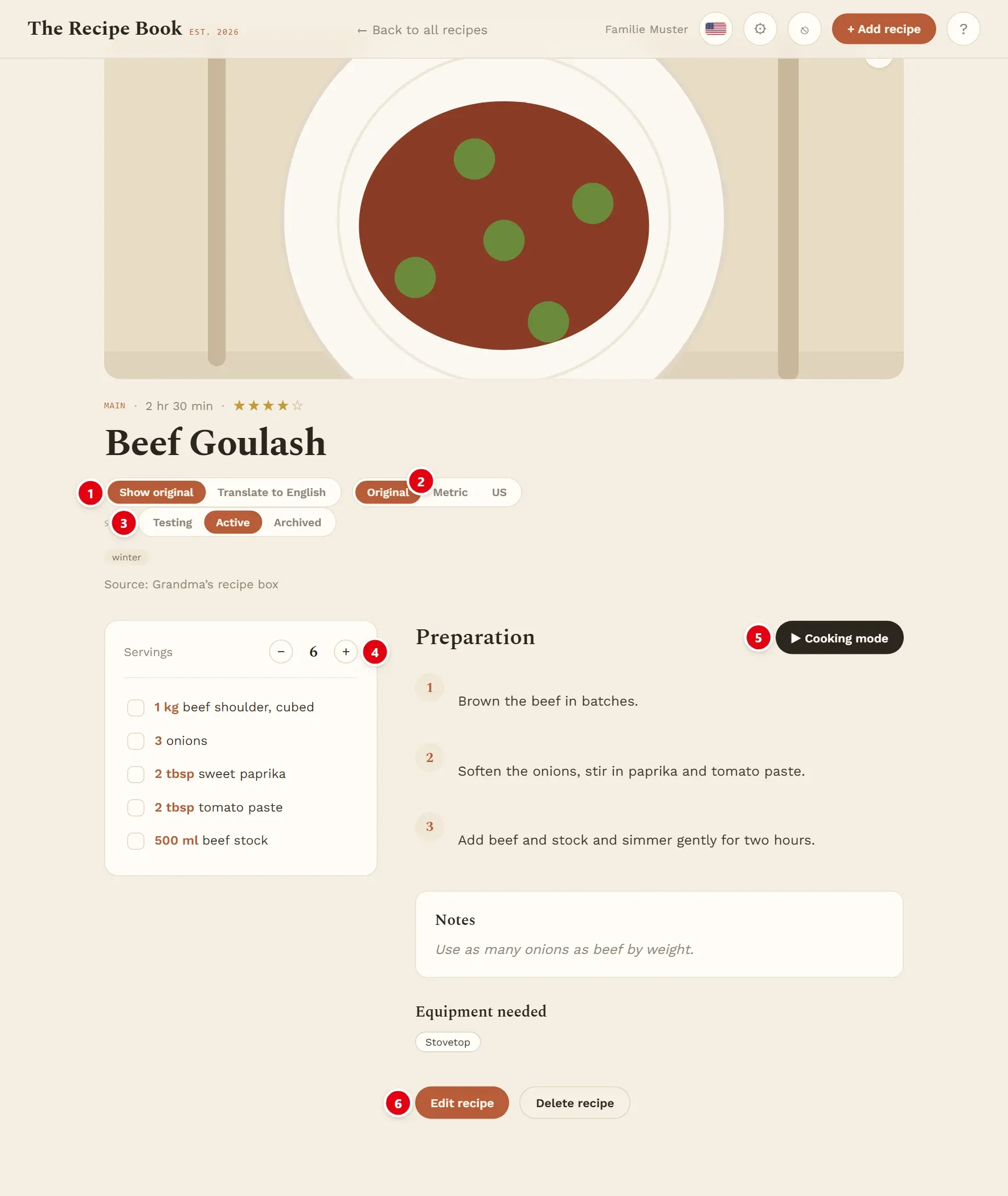
1 shows the recipe in its original language or translates it. 2 switches the units. 3 sets the status. 4 changes the number of servings. 5 starts cooking mode. 6 opens the recipe for editing.
From top to bottom the page shows:
- the picture, with the heart for favourites,
- category, cooking time and the star rating (tap a star to rate),
- the title, the controls described below, the tags and the source,
- the ingredients and the Preparation steps, then Notes and Equipment needed if the recipe has any.
Tap an ingredient to tick it off while you gather everything. The ticks are only a help for the moment and are not saved.
Back to all recipes in the header takes you back to the start.
Servings
The amounts are written for the recipe’s number of servings. To cook for more or fewer people, change the number next to Servings with the + and − buttons.
All amounts are recalculated at once. Ingredients without an amount, such as salt to taste, stay as they are. The change only applies while the page is open; the recipe itself keeps its number of servings.
Translation and units
Recipes keep the language and units they were written in. These controls let you read a recipe in your language and in the units you are used to, without changing the recipe itself.
- Show original shows the recipe as it was saved.
- Translate to English translates the title, ingredients, steps and notes into the language the app is set to. To read a recipe in German, switch the app language first.
- Original, Metric and US convert the amounts, for example cups into grams.
Translation and conversion are done by AI. While it works, the page shows Translating… or Converting…. The result is kept, so the next time the same version appears at once. If it fails, the page says so; simply tap the button again.
Which units a recipe opens with is set under Default units in Settings.
Status
The Status buttons move a recipe between Testing, Active and Archived. Only active recipes are suggested by the planning assistant.
Tap the status you want; it is saved immediately. What each status means is explained under Status in Recipes.
Cooking mode
Cooking mode shows one step at a time in large text across the whole screen, so you can follow the recipe from a distance with busy hands.
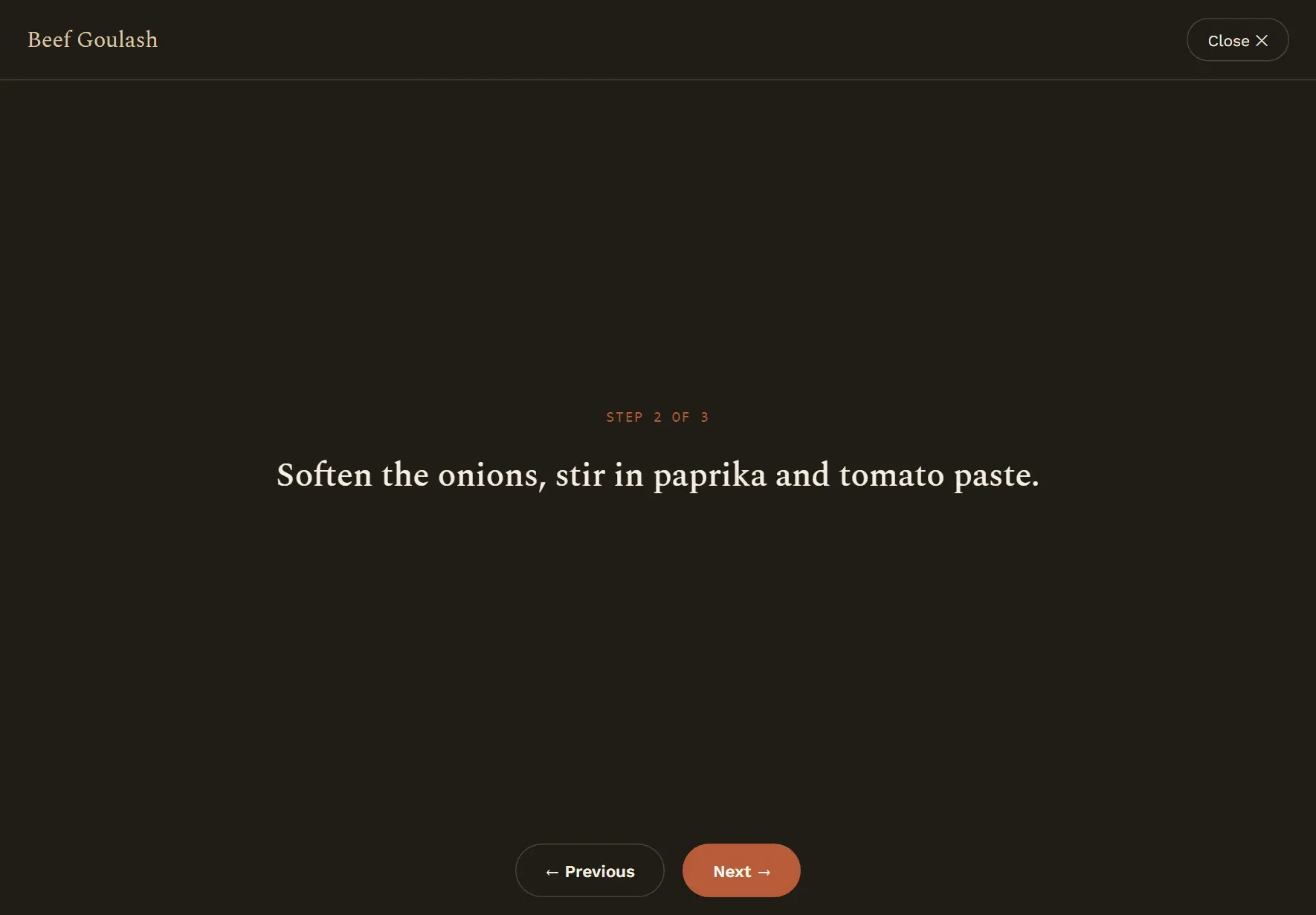
- Tap Cooking mode above the preparation steps, or Cook on the Dashboard.
- Move through the steps with Next and Previous. The top of the screen shows which step you are on.
- On the last step, tap Finish.
Close leaves cooking mode at any time. Cooking mode always starts at the first step.
With a keyboard you can also use the right arrow key or the space bar for the next step, the left arrow key for the previous step, and Esc to close.
After cooking
When you finish a recipe that is still in Testing, the app asks How was it?. This is the moment you know whether the dish is worth keeping.
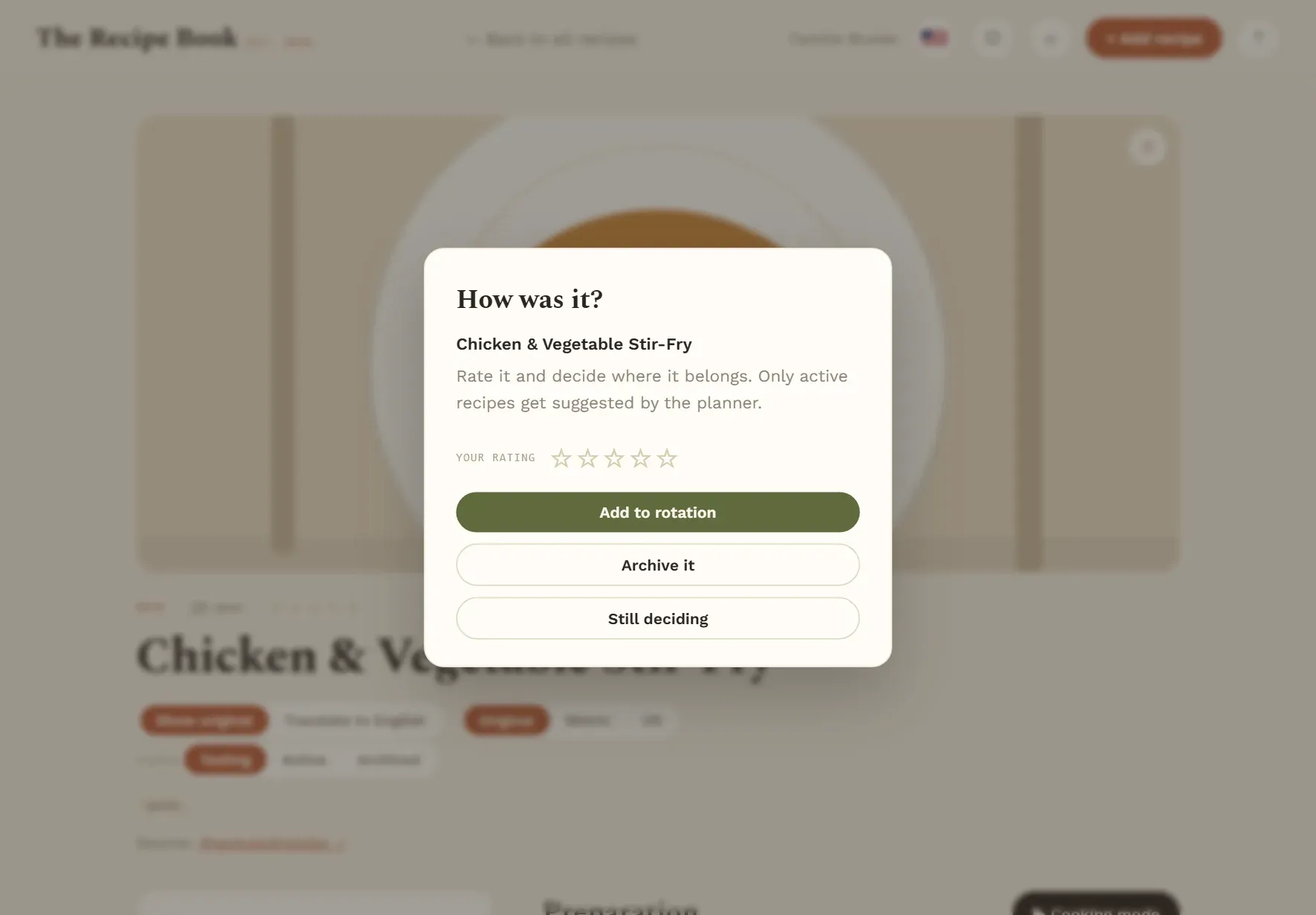
Give it stars under Your rating if you like, then choose:
- Add to rotation: the recipe becomes active and can be suggested by the planning assistant.
- Archive it: the recipe is archived and no longer suggested.
- Still deciding: the recipe stays in testing.
The rating is saved with each of the three choices. Tapping outside the window closes it without saving anything.
The question only appears when you tap Finish on the last step, not when you close cooking mode early, and not for recipes that are already active or archived.
Edit and delete
You can correct or complete a recipe at any time, or remove it from your recipe book.
- Edit recipe opens the recipe form. What you can change there is explained in Recipe form.
- Delete recipe first asks Delete recipe?. Confirm with Delete recipe, or tap Keep it to cancel.
Deleting is permanent and cannot be undone. If you only want the recipe to stop being suggested, set its status to Archived instead.
To put a recipe on a day in your plan, use the planner: Add a recipe.