
Search
The Recipes tab shows your whole recipe book as cards. The number next to the tab name is how many recipes it holds.
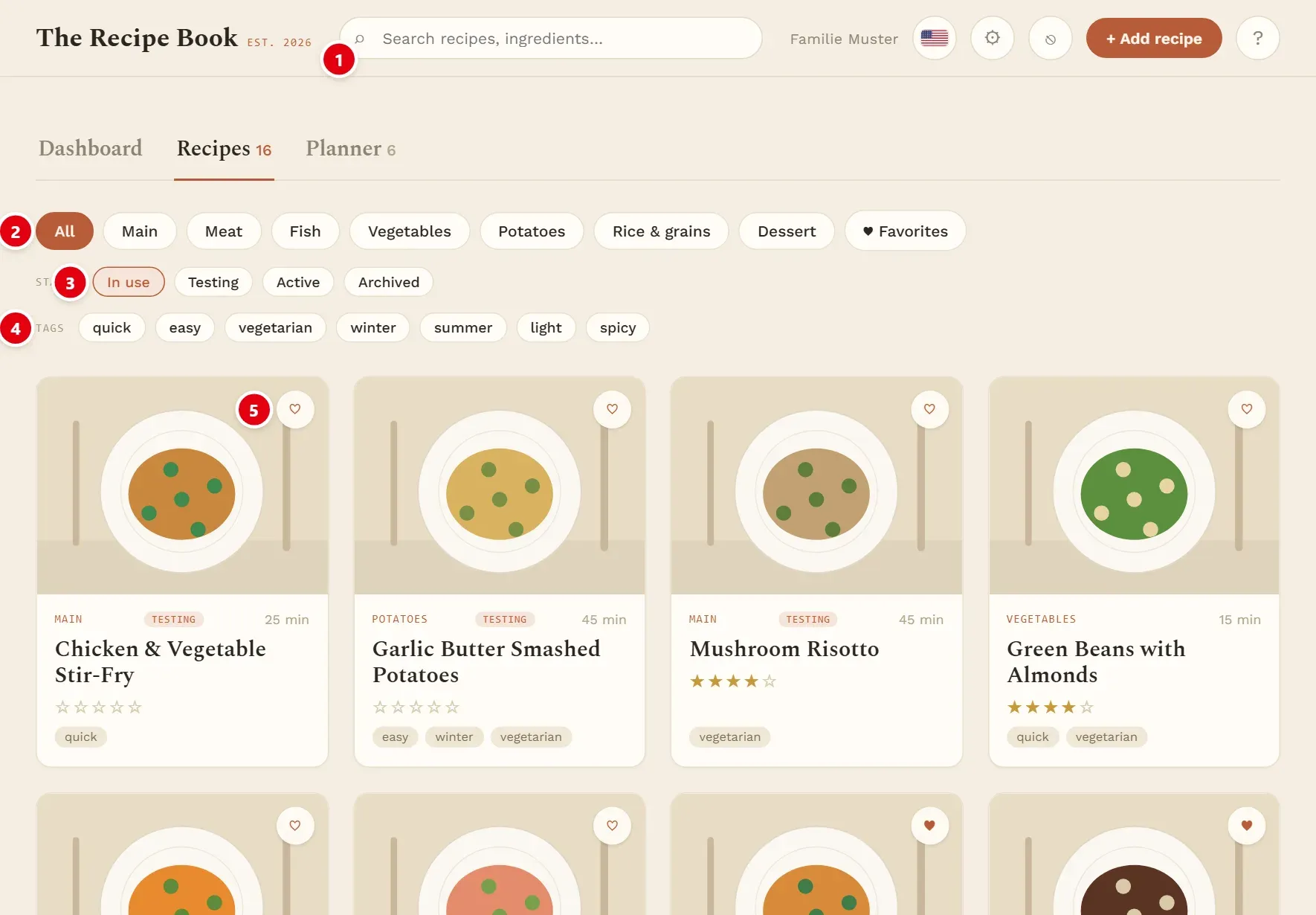
1 searches your recipes. 2 filters by category. 3 filters by status. 4 filters by tags. 5 marks a recipe as a favourite.
To find a recipe, type into the search field at the top. The list narrows as you type. The search looks at:
- recipe titles,
- ingredient names,
- tags.
The search field sits in the header on all three tabs. If you start typing on the Dashboard or the Planner, the app switches to the Recipes tab, where the list is filtered.
Categories
The first row of buttons filters by category, such as main dishes or desserts. One category can be chosen at a time.
- All shows every category.
- Favorites, at the end of the row, shows only recipes marked with the heart.
Your categories are set up in Settings.
Status
Every recipe has a status that shows how far it has come in your kitchen. The status decides whether the planning assistant suggests it.
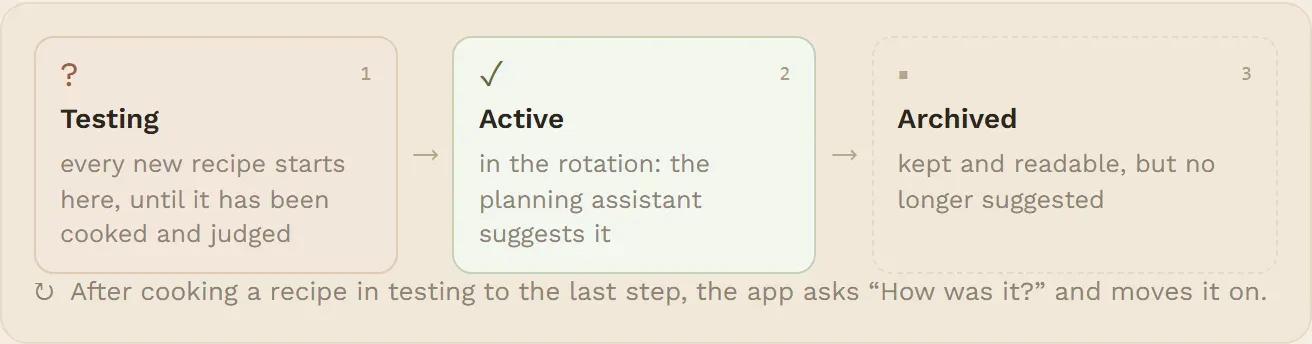
- Testing: every new recipe starts here, until you have cooked and judged it.
- Active: the recipe is in your rotation. Only active recipes are suggested by the planning assistant.
- Archived: the recipe stays readable and still shows in old plans, but is no longer suggested.
The Status row filters the list. In use, the default, shows testing and active recipes together; the other buttons show one status only. Choose Archived to find recipes you have put aside.
You change a recipe’s status on its recipe page, or after cooking it.
Tags
Tags describe a recipe across categories, for example “quick” or “vegetarian”. The Tags row filters by them.
- Tap a tag to select it; tap it again to deselect it.
- You can select several tags. The list then shows only recipes that have all of them.
Search, category, status and tags work together. If nothing matches, Clear filters resets them all. Tags are managed in Settings.
Recipe cards
Each recipe is shown as a card. Tap the card to open the recipe page.
A card shows:
- the picture, with a heart at the top right,
- the category and the cooking time,
- a Testing or Archived label (active recipes have none, as that is the normal case),
- the title, the star rating and the tags.
Two things work right on the card, without opening it:
- Tap the heart to add the recipe to your favourites, or to remove it again.
- Tap a star to rate the recipe from one to five. Tap the same star again to remove the rating.