
How reminders work
Reminders make sure you do not miss the kickoff of a game you want to see live. They belong to the games on your watchlist: only starred games remind you.
Each starred game can remind you twice:
- 1 h before: an hour before kickoff, enough time to get the stream ready.
- At kickoff: when the game starts.
A reminder arrives as a notification on every phone or computer where you have switched on Push to this device (see Push on this device). Without such a device, reminders cannot reach you.
The notification says Kickoff in one hour or Kickoff now, followed by the two teams and, where known, the stadium and the broadcaster. Tap it to open the game in the app.
Reminders and the email digest come in the language you chose under Language in Settings (see Language). If you switch the language, the next reminder uses the new one.
Good to know:
- A game whose kickoff time is not fixed yet sends no reminders until the time is known. Once it gets a time, its reminders follow it.
- If a kickoff moves, even to another day, the reminders move with it.
- A game that has already finished sends none.
- Reminders are sent only by push, never by email. With push switched off, no reminders are sent, even if the email digest is on. The email is a weekly overview, see Email digest.
Reminders for one game
Every starred game has its own reminders, so you can set them game by game: both for a big game, none for a game you will watch later anyway.
You find the reminder buttons in two places, as long as the game has not finished:
- in the game’s row on the Watchlist,
- on the game page, next to On your watchlist.
Tap 1 h before or At kickoff to switch that reminder on or off. A red button is on. Both, one or neither can be on.
Default for new games
The default saves you setting reminders on every game. It decides which reminders a game gets at the moment you star it.
- Open Settings.
- Under Default for new games, switch on what you want:
- One hour before kickoff: on when you start.
- At kickoff: off when you start.
- Switch both on to be reminded twice.
The default is copied when you star a game. Changing it later does not alter games that are already on your watchlist. Change those on the game itself, see Reminders for one game.
Quiet hours
Many American football games kick off in the middle of the night in Germany. Quiet hours stop reminders from waking you.
In Settings, under Delivery:
- Switch on Respect quiet hours. It is on when you start.
- Under From and Until, enter when your quiet hours begin and end. When you start, they run from 01:00 to 07:00.
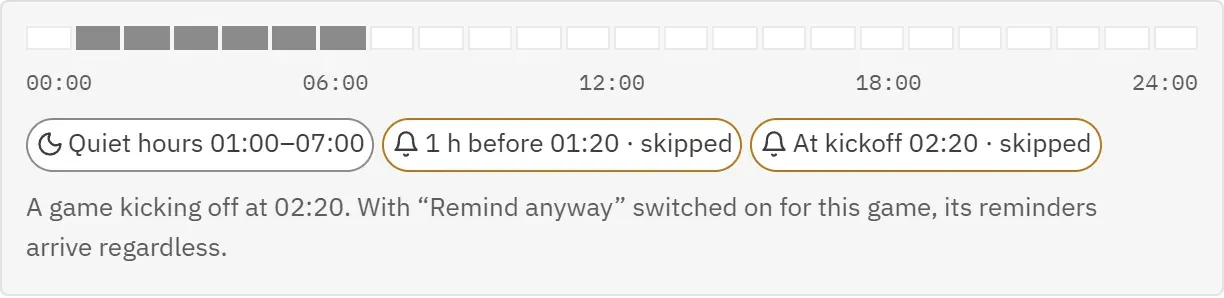
How quiet hours behave:
- A reminder that falls into quiet hours is skipped. It is not sent later, because a kickoff reminder in the morning for a game that started at night would be of no use.
- The hours may run across midnight, for example from 23:00 to 05:00.
- The start time counts as quiet, the end time does not. With quiet hours until 07:00, a reminder at exactly 07:00 is sent.
- From and Until cannot be the same time. The app then shows “Quiet hours must start and end at different times.” and keeps your previous times.
- With Respect quiet hours switched off, reminders arrive at any time of day.
To be woken for one particular game, use Remind anyway on that game.
Remind anyway
Sometimes you do want to get up for a night game. Remind anyway lets this one game’s reminders through your quiet hours, while all other games stay quiet.
Remind anyway appears next to a game’s reminder buttons only when at least one of its chosen reminders falls into your quiet hours. On other games it would change nothing, so it is not shown.
- Find the game on your Watchlist or open the game page.
- Tap Remind anyway. It turns red.
This game now reminds you even during quiet hours. Tap Remind anyway again to switch it off.
Push on this device
Reminders arrive as push notifications, even when the app is closed. Each phone and computer is switched on separately, so you decide which devices may notify you.
- On the device, open Settings.
- Under Delivery, switch on Push to this device.
- When the browser or phone asks, allow notifications.
On iPhone and iPad, notifications only work in the app added to the home screen. Add it first and open it from there, see Getting started. Until then the switch cannot be used and says so.
The text under the switch tells you the state of this device:
| Text under the switch | What it means |
|---|---|
| This device gets a notification before the games you starred, even with the app closed. | Push is on here. |
| Turn on to get reminders here. | Push is off on this device. |
| Notifications are blocked for this site. Allow notifications for this site in your browser settings — on an iPhone, under Settings → Notifications → Season Planner. | You refused notifications earlier. Allow them as the text says, then come back. |
| This browser does not support web push. | Use another browser or device. |
If reminders are not on for the device you are using, the app may ask at the top of the screen: “Reminders are not turned on for this device yet.” Tap Turn on, or Not now to be asked again in a few days. After you switch a device off in Settings on purpose, it does not ask again on that device.
Removing the app from the home screen and adding it again counts as a new device: switch push on again there. More help: Troubleshooting.
Email digest
The email digest gives you an overview of your weekend before it starts, without opening the app.
In Settings, under Delivery, switch on Email digest, Friday. It is off when you start.
On Friday afternoon you then get one email with the games you have marked for the coming weekend, up to and including Monday night. Games that have already kicked off when the email is sent, such as Thursday night’s game, are left out. Each game is listed with its kickoff time in Berlin and Eastern time, the two teams, the broadcaster and the stadium where known. No email is sent in a week with no marked games.
The email is written in the language you chose under Language.
The digest does not replace reminders: reminders always arrive as push notifications, and without push you get none.