
Create your account
The Season Planner is one of the GDC World apps, and all of them use the same GDC World account. You create that account once, in the GDC Tools Manager, and then sign in to every GDC World app with it.
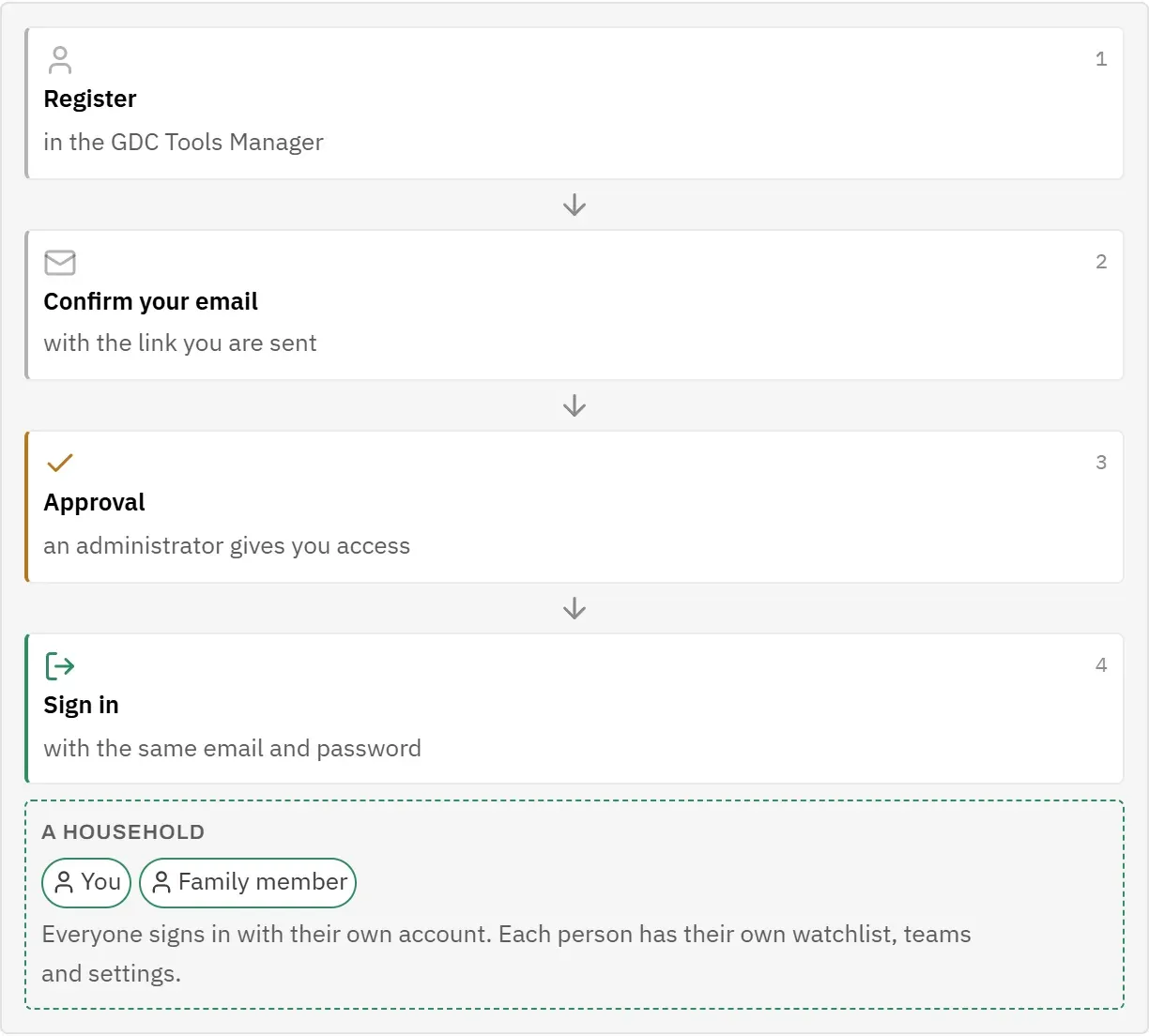
- Open the Season Planner. You see the sign-in screen.
- Tap Create an account. This takes you to the GDC Tools Manager, which already knows that you came from the Season Planner.
- Register there with your email address and a password of your choice. The form also asks you to confirm that you are not a robot.
- Open the email you are sent and confirm your address with the link in it. Do this within 48 hours; an account that is not confirmed by then is deleted, and you simply register again.
- As soon as your address is confirmed, access to the Season Planner is requested for you. You do not need to request it again under My tools. Wait for an administrator to approve it (see the next section).
- Come back to the Season Planner and sign in with the same email and password.
If you already use another GDC World app, you already have an account. You only need access to the Season Planner as well. Request it under My tools in the GDC Tools Manager, or simply sign in here: the sign-in screen then offers Request access.
Approval
An administrator decides who may use the Season Planner. This keeps the app to the people it is meant for. A GDC World account on its own gives no access to any app; access is requested and granted for each app separately.
After you have registered and confirmed your email, your access is waiting for that approval. If you try to sign in before it is given, the sign-in screen says Your access is awaiting admin approval. Whether the administrator grants or declines it, you are told by email and with a notice in the GDC Tools Manager.
- You do not need to register again. Your account is there; it is only not switched on yet.
- Once you are approved, sign in as usual.
- If your request was declined, or your access was removed later, you can request it again. The sign-in screen then says Your access request was declined. You can request it again. or You have not requested access to the Season Planner yet. Tap Request again or Request access below the message: it opens My tools in the GDC Tools Manager with the Season Planner offered at the top, so one click sends the request.
- If it takes longer than you expect, ask dev@gdc-world.de.
Sign in
You sign in with the email address and password of your GDC World account.
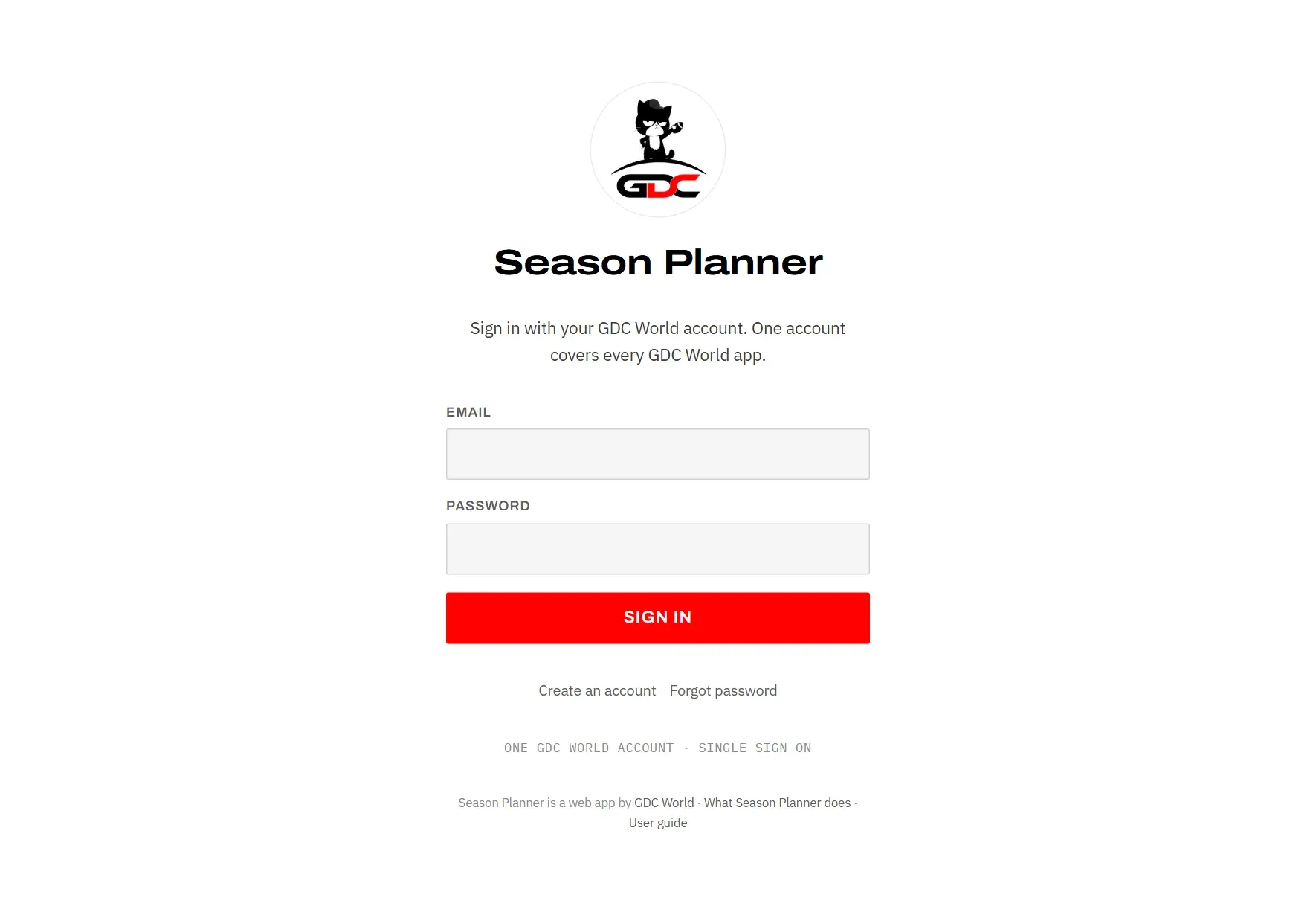
- Enter your address under Email.
- Enter your password under Password.
- Tap Sign in.
You stay signed in on this device. When you open the app again, it briefly shows Restoring session… and then opens without asking for your password. If the GDC sign-in service cannot be reached, for example because you are offline, you stay signed in: the app shows “Could not reach the GDC sign-in service. Check your connection and try again.” with a Try again button.
- Forgotten your password? Tap Forgot password on the sign-in screen. You reset it in the GDC Tools Manager.
- To sign out, open the menu and tap the Sign out button next to your email address at the bottom.
- If sign-in is refused, the message tells you why. Each one is explained in Troubleshooting.
Your household
Every account belongs to a household. When you register, the GDC Tools Manager creates a household just for you. To share a household with your family, invite them under My household in the GDC Tools Manager, or accept the invitation you were sent.
The name of your household is shown in the menu, under your email address. If the app cannot find it, it shows Household unknown instead.
- Everyone signs in with their own account, even within one household.
- Each person has their own watchlist, their own teams and their own settings. Starring a game does not put it on anyone else’s watchlist.
- If you move to a different household, by accepting an invitation or because an administrator moves you, the app reloads and shows the new household name. What you saved under the old household does not move with you.
- If an administrator deletes your GDC World account, you get an email confirming it. What you saved in the Season Planner belongs to your household and stays with it. If you want it deleted as well, write to us through the contact form.
Install the app
You can add the Season Planner to the home screen of your phone or tablet. It then opens like an app, without the browser’s address bar.
On an iPhone or iPad this is more than convenience: iOS only delivers reminders to an app that was added to the home screen. Without this step, the switch for reminders on that device stays unavailable.
To install it on an iPhone or iPad:
- Open the Season Planner in Safari.
- Tap the Share button.
- Choose Add to Home Screen, then Add.
- From now on, open the app from the new icon on your home screen. It is called Season.
On an Android phone or a computer, browsers such as Chrome and Edge offer to install the app from their menu. Installing there is optional; reminders also work in the browser.
First steps
The app first opens in the language of your browser, English or German. You can switch at any time in Settings under Language; your reminders and the Friday email then come in the same language. See Language.
A few settings make the app much more useful. They are quickest in this order:
- Choose your streaming services. Open Settings and tick the services you pay for under Streaming services. Only then can each game card tell you whether you can watch the game. See Streaming services.
- Turn on reminders for this device. On an iPhone, install the app first (see above). Then switch on Push to this device in Settings. See Push notifications.
- Check the reminder defaults. Under Default for new games choose whether a starred game reminds you one hour before kickoff, at kickoff, or both. See Defaults.
- Decide about scores. Under Hide scores choose whether results you have not seen yet should stay hidden. See Hide scores.
- Follow your teams. Open My teams in the menu, tap Edit teams and tap the heart next to the teams you care about. See My teams.
- Star your first games. Open Schedule and tap the star on every game you want to watch. It goes onto your watchlist. See Watchlist.