
Star the games you want to see
The watchlist gathers every game you plan to watch this season in one place. It is also where reminders, hidden scores and clash warnings come from, so starring a game is the first thing to do with it.
To put a game on your watchlist:
- Find the game in the schedule or under My teams.
- Tap the star on its card. The star fills in red.
- Or open the game from anywhere in the app and tap Add to watchlist. The button then reads On your watchlist.
A newly starred game gets the reminders you chose under Default for new games in Settings.
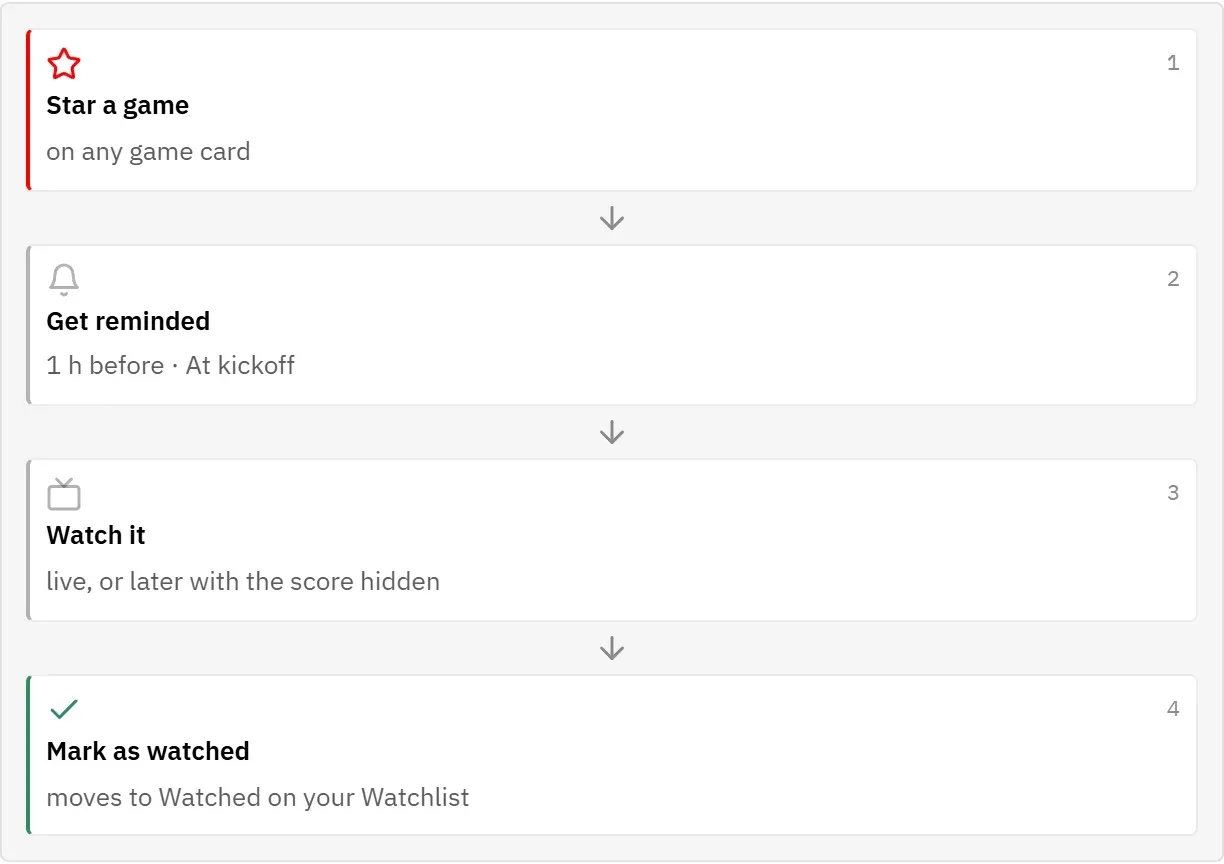
The watchlist lists the games that are still to watch by day, in the order they kick off in Berlin. A game whose date is not yet fixed appears under Date to be confirmed.
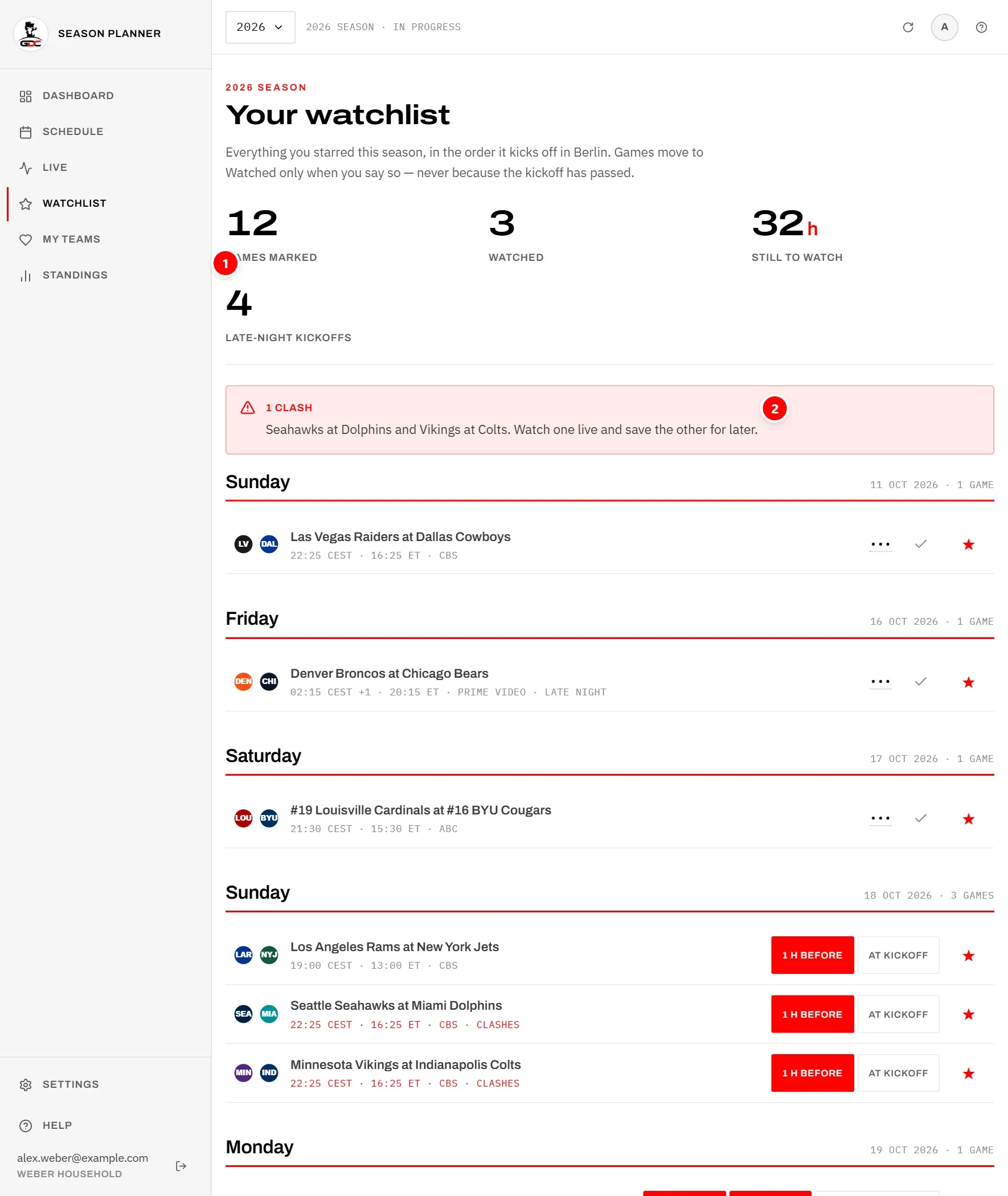
The figures at the top (1) and the clash notice (2) are explained in the next two sections.
The figures at the top
The four figures (1 in the picture above) give you a quick feel for how much football is ahead of you.
| Figure | What it counts |
|---|---|
| Games marked | Every game on your watchlist this season, watched or not. |
| Watched | The games you have marked as watched. |
| Still to watch | Hours of football not yet watched: each unwatched game counts as 3.5 hours, the length of a typical broadcast. |
| Late-night kickoffs | Unwatched games that kick off between midnight and 6 in the morning, Berlin time. A game whose kickoff time is still TBD is not counted. |
Night games are also marked Late night in their row (again, only once their kickoff time is known), so you can see at a glance which ones mean staying up or watching the next day.
Clashes
Two starred games that kick off at the same minute cannot both be watched live. The watchlist warns you so you can decide in good time.
- The notice at the top (2 in the picture above) names each pair, for example 1 clash, and ends with “Watch one live and save the other for later.”
- Both games are marked Clashes in red in their rows.
- Only games still to watch are checked. Once you mark one of them as watched, the clash disappears.
A common way out: watch one game live and watch the other later with its score hidden. See Hiding scores. The game page shows the same warning, see Game.
Reminders on each game
Every game that has not finished yet shows its reminders right in its row, so you can change them without opening the game.

- 1 The reminder buttons 1 h before and At kickoff. A red button is switched on. Tap a button to switch it on or off. Both, one or neither can be on.
- 2 Remind anyway appears only when one of the chosen reminders falls into your quiet hours. Switch it on to get this game’s reminders anyway.
- 3 The star. Tapping it removes the game from the watchlist.
How reminders are sent is explained under Reminders.
Mark games as watched
A game does not count as watched just because its kickoff has passed. You decide. That way the game you slept through stays on your list until you have actually seen it.
Once a game has finished, its row shows a tick instead of the reminder buttons.

- 1 The score is hidden as ••• if your score setting hides it. Tap it to see it for the moment.
- 2 The tick Mark as watched. Tap it when you have seen the game.
The game then moves to the Watched part at the bottom of the list, most recently watched first. Its score is shown there from now on, whatever your setting.
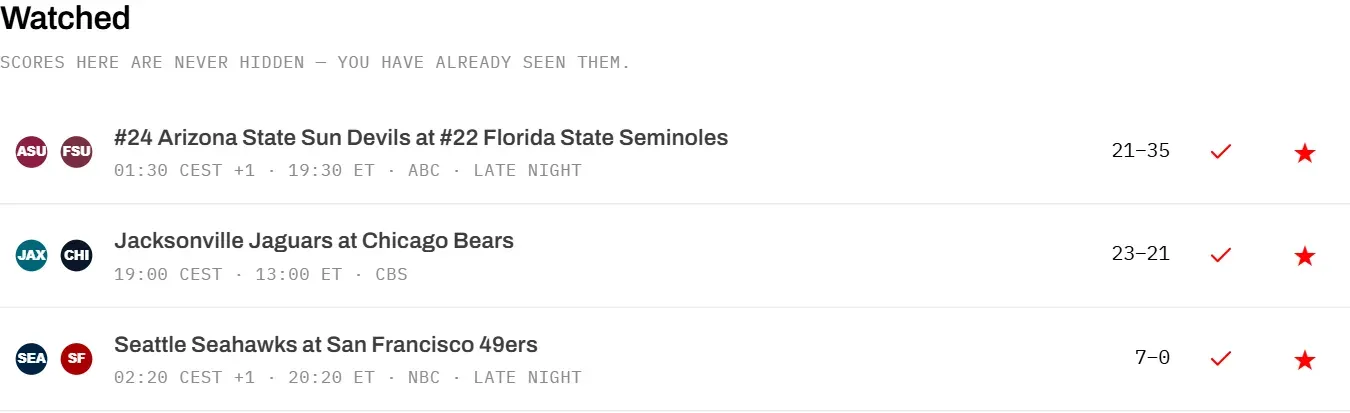
Good to know:
- Only finished games can be marked as watched.
- Marked by mistake? Tap the red tick again in the Watched part. The game goes back to the games still to watch.
- You can also mark a game as watched on its game page or on its card in the schedule. A finished game you never starred is added to your watchlist that way, already marked as watched.
Remove a game
Remove a game when you no longer plan to watch it, so it stops sending reminders and no longer counts in your figures.
- Tap the red star in its row, or on its card in the schedule or under My teams.
- Or open the game and tap On your watchlist.
The game disappears from the list straight away, together with its reminders and its watched mark. If you star it again later, it starts afresh with your current defaults.
Watchlists of past seasons are kept as history. When you look at a past season, the list cannot be changed: rows have no star, tick or reminder buttons.