
The menu
The menu takes you to every screen of the app. On a computer or a tablet in landscape it is always on the left; on a phone it slides in when you need it.
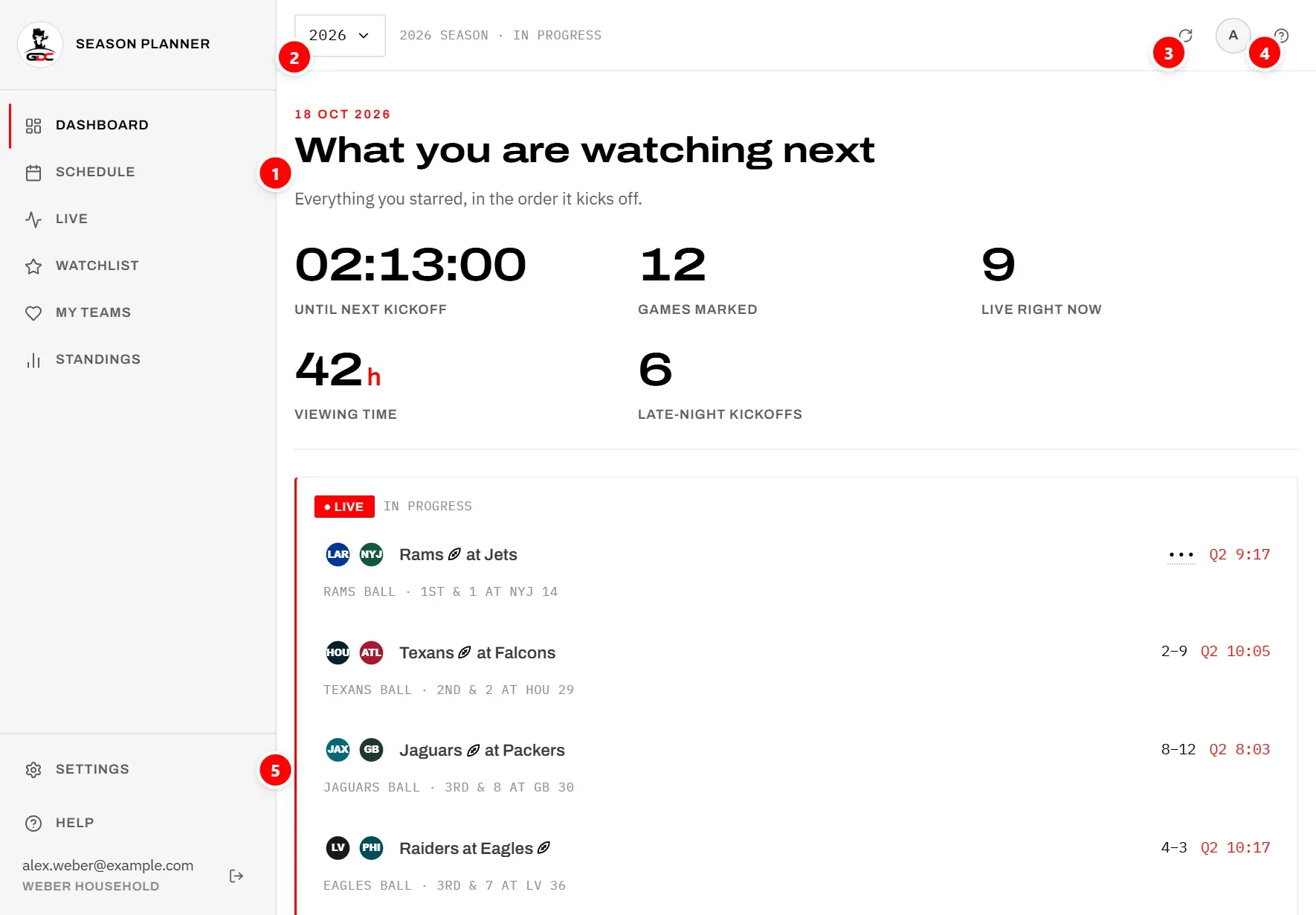
The numbers in the picture:
- 1 is the menu with the app’s screens.
- 2 chooses the season you are looking at (see Seasons).
- 3 fetches data again (see Data and refreshing).
- 4 opens the help for the screen you are on (see Help).
- 5 is Settings, at the bottom of the menu.
The upper part of the menu lists the screens of the season:
| Entry | What it shows |
|---|---|
| Dashboard | What you are watching next, and the season at a glance |
| Schedule | All games, week by week |
| Live | The games being played right now |
| Watchlist | Every game you have starred |
| My teams | The teams you follow and their games |
| Standings | League tables and rankings |
Live is only there while you are looking at the season in progress. A past or a future season has no live games.
The lower part holds Settings, Help, your email address with your household, and the Sign out button. Below them, Imprint, Privacy and Contact open the GDC World pages on www.gdc-world.net. Tapping Season Planner at the top takes you back to the dashboard.
On a phone
On a phone the menu is hidden to leave room for the content.
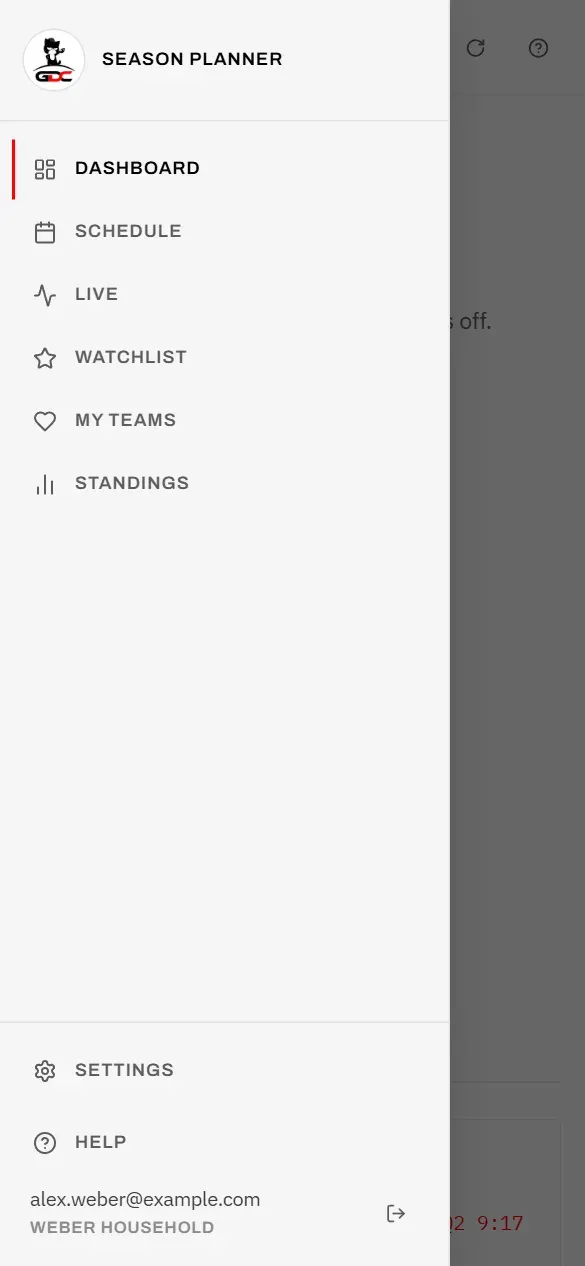
- Tap the Open menu button at the far left of the top bar.
- Tap the screen you want. The menu closes by itself.
To close it without choosing anything, tap the darkened area beside it.
The top bar
The bar at the top is the same on every screen. It tells you which season you are in and holds the buttons you need everywhere.
From left to right:
- Open menu (phone only) opens the menu.
- The season switcher shows the year you are looking at.
- Next to it, a short note says which season this is and what state it is in, for example 2026 season · in progress.
- Refresh cached data (the circular arrow) fetches data again.
- A circle with the first letter of your email address. It only shows who is signed in.
- Help for this screen (the question mark) opens the help for the screen you are on. While the help is open, the button is highlighted.
Seasons
The app keeps several seasons side by side: the one being played, the next one as soon as the first games are published, and past ones as a record. The season switcher chooses which one you are looking at.
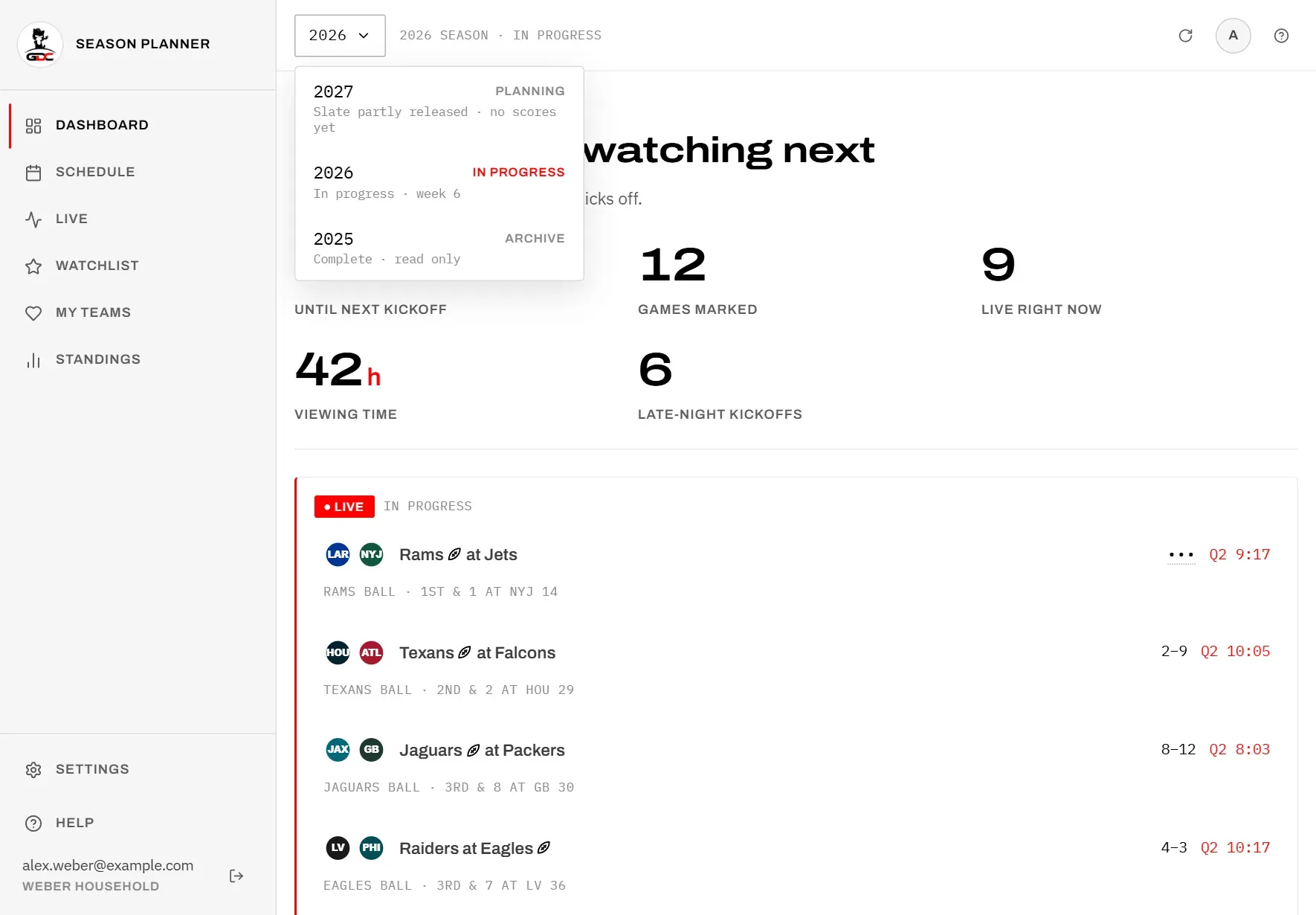
- Tap the year in the top bar.
- Choose a season from the list. Each one shows its state and a short note, such as how far the season has got.
The app then opens the dashboard of that season. When you open the app, it starts with the season in progress.
A season is always in one of three states:
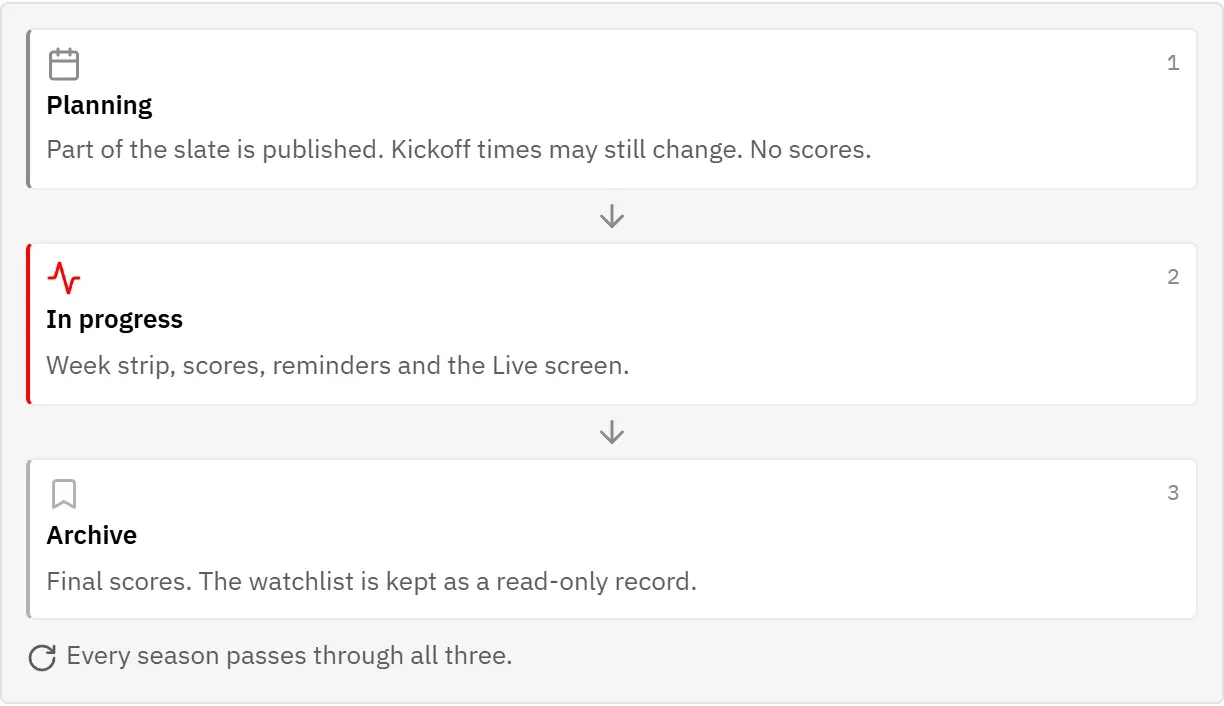
- Planning: only part of the schedule is published, and kickoff times can still change. There are no scores yet. You can already star the games you know you want.
- In progress: the season being played, with scores, reminders and the Live screen.
- Archive: a finished season with final scores. Your watchlist is kept as a record and can no longer be changed: game cards have no star and no tick there.
Help
The help explains each screen while you use it. You can open it beside the screen you are on, or read the whole guide.
The help panel
Tap Help for this screen (the question mark at the right of the top bar). The help opens at the part that explains this screen.
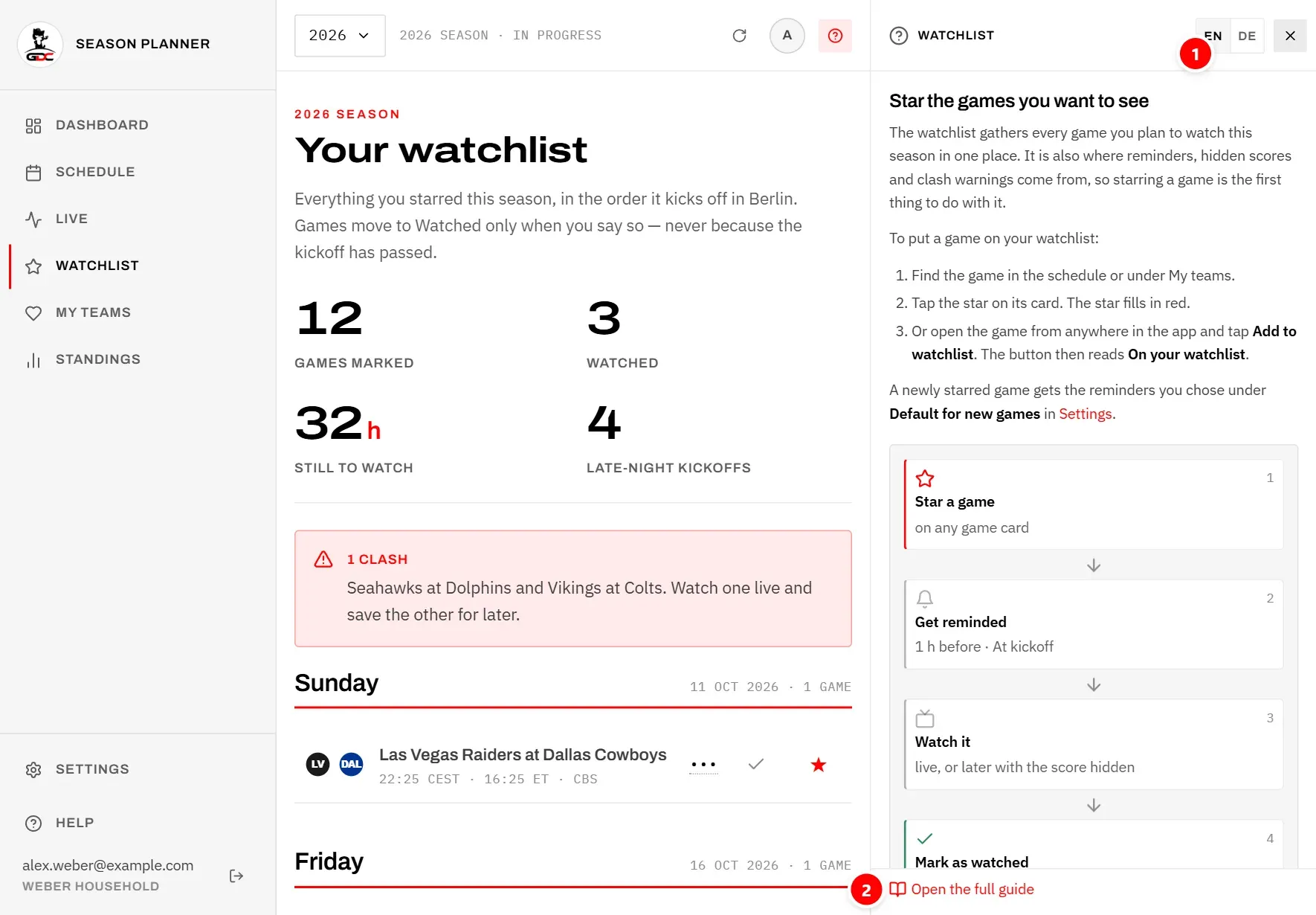
- 1 switches between EN (English) and DE (German). This changes the language of the whole app, not just the help, and saves it to your account, so your reminders and the Friday email follow it too. It is a shortcut to Settings → Language, the main place for this setting. The first time, the app follows the language of your browser.
- 2 opens the whole topic as a page of its own (Open the full guide).
The panel follows you: when you go to another screen, it shows the help for that screen. It stays open until you close it, and the app remembers on this device whether it was open.
On a wide screen the panel sits to the right of the content. On a phone or an upright tablet it covers the screen; close it with the X at the top, by tapping beside it, or with the Esc key.
The full guide
Tap Help in the menu to open the guide’s start page. It has a card for each topic; if you are new, start with Getting started.
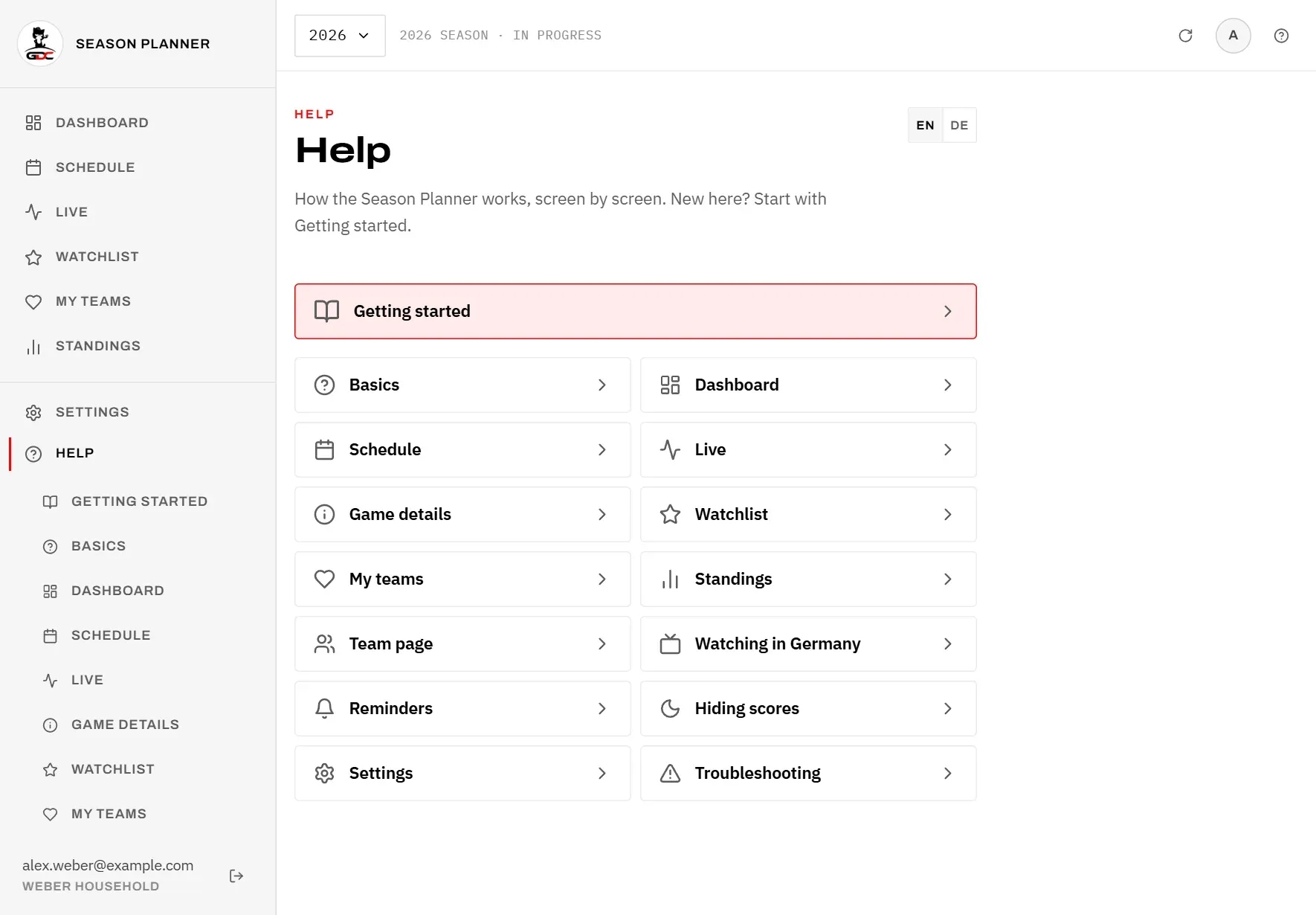
While you are reading the guide, its topics are also listed in the menu under Help.
Data and refreshing
The Season Planner takes the schedule, kickoff times and scores from ESPN and keeps a copy of them. It keeps that copy up to date by itself, so you rarely need to do anything.
- While a game is live, scores update every 20 seconds.
- Everything else is fetched again when you open a screen or come back to the app, if it is more than a few minutes old.
- A finished season never changes, so it is loaded once and kept.
The Refresh cached data button (the circular arrow in the top bar) reloads everything on screen straight away: games, scores, your watchlist and the list of seasons, for example to see a season that has just been added.
If something cannot be loaded, the screen says so and offers Try again. Nothing is lost: the last copy is kept. See Troubleshooting.
Updates
New versions of the Season Planner arrive by themselves. There is nothing to download or install.
The app regularly checks whether there is a newer version. If there is, it reloads at a moment when it does not disturb you:
- when you come back to the app after more than a minute away,
- when you change to another screen,
- when nobody has touched it for five minutes.
It never reloads while you are typing.
If no such moment comes, a bar appears at the bottom of the screen: A newer version of the Season Planner is ready.
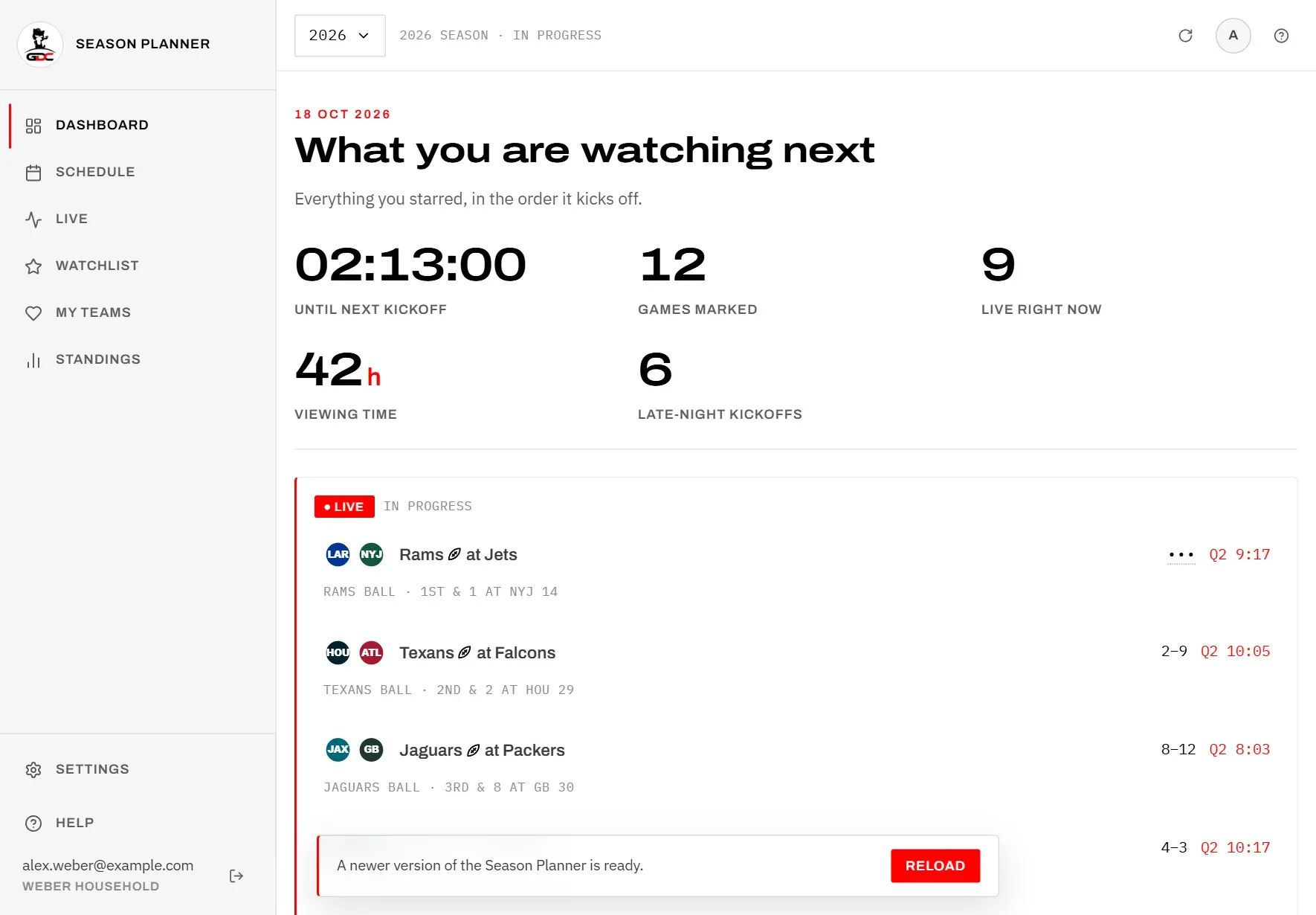
Tap Reload to switch to the new version straight away. Your watchlist and settings are kept on your account, so nothing is lost.