
Sign-in problems
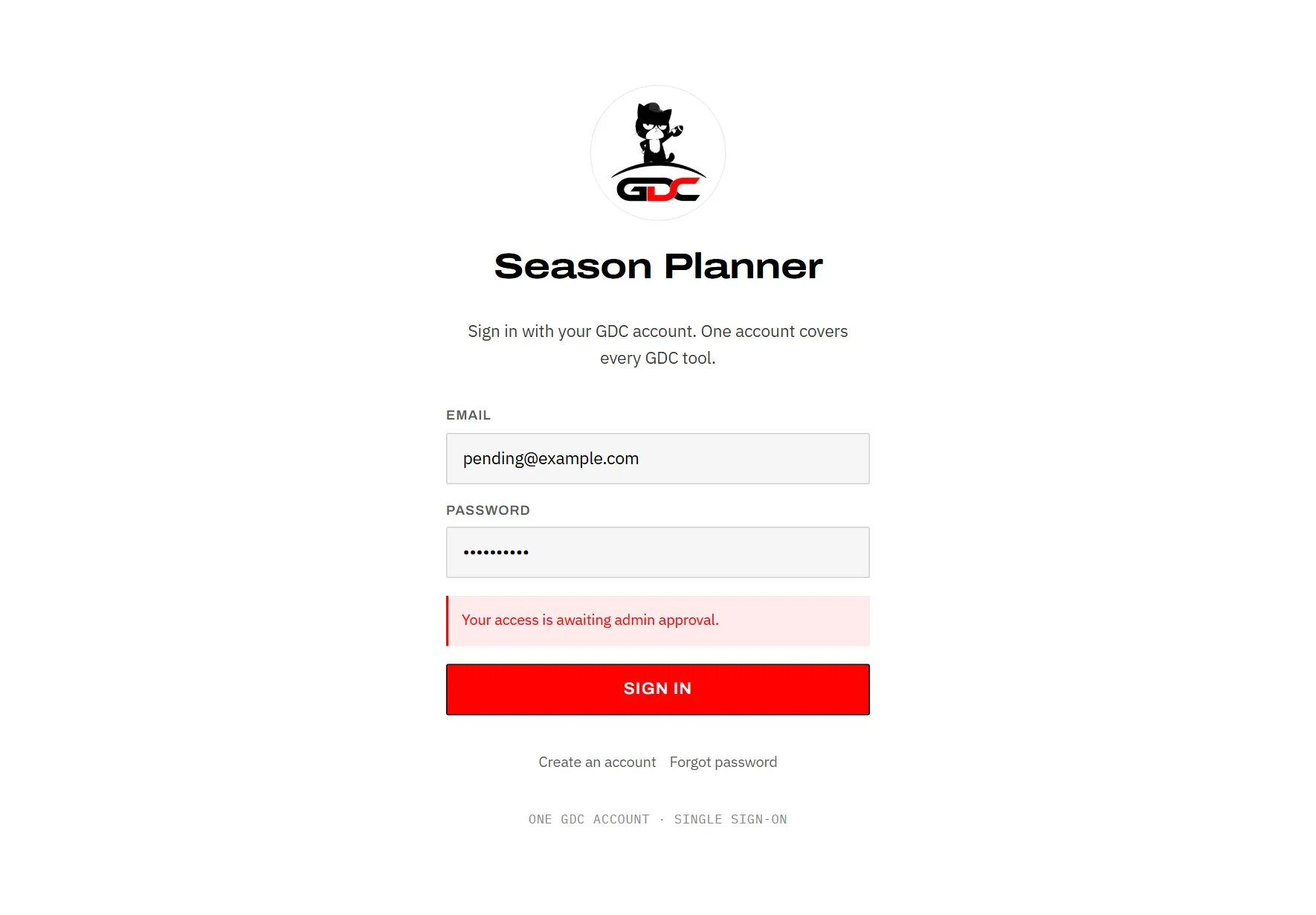
If the app does not let you in, the sign-in screen shows a message in red. It tells you why, and what to do next.
| Message | What to do |
|---|---|
| Incorrect email or password. | Check both for typing errors. If you no longer know the password, tap Forgot password. |
| Please verify your email before signing in. | Open the email you were sent when you registered and tap the confirmation link. Then sign in again. An account that is not confirmed within 48 hours is deleted; then simply register again. |
| Your access is awaiting admin approval. | An administrator has not approved your access yet. Wait for it; if it takes long, ask dev@gdc-world.de. |
| You have not requested access to the Season Planner yet. | Your account has no access to the Season Planner yet. Tap Request access below the message and send the request in the GDC Tools Manager, then wait for an administrator to approve it. |
| Your access request was declined. You can request it again. | An administrator declined your request, or removed your access. Tap Request again below the message to send a new request. |
| Could not reach the GDC Tools Manager. Try again. | Your device is offline or the connection dropped. Check it and tap Sign in again. |
| This tool is not registered. Check the configured tool ID. | This is not something you can fix. Tell dev@gdc-world.de. |
| Sign-in failed. Try again. | Something unexpected went wrong. Try again in a moment; if it keeps happening, tell dev@gdc-world.de. |
No account yet? See Create your account.
Something does not load
Most of the time the app simply needs a moment, or the connection is gone. The messages below tell you which.
| Message | What to do |
|---|---|
| Restoring session… | The app is signing you in again. Wait a moment. |
| Could not reach the GDC sign-in service. Check your connection and try again. | Your device is offline or the sign-in service did not answer. You are still signed in. Check the connection and tap Try again. |
| Loading seasons… | The app is fetching the seasons. Wait a moment. |
| Could not load … Nothing is lost — the cache still has the last good copy. | Tap Try again below the message. |
| The cached season data is unreachable. Nothing is lost — retry in a moment. | Check your connection, then tap Try again below the message. |
| The API answered … Nothing is lost — the cache still holds the last good copy. | The service had a problem. Tap Try again in a few minutes. |
| Your session has expired. Sign in again. | Tap Sign in again below the message and sign in. |
| This account does not have access to the Season Planner. | Your access was removed, or has not been granted. Request it again under My tools in the GDC Tools Manager; see Approval. |
| No seasons yet — The schedule appears here as soon as ESPN publishes it. | No season has been loaded into the app yet. Try again later; if it stays empty, tell dev@gdc-world.de. |
Your watchlist, teams and settings are kept on your account, so a failed load never deletes them.
If the help itself cannot be loaded, it says The help could not be loaded. Check the connection and try again.
Reminders do not arrive
Reminders reach a device only if that device has been switched on for them, and only for games that have a reminder set. Go through these points in order.
The device is not switched on
Each phone and computer has to be switched on separately. When your account wants reminders but this device does not receive them, the app asks at the bottom of the screen: Reminders are not turned on for this device yet.
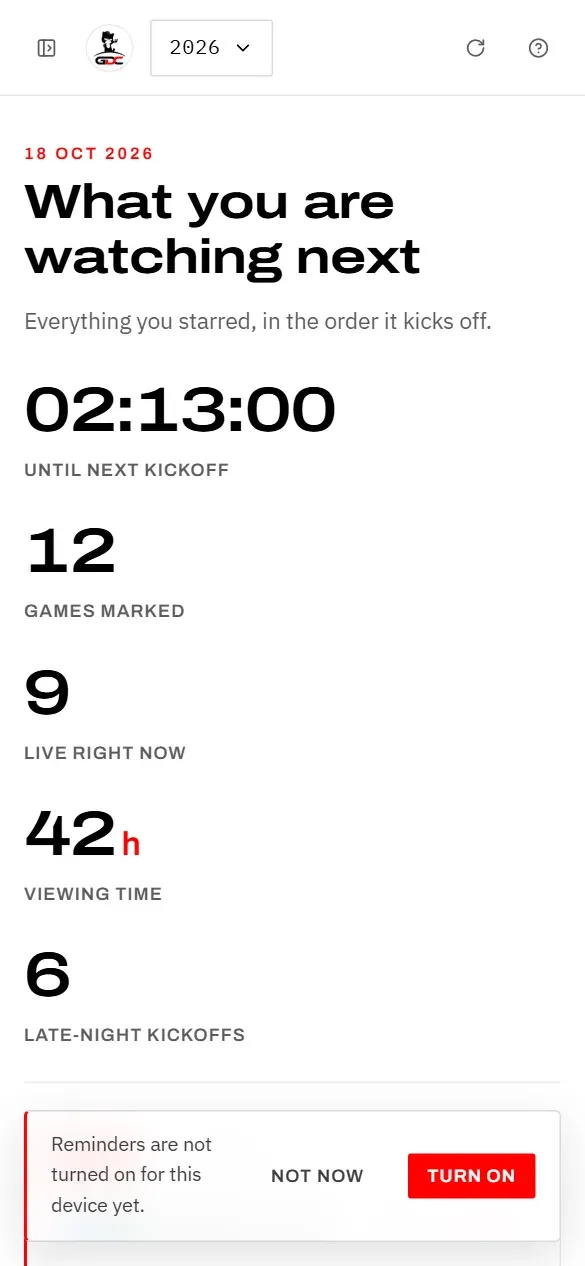
- Turn on asks your device for permission. Allow it.
- Not now hides the question for three days.
This happens, for example, after you removed the app from your home screen and added it again: to your device it is a new app, so it needs switching on again.
You can also switch it on in Settings under Push to this device. If you switched it off there on purpose, the app does not ask again on that device.
On an iPhone or iPad
iOS only delivers reminders to an app on the home screen. If Settings says On iPhone, add this app to the home screen and open it from there, install the app first, then open it from its icon and switch reminders on. See Install the app.
Notifications are blocked
If you once refused notifications, the app cannot ask again. It then shows Notifications are blocked for the Season Planner on this device, Notifications are blocked for this site or, right after you refused, Notifications are blocked. Each time it adds how to undo it: “Allow notifications for this site in your browser settings — on an iPhone, under Settings → Notifications → Season Planner.”
- On an iPhone: open the iPhone’s Settings, then Notifications, then Season Planner, and allow notifications.
- In a browser: allow notifications for this site in the browser’s settings.
Then come back to the app and switch on Push to this device.
Other things to check
- The game has no reminder. Each starred game keeps its own reminders. Check them on the game. See Reminders for one game.
- Quiet hours. A reminder that falls into your quiet hours is skipped, not sent later. Use Remind anyway on games you want to watch live at night. See Quiet hours.
- The kickoff time is not known yet. A reminder needs a kickoff time.
- Your browser does not support it. If Settings says This browser does not support web push., use another browser or device.
- Setting up did not work. “This browser could not set up notifications. Try again in a moment.” means switching on failed this time; try again shortly. “Reminders by notification are not available at the moment.” is a problem on the service’s side; if it lasts, tell dev@gdc-world.de.
- You rely on the email. Reminders are sent only as push notifications. The Friday email does not replace them: with the digest on but push off, no reminders arrive. See How reminders work.
The update bar stays
Usually the app updates itself without you noticing. If it cannot find a good moment, the bar A newer version of the Season Planner is ready. appears at the bottom of the screen.
- Finish what you are typing.
- Tap Reload.
The app reloads in the new version. Nothing is lost.
If the bar comes back straight after reloading, close the app completely and open it again. If it still keeps appearing, tell dev@gdc-world.de.
More about how updates work in Updates.