
NFL and college football
The schedule shows every game of a season, one league at a time. The NFL and college football have separate calendars, so you switch between them rather than seeing both mixed together.
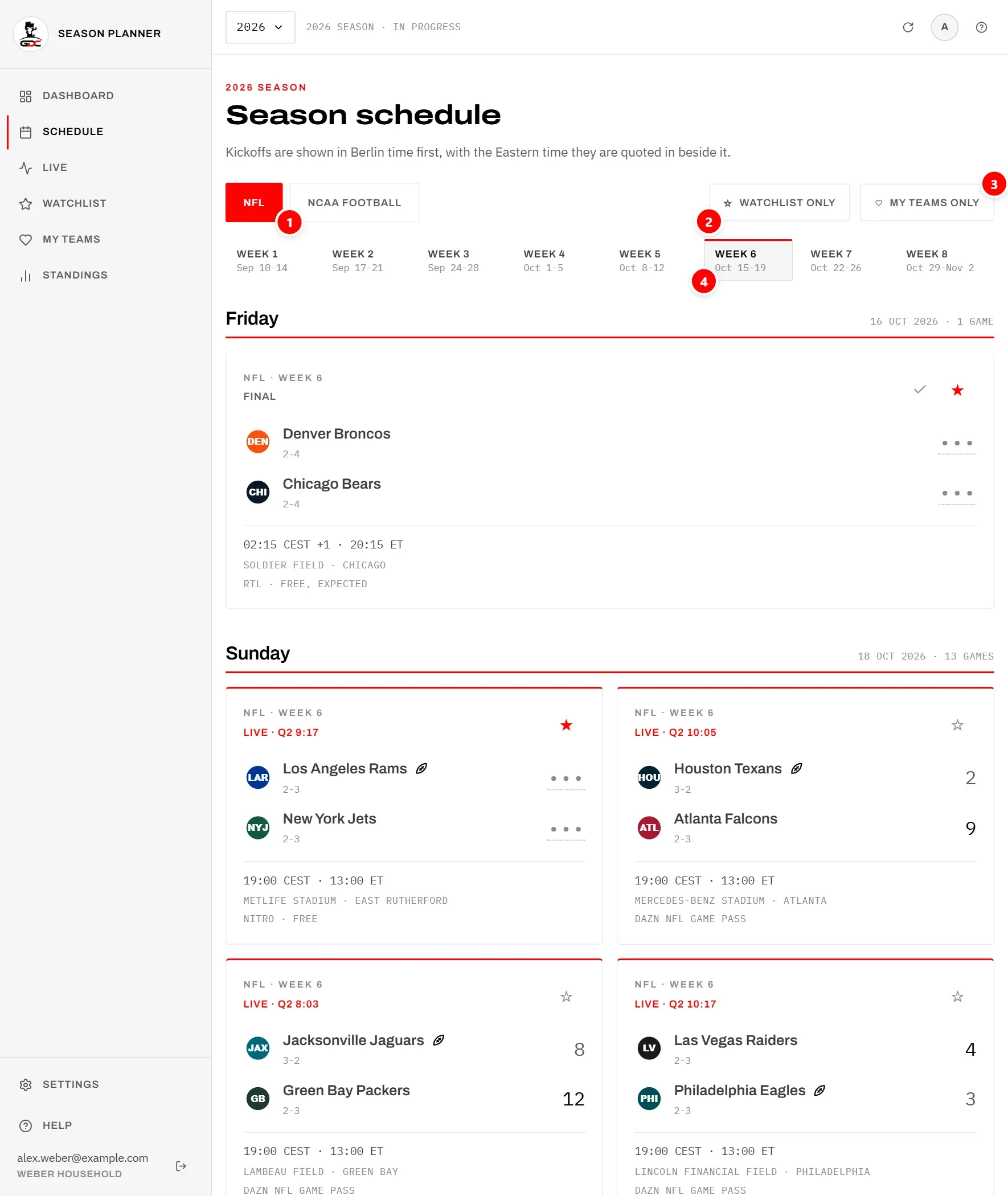
In the picture, 1 is the league tabs, 2 and 3 are the filters, and 4 is the week strip.
To change the league:
- Open Schedule in the menu.
- Tap NFL or NCAA Football at the top (1).
Switching the league takes you back to that league’s current week. Week 5 of the NFL and week 5 of college football are different weekends, so the app does not carry the week across.
Choosing a week
The week strip lets you move through the season one week at a time. It appears in every season: current, planning and archive.
Each week shows its name and its dates, for example Week 6 with “Oct 15-19”. When you open the schedule, the week the season is in right now is selected; if there is none, the first published week.
- Swipe the strip sideways to see more weeks.
- Tap a week to show its games.
The strip shows only weeks for which ESPN has published the games. Besides the regular weeks, the NFL has weeks such as the preseason and the playoffs, each with its own name.
Filters
The filters narrow the week down to the games you care about. You can use both at the same time.
- Watchlist only (2): shows only the games you starred.
- My teams only (3): shows only games in which a team you follow plays, at home or away. A team counts only in its own league, so following an NFL team never brings in a college team. This button appears only once you follow at least one team (see Following teams).
Tap a filter to turn it on; its border and label turn red. Tap it again to turn it off. The filters are switched off again when you leave the schedule.
If nothing matches, you see No games match this filter. Turn the filter off to see the rest of the week.
The game cards
Each game has a card with everything you need to decide whether to watch it. The cards are grouped by day, and the day is the day in Germany. A Thursday night game in the US therefore appears under Friday, because it kicks off after midnight Berlin time.
Each day heading shows the weekday, the date and the number of games. Games without a date are collected under Date to be confirmed.
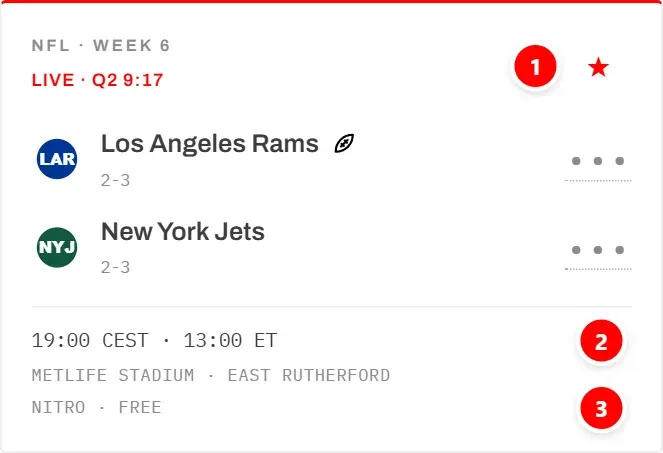
A card shows, from top to bottom:
- the league and week, for example “NFL · Week 6”,
- the state of the game: “Scheduled” with the US TV network, “Live” with quarter and clock (for example “Live · Q2 9:17”), Final, or Kickoff time TBD,
- the star (1): tap it to add the game to your watchlist or remove it. It is the same watchlist as on the game page, so a game starred here is starred everywhere. See Starring games.
- a tick next to the star, only on finished games: Mark as watched. See Watched games.
- the two teams, away team first, each with its record (wins-losses). A ranked college team has its poll position in front, for example “#2”.
- during a game, a small ball after the team that has the ball,
- the score once the game has started. The leading team’s score is highlighted; on a tie, including 0–0, neither is. A hidden score shows ”•••”; tap it to show it (see Hidden scores).
- the kickoff line (2): Berlin time first, then the US Eastern time, for example “19:00 CEST · 13:00 ET”. “+1” means the game starts on the next day in Germany. See Kickoff times.
- the stadium and the city,
- the stream line (3): where you can watch the game in Germany. See The stream line.
In an archive season the cards have no star and no tick, see Archive and planning seasons.
A live game has a red line along the top of its card. Tap anywhere else on a card to open the game page.
While a game of the shown week is live, the week refreshes every 20 seconds.
Archive and planning seasons
A season that is over and a season that has not started yet look slightly different, because they are used differently. See Seasons for how to switch.
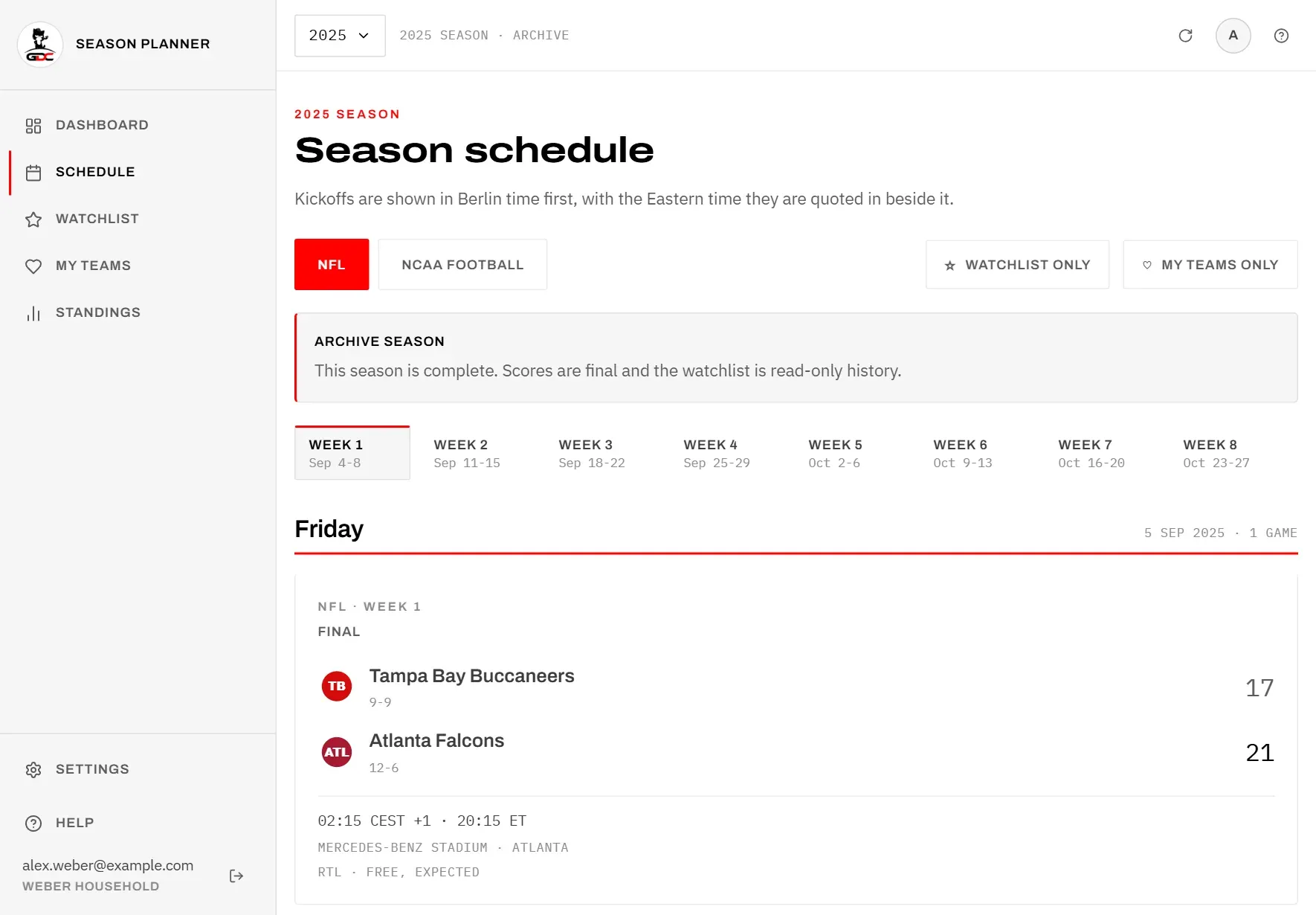
In an archive season, a banner Archive season says the season is complete, the scores are final and the watchlist is read-only history. The cards therefore have no star and no Mark as watched tick, and the game page has no watchlist, watched or reminder buttons.
In a planning season, a banner Planning season says only part of the games is published and kickoff times may still change. Star the games you already know you want; the times fill in as ESPN publishes them.
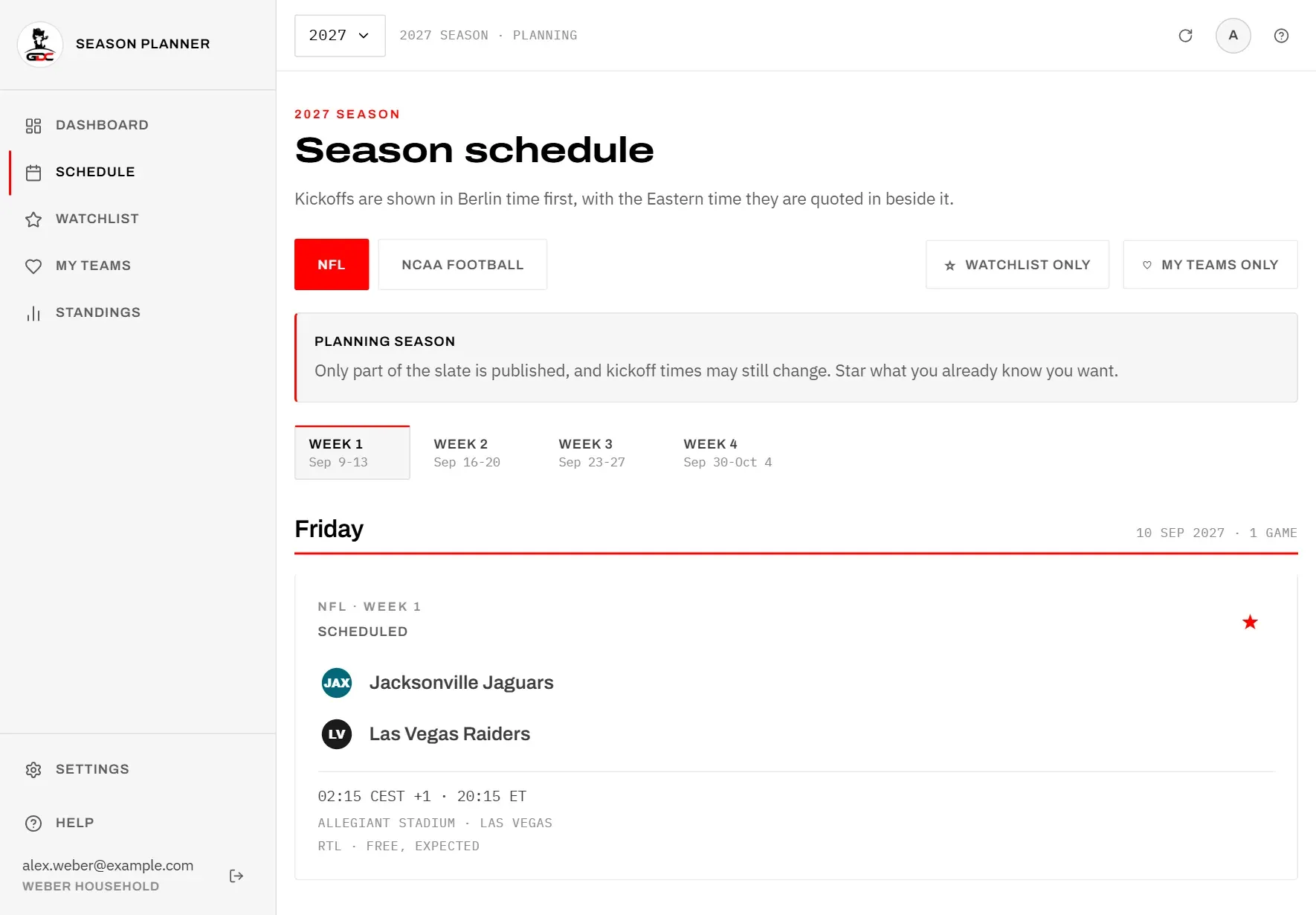
The week strip, the league tabs and the filters work as in the current season, so you can choose any published week.
If ESPN has not published anything for a league yet, you see Nothing published for this league yet.