
Your account
The Travel Planner has no sign-up of its own. You use one account for all GDC tools, created once in the GDC Tools Manager.
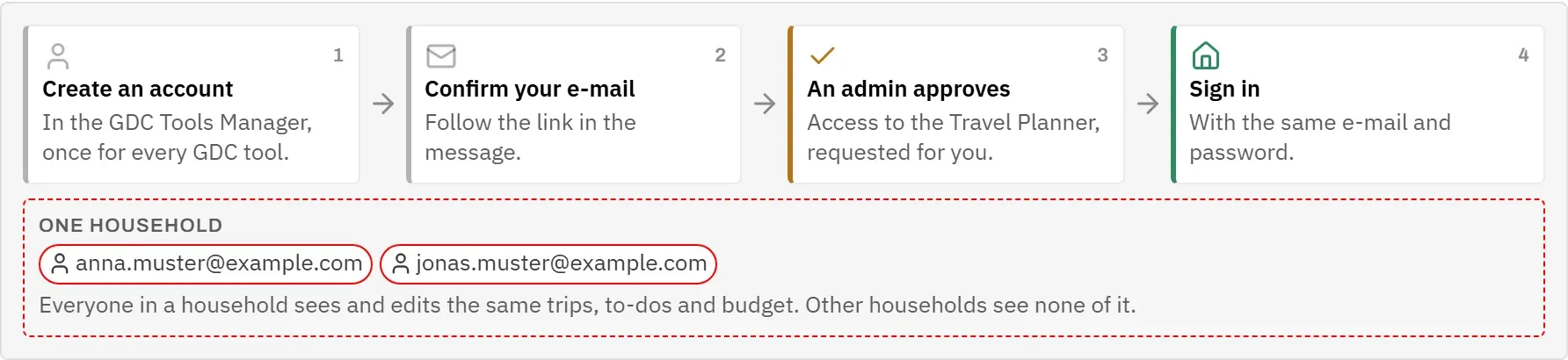
- Open the Travel Planner. On the sign-in screen, tap Create an account. The GDC Tools Manager opens in a new tab and says that access to the Travel Planner will be requested for you.
- Register there with your e-mail address and a password, and confirm in the check that you are not a robot.
- Open the message the manager sends you and follow the link in it. This confirms that the address is really yours. At that moment, access to the Travel Planner is requested for you; you do not have to request it again under My tools.
- Wait for an admin to approve your access (see the next section).
- Back in the Travel Planner, sign in with the same E-mail and Password.
If you do not confirm the address within 48 hours, the account is deleted. Simply register again.
The app starts in the language of your browser: German if the browser is set to German, English otherwise. The buttons Deutsch and English at the top of the sign-in screen switch the language before you sign in.
If you have forgotten your password, tap Forgot password on the sign-in screen. Resetting it also happens in the GDC Tools Manager.
At the foot of the sign-in screen, small links lead to GDC World, to What Travel Planner does (its page on gdc-world.net) and to the User guide (this guide), in the language you picked. Below them, Imprint, Privacy and Contact lead to GDC World’s legal notice, privacy policy and contact form on www.gdc-world.net. Once you are signed in, the same three links are at the bottom of the menu.
You stay signed in on that device until you tap Sign out (the arrow beside your e-mail address at the bottom of the menu) or your session ends.
Approval
A new account has no access to any GDC tool. An admin grants access tool by tool, so that nobody sees someone else’s plans by accident.
- You registered through Create an account here: access to the Travel Planner was requested for you when you confirmed your e-mail.
- You already had a GDC account: request access in the GDC Tools Manager under My tools. If you sign in here first, the sign-in screen says You have not requested access to the Travel Planner yet. and offers Request access. It opens My tools with the Travel Planner at the top, so one click sends the request.
Until an admin has decided, signing in shows Your access is awaiting admin approval. Either way, you get an e-mail and a notice in the Tools Manager. If your request is declined, or your access is removed later, you can request it again the same way. After a decline, signing in offers Request again.
If you are waiting longer than you expected, write to dev@gdc-world.de.
What every sign-in message means is listed in Troubleshooting.
Your household
A household is the group of people who plan together, for example a family. Everyone in a household sees and edits the same trips, to-dos and budgets. Other households see none of it.
- The household’s name is shown under your e-mail address at the bottom of the menu.
- Settings lists all members under Household.
- You cannot add or remove members in the app. That happens in the GDC Tools Manager under My household, where a household admin invites people. A new account starts in a household of its own.
If an admin moves you to another household while you are signed in, the app reloads and shows that household’s trips.
If an admin deletes your GDC account, you get an e-mail confirming it. Your trips belong to the household and stay with it. If you want them deleted as well, write to us through the contact form at www.gdc-world.net/kontakt.
Install on iPad or iPhone
The Travel Planner runs in the browser, but it works best from the home screen: it then opens full-screen like an app, without the browser’s address bar.
- Open the Travel Planner in Safari and sign in.
- Tap the Share button (the square with an arrow pointing up).
- Scroll down and tap Add to Home Screen.
- Keep the suggested name or change it, then tap Add.
From now on, start the Travel Planner from its icon on the home screen.
Your first trip
The app works best if you plan in a fixed order: first the frame, then the places, and only then the details and the money.
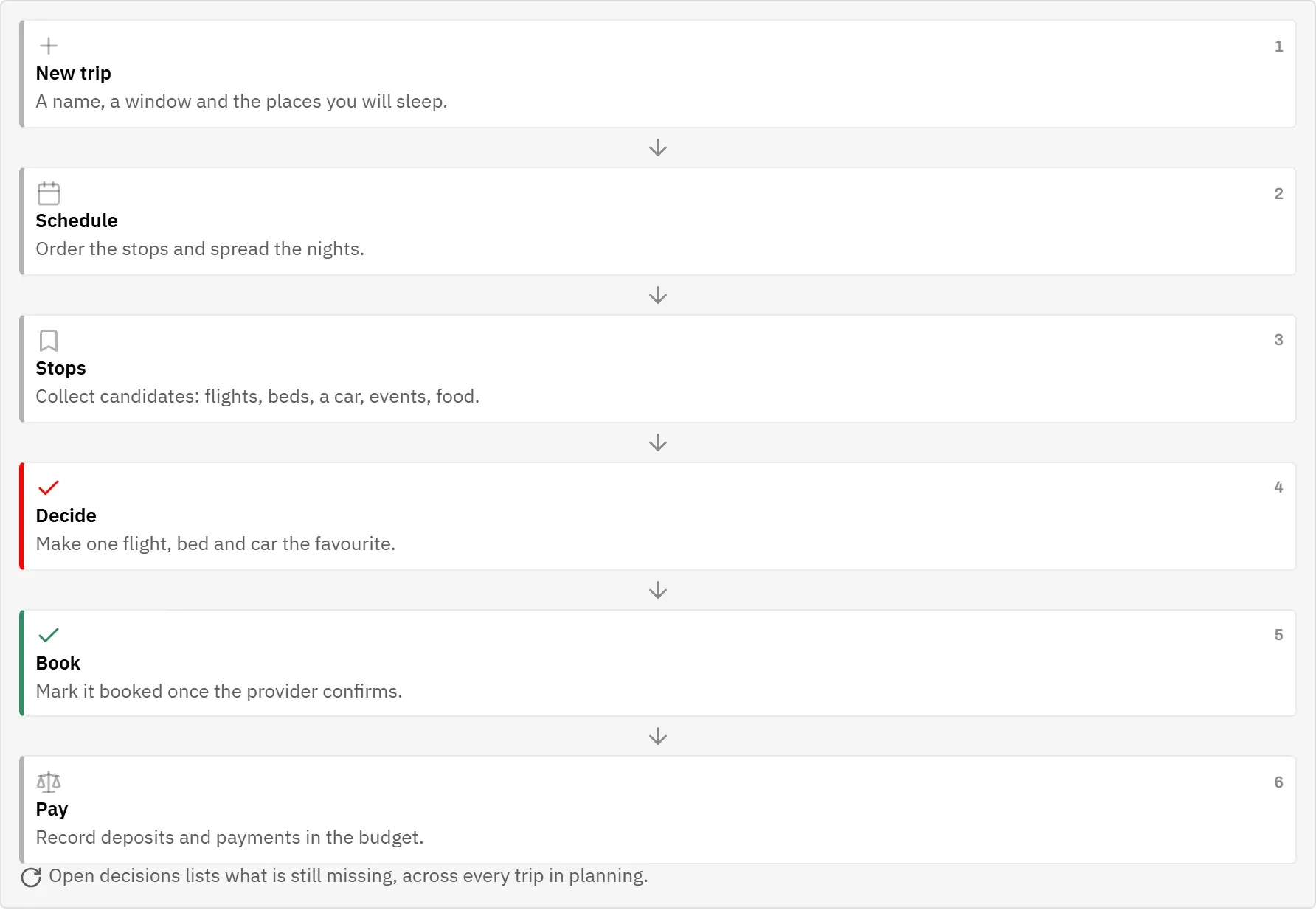
- Create the trip. On Trips, tap New trip, give it a name and a time window, and list the places you will sleep. The trip starts as a Draft; tap Start planning on its overview once its missing decisions should show up under Open decisions. See New trip.
- Set the schedule. Put the stops in order and spread the nights. See Schedule.
- Collect options at each stop. Flights, beds, a rental car, events and meals worth comparing. See Stops.
- Decide. Make one option the favourite. Only favourites count in the totals. See Stops.
- Book. Mark an option as booked once the provider has confirmed it. See Stops.
- Pay. Record down payments and payments in the budget. See Budget.
Open decisions shows, across all trips you are planning, what is still missing.