
Your trips
The Trips screen is where the Travel Planner opens. It shows every trip in your household, so you can see at a glance what is coming up and how far each plan has got.
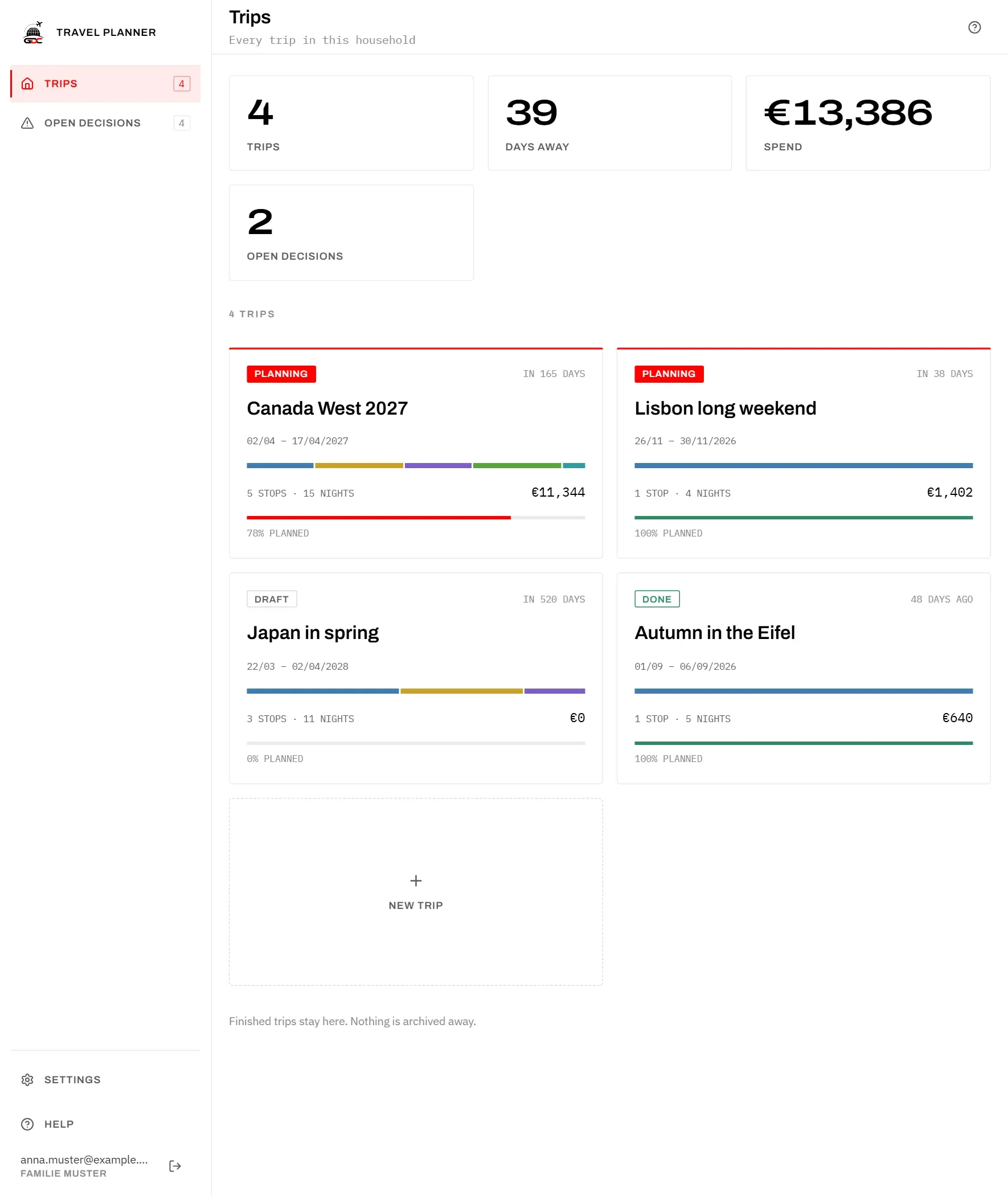
Each trip has a card. From top to bottom it shows:
- Status on the left, and on the right how far away the trip is: In 38 days, Tomorrow, Today. While you are travelling it reads Day 3 of 16, and afterwards 48 days ago.
- Name and dates of the trip, from the first day to the day you come home.
- A coloured strip, one colour per stop. The wider a colour, the more nights you spend there. The same colours mark the stops everywhere else in the app.
- Stops and nights, for example 5 stops · 15 nights, and on the right what the trip costs so far.
- The planning bar with planned as a percentage. It is red while decisions are still open and turns green at 100%. What counts as a decision is explained in Open decisions.
Tap a card to open the trip’s Overview.
To start a new trip, tap the New trip tile after the last card. See New trip.
Finished trips stay on this screen. Nothing is archived away, so you can look back at last year’s trip and what it cost at any time.
The figures at the top
The four figures sum up all trips in the household.
| Figure | What it counts |
|---|---|
| Trips | Every trip on the screen, whatever its status. |
| Days away | The days of all trips added together. A trip counts its nights plus one, because a one-night trip is two days: the day you arrive and the day you leave. |
| Spend | What all trips cost together. Each currency gets its own amount, the largest first; amounts are never converted. With no trips, it shows zero in the currency from Defaults for new trips. |
| Open decisions | The decisions still missing in trips with the status Planning. |
The cost of a trip is the chosen flight, lodging and car at each stop, plus every event and every meal you have entered. Options you have only looked at, but not chosen, do not count. Archived options do not count either. How you choose an option is explained under Stops.
Status
The badge on each card tells you where the trip stands.
- Draft: every trip you create starts here. You can already plan it, but it adds nothing to the open decisions, so an idea does not count as unfinished work.
- Planning: the trip is being planned. Its card has a red line on top, and its missing decisions appear under Open decisions and in the number beside it in the menu. A draft becomes Planning when you tap Start planning on its overview.
- Done: the trip is over. It no longer shows up in the open decisions.
A trip does not become Done by itself when its last day has passed. Once it is over, the trip’s overview offers Mark as done, and Reopen brings it back to Planning. See Overview.