
The stop page
Each stop has its own page. It collects everything you are considering for that place: where to sleep, how to get on, a hire car, things to do and places to eat.
To open a stop, pick its name in the menu. While a trip is open, its stops are listed by name under Budget. The header shows the stop’s name and its dates; the arrow on the left takes you back to the trip’s overview.
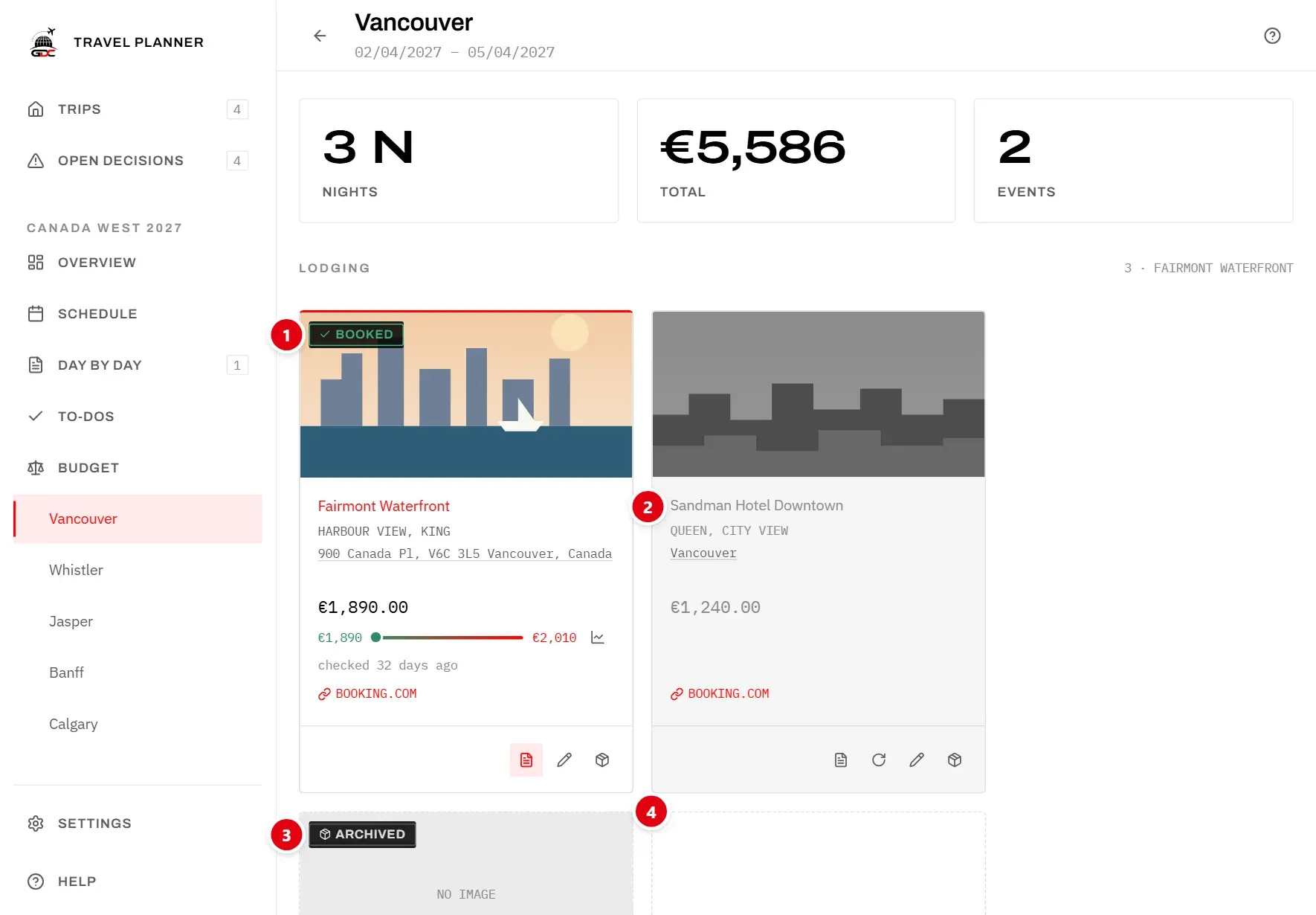
At the top, three tiles sum up the stop:
- Nights: how long you stay. You change it in the schedule.
- Total: what this stop costs as planned (see below).
- Events: how many events are noted down, not counting archived ones. Meals are not included.
The five sections
Below the tiles, the stop is divided into five sections:
| Section | What goes in it |
|---|---|
| Lodging | Hotels, lodges, flats |
| Flights | Flights for this stop |
| Car | Hire cars |
| Events | Tours, tickets, sights |
| Food | Restaurants and meals |
A flight noted at a stop is normally the one that takes you away from it. The flight that brings you to a stop belongs there too; the app recognises it when its To field names the stop.
On the right of each section’s heading you see how many options it holds and, for lodging, flights and cars, which one is currently chosen (or “nothing chosen”).
What counts in the total
Lodging, flights and cars are choices: you collect candidates and pick one. Only the chosen one costs money – the booked one if there is one, otherwise the favourite. The others are alternatives, not spending.
Events and meals are not choices. Every one you add counts in the total, so only add what you actually plan to do.
The cards
Each option is a card. Depending on what you entered, it shows:
- the picture, or “No image”
- the name, and below it the room type (lodging), the departure and arrival times (flights, with a small “+1” when you land the next day), or the day and time (events, meals, the car)
- the address – click it to open the place in Google Maps
- your details text
- the price, and below it how the price has moved since you started checking it (see Prices)
- the website – click it to open the listing
Badges on the picture show its state: Booked, Archived, and for events, meals and the hire car either the day it is planned for (“Day 2”) or Open if it has no day yet.
The buttons at the bottom of a card:
- Favourite (a tick in a box): choose this option. Lodging, flights and cars only.
- Documents (a page icon): attach tickets and confirmations.
- Check the price (a circular arrow): record what the listing costs today. Lodging, flights and cars only.
- Edit (a pencil): change the option.
- Archive (a box): take it out of the plan without deleting it.
In the picture: 1 marks the booked hotel, 2 a hotel that is no longer in the running because another one is booked, 3 an archived lodge, and 4 the Add tile.
Add an option
Every idea for a stop starts as an option on a card. Add as many as you like – comparing them is the point.
- In the section you want, click the Add tile at the end of the row.
- Type a Name. It is the only field you have to fill in.
- Fill in whatever else you know, and click Save.
To change an option later, click Edit (the pencil) on its card. Clicking an event or meal in Plan the days opens the same dialog.
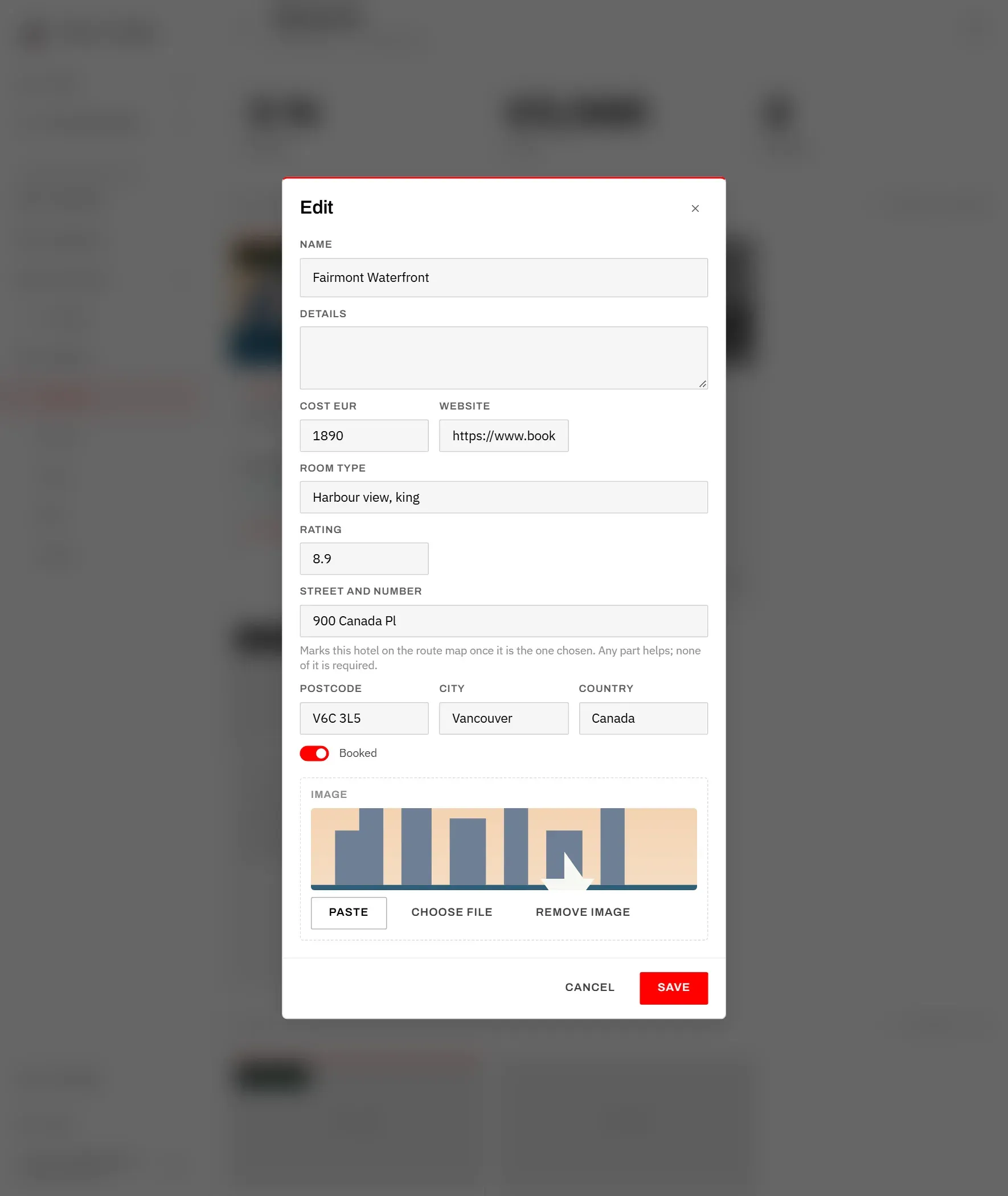
Fields for every option
- Name: what the card is called.
- Details: a free note, shown on the card. Good for “breakfast included” or “table for 2”.
- Cost EUR: the price, in the trip’s currency. For lodging this is the price of the whole stay.
- Website: the link to the listing or booking page.
Fields per section
Lodging adds Room type, Rating and the address. The address is used to mark the hotel on the trip’s map once it is the chosen lodging; otherwise the stop sits in the middle of the town. Any part of the address helps, none of it is required.
Flights add Cost miles (for a seat paid with points, next to the taxes in Cost EUR), Airline, Flight number, Class, From and To with their airport codes (IATA), and Departure and Arrival times.
Car adds Company and Vehicle, plus when you collect it:
- Picked up on: the day of the stay you collect the car. Leave it at From the first day if you collect it on arrival.
- Pick-up time: when you collect it.
Events and Food add the address (it feeds the Google Maps link on the card) and when it happens:
- Day: which day of the stay. Leave No fixed day if you have not decided yet. The day is counted from your arrival, so it moves with the stop if the trip’s dates change.
- Time: the time it starts.
You can also set the day by dragging in Plan the days.
Every section also has the Booked switch – see Mark it as booked.
Add a picture
A picture makes the cards easy to tell apart. In the Image area of the dialog you can:
- drag a picture file onto the area,
- click Paste to take a picture you copied (for example from the listing). Your browser may ask for permission first, or refuse.
- click Choose file to pick one from your device,
- click Remove image to take it off again.
Pictures must be image files and stay under 4 MB.
Choose a favourite
The favourite is the option you would pick today. It is what the trip’s totals and the budget count, so you always see what the trip costs with your current choices.
- Click Favourite at the bottom of a card to make it the favourite. The button’s tooltip says Make it the favourite.
- Click it again to remove the choice; the section then shows “nothing chosen”.
- There is one favourite per section. Choosing another moves it.
The first option you add to an empty Lodging, Flights or Car section becomes the favourite on its own, so the stop does not count as undecided. (Not for a car while the previous stop’s car is still with you – see Hire car.)
Events and meals have no favourite: they all count.
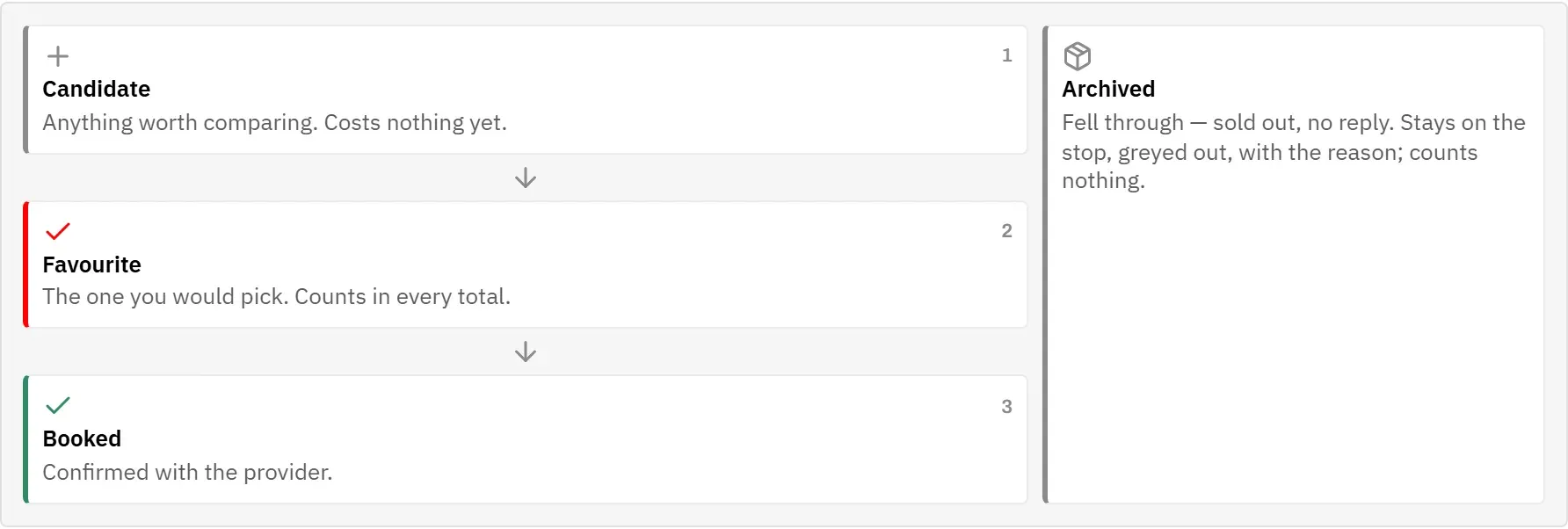
Mark it as booked
Once you have actually booked something, mark it. This works in every section, so the budget can tell what is booked and what is still open.
- Click Edit on the card.
- Turn on Booked.
- Click Save.
The card now shows the Booked badge.
In Lodging, Flights and Car, a booking also settles the section: from then on the booked option is what counts, even if another card is still the favourite. In that section:
- the other options are greyed out – they are no longer in the running, but all their buttons still work,
- the Favourite buttons disappear, because the choice has been made,
- the booked card loses Check the price: its price is settled. Its Price history stays readable.
Events and meals are different: they all count anyway, so booking one changes nothing about the others. Book as many as you like.
Move the booking?
In Lodging, Flights and Car, only one option per section can be booked. If you turn on Booked for a second one, the app asks Move the booking?
- Move it releases the old booking and books this one.
- Cancel returns you to the dialog with everything you typed still there.
To undo a booking, open the card with Edit and turn Booked off.
Hire car
A hire car is collected once and then driven on for days, often through several stops. The app follows the car from stop to stop, so you rent it once and it is billed once.

Keep the car from the previous stop
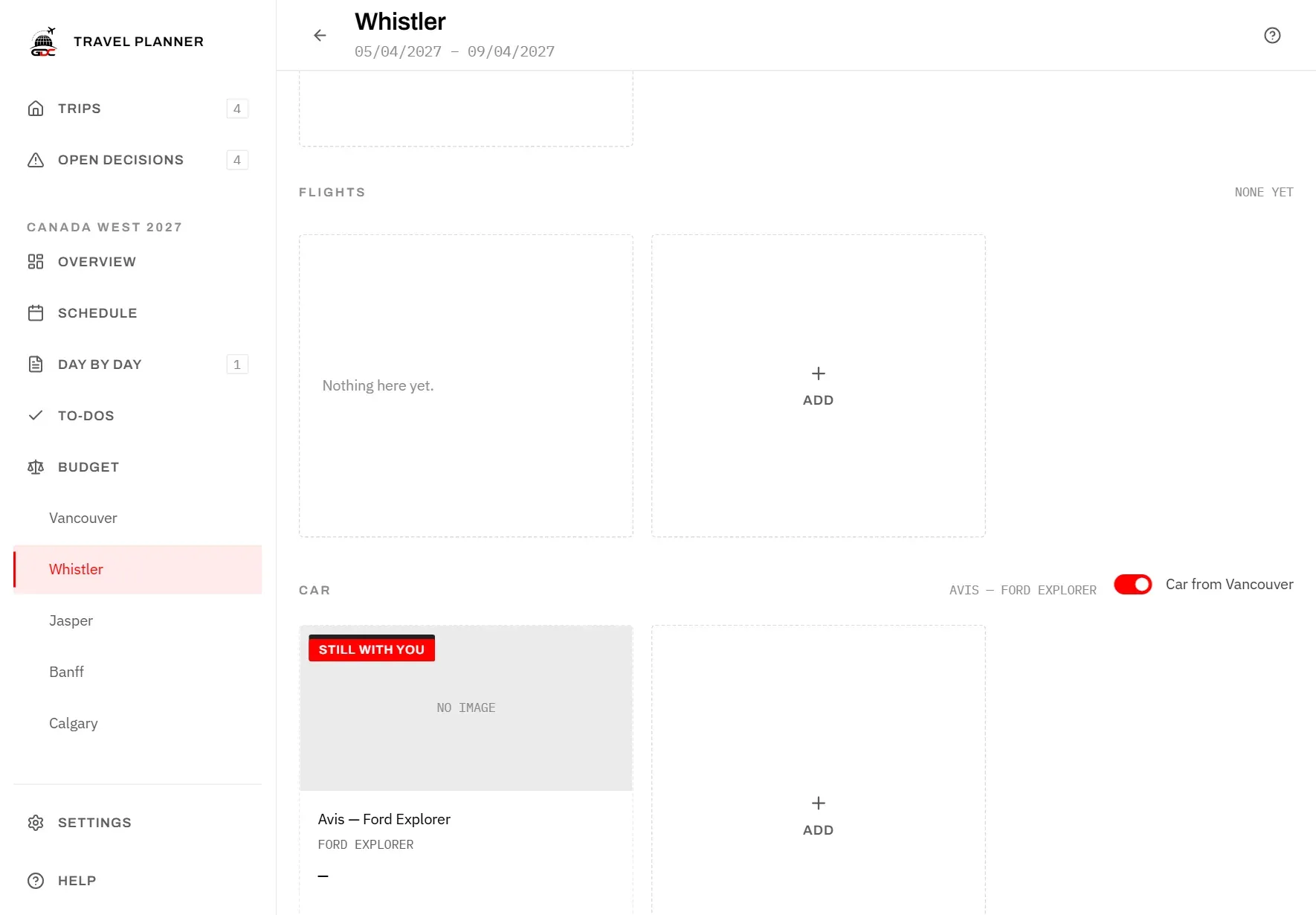
When the stop before has a car, the Car section of the next stop shows a switch: Car from followed by the stop where the car was rented, for example Car from Vancouver.
- Turn it on: the car comes with you. A card with the badge Still with you appears. Instead of a price it shows a dash, and at the bottom Billed at Vancouver – the cost stays at the stop where you rented it. If the stop has no cars of its own, the section’s heading line shows the car’s name, and there is no Nothing here yet. tile.
- Turn it off: you have no car at this stop, and none to pass on to the next one.
Rent a new car on the way
Choosing a car at a stop (as favourite or booked) replaces the one you came with – for example after a flight. The switch then turns off.
Turning the switch on again removes this stop’s car favourite. A car you add while the previous car is still with you does not become the favourite on its own, so noting down a candidate never rents a second car by accident.
For the day you collect the car, see Plan the days.
Archive or delete
Plans change: a lodge sells out, an owner never replies. Instead of deleting such an option, archive it. It stays on the stop with the reason, so nobody finds it, prices it and is disappointed by it again three weeks later.
- Click Archive (the box icon) on the card.
- Under Why, note the reason, for example “Sold out for the new dates”. It is optional, but it is the point of keeping the card.
- Click Archive it.
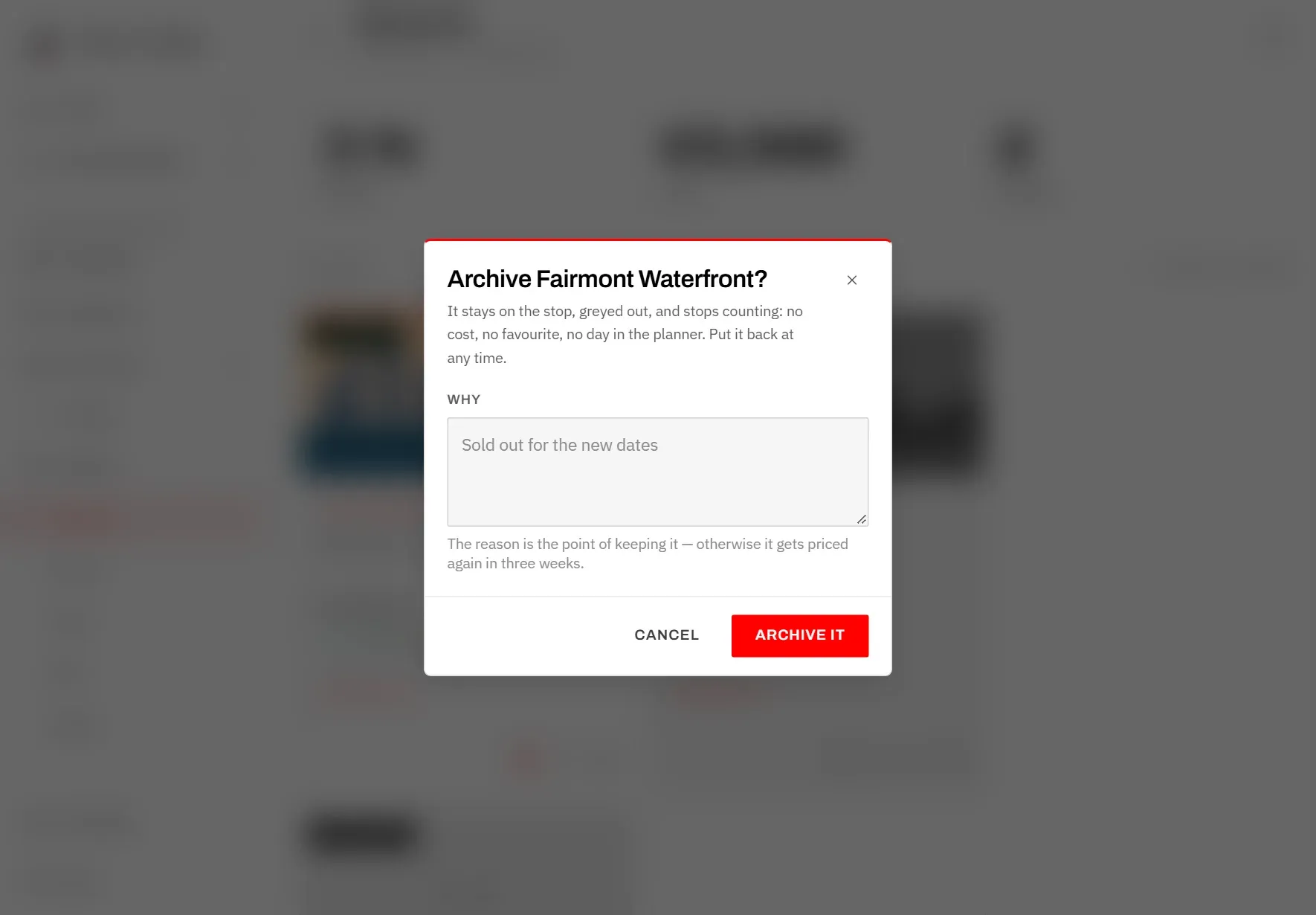
An archived option:
- stays on the stop, greyed out, with the Archived badge, your reason and the date,
- costs nothing and no longer counts in any total,
- is no longer the favourite – if it was, the section has nothing chosen afterwards,
- has no day in Plan the days.
An archived card has two buttons:
- Put back in the plan (an open box): it counts again. The reason is removed. If you want it as the favourite again, choose it again.
- Delete (a bin): removes it for good.
Delete
Deleting is only offered on archived cards, so it always takes two deliberate steps. Confirm with Delete. It cannot be undone. Any payment you recorded for it in the budget is removed as well.
Documents
Keep booking confirmations, tickets and vouchers with the option they belong to, so you have them at hand on the trip.
- Click Documents (the page icon) on the card. When files are attached, the icon is highlighted and its tooltip shows the number, for example Documents (1).
- Drag files onto the area Drop a PDF or a picture here, or click Choose files. You can add several at once.
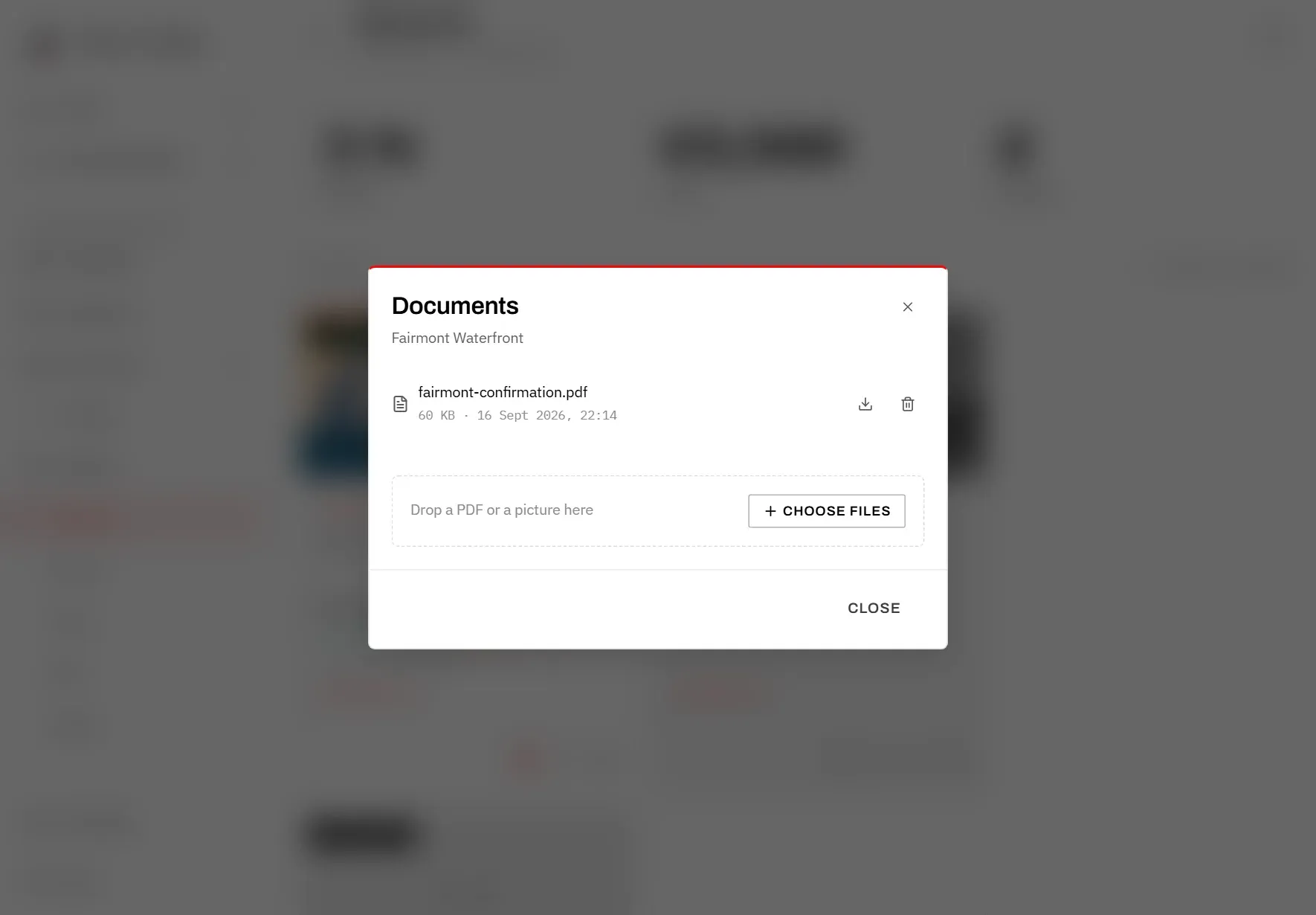
You can attach PDFs and pictures (JPEG, PNG, WebP, HEIC), each up to 15 MB. Each file shows its size and when it was added.
- Click a file’s name to open it in a new tab.
- Download (the arrow into a tray) saves it to your device.
- Remove (the bin) takes it off the list straight away, without asking first. The message Document removed. offers Undo for a few seconds; after that the removal is saved. See Undo.
Documents can be added to any option. Archived cards do not show the button.