
The days of a stay
Plan the days shows every day of a stop as a place to put things. It answers “what are we doing on Thursday?” by moving events and meals around, instead of opening one form after another.
You find it at the bottom of each stop page. The heading shows how many of the stop’s events and meals already have a day, for example “3 of 4 placed”. Archived ones are not counted.
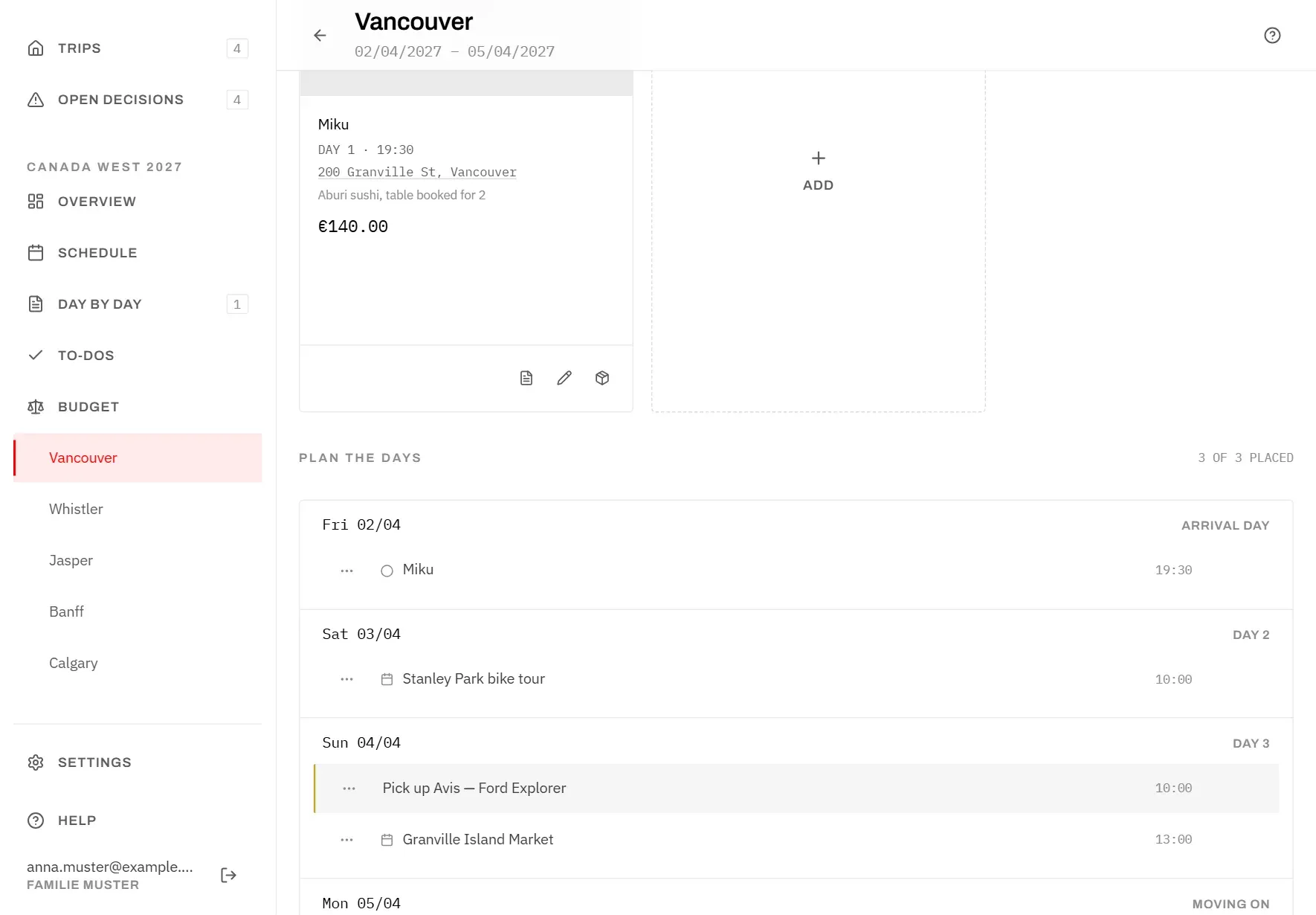
Each day shows its date and what kind of day it is:
- Arrival day: the day you get there.
- Day 2, Day 3 …: the full days in between.
- Moving on: the day you leave for the next stop.
- Here and gone: a stop without a night, where you arrive and leave on the same day.
The arrival day and the moving-on day are shared with the stops before and after, so it is worth checking what else happens on them.
Within a day, entries are sorted by time. A calendar icon marks an event, a circle a meal. Click a name to open the entry and change it.
Car pick-up
If you rent a car at this stop, a highlighted row Pick up followed by the car’s name appears on the day you collect it, with the pick-up time. You have the car on every day after that.
To change the day:
- Drag the row to another day, with the mouse or with your finger on the handle (the three dots) at its left.
- Or use Move a day earlier and Move a day later at the right of the row. Move a day earlier cannot be tapped on the first day. The car cannot be moved to Still to place: it is always picked up on some day. The one exception is described under Still to place.
- Or open it and change Picked up on.
A car you brought from the previous stop has no row here – it was collected there (see Hire car).
Move things to a day
Giving an event or a meal a day puts it in the right place on Day by day.
With a mouse:
- Grab an entry in the planner – or an event, meal or hire car card further up the page.
- Drag it onto a day. The day lights up while you are over it. The page scrolls along when you reach the top or bottom edge.
- Let go.
On a phone or tablet:
- Touch and hold the handle (the three dots) at the left of an entry.
- Drag it onto a day and let go. Letting go somewhere else cancels the move.
Without dragging, use the two buttons at the right of each entry:
- Move a day earlier (a chevron pointing up): one day back. On the arrival day this takes the day away again and puts the entry back under Still to place.
- Move a day later (a chevron pointing down): one day on. From Still to place, it goes to the arrival day.
You can also set the day in the entry itself, under Day (see Add an option). Entries can only be moved within their own stop.
Still to place
Still to place collects the events and meals that do not have a day yet (and a car that has lost its pick-up day, see below), so nothing gets forgotten. It appears at the top of the planner as soon as there is something in it. Their cards further up carry the badge Open.
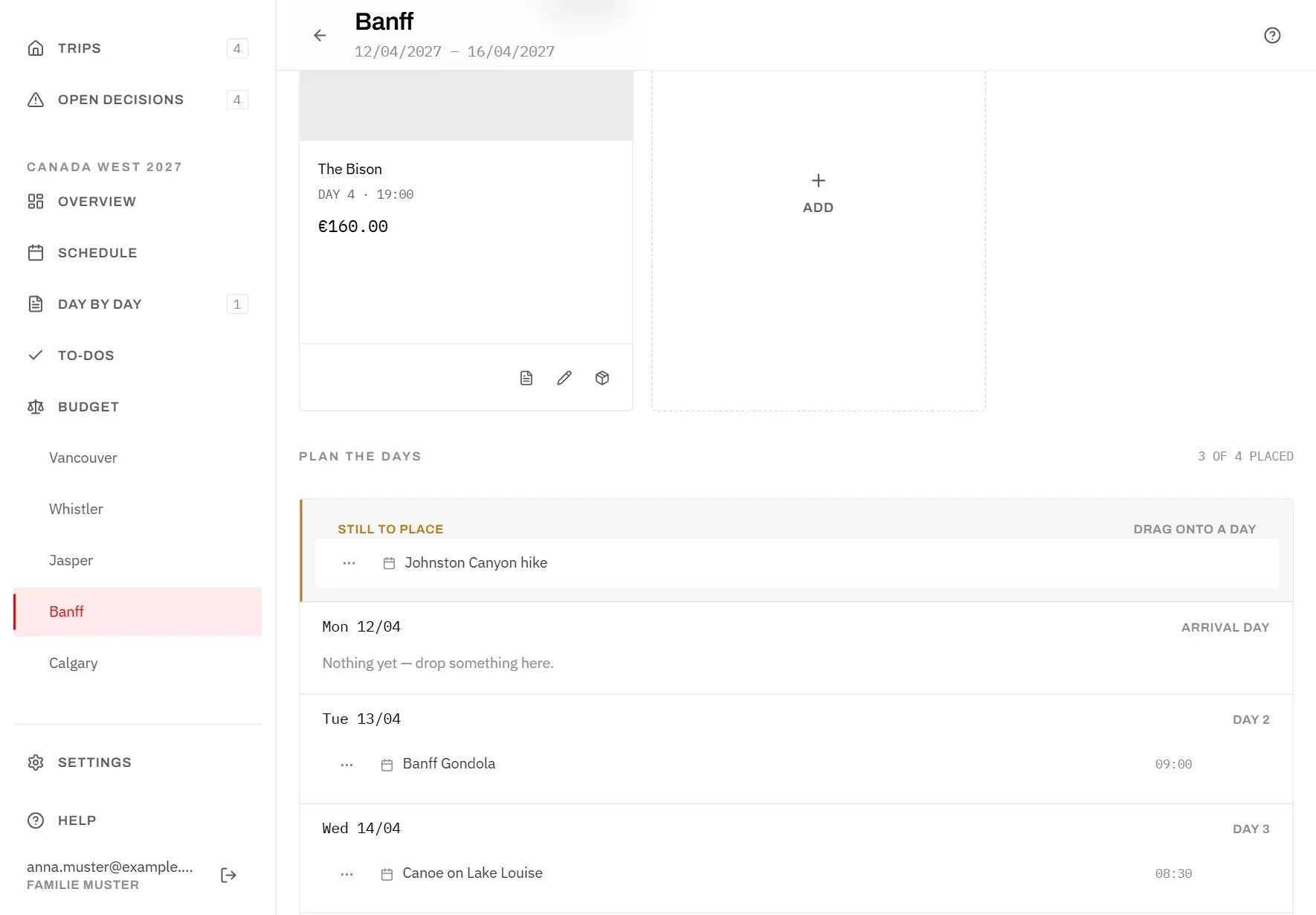
- Drag an entry from here onto a day to plan it.
- While the area is shown, you can drag a planned entry back onto Still to place to take its day away again.
When a stay gets shorter
If you shorten a stop in the schedule, some entries may sit on a day the stop no longer has. The app does not guess a new day for them. They go back to Still to place, and their cards show Open with a warning sign.
They are also listed under Without a day on Day by day, where the menu entry shows how many there are. Give them a new day here, and they disappear from that list.
The same goes for a hire car whose pick-up day no longer exists. Its row (“Pick up” and the car’s name) waits under Still to place, and its card shows Open with a warning sign. To give it a day again:
- drag the row onto a day,
- or tap Move a day later, which puts it on the arrival day,
- or open the car with Edit and choose a new day under Picked up on.