
The figures at the top
The Overview is the front page of a trip. It shows how far the plan has got, what is still missing and what the trip costs. You reach it by tapping a trip on the Trips screen, or with Overview in the menu while a trip is open.
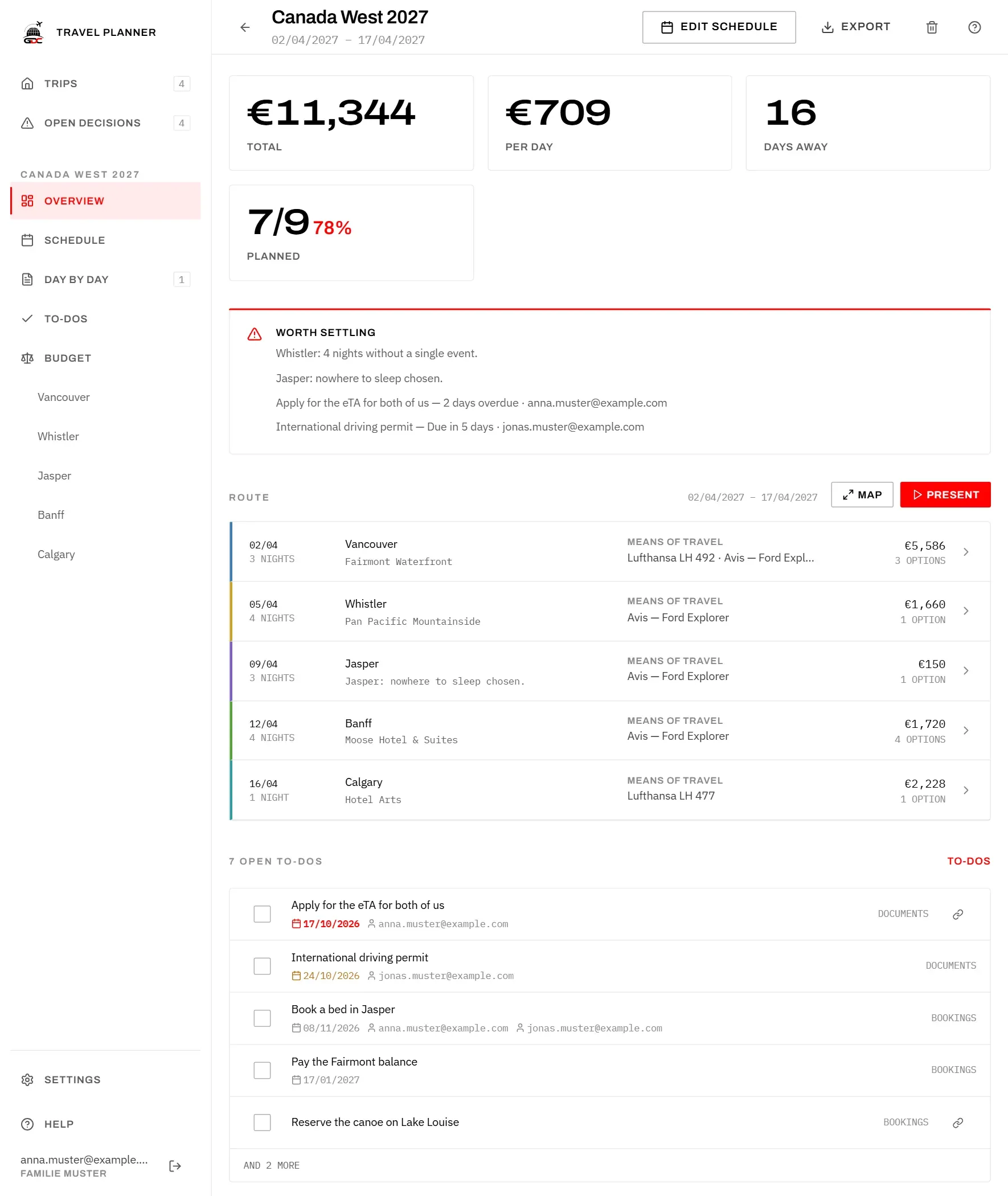
The four figures at the top:
| Figure | What it shows |
|---|---|
| Total | What the trip costs so far. |
| Per day | The total divided by the days of the trip. |
| Days away | The nights of all stops plus one, for the day you come home. |
| Planned | Decisions made out of all decisions, for example 7/9, and the same as a percentage. |
The total adds up the chosen flight, lodging and car at each stop, plus every event and every meal. An option counts as chosen when it is booked or, if nothing is booked, when it is the favourite. Options you only compared do not count. See Stops.
Which decisions make up Planned is explained in Open decisions.
Worth settling
The Worth settling box lists what needs your attention before the trip does. It only appears when there is something to say.
It shows two kinds of lines:
- Missing decisions of this trip, for example “Jasper: nowhere to sleep chosen.” These are the same lines as on the Open decisions screen. For a trip that is still a Draft, they appear only here.
- To-dos running out of time: tasks that are overdue or due within the next seven days, with who is responsible. See To-dos.
To clear a line, make the decision on the stop or finish the task.
Route
The Route lists the stops in the order you travel, each in its own colour. It answers the question: what is settled at each stop, and what is not?
Each row shows:
- Arrival date and nights at the stop.
- The stop and below it the chosen lodging. If none is chosen yet, it says so.
- Means of travel: the chosen flight and the car you have at this stop, including a car you brought from an earlier stop. Flight in red means a flight is still missing here. A dash means nothing is entered, which is fine at stops you reach by road.
- The cost of this stop and how many events and meals are planned there.
Tap a row to open the stop and change what is planned there. The order and the nights are changed on the Schedule.
Map
The map shows the route on a map, so you can see where the trip goes. Tap Map above the route table to open it.
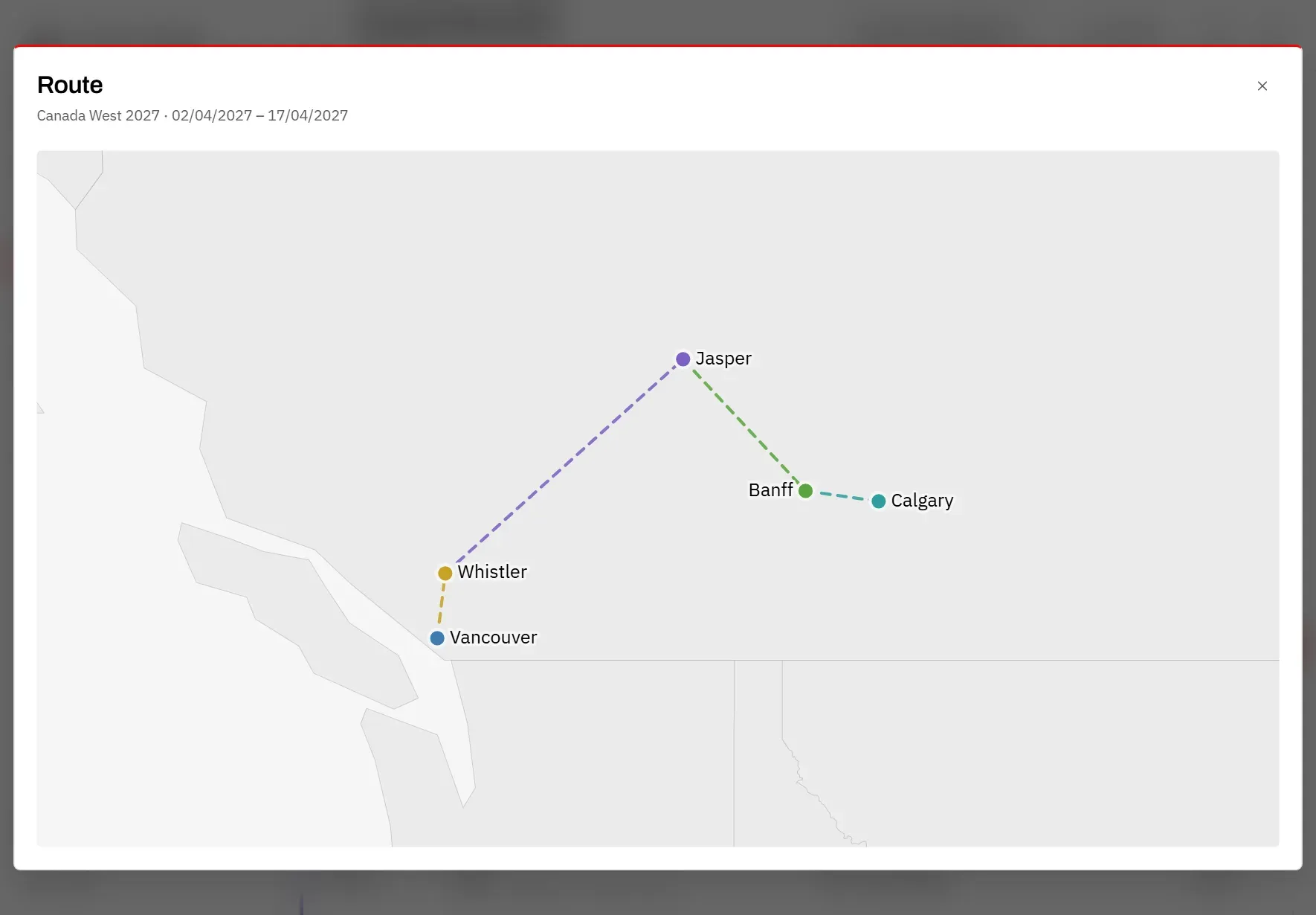
- Each stop is a dot in its colour, connected in the order you travel. If you have chosen a lodging with an address, the dot sits at the lodging rather than in the middle of town.
- Tap a dot to see a short summary: the dates, the chosen flight, lodging and car, the first events and meals, and the cost. Open the stop takes you there.
- Close the summary with its ×, or with the Esc key.
- On the map with map tiles, which you can move and zoom, Show the whole route brings all stops back into view.
When no map tiles are set up, or they cannot be loaded, the app draws the route over plain coastlines instead. That drawn map cannot be moved or zoomed, so it has no Show the whole route.
A stop appears on the map only if its position is known. The position is looked up from the stop’s name. If none is found, the map names the stops it could not place. You can enter the position yourself when you edit the stop on the Schedule.
Present
Present shows the trip as a fullscreen slide show, for example on a TV for the family. It shows places and dates only, no prices.
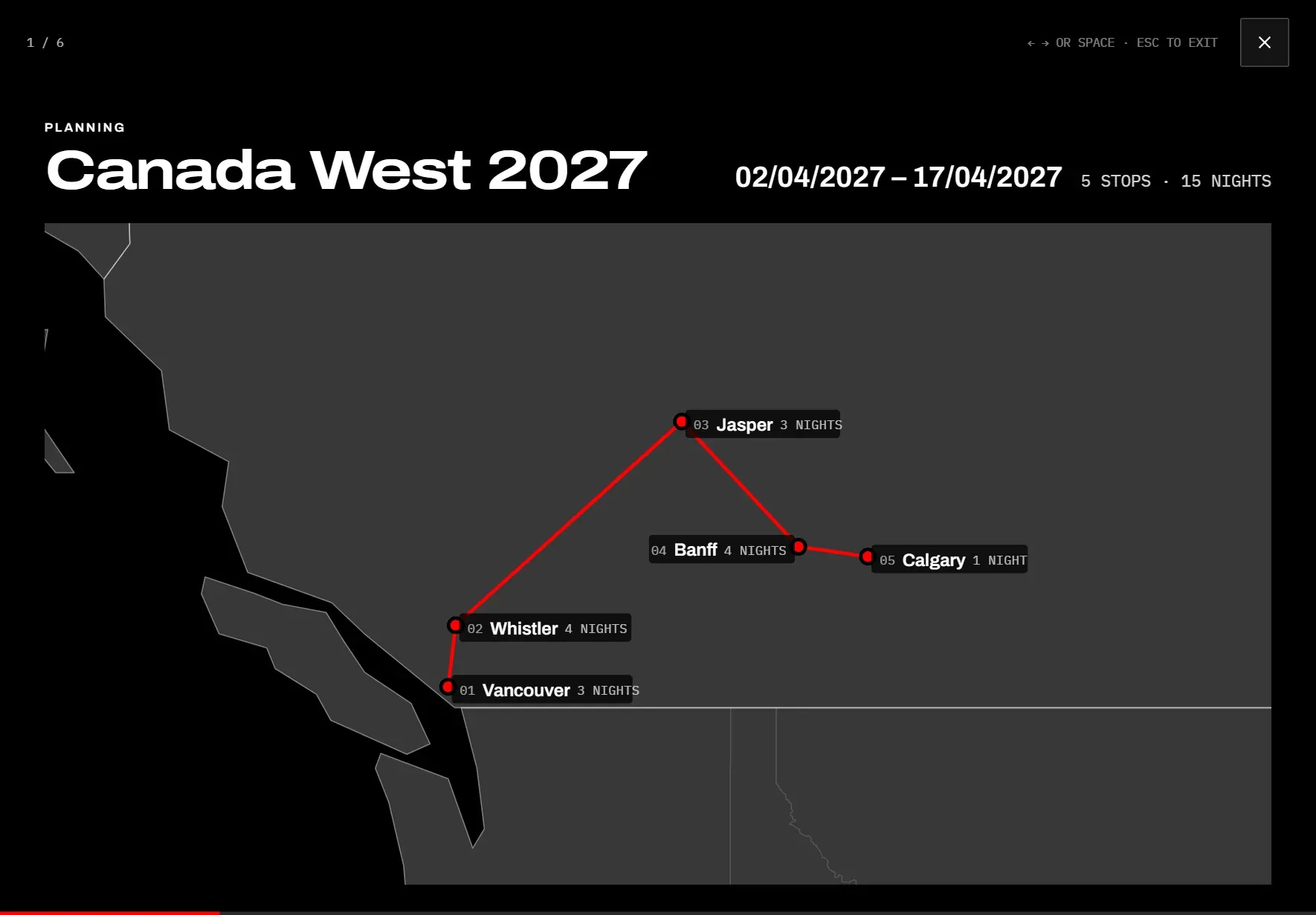
Tap Present above the route table. The slides are:
- The opening slide with the trip’s status (Draft, Planning or Done), the name, the dates, the number of stops and nights, and the route on a map.
- One slide per stop with its dates and nights, and pictures of the lodging, events and meals. A stop with more than five shows the rest as “+2 more”. At the bottom, Onward shows the journey away from the stop, and Car the car rented there.
To move through the slides:
- Next slide: arrow right, arrow down, Page Down or the space bar, or click anywhere except the left edge.
- Previous slide: arrow left, arrow up or Page Up, or click the left edge of the screen.
- End: the Esc key or the × at the top right.
The counter at the top left and the line at the bottom show how far you are. The show stops at the last slide and does not start over.
Open to-dos
This box shows the next five open to-dos of the trip, so you see what to do next without leaving the overview.
- The tasks are sorted by due date, the earliest first. Tasks without a date come last.
- A date in red is overdue, a date in amber is due within a week.
- Tick the box in front of a task to mark it as done.
- To-dos at the top right, or and 2 more at the bottom, opens the full list.
How to add and organise tasks is explained in To-dos.
Notes
Notes is a free text field for everything that has no other place: door codes, booking numbers, who is picking up the keys. Type your text; it is saved as soon as you leave the field.
Calendar
The Calendar shows the months of the trip. Each day is marked in the colour of the stop you are at, so you can see at a glance where you are when. To change the dates, use Edit schedule at the top.
Cost breakdown
The Cost breakdown shows where the money goes. Each category has a bar, and the largest category fills its bar completely:
- Lodging, Flights and Car: only the chosen option at each stop. A rental car is counted once, at the stop where it is rented.
- Events and Food: everything you have entered.
The amount beside the heading is the sum of all bars. It is the same amount as Total at the top.
Per day at the bottom is the total divided by the days of the trip. What you have paid, and costs outside the plan such as a SIM card or the cat sitter, are kept on the Budget screen.
Actions
The buttons at the top of the overview act on the whole trip.
- Start planning appears on a trip that is still a Draft, which every new trip is. It sets the status to Planning, so the trip’s missing decisions appear under Open decisions and in the number beside it in the menu. A draft offers only this button, even after its last day has passed.
- Mark as done appears on a trip in planning once its last day has passed. It sets the status to Done, so the trip leaves the open decisions. The app never does this by itself.
- Reopen appears on a finished trip and sets it back to Planning.
- Edit schedule opens the Schedule, where you change the order, the nights and the dates.
- Export downloads the whole trip as a single file: the stops, every option, the to-dos, the budget and the fixed dates. The file is named after the trip and its start date. Keep it as a copy for your records; the app does not read it back in.
- The bin (Delete trip) deletes the trip with everything in it. You are asked to confirm first. This cannot be undone, so export the trip first if you want to keep a copy.