
Adding a to-do
The to-do list collects everything that has to happen before you leave: documents, bookings, arrangements at home. Each trip has its own list.
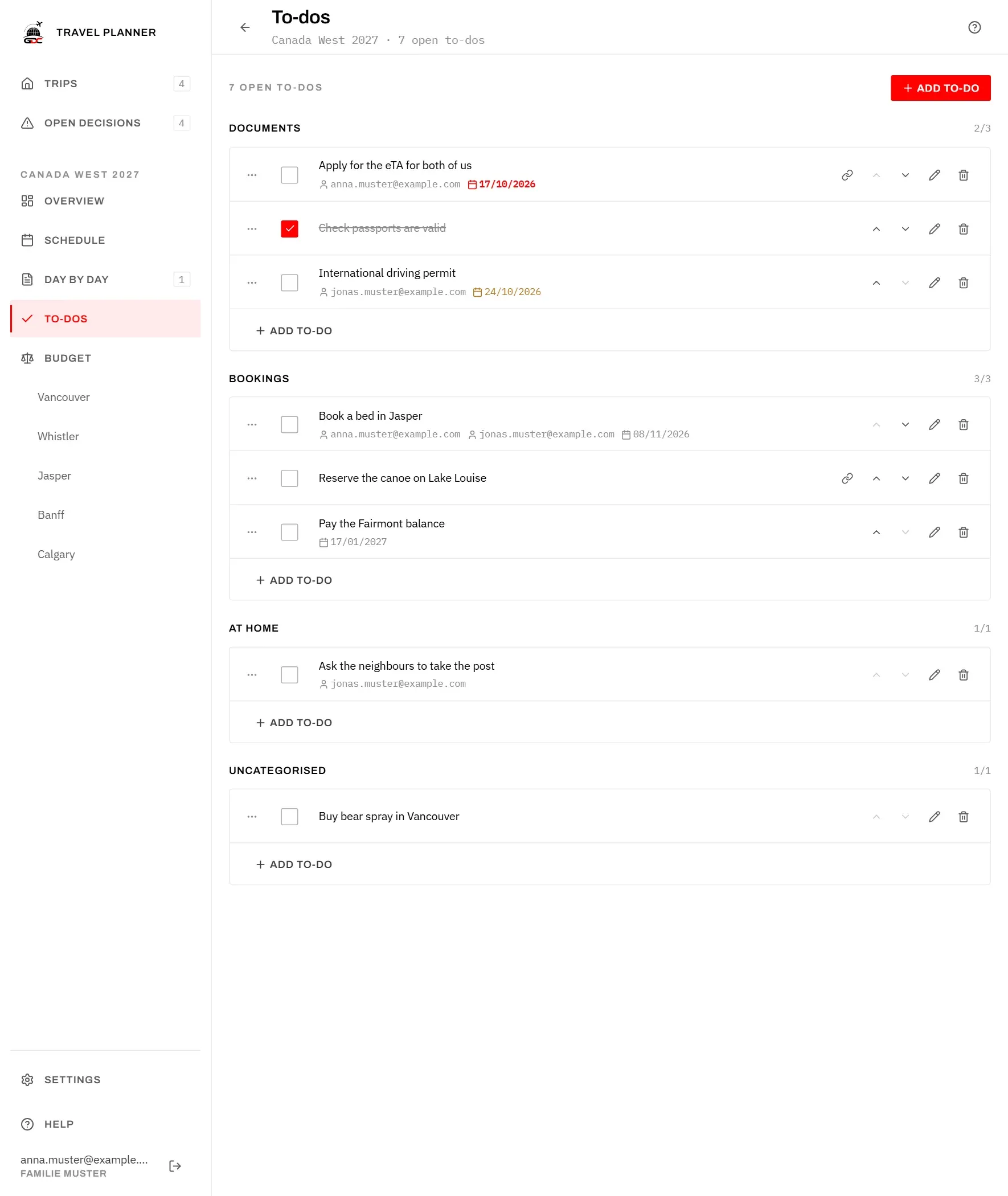
- Tap Add to-do at the top of the page, or at the foot of a category to put the task straight into it.
- Fill in the dialog. Only Task is required; if it is empty, the dialog says Say what has to be done.
- Tap Save.
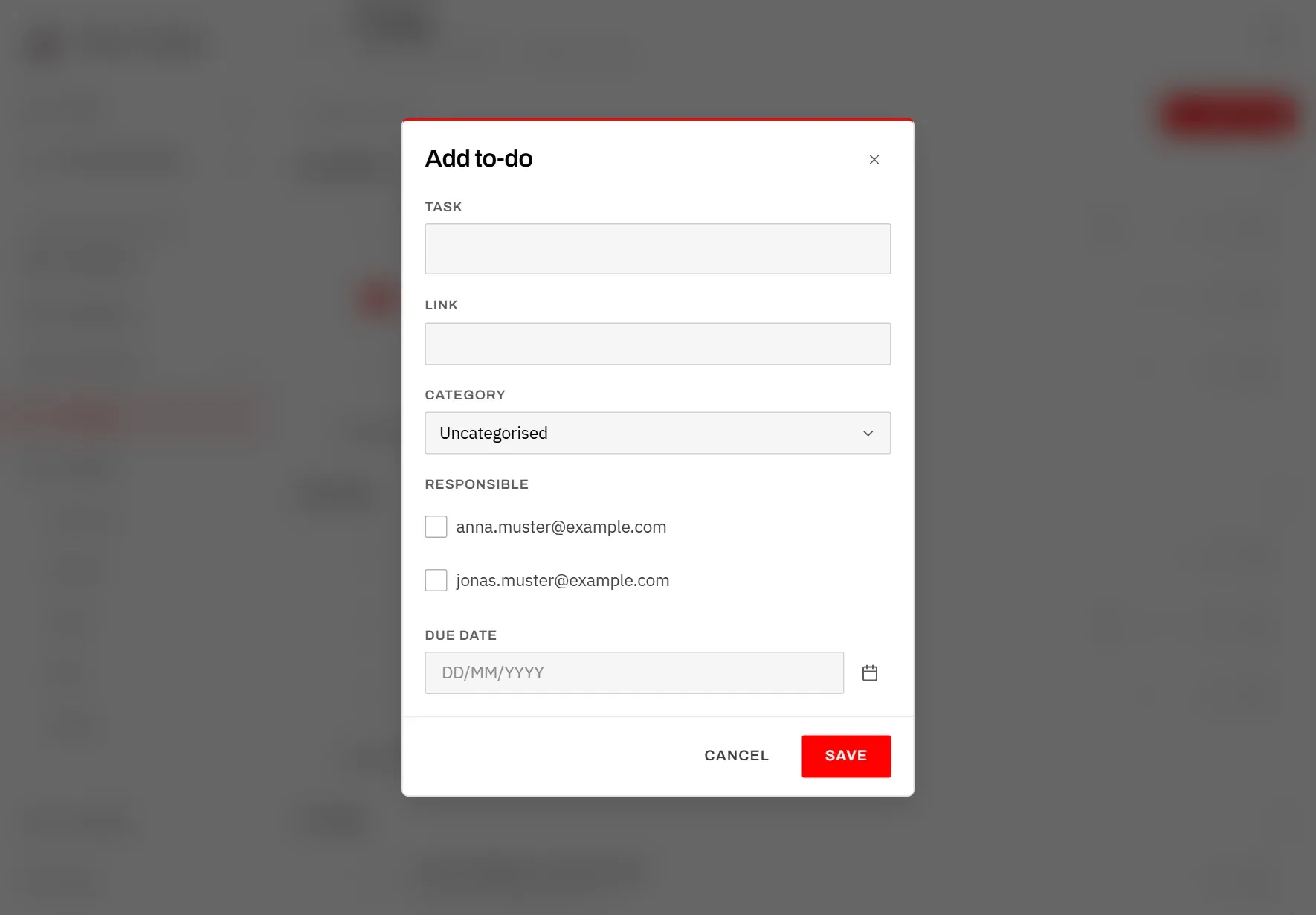
The fields:
- Task: what has to be done.
- Link: a web page that belongs to it, such as an application form. The task then shows a link symbol that opens the page.
- Category: the group the task appears in.
- Responsible: who takes care of it (see below).
- Due date: by when it has to be done (see below).
To change a task, tap Edit (the pencil) on its row. The same dialog opens.
The page title shows how many to-dos are still open.
Categories
Categories group the list, for example into documents, bookings and things to do at home. They are the same for all trips and you set them up once in Settings.
- The categories appear in the order you set in the settings, each with its tasks below it.
- Next to each category you see how many of its tasks are open, out of how many in total (“2/3”).
- Tasks without a category, or whose category has been deleted, are collected at the end under Uncategorised.
Who is responsible
Naming who takes care of a task means nobody has to ask. Under Responsible you see everyone in your household, by e-mail address. Tick one or more people, or nobody.
The names you tick appear under the task. If nobody is listed there, the task is for no one in particular.
Who belongs to your household is listed in Settings.
Due dates
A due date makes sure a task with a deadline is noticed in time, such as a visa or a final payment.
Type the date into Due date, or tap the calendar symbol and pick it. Today jumps to today; Clear removes the date.
The date appears under the task and changes colour as it gets close:
| Colour | Meaning |
|---|---|
| Normal | More than seven days away. |
| Amber | Due today or within the next seven days. |
| Red | The day has passed. |
Tasks that are due soon or overdue also appear under Worth settling on the trip’s overview, with how many days are left or how many days overdue they are, and who is responsible. Completed tasks never warn.
Changing the order
Put the most important tasks at the top of their category.
- Move up and Move down (the arrows on the row) move a task within its category. On the first task of a category Move up cannot be tapped, on the last one Move down.
- You can also drag a task, with a mouse or with your finger on the three dots at the start of its row. Drop it on another task to place it above that one, or on the empty area at the foot of a category to put it last. Letting go anywhere else leaves the task where it was.
If you drop a task in a different category, it moves to that category.
Done and deleting
Tick the box in front of a task when it is done. It stays in the list, crossed out, so you can see what has already been dealt with. Tick it again to reopen it.
To remove a task completely, tap Delete (the bin). A message appears with Undo; tap it within a few seconds to get the task back. See also Undo.