
Check the price
Hotel rooms, flights and hire cars change price while you are still deciding. Checking the price now and then shows you whether it is worth waiting or better to book now – and keeps your budget close to what you will really pay.
You can check the price of lodging, flights and cars that are neither booked nor archived. A booked price is settled, and an archived option is no longer on offer. Events and meals usually have one fixed price, so they have no price check.
- On the card, click Check the price (the circular arrow). If the card has a website, the listing opens in a new tab at the same time.
- Look up today’s price there. The dialog What does it cost today? tells you what to search for (see below).
- Type the price into Price now, EUR. The field shows the current price in grey as a guide.
- Click Record it, or press Enter.
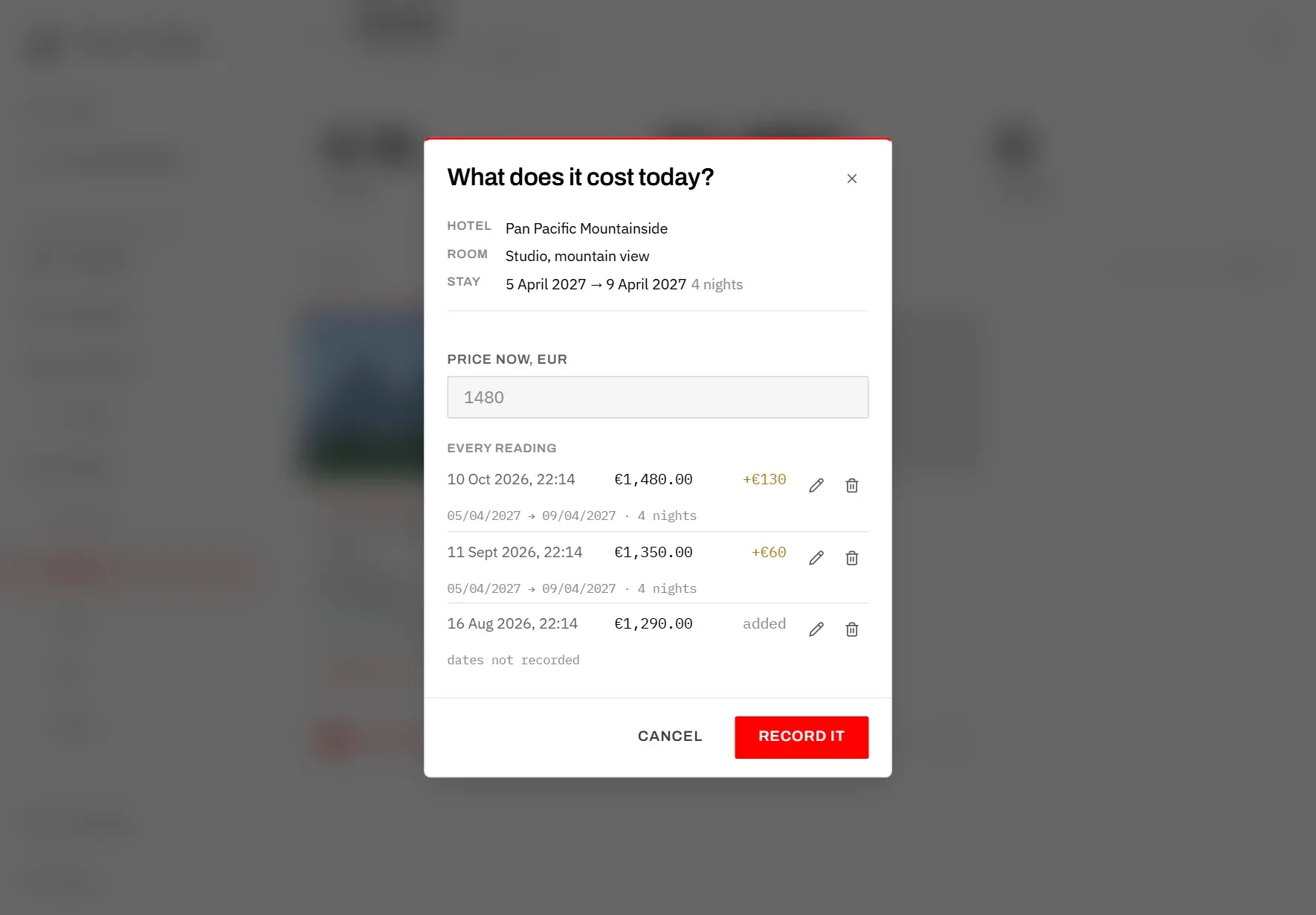
What to search for
At the top, the dialog shows exactly what the price is for, so you can fill in the listing’s own search correctly:
- Hotel, Room and Stay: the lodging, its room type, and the stay from arrival to departure with the number of nights.
- Flight, Flight number and Date: the flight and the one day to search for. That is the day you leave the stop – or the day you arrive, if the flight’s To field names the stop.
- Car, Car type and Rental: the car and the whole rental, from the pick-up day to the day you hand it back. If the car comes with you to the following stops, that is the arrival at the first stop that does not keep it, or the end of the trip.
The current price
The price you record becomes the option’s price: it is shown on the card and is what the stop total and the budget use. That way the budget always follows the latest price you saw.
Changing Cost EUR in the option’s edit dialog changes the price as well, but does not add a reading to the history.
The first check
Before the first check, the dialog says: “Nothing recorded yet. It was added at …, and that becomes the first entry.” When you record the first price, the history therefore gets two entries: the price the option was added at, dated when you added it, and today’s reading.

Price history
The history shows every price you have recorded for an option, so you can see where it has been and whether you booked at a good moment.
To open it, click Price history (the line chart icon) on the card, next to the price range. It appears once a price has been checked, and stays there after you book – that is when you want to know whether it was a good price. On archived cards it is hidden.
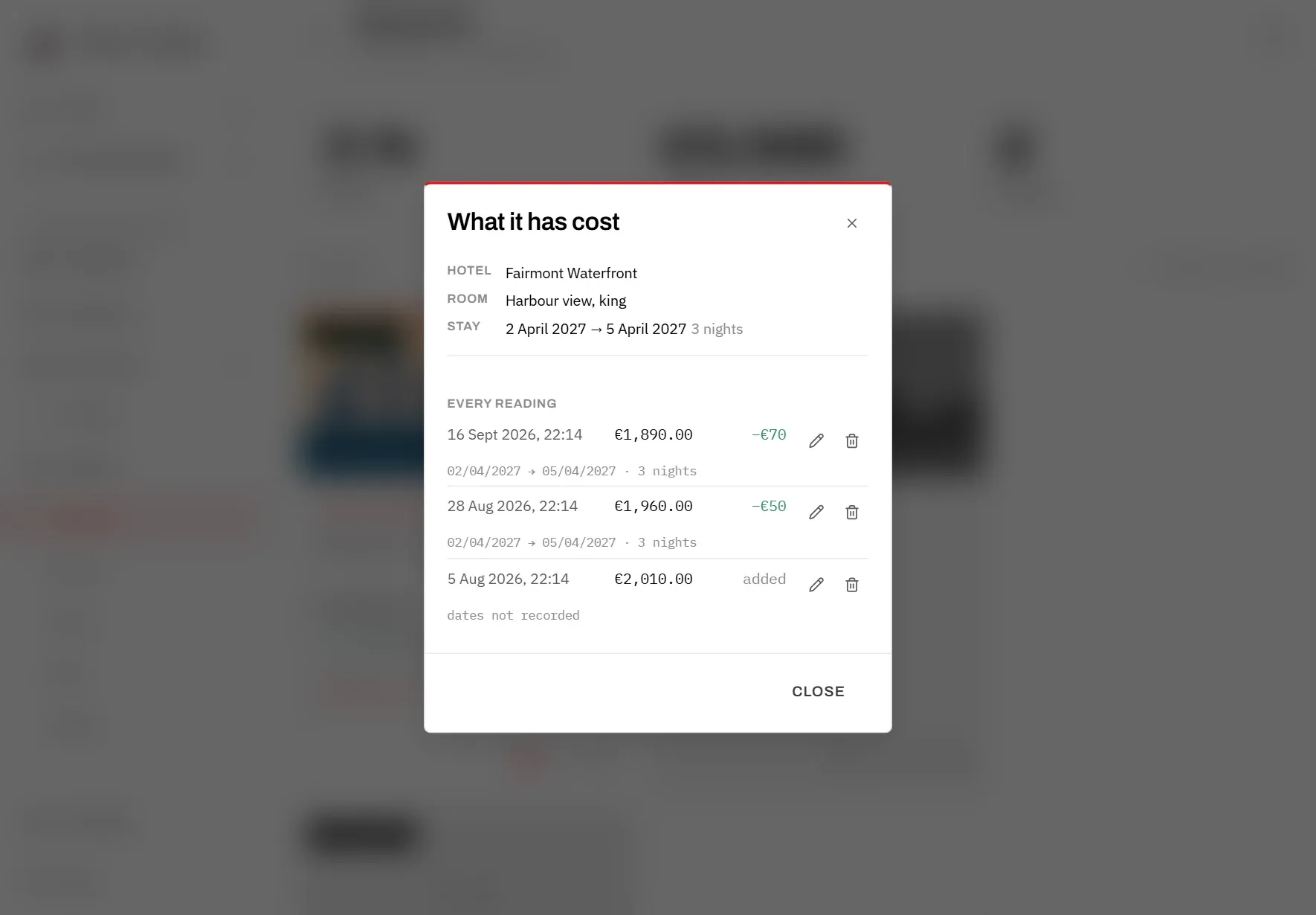
The dialog What it has cost lists every reading under Every reading, newest first. Each row shows:
- when you checked, with date and time,
- the price,
- the change against the reading before it, green when cheaper and amber when dearer; the oldest row says “added”,
- below it, the dates the price was for. The first entry has “dates not recorded”, because nobody knows which dates it was added for.
When the dates have moved
A price only means something together with its dates. If the trip has moved, older readings were quoted for other days. The app keeps the dates with every reading, so you can tell a real price change from a change of dates:
- A row whose dates differ from the reading before it is highlighted. Its tooltip says “The dates had moved by the time of this reading”.
- If the plan has changed since the last reading, a note under the list says so and names the new dates. Then check the price again for the new dates.
On the card
Once a price has been checked, the card shows two short lines under the price:
- “€1,890 ━●━ €2,400”: the lowest and the highest price ever recorded, with a dot on the bar for where the current price sits between them. The low price is green and the high price red, and the bar fades from green to red between them; the dot takes the colour of the spot it sits on. Hover over it to read all three numbers. If the price has never moved, it says “unchanged at …”.
- “checked 32 days ago” (or “checked today”, “checked yesterday”): how old your last reading is. An old reading is a good reason to check again.
Correct a reading
Typed 240 instead of 2,400, or recorded a price for the wrong room? Correct it, so the history stays true. Adding another reading would not help: the wrong number would stay in the record.
Corrections work in both dialogs, What does it cost today? and What it has cost, also for booked options.
Change a reading
- Click Correct this reading (the pencil) on the row.
- Change the price, and if needed the two dates the price was for. Give both dates or neither; leaving both empty records “no dates on this reading”.
- Click Save (the tick) or press Enter. Cancel (the cross) or Escape leaves it unchanged.
Remove a reading
- Click Remove this reading (the bin) on the row.
- The row asks “Remove this reading from the record?”. Click Yes, remove it (the bin again), or Cancel (the cross).
A removed reading cannot be brought back.
Effect on the current price
Correcting or removing the newest reading also changes the current price, unless the option is booked: a correction becomes the new price, and after a removal the reading before it is the price again. Changes to older readings only change the history.