
Step 1: Frame
A new trip is set up in three steps: the frame, the stops and the schedule. Nothing is saved until you tap Create trip at the end, so you can go back and forth freely.
To start, tap New trip on the Trips screen.
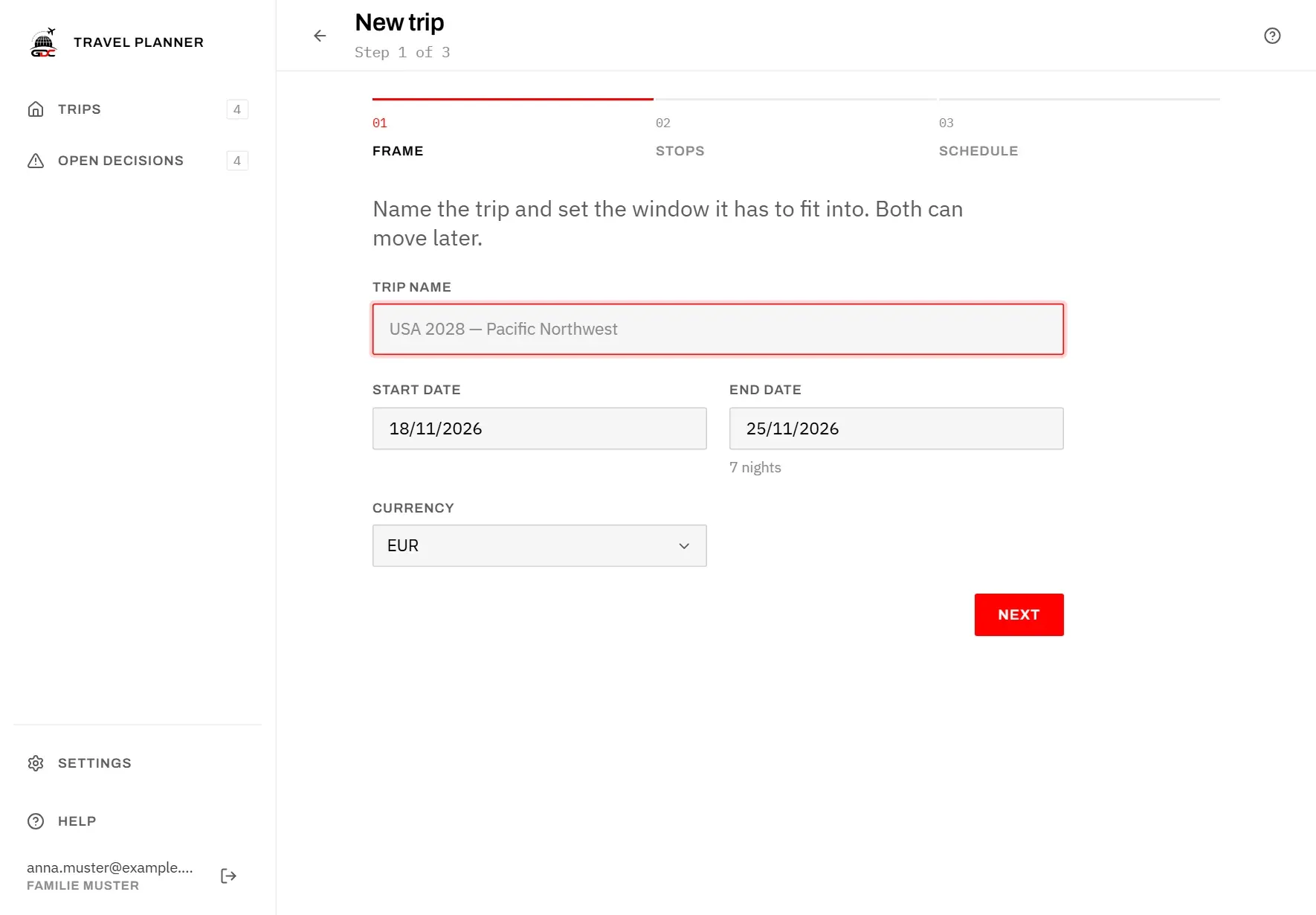
In the first step you name the trip and set the window it has to fit into.
- Enter a Trip name, for example the destination and the year.
- Choose the Start date: the day you leave.
- Choose the End date: the day you want to be home. The number of nights in between is shown below it.
- Check the Currency. All prices of this trip are entered and added up in it.
- Tap Next.
The dates are suggested for you: the start a month from today, the end a week later. The currency comes from Defaults for new trips in the Settings.
If something is missing, the step tells you:
- Give the trip a name.
- Pick a start and an end date.
- The end date has to be after the start date.
The end date is only a guide for planning the nights in step 3. It is not stored. Later, a trip simply ends when its last stop’s nights are over.
Step 2: Stops
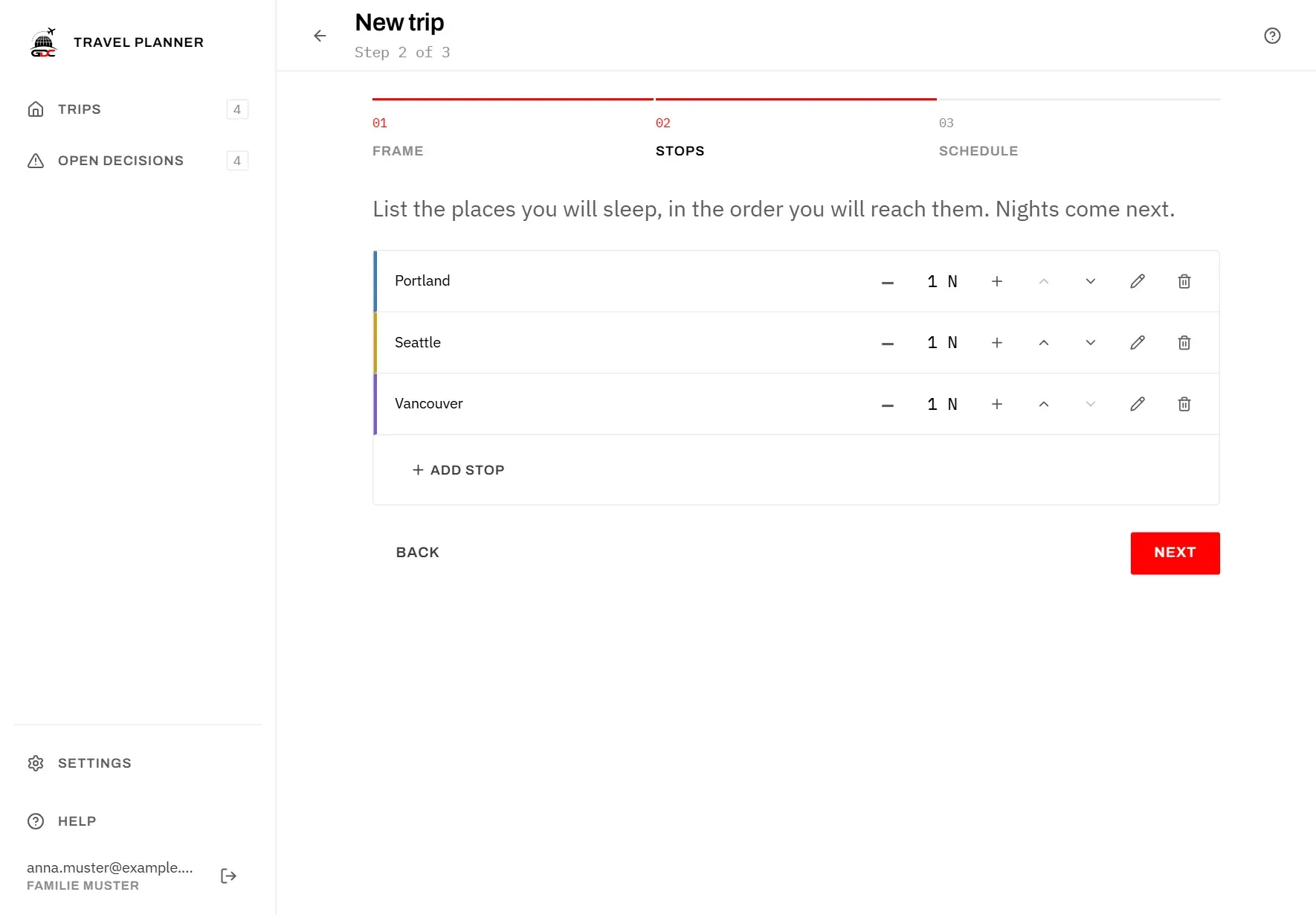
In the second step you list the places where you will sleep, in the order you will reach them. A place you only pass through is not a stop.
- Tap Add stop.
- Enter the name of the place under Stop, for example a town.
- Tap Save.
- Repeat for every further stop, then tap Next.
The dialog also has Position on the map with Latitude and Longitude. Leave both empty: the position is looked up from the name. Fill them in only if the stop lands in the wrong place on the map. Either both or neither must be filled in, otherwise you see A position needs both a latitude and a longitude, or neither.
Each stop in the list has these controls:
- − and + change the nights at that stop.
- The two arrows (Move up, Move down) change the order.
- The pencil (Edit) changes the name or the position.
- The bin (Remove stop) takes the stop out of the list.
You need at least one stop to go on. Otherwise you see Add at least one stop.
Step 3: Schedule
In the third step you spread the nights across the stops. On the left is the list of stops with their nights, on the right a calendar that shows where you are on which day, in the colours of the stops.
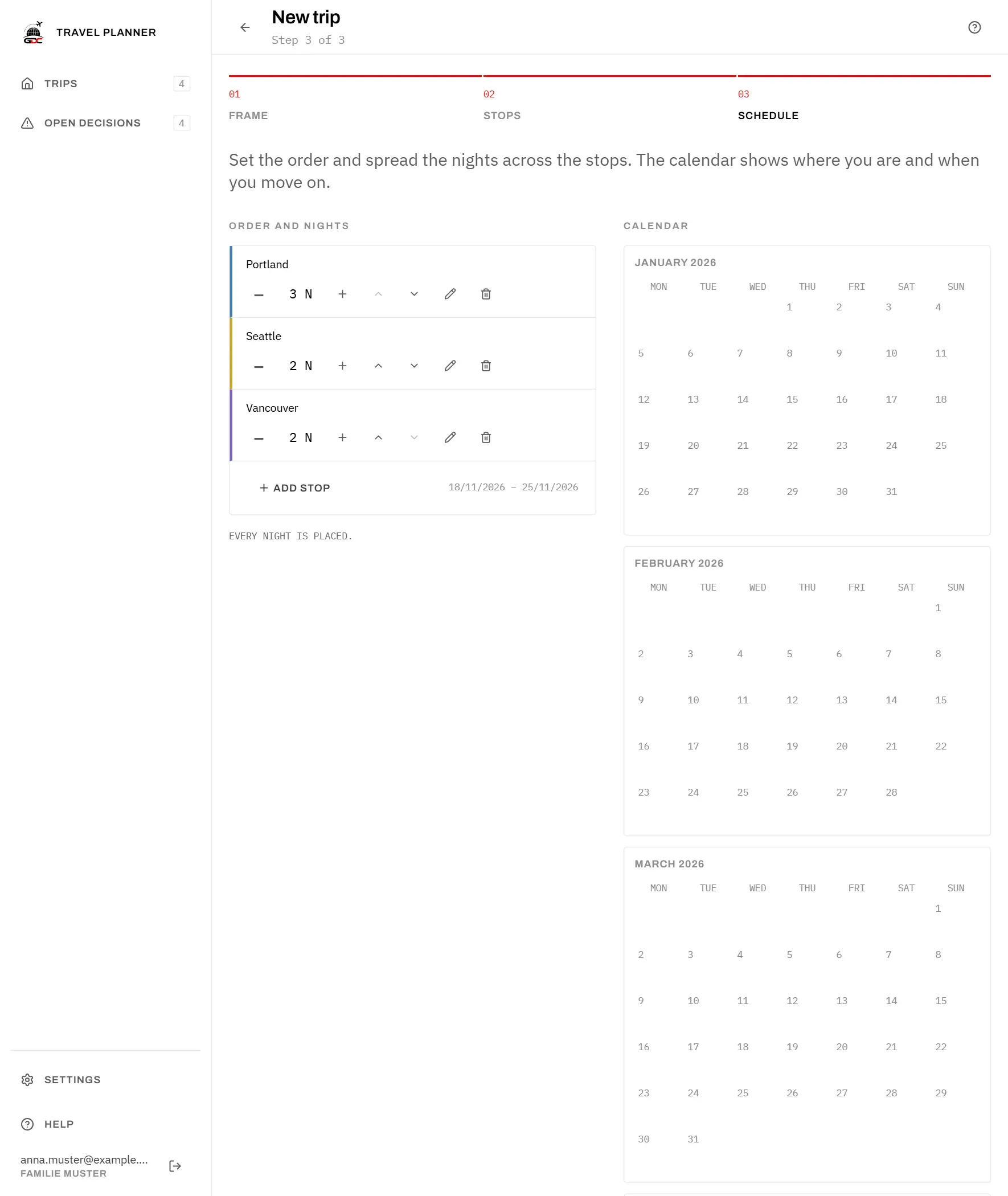
When you first arrive at this step, the nights of your window are already shared out evenly across the stops. This only happens if you have not changed any nights yet in step 2.
- Use − and + to give each stop the nights you want.
- Watch the line below the list. It tells you how many nights are left to place, says Every night is placed. when the trip fills your window, or warns when there are too many.
- Tap Create trip.
You can create the trip even if the nights do not match your window. The trip then ends earlier or later than the end date you entered.
The trip opens on its Overview with the status Draft. While it is a draft, its missing decisions stay out of Open decisions. When the trip is really happening, tap Start planning at the top of the overview, see Overview.
From the overview you add flights, lodging and events to each stop. You can change the order, the nights and the dates at any time on the Schedule screen. Fixed dates such as public holidays are also added there once the trip exists.