
Order and stops
The schedule is where you decide which places you visit, in which order, and how long you stay at each. Open it with Schedule in the trip’s menu or Edit schedule on the overview; Done takes you back to the trip’s overview.
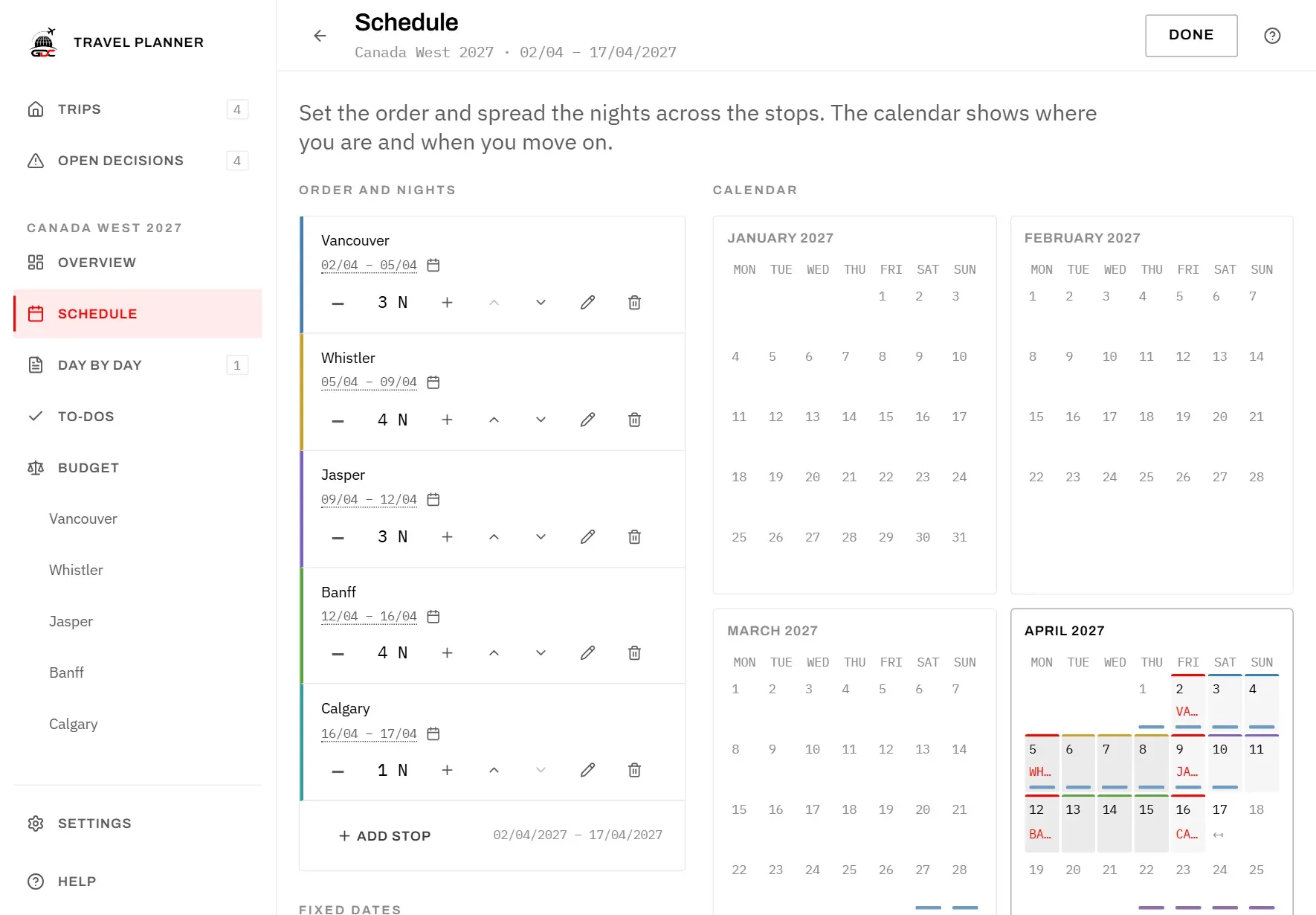
Under Order and nights, every stop has one row, with a coloured edge that matches its colour in the calendar. Each row offers:
- Move up and Move down (the two arrows): change the order of the stops. All dates follow at once.
- Edit (the pencil): change the name and the position on the map.
- Remove stop (the bin): takes the stop off the route. You are asked first, because the stop’s options and their pictures are deleted with it.
To add a place, tap Add stop at the foot of the list. Type the name and save. The new stop is added at the end with one night; move it to the right place with the arrows.
Name and position on the map
The map finds each stop by its name. If it puts a pin in the wrong place, for example a town that exists twice, you can correct it.
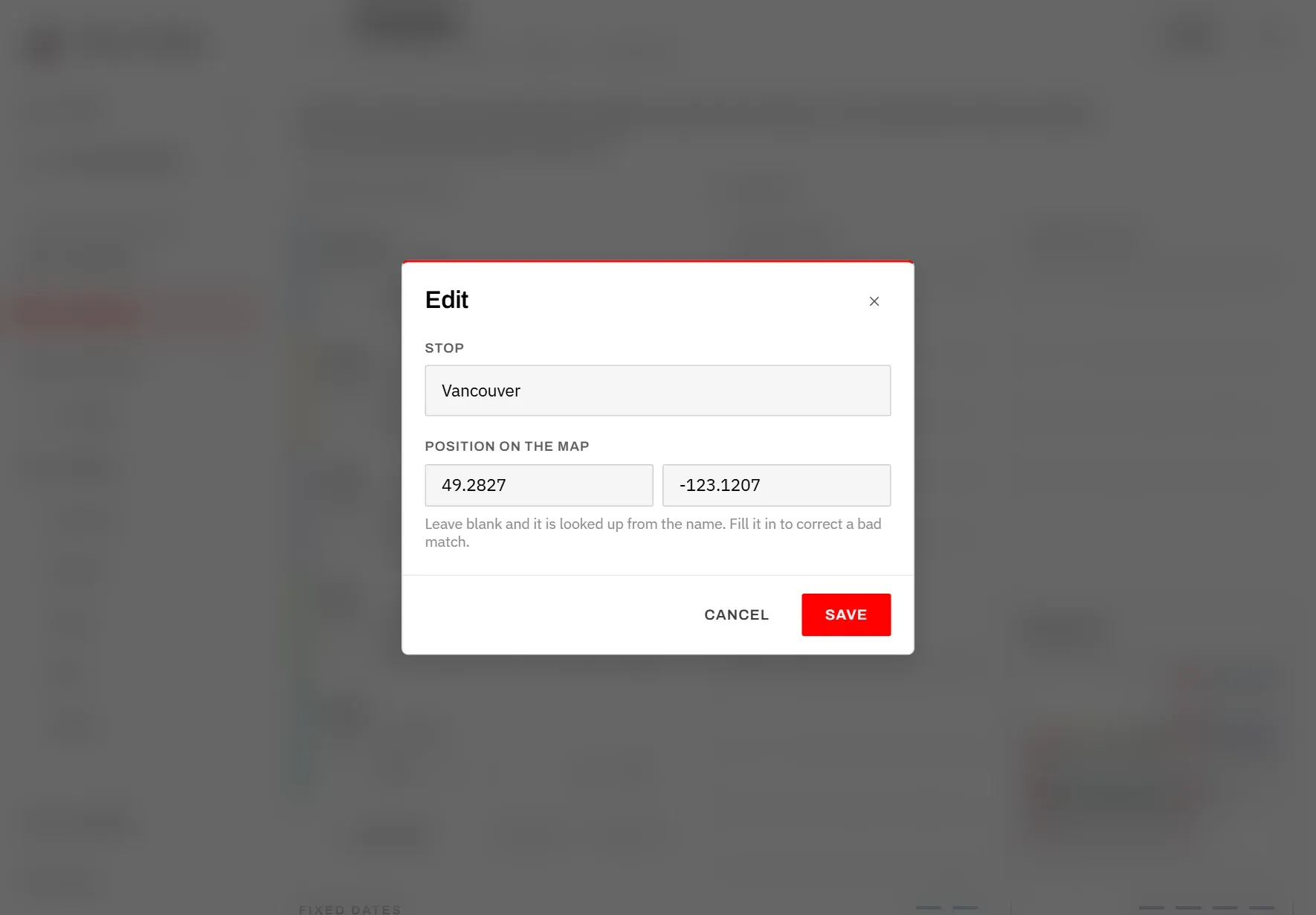
- Tap Edit on the stop’s row.
- Under Position on the map, enter the Latitude and Longitude. You can copy both from any online map. A comma works as the decimal mark too.
- Tap Save.
Leave both fields empty and the position is looked up from the name. Fill in both or neither: a single number is refused. If you rename a stop and leave the position empty, the new name is looked up afresh.
Nights and dates
The trip keeps only two things: the date it starts, and how many nights you stay at each stop. Every other date is worked out from these, every time you look: when you arrive at each stop, when you move on, when you get home.

So you never have to correct dates by hand. Change the nights at one stop and everything after it moves with it: the following arrivals, the end date, the days of your events and the calendar.
To change the nights, use − and + next to the number (shown as “3 N” for three nights). A stop keeps at least one night.
The range under the stop’s name shows its arrival and the day you move on. The range at the foot of the list is the whole trip.
Setting an arrival
Sometimes you know the date you have to be somewhere, not how many nights to stay before it. Setting the arrival date does the counting for you.
- Tap the dates under the stop’s name (they carry a small calendar symbol).
- In Set arrival, choose the new Arrival date.
- Tap Save.
What changes depends on the stop:
- The first stop: the whole trip moves. The start date changes, and all nights stay as they are.
- Any later stop: the stop before it gets more or fewer nights, so that you arrive on the chosen day. Everything after it moves accordingly.
The stop before still needs at least one night. That is why the earliest date you can choose is one day after the previous stop’s arrival; the dialog shows that arrival as a hint. An earlier date is refused, and the dialog stays open and tells you the earliest possible day.
If Arrival is empty, the dialog says Pick a date. A date it cannot read gives That is not a date we can read.
The calendar
The calendar shows the whole year of the trip, January to December, so that you can see it next to holidays and other fixed dates. If the trip runs into the next year, that year is shown too. Months the trip touches have a darker frame.
On the calendar:
- Every day of a stop is shaded and has a line along the top in the stop’s colour.
- A red line and the stop’s name in red mark each arrival day.
- The day you get home carries a small arrow.
- Thin bars along the bottom of a day are your fixed dates, in their colours. A day shows up to three of them; if more fall on it, a number such as +1 follows the bars.
Point at a day to see the stop’s full name and every fixed date on it, including those without a bar.
A moving day can only have one colour here, so the calendar gives it to the stop you arrive at. In Day by day the same day appears under both stops.
Fixed dates
Fixed dates are the things you plan the trip around: school holidays, public holidays, other people’s leave. They appear as coloured bars in the calendar, so you see straight away whether the trip clashes with them. They belong to this trip.
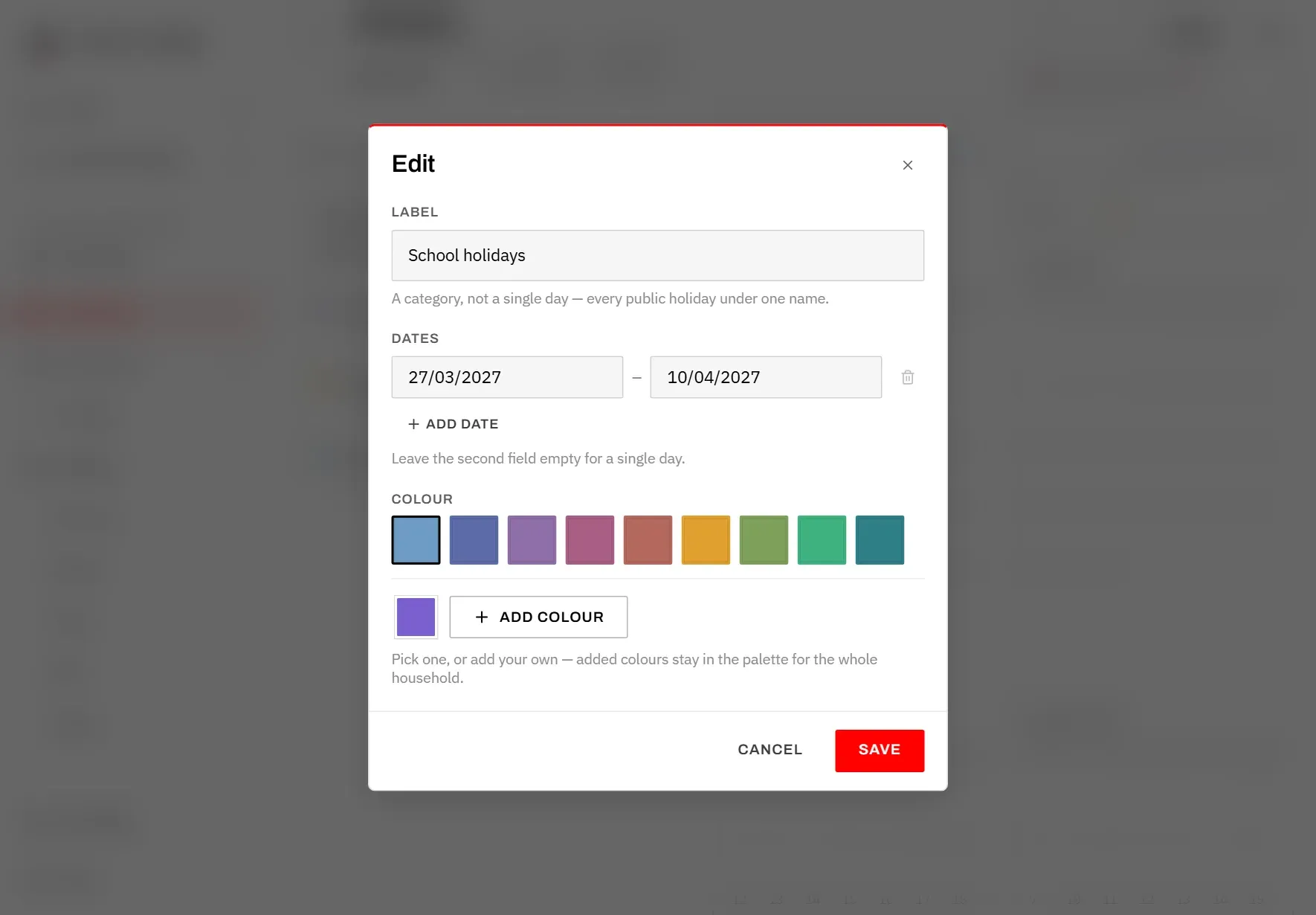
A fixed date is a category, not a single day. “Public holidays” is one entry with all its days, and all of them show in the same colour.
- Under Fixed dates, tap Add fixed date.
- Enter a Label, for example “School holidays”.
- Under Dates, enter the first and last day. For a single day, leave the second field empty.
- Tap Add date for each further period of the same category.
- Choose a Colour and tap Save.
Without a label the dialog says Give it a name., and without any date Add at least one date.
The list shows each category with the number of its dates and the period they cover. Use Edit to change one, and Delete to remove it; you can take a deletion back with Undo for a few seconds.
Colours
There are eight colours to choose from. To use your own, pick it with the colour field and tap Add colour. Added colours stay in the palette for everyone in your household and for every trip, until you remove them with the small cross on the colour. The palette holds up to 16 colours of your own.
Red is not available. In the calendar, red marks the day you arrive somewhere, and a red bar under it could not be told apart.