
What an assistant can do
You can connect an AI assistant such as Claude or ChatGPT to Cat’s Health and ask it questions about your records in your own words, for example:
- “Which foods did Noyan eat before he vomited in October?”
- “How has Sira’s weight changed since spring?”
- “Which foods does each cat reject most often?”
The assistant reads your household’s data and works out the answer itself. The connection uses MCP (Model Context Protocol), the standard way for assistants to use other apps.
What it can read: the cats, the feeding log with the per-cat portions and ratings, the food database, the vomiting incidents, the weighings, the drug plans with the doses given, and the vaccinations. It sees the whole household, the same as you see in the app.
What it cannot do: an assistant only reads. It can never add or delete anything, and it cannot open your documents and their files. The one exception is opt-in: if you allow it, an assistant may flag foods as suspected for an elimination diet and fill in missing protein sources (see Elimination diet).
Switching it on
AI access is off until someone in your household switches it on. Switching it on or off applies to everyone in the household, unlike the switches under All areas, which only apply to one device.
- Open Settings and scroll to the AI assistants (MCP) group.
- In its box, switch on Allow AI assistants to read this household’s data. The line below it says since when access is on.
- The same box holds the Server URL and short instructions. Tap Copy to copy the URL.
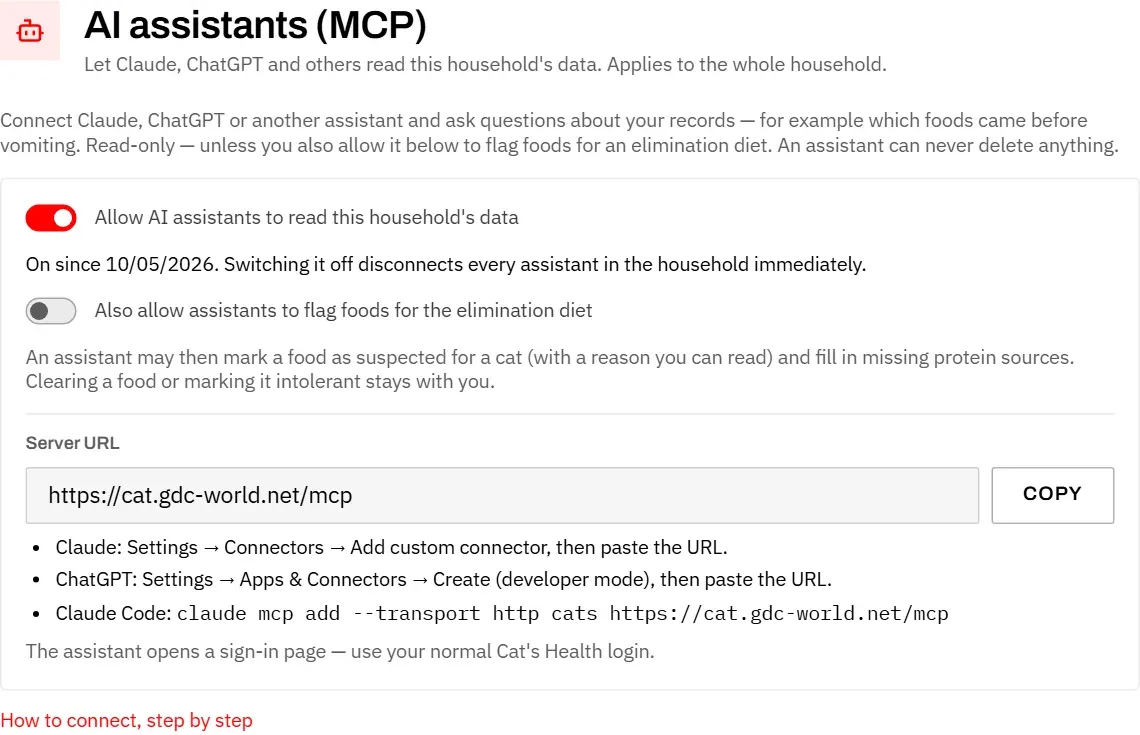
The URL is the same for every household: https://cat.gdc-world.net/mcp. It does not give anyone access by itself. Every assistant has to sign in with a Cat’s Health login first, and that only works while the switch is on.
To let assistants also flag foods for an elimination diet, switch on Also allow assistants to flag foods for the elimination diet in the same box. It appears once access is on. Assistants already connected may not notice the change at once, because some apps (Claude among them) remember the list of abilities from when you connected. If your assistant says it cannot flag foods, start a new chat; if that does not help, disconnect it and connect again.
Connecting Claude
- In Claude (claude.ai or the Claude app), open Settings → Connectors and choose Add custom connector.
- Enter a name, for example “Cat’s Health”, and paste the server URL.
- Choose Connect. A Cat’s Health sign-in page opens. Check that it names Claude, then sign in with your normal Cat’s Health email and password and choose Sign in and allow.
- Back in Claude, turn the connector on in a chat and ask your question.
Connecting ChatGPT
Custom connectors in ChatGPT depend on your ChatGPT plan; on some plans they need developer mode, which you switch on in ChatGPT’s settings.
- In ChatGPT, open Settings → Apps & Connectors and create a new connector.
- Paste the server URL and choose OAuth as the authentication.
- When ChatGPT opens the Cat’s Health sign-in page, sign in with your normal login and choose Sign in and allow.
Local apps
Assistants that run on your own computer connect the same way. In Claude Code, for example:
claude mcp add --transport http cats https://cat.gdc-world.net/mcpThe first time it is used, your browser opens the Cat’s Health sign-in page. The page warns you that access goes to a program on your own computer: only continue if you started it yourself.
Good questions to ask
The assistant can look at long periods and compare them, which is hard to do by scrolling through the log. Some questions that work well:
- “Compare what Noyan was fed in the weeks without vomiting with the weeks before. Which foods were missing?”
- “List every vomiting incident in the last three months with the meal before it.”
- “Which foods did a cat reject more than three times?”
- “Summarise Noyan’s medication since he started on Prednisolon.”
Tips:
- Name the cat and the period. Without a period the assistant looks at the last 90 days.
- Older feedings were logged for all cats together. The assistant sees them as “all cats (shared meal)” and knows that it cannot tell which cat ate how much.
- A meal rated x (refused) most likely was not eaten. The assistant takes that into account.
- Treats, snacks and dry food that are not in the feeding log are invisible to it. Log them as an extra feeding if they matter.
The assistant’s answers are only as good as the records, and it can be wrong. Treat a finding as a hint to discuss with your vet, not as a diagnosis.
Privacy and disconnecting
When you ask a question, the assistant reads the records it needs and sends them to its provider (for example Anthropic for Claude or OpenAI for ChatGPT) to work out the answer. The provider’s own terms apply to that. Only connect an assistant you trust with your household’s data.
To disconnect:
- All assistants of the household: switch off Allow AI assistants to read this household’s data in Settings. Every connection stops working immediately, also those of other members. When you switch it on again, each assistant has to sign in again.
- One assistant: remove the connector in the assistant’s own settings.
Troubleshooting
- “AI access is switched off” on the sign-in page: nobody in your household has switched it on yet, or it was switched off. Switch it on in Settings, then connect the assistant again.
- “Email or password is not correct”: use the same login as for the app. After ten wrong attempts the sign-in is blocked for 15 minutes.
- The assistant suddenly says it has no access: AI access was switched off, or your Cat’s Health session ended. Switch it on again if needed, then reconnect the connector in the assistant.
- The answer misses older data: ask for the period explicitly, for example “from December 2025 to March 2026”. One request covers up to about 13 months.
If something else goes wrong, write to dev@gdc-world.de.