
The cat list
Every weighing, vomiting incident, document and medication belongs to a cat, so the cats are the first thing to set up. Cats is at the top of the menu and lists every cat in your household, one card each.
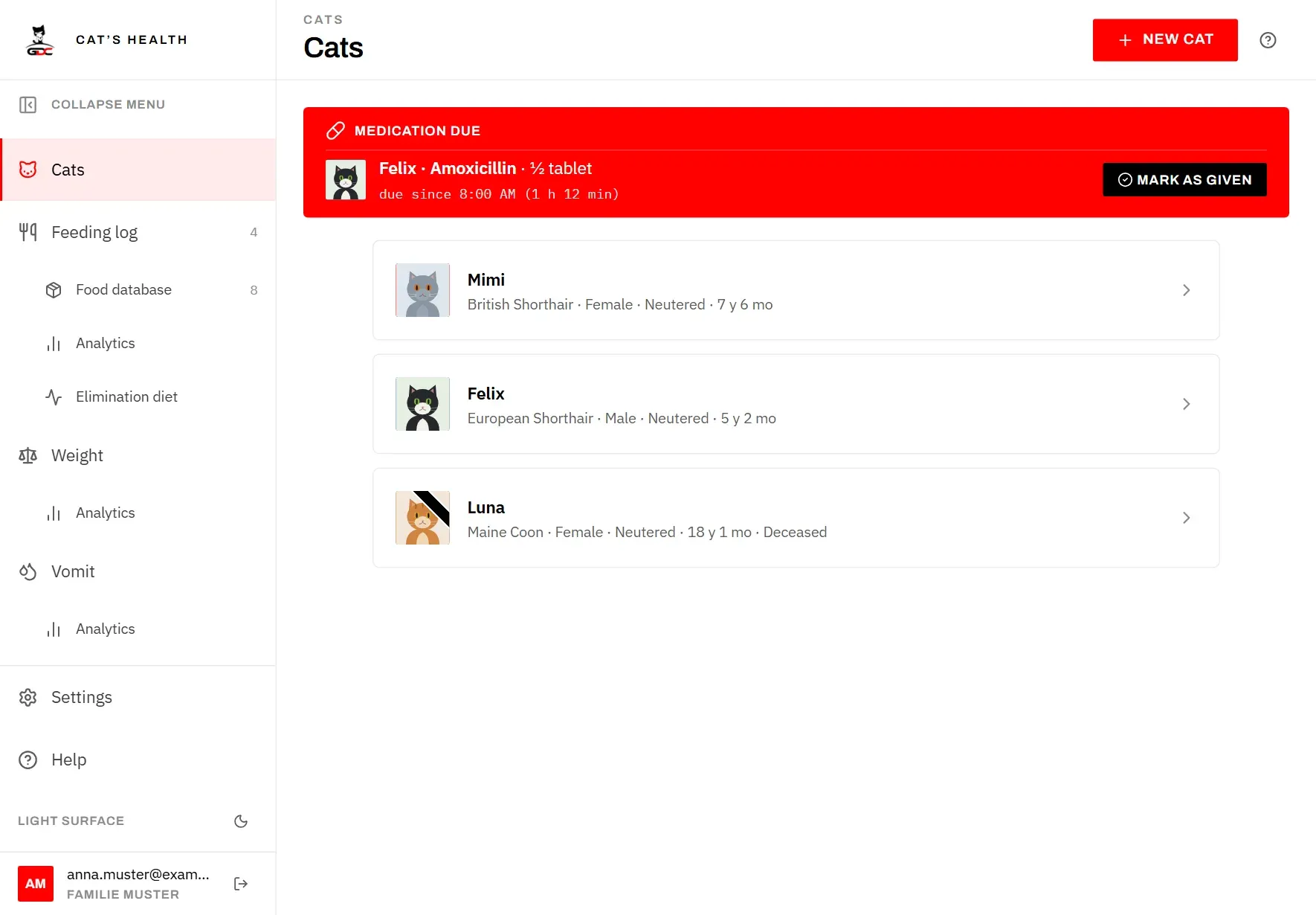
Each card shows the cat’s picture and name, and below the name what is known about it: breed, gender, whether it is neutered, and its age. A cat that has died also says Deceased.
- Tap a card to open the cat’s profile.
- Tap New cat at the top right to add a cat (see Add or edit a cat).
As long as no cat exists, the page says so and invites you to add your first one. Screens such as Weight and Vomit only work once there is at least one cat.
The profile
The profile collects everything about one cat on one page: its details, its registration numbers, and a summary of what has been recorded for it.
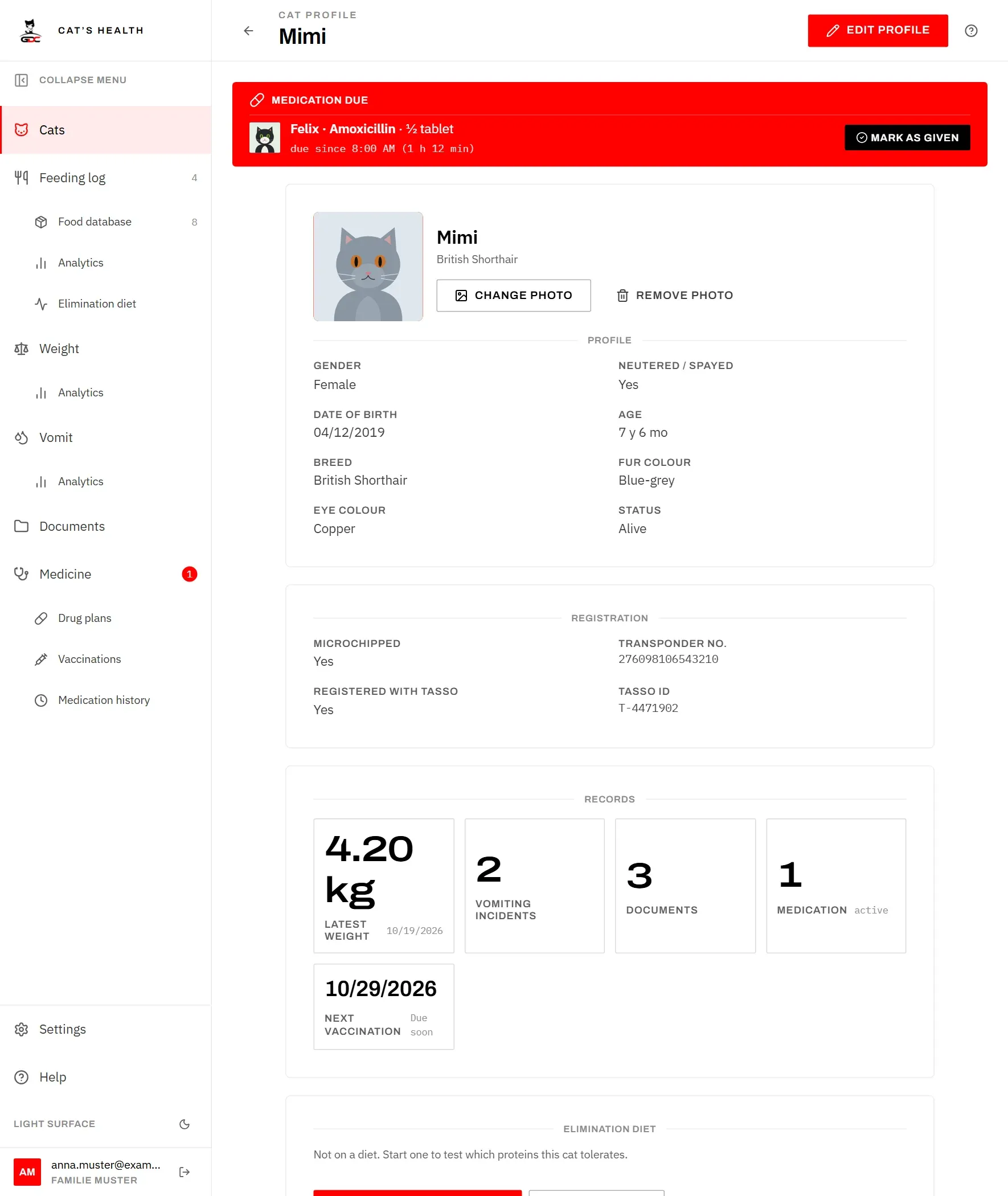
At the top you see the cat’s picture, name and breed, with the buttons for the photo. Below that:
- Profile: Gender, Neutered / spayed, Date of birth, Age, Breed, Fur colour, Eye colour and Status. The age is worked out from the date of birth, in years and months. A field you have not filled in shows a dash.
- Registration: the microchip and TASSO details (see Registration).
- Records: a summary of what is on file for this cat.
The tiles under Records are also shortcuts. Each one opens the matching page already filtered to this cat, so you see only this cat’s entries:
- Latest weight, with the date of that weighing, opens Weight.
- Vomiting incidents (how many are recorded) opens Vomit.
- Documents (how many) opens Documents.
- Medication (how many drug plans are running, marked active) opens the drug plans.
- Next vaccination (the next renewal date and its status, such as due soon) opens the vaccinations.
To change the details, tap Edit profile at the top right. The arrow at the top left takes you back to the cat list.
Profile photo
The photo is the cat’s picture everywhere in the app: in the cat list, on the cat cards of Weight, Vomit and Documents, on the profile, and in the banner for a due medication. A face is quicker to recognise than a name, especially on a shared kitchen tablet.
Until a cat has a photo, its picture shows the first letters of its name on a coloured square. That colour is the cat’s own colour, the same as its line on the weight chart.
To add or change the photo:
- Open the cat’s profile.
- Tap Add photo (or Change photo if it already has one).
- Choose a picture or take one with the camera.
The photo is saved straight away; there is nothing else to save. You see Uploading… on the button while it is sent, then Photo saved. Large pictures are made smaller automatically. If you see This image could not be read. Try a JPEG or PNG., the device could not open that file; pick a different picture.
To remove the photo, tap Remove photo and confirm. Only the photo is deleted; the profile stays as it is, and the initials come back.
Registration
The Registration section keeps the numbers you need when a cat goes missing or the vet asks for them, so they are always at hand.
- Microchipped: whether the cat has a microchip. When it does, Transponder no. holds the chip’s number.
- Registered with TASSO: whether the cat is registered with TASSO, the pet registry. When it is, TASSO ID holds the registration number.
You fill these in on the edit page (see Add or edit a cat). The number fields only appear once the matching switch is on. If you switch one off and save, its number is removed as well. On the profile the numbers are shown in an evenly spaced font, so they are easy to read out digit by digit.
Status and date of death
When a cat dies, you don’t have to delete it. Set its status to Deceased instead: its whole history stays, but it no longer gets in the way of everyday entries.
To mark a cat as deceased:
- Open its profile and tap Edit profile.
- Set Status to Deceased.
- Enter the Date of death if you know it. It is optional.
- Tap Save changes.
What changes for a deceased cat:
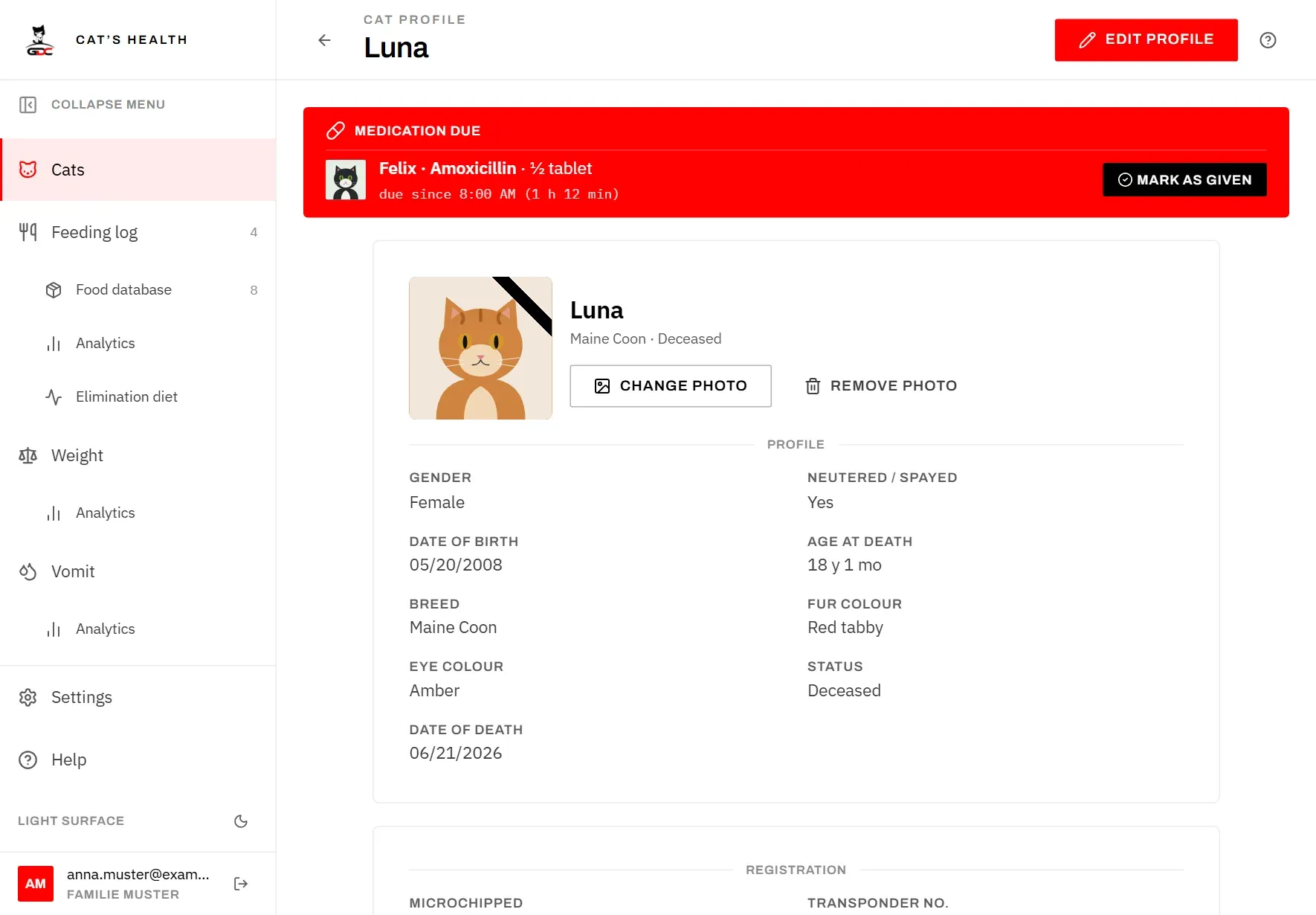
- Its picture carries a black mourning ribbon, and it is marked Deceased in the list and on the profile.
- Instead of Age, the profile shows Age at death, counted from the date of birth to the date of death. Without a date of death the age shows a dash.
- It gets no card in the cat filter on Weight, Vomit and Documents. Its entries are still there under All cats. If you open one of its record tiles on the profile, the page opens filtered to it and shows its card.
- It can’t be chosen for new entries, such as a new weighing or incident. Existing entries can still be corrected.
- Its weighings and incidents stay on the analytics pages.
The date of death can’t be in the future or before the date of birth. If a cat was marked deceased by mistake, set the status back to Alive.
Add or edit a cat
The same page is used to add a new cat and to change an existing one.
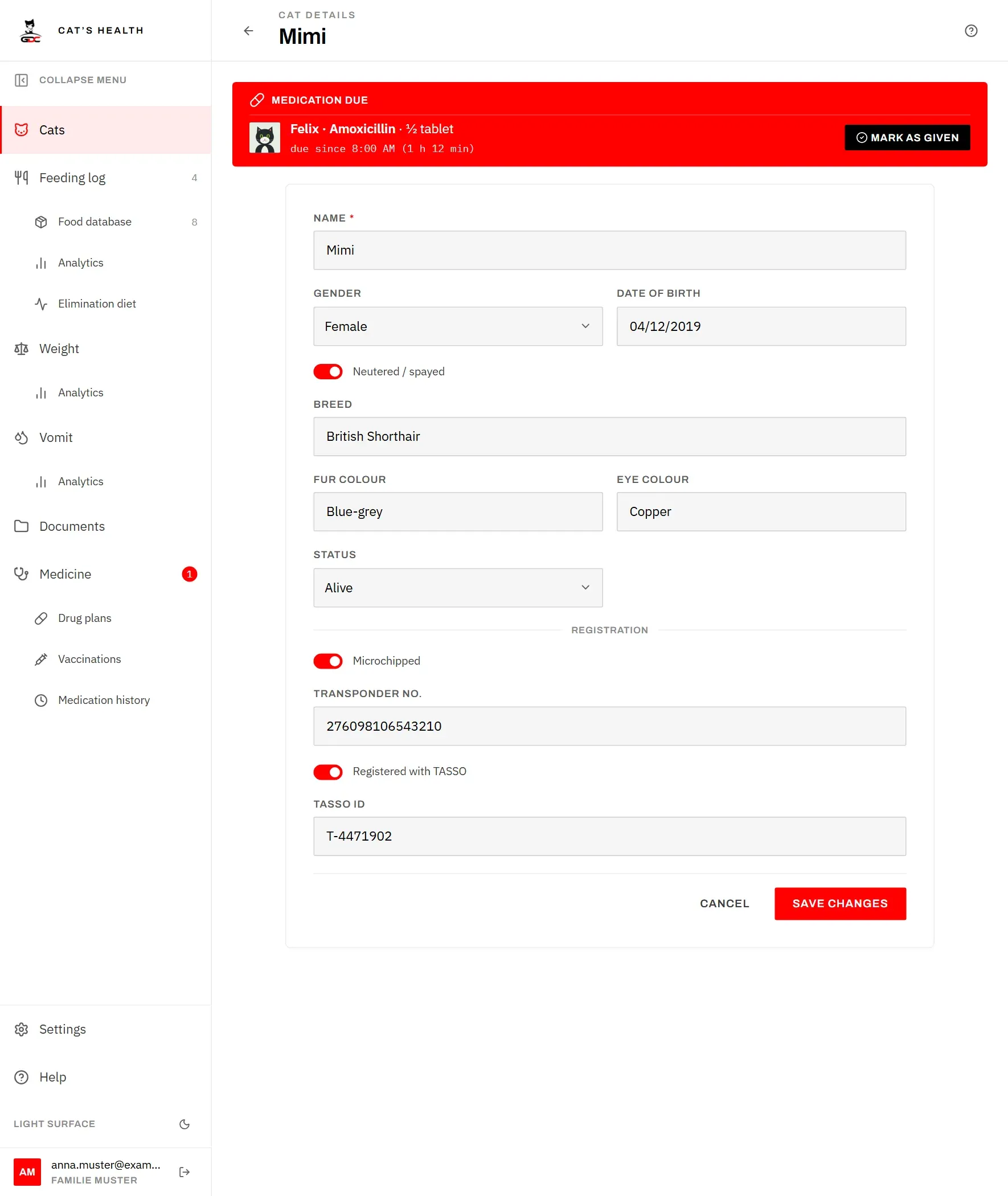
To add a cat:
- Open Cats and tap New cat.
- Enter the Name. It is the only required field.
- Fill in whatever else you know (see below). You can add the rest later.
- Tap New cat at the bottom of the form.
The cat’s profile then opens, and you can add a photo there.
To change a cat, open its profile, tap Edit profile, make your changes and tap Save changes. Cancel leaves without saving.
The fields:
- Name: required.
- Gender: Female, Male or Not set.
- Date of birth: used to work out the age. It can’t be in the future.
- Neutered / spayed: a switch.
- Breed, Fur colour, Eye colour: free text, for example “European Shorthair”, “Black and white”, “Green”.
- Status: Alive or Deceased. For a deceased cat, Date of death appears (see Status and date of death).
- Under Registration: Microchipped with Transponder no., and Registered with TASSO with TASSO ID (see Registration).
To clear a field, empty it (or choose Not set for the gender) and save. Renaming a cat is safe: all its entries stay with it.
Delete a cat
Deleting removes a cat and everything recorded for it, for good. If a cat has died, it is usually better to set it to Deceased, which keeps its history.
To delete a cat:
- Open its profile.
- Tap Delete cat at the bottom of the page.
- Read the confirmation and tap Delete.
Together with the cat, the app deletes:
- all of its weighings and vomiting incidents,
- all of its documents, including the attached files,
- its portions in the feeding log (a meal entry that was only for this cat is removed completely),
- its medication plans with the doses recorded under them, and its vaccinations.
This can’t be undone. A household always needs at least one cat, so the last cat can’t be deleted; the app tells you so instead.