
Today’s meals
The feeding log is the app’s start screen. It shows at a glance which of today’s meals are done, and it is where you record every feeding, usually with one scan of the can you are opening.
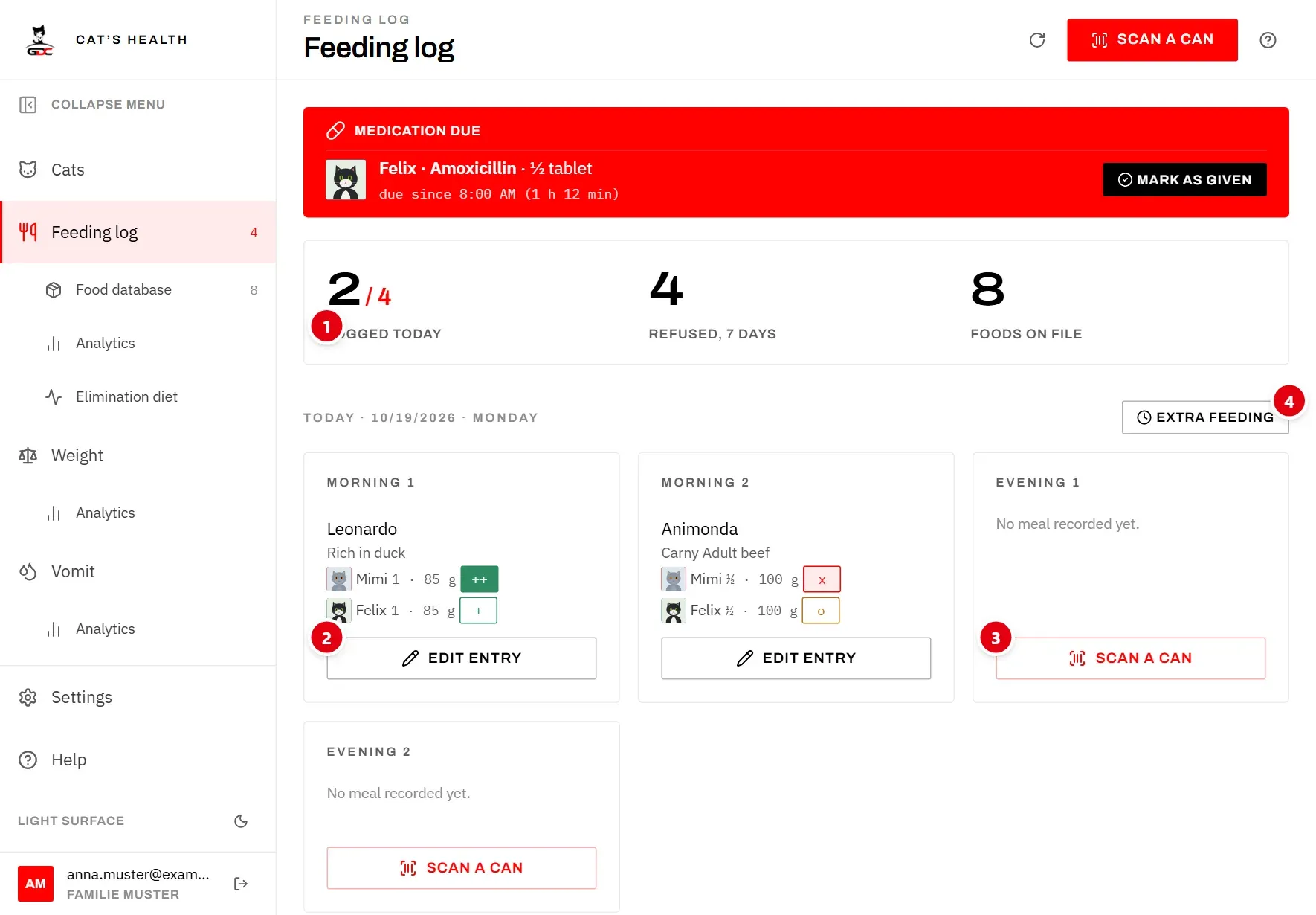
- 1 The numbers at the top: Logged today counts the meals that have something recorded, out of all your meal times (for example 2 / 4). Refused, 7 days counts the refusals (rating x) of the last seven days, per cat, so two cats refusing the same meal count twice. Foods on file is the number of foods in your food database.
- 2 A meal that is complete: every living cat has been fed. Its button reads Edit entry, or Rate this meal while a cat’s rating is still missing. Both open the entry so you can change it or rate it.
- 3 A meal that is still open. Its button reads Scan a can. The card says No meal recorded yet. until something is logged.
- 4 Extra feeding records a feeding outside the meal plan, see Extra feedings.
Each card shows the food that was given and, for every cat, how much it got and its rating. The meal times themselves (for example “Morning 1” or “Evening 2”) and their order come from Settings.
A meal counts as complete only when every living cat has a portion in it. So if one cat got a different food, the card keeps its Scan a can button until you have scanned the second food for that cat. The card then shows both foods.
If extra feedings were logged today, a line Extra today: under the cards lists who got one, and when.
The Scan a can button at the top of the screen is always there as well. It opens the scanner for the first meal of today that is not complete yet.
The round arrow next to it (Reload data) fetches the latest entries and foods, for example when someone else has just logged a meal on another device.
While a cat is on an elimination diet, a line above the numbers says so: the cat, the day of the diet, the current period and the foods its pool allows. Tap it to open the diet (see Elimination diet).
Tap the name of a food on a meal card to open its page (see The food page).
Scan a can
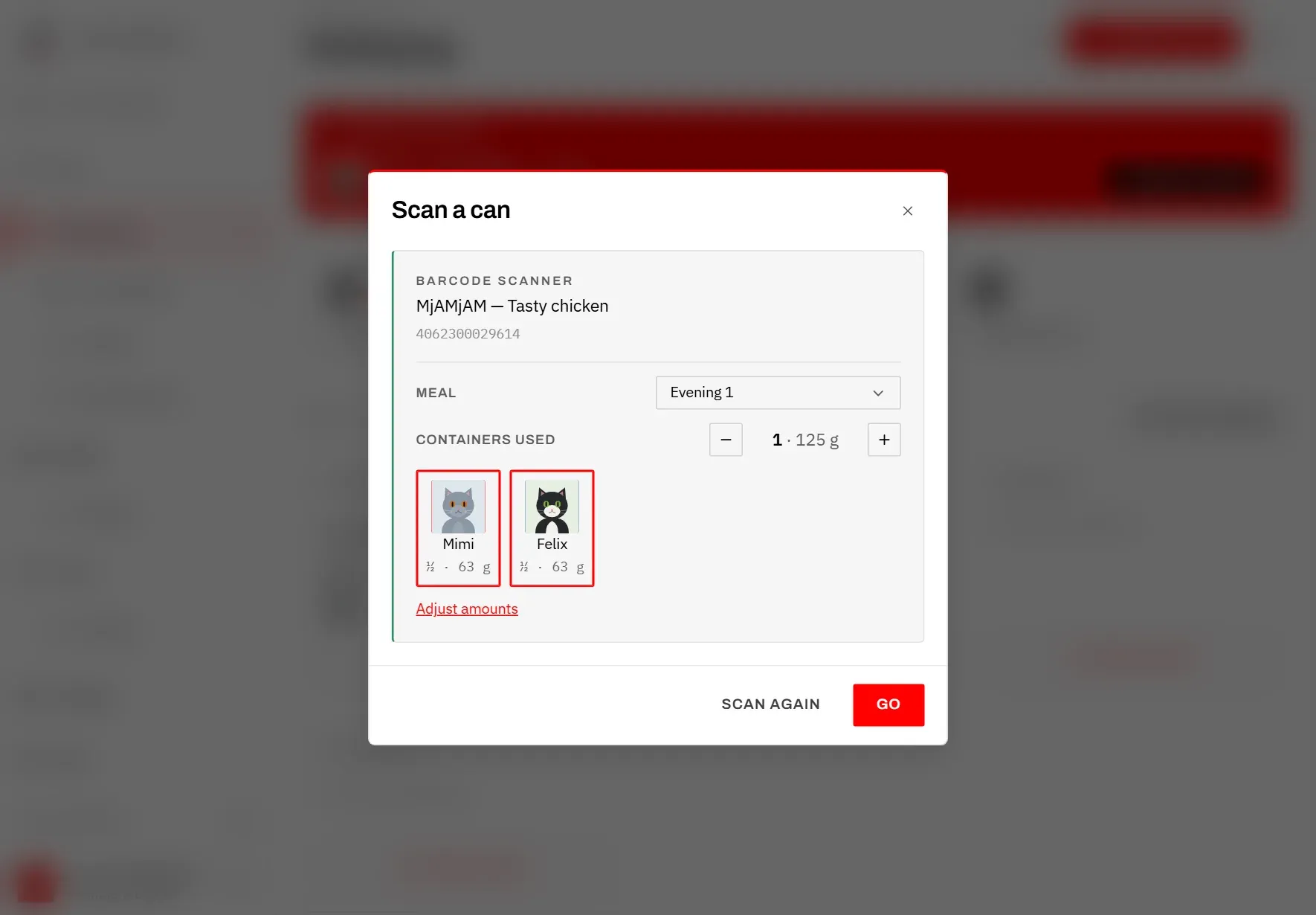
Scanning the can you are about to open is the quickest way to record a feeding: the app recognises the food, fills in who gets how much, and one tap on Go saves it.
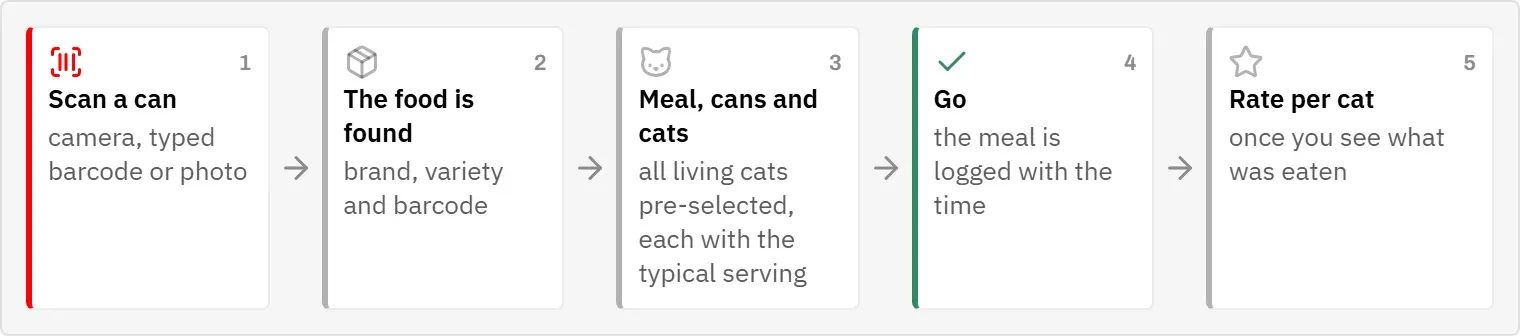
- Tap Scan a can on the card of the meal you are serving, or at the top of the screen.
- Hold the can in front of the camera. There are three ways the app can recognise it:
- Barcode: when the camera can read the barcode, the food is found at once. This also works without an internet connection.
- Photo: hold the front of the pack still in the frame. The app reads the label by itself (you see Hold still… and then Reading the label…). If it does not start, tap Identify by photo. This needs an internet connection.
- Typing: enter the number under the barcode in Type barcode and tap Go. This always works, even when the barcode is damaged or there is no camera.
- The app shows the food it found. Check that it is the right can. A photo match that the app is not quite sure of is marked Not sure, and other foods it might be are listed under Did you mean. Tap one of them to choose it instead.
- Check the meal, the cats and the amounts (see Cats and cans). Usually everything is already right.
- Tap Go. A short message confirms what was logged.
If the wrong food was found, tap Scan again. Close scanner closes it without logging anything. If the device has more than one camera, you can choose the camera under Rear camera.
If the food has a photo, it is shown next to its name, so you can see at a glance that it is the right can.
When the food is not in your list
If the barcode or the label is not in your food database, the scanner says NO MATCH. Tap Add food item: the form for a new food opens, already filled in with the barcode (or the brand and name read from the pack). Add the remaining details and save, see Add or edit a food. Then scan the can again to log the feeding.
When the food is archived
A food that you have archived is still recognised. The scanner marks it Archived and shows the reason you gave. When you tap Go, the app asks This food is archived: Activate and log makes the food active again and logs the feeding. If you decline, the scanner opens again so you can scan a different can.
Cats and cans
Below the recognised food you decide who gets the food and how much. The app fills all of this in for you, so in the normal case you only check it and tap Go.
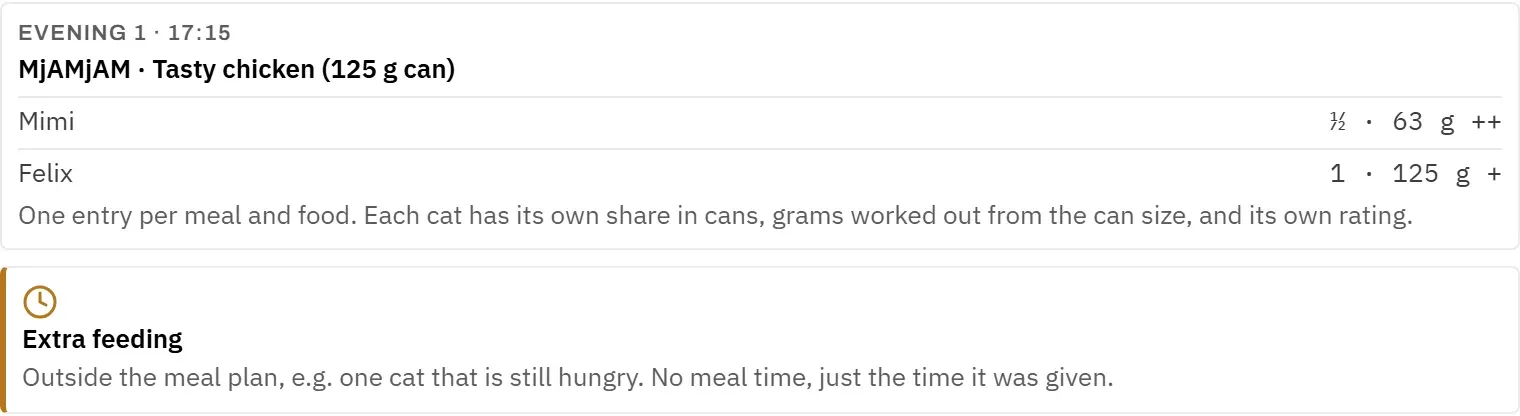
Meal: the meal this feeding belongs to. When you started from a meal card, it is that meal. When you started from the top of the screen, it is the first meal of today that is not complete yet. You can pick another meal, or Extra feeding.
The cats: every living cat is selected at the start, because usually every cat is fed. If this meal already has an entry today (for example, one cat got a different food), only the cats that have not had anything in this meal yet are selected, so the second food does not go to a cat that has already eaten. Tap a cat to take it out (it then shows —) or to add it again. Cats that have died are not shown here and cannot be selected (see Cats). At least one cat must be selected; otherwise the scanner shows Choose who gets it and Go stays unavailable.
How much each cat gets: the amount is counted in containers (cans, pouches, trays) of this food: ½, 1, 2 and so on.
- If the food has a Typical serving per cat, every cat always starts on exactly that amount. Taking a cat out simply lowers the total; the other cats keep their portion.
- If the food has no typical serving, the app repeats how it was fed last time. If it was never fed before, one container is shared equally by the selected cats.
You set the typical serving on the food itself, see Add or edit a food.
Containers used: the total for this feeding. Use the minus and plus buttons to change it in steps (½, 1, 1½, 2, 2½, 3, 4, 5). The new total is shared equally by the selected cats.
Grams: when the food’s content per container is known, the app works out the grams for you: containers × content of one container. For example, ½ of a 125 g can is 63 g. Without a content, only the containers are recorded.
Adjust amounts: when one cat should get a different amount from the other, tap Adjust amounts (shown when more than one cat is selected). Each cat then gets its own selection. To undo your changes, tap Back to typical serving (or Split evenly for a food without a typical serving).
The date and the time of the feeding are saved automatically when you tap Go.
A cat on an elimination diet: if the food is not in that cat’s diet pool, the cat cannot be selected. Its button is greyed out and marked Diet, and a line below explains why. The other cats can still get the food. A food marked as intolerant for a cat shows a warning line for that cat (see Feeding during the diet).
Extra feedings
An extra feeding is one outside the meal plan, for example when a cat is still hungry after a meal it did not like, or gets something in between. It is recorded separately, so it does not count as one of your meals.
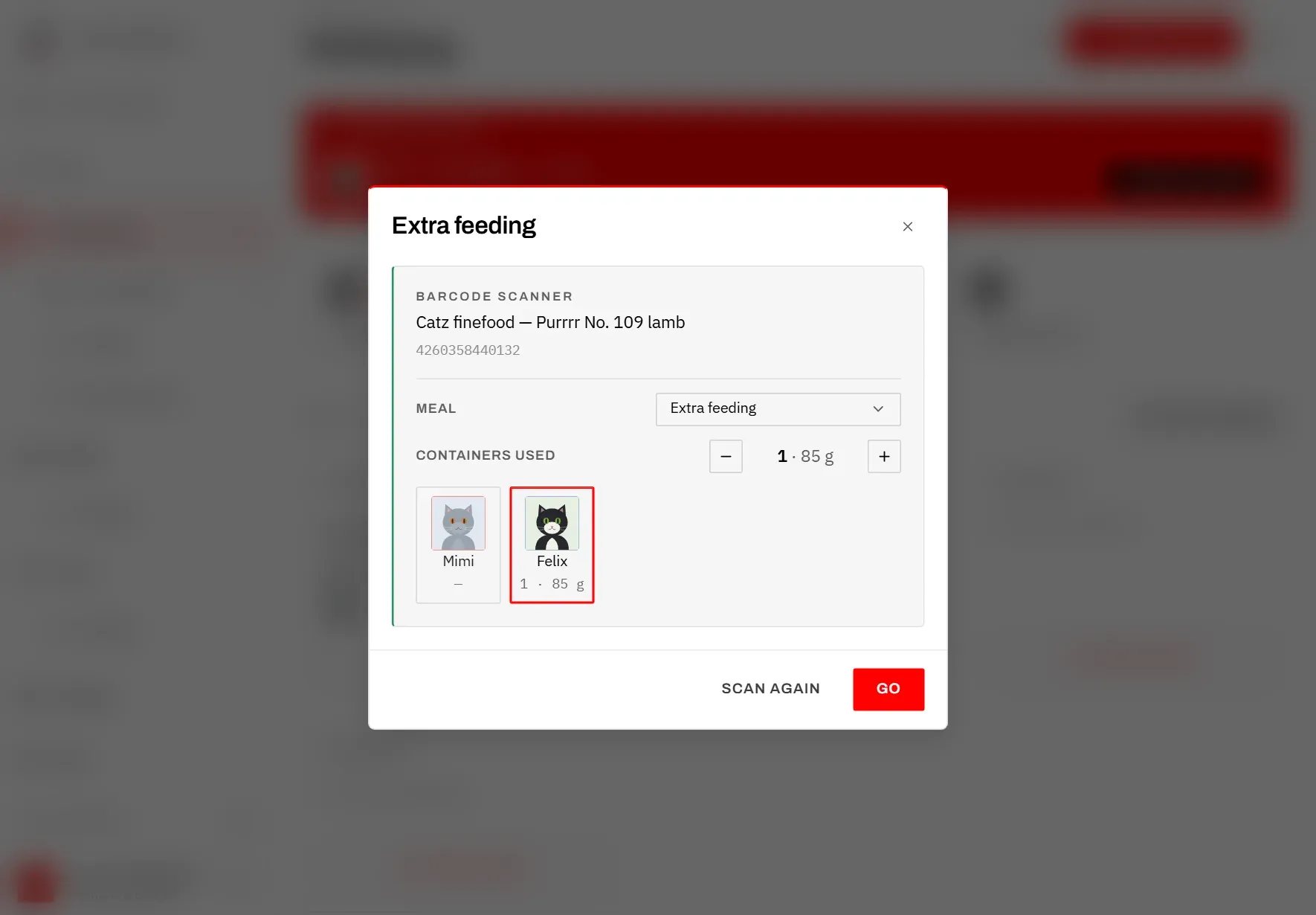
- Tap Extra feeding above today’s meal cards.
- Scan the can, or type its barcode, as described in Scan a can.
- Meal is already set to Extra feeding. All living cats are selected; tap the cats that are not getting anything to take them out.
- Check the amount and tap Go.
For an extra feeding without a typical serving, the app suggests the amounts of the last extra feeding of this food, not those of a regular meal.
The time of the extra feeding is saved and shown in the table. Today’s extra feedings are also listed under the meal cards as Extra today:.
You can also log a normal scan as an extra feeding by choosing Extra feeding under Meal, and an existing entry can be moved in or out of the meal plan later (see Edit an entry).
Ratings
After a meal you record how well each cat ate. Over time the ratings show which foods and which meal times work best (see Feeding analytics).
Every cat in an entry has its own small rating chip, next to its amount. A chip without a rating shows —.
- Tap the chip of a cat, on the meal card or in the table below.
- Pick a rating in the list Pick a rating. The choice is saved at once.
While no cat of that entry is rated yet, the first rating you choose is given to all its cats. So when they all ate the same way, one tap is enough. If one cat ate differently, tap its chip again and choose its own rating. Clear rating removes the rating of that one cat.
Which ratings there are (for example from x for a refused meal to ++ for a loved one), and their order, are set up in Settings.
Entries from before amounts were recorded per cat show All cats · amount not recorded and have a single rating for the whole meal.
Edit an entry
You can correct any entry afterwards: the date, the meal, the time, the food, who got how much, and the ratings. You can also delete an entry that was logged by mistake.
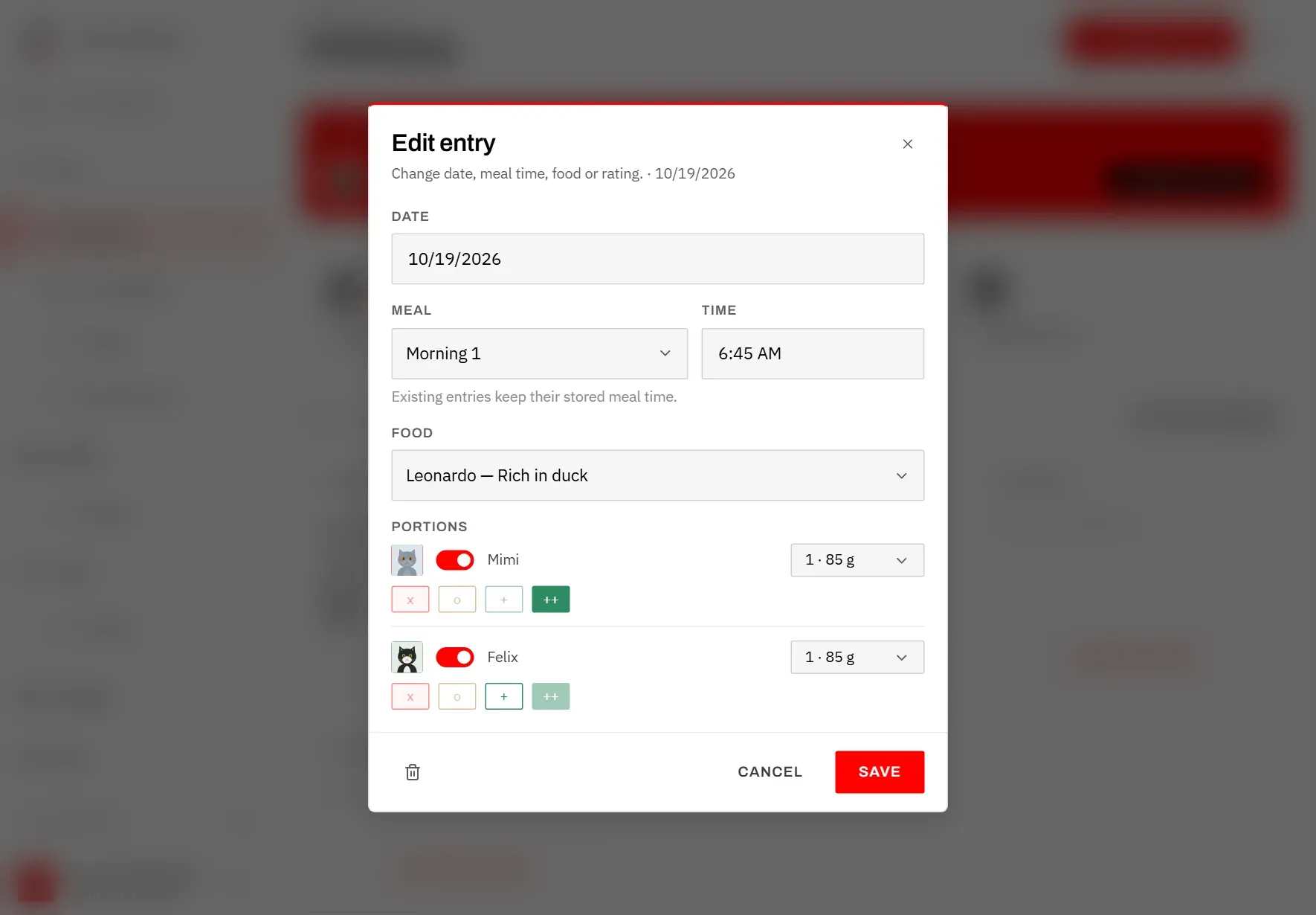
- Tap the pencil (Edit entry) at the end of a row in the table, or the Edit entry / Rate this meal button on a complete meal card.
- Change what you need:
- Date and Time: when the feeding was given.
- Meal: another meal time, or Extra feeding.
- Food: another food from your list. Archived foods are offered at the end, marked (Archived).
- Portions: switch a cat on or off and choose its amount. A cat you switch on starts with the same amount as the others. Cats that have died cannot be added; a cat that is already in the entry stays correctable.
- Below each cat, tap a rating to set it; tap the highlighted rating again to remove it.
- Tap Save.
The grams are recalculated from the food you selected.
To delete the entry, tap the bin at the bottom left and confirm Delete this entry?. This cannot be undone.
In the table you can also tap the meal name of a row: the list Pick a meal time opens, and the entry is moved at once to the meal you choose, or to Extra feeding.
History
Below today’s meals is the table of all feedings, newest first. Here you look back at what was fed, and correct or rate older entries.
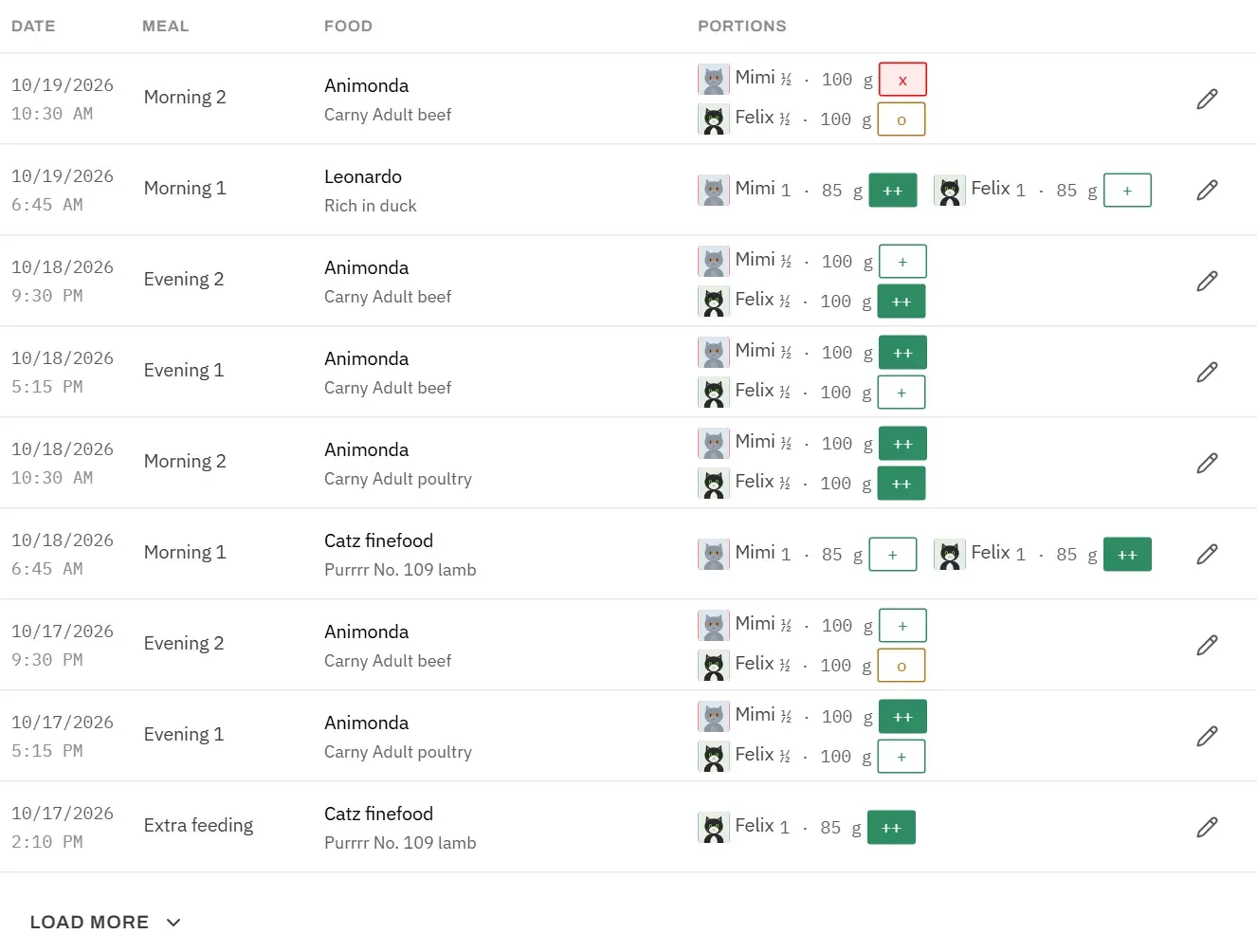
Each row shows:
- Date, with the time the food was given underneath. Older entries from before times were recorded show only the date.
- Meal: the meal time, or Extra feeding.
- Food: brand and name.
- Portions: every cat that was fed, how much (containers and grams) and its rating.
Within a day, the latest meal is at the top. An extra feeding is placed after the meal that was logged before it.
The table shows the most recent entries first. Tap Load more at the bottom to see older feedings.
Tap a rating chip to rate, the meal name to move the entry to another meal, or the pencil to edit it (see Edit an entry).
Tap a food’s name to open its page, with everything about it and all of its feedings (see The food page).