
Start an import
If you have kept records in Excel before, you don’t have to type them in again. The import reads an .xlsx file and adds its rows to the app. There are three imports, each opened from its group in Settings under Data, Import from Excel:
- Feeding log group: food items and the feeding log, from a file with two sheets.
- Weight group: weighings, from a file with one sheet.
- Vomit group: incidents, from a file with one sheet.
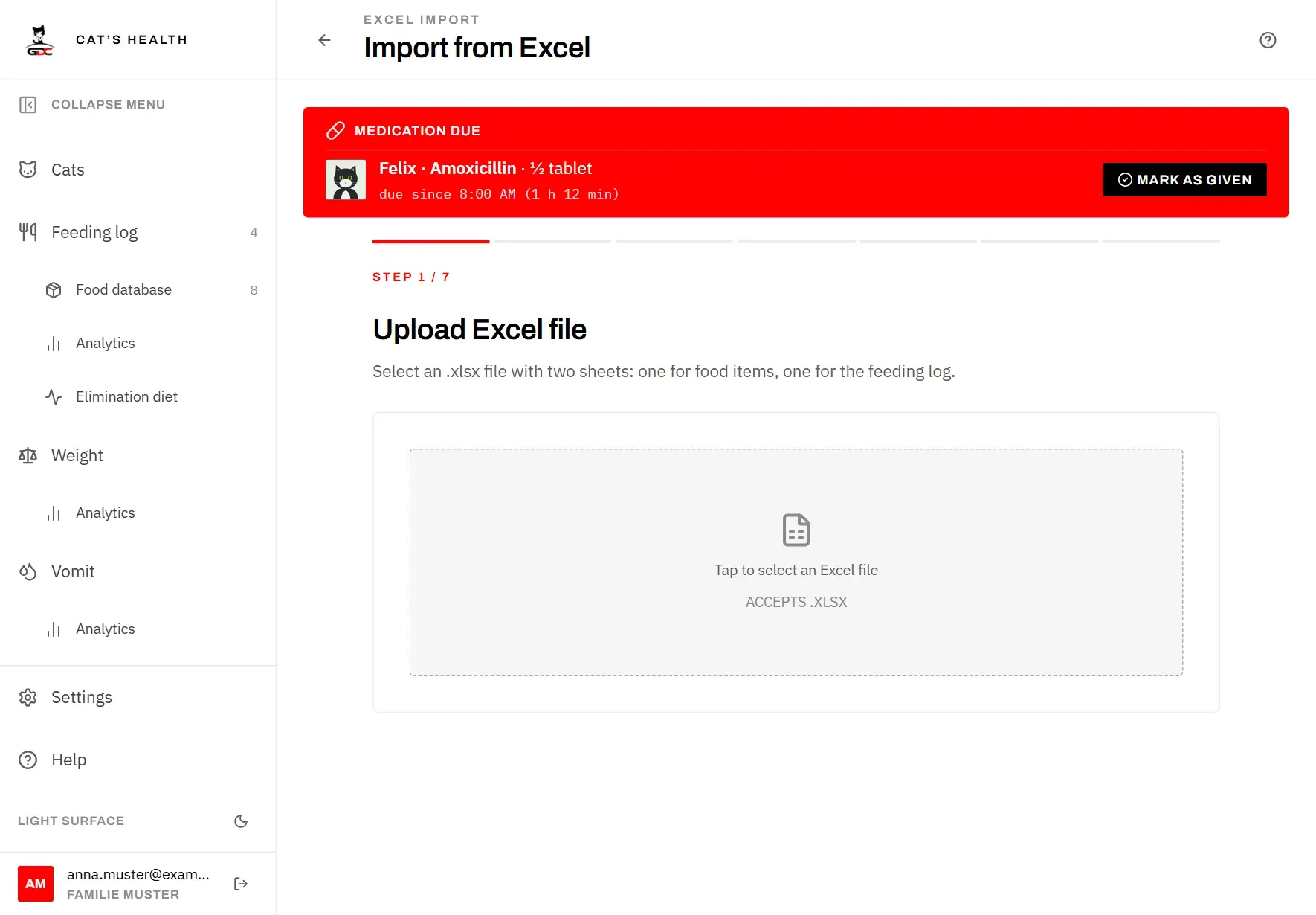
Each import leads you through a few steps. The dots and Step 1 / 7 at the top show where you are. The feeding import has seven steps, the weight and vomit imports three.
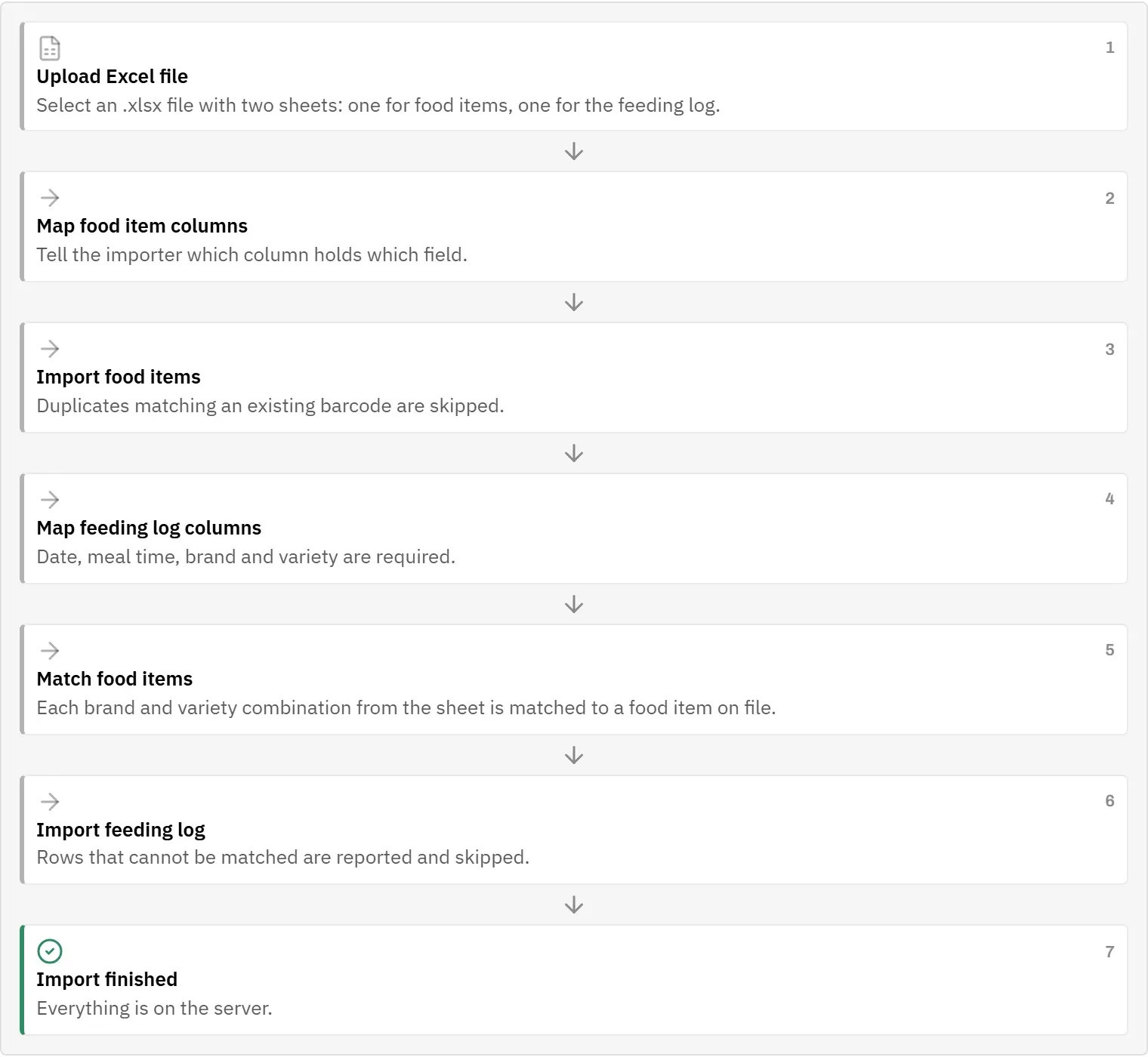
Prepare the file
- The first row of each sheet holds the column names; every row below is one record.
- The app recognises common column names in English and German, for example “Datum” or “Date”, “Katze” or “Cat”, “Gewicht” or “Weight”, “Bemerkung” or “Remark”. Other names work too; you then pick the column by hand in the next step.
- Dates can be Excel dates, or text like 24.12.2025 or 2025-12-24.
- Times can be Excel times, or text like 7:30 or 7.30. A row without a time is stored at 00:00.
- Weights are in kg; a comma or a dot as the decimal separator is fine.
- Cat names must be spelled as in Cats; upper and lower case don’t matter. Add any missing cats first.
- For the feeding import, the first sheet holds the food items and the second sheet the feeding log.
Upload the file
- Tap Tap to select an Excel file and choose the .xlsx file.
- The app picks the sheet to use and shows how many entries it found. If it picked the wrong sheet, choose another under Sheet. The feeding import has two choices: Sheet — Food database and Sheet — Feeding log.
- Tap Next: map columns.
Nothing is saved yet at this point. The arrow next to the title leaves the import and takes you back to Settings.
Map the columns
In this step you tell the app which column of your sheet holds which piece of information. The app has already filled in what it recognised; check it and correct it where needed.
- For each field, pick a column of your sheet. Fields marked with a star are required. Pick — not mapped — for a field your sheet doesn’t have.
- Look at the preview below: it shows the first five rows as the app reads them. A date, time or weight it can’t read, or a cat name it doesn’t know, is marked in red. Fix the mapping, or the sheet, before you go on.
- Choose what to do with data that is already in the app (see Existing data below).
- Tap the button to start the import.
The fields are:
| Import | Fields |
|---|---|
| Weighings | Date, Time, Cat, Weight |
| Incidents | Date, Time, Cat, Remark, plus the findings (see Findings) |
The feeding import
The feeding import first brings in the food items, then the feeding log:
- Map food item columns: Brand, Food name and Barcode · EAN (optional). Tap Next: import food items. If your food items are already in the Food database, tap Skip food items instead.
- Import food items: a food item whose barcode is already in the food database is skipped, so it is not added twice. A food item without a barcode is always added. The next step shows how many were imported and skipped.
- Map feeding log columns: Date, Meal, Brand, Food name and Rating. Date, meal, brand and food name are required. Tap Next: match food items.
- Match food items: each combination of brand and food name from the sheet is listed with how often it appears. Pick the matching food item for each one. The app has already matched those with exactly the same brand and name; the others show — not mapped —. Rows whose food stays unmatched are left out.
- If the sheet has a rating column, each rating found in the sheet is listed too. Pick the matching rating, or Clear rating for “not rated”. A ”-” is preset as not rated, a “0” as o.
- Tap Next: import feeding log.
The meal column is taken over exactly as it is written in the sheet; it is not matched to your meal times. Use the same names your meal times have in the app. Otherwise the entries are saved, but they don’t fill a meal slot on the feeding log.
Existing data
Under Existing data you decide what happens if records are already in the app:
- Add to what is already there (the default): every row becomes a new record. Importing the same sheet twice creates two copies.
- Replace matching records: a row that matches a record already in the app updates it instead of adding a second one. Nothing is deleted, and records the sheet doesn’t mention are left alone.
What counts as matching:
- Weighings and incidents: the same cat, date and time. If you corrected a time in the sheet, the row is added as a new record and the old one stays.
- Feeding log: the same date and meal. The food may differ; that is exactly what you correct with it. Extra feedings are never replaced.
Use Replace matching records whenever you import a corrected or extended version of a sheet you have imported before.
Findings: colour, food and hair
This part is only in the vomit import. Colour, food and hair are often not their own columns in a spreadsheet but mentioned in a remark, such as “white foam, some hair”. Under Findings, on the same step as the columns, you tell the app where to find them.
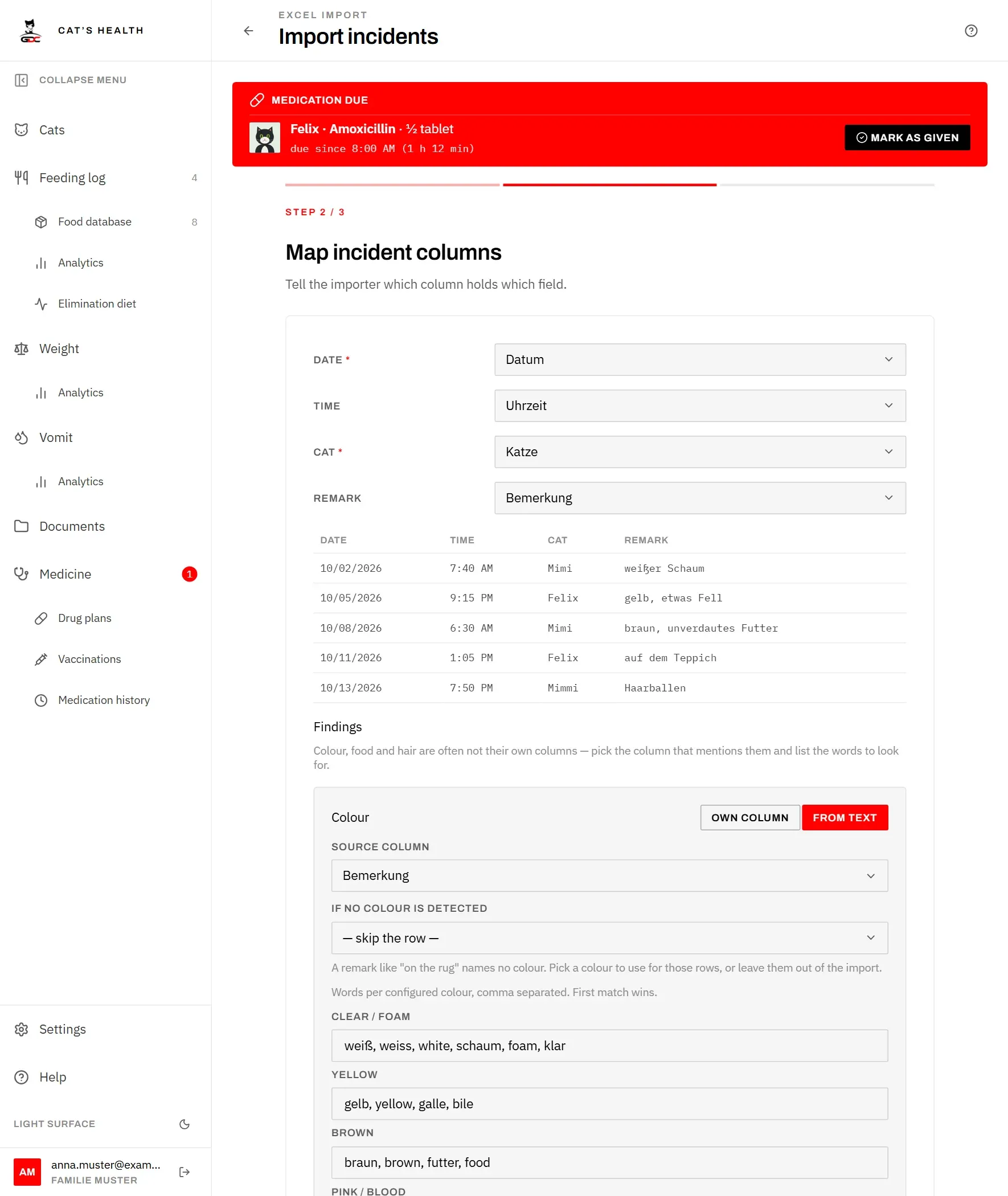
For Colour, Food and Hair you first choose where the information is:
- Own column: the sheet has a column just for it. Pick it under Source column. For colour, the cell must contain the colour’s name as it is in Settings, in English or German. For food and hair, a cell with “yes”, “ja”, “x” or “1” counts as yes.
- From text: the app looks for words in a text column. Pick that column under Source column (usually the remark column), and list the words to look for, separated by commas.
For colour From text, there is one line of words per colour. The app checks the colours in the order of the list and takes the first one whose words appear. The lines already contain common English and German words, which you can change. For food and hair there is one line each (“Words that mean food was in it.”, “Words that mean hair was in it.”).
The words are found regardless of upper and lower case and of umlauts, and also inside longer words: “fell” finds “Fellbüschel”. So avoid very short words, which would match almost anything.
If no colour is detected: a remark like “on the rug” names no colour, but every incident needs one. Pick a colour to use for such rows, or keep — skip the row — to leave them out. You can still assign a colour to them afterwards in the result (see Fix issues).
Fix issues
At the end, the import shows what happened and lists every row that was left out, with the reason. You can fix most of it right there, without starting again.
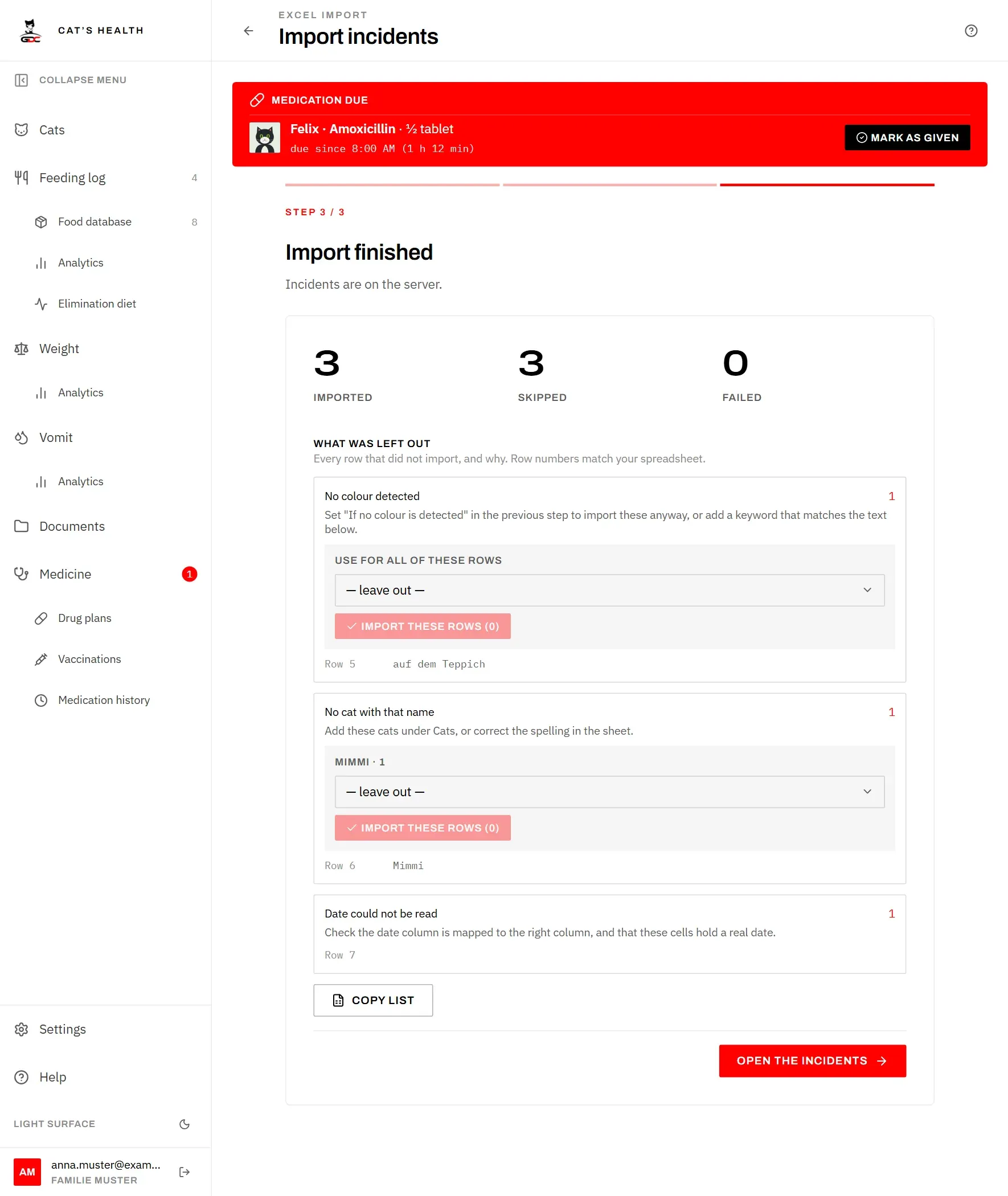
The numbers at the top:
- Imported: new records.
- Replaced: existing records that were updated (only with Replace matching records).
- Skipped: rows left out because of something in the data.
- Failed: rows the server did not accept.
Under What was left out, the rows are grouped by reason. The row numbers match your spreadsheet, so you can find them there. Each group says what to do:
| Reason | What to do |
|---|---|
| Date could not be read | Check that the date column is mapped, and that these cells hold a real date. |
| No cat with that name | Add the cat under Cats, or pick it here (see below). |
| Weight could not be read | The cells are empty or not a number. Correct them in the sheet. |
| No colour detected | Pick a colour here, or add a word that matches the text shown. |
| Food not matched | Pick the food item here, or add it to the food database. |
| No meal time given | The meal cell is empty in these rows. |
| Empty row | Nothing to import; you can ignore it. |
| The server rejected the row | Not a problem with your data. Retry. |
Fix rows here
For some reasons you can assign the right value in the result itself:
- No cat with that name: for each spelling from the sheet (for example “Mimmi · 1”), pick the cat it means.
- No colour detected: under Use for all of these rows, pick one colour for the whole group.
- Food not matched (feeding import): for each food from the sheet, pick the food item.
Then tap Import these rows. The number in brackets shows how many rows that will import. Only the rows of this group are imported again; anything left on — leave out — stays out.
Import again without duplicates
- Retry failed rows sends only the rows that failed again. Nothing that was already imported is added a second time.
- Import these rows only imports rows that were left out, so it can’t create duplicates either.
- To import a corrected sheet completely again, start the import anew and choose Replace matching records (see Existing data). In the feeding import, also tap Skip food items if the food items were imported before: food items without a barcode would otherwise be added again.
Copy list copies the list of left-out rows as text, for example to paste it into a note while you correct the spreadsheet.
When you are done, the button at the bottom takes you to what you imported: Open the feeding log, Open the weighings or Open the incidents.