
The menu
The menu on the left takes you to every part of the app. It looks the same on every screen, so you always find your way back.
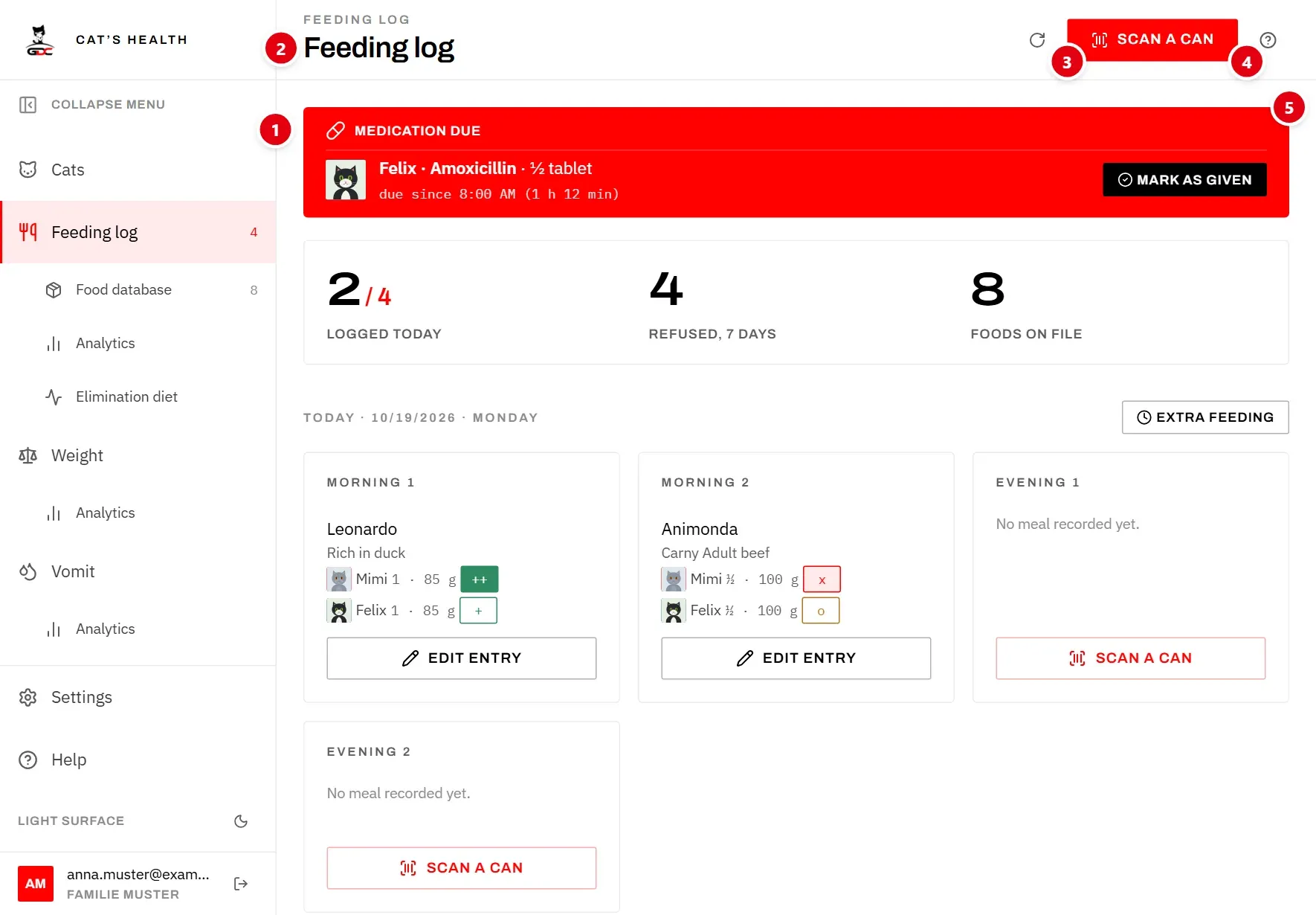
The numbers in the picture:
- The menu. The main areas, from top to bottom: Cats, Feeding log, Weight, Vomit, Documents and Medicine. Below them are Settings and Help.
- The title of the screen you are on (see The header).
- The main button of the screen, here Scan a can.
- The help button, which explains the screen (see The help panel).
- The due-dose banner, shown when a cat is waiting for its medication (see The due-dose banner).
Sub-items
Some areas have screens of their own, listed slightly indented below them:
- Feeding log: Food database and Analytics
- Weight: Analytics
- Vomit: Analytics
- Medicine: Drug plans, Vaccinations and Medication history
While you are in the help, the help topics are listed below Help as well.
Numbers in the menu
Some menu items show a small number:
- Feeding log: how many meal times a day has. It is the “out of” number for the meals recorded today.
- Food database: how many food items are on file.
- Medicine (in red): how many of today’s doses are due now and not yet given. Doses that come later today are not counted, and neither are cats that have died. The number goes down as soon as a dose is marked as given. See The badge.
Collapse the menu
If you need more room for the screen, tap Collapse menu at the top of the menu. Only the icons remain, and the sub-items are hidden. Tap Expand menu to bring the names back. The device remembers your choice.
At the bottom of the menu
- The moon or sun button switches between the light and the dark surface.
- Below it you see your e-mail address and the name of your household (see Your household).
- The button next to them signs you out (Sign out).
- Imprint, Privacy and Contact open the imprint, the privacy policy and the contact form on www.gdc-world.net. With the menu collapsed, only an icon for the privacy policy remains. The sign-in screen has the same links.
On a phone
A phone has no room for a menu beside the screen. There, the menu slides in from the left when you need it.
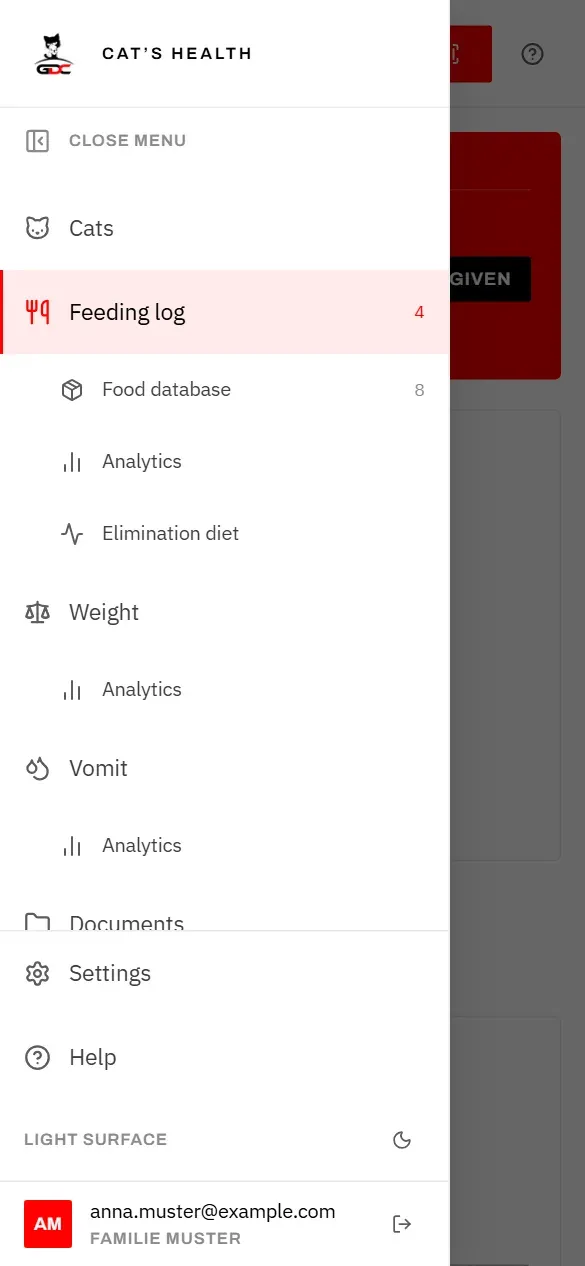
- Tap Open menu, the button at the very left of the header.
- Choose a screen. The menu closes by itself.
- To close it without choosing, tap Close menu, or tap the darkened area beside it.
On a phone the menu is always shown in full; Collapse menu is only available on larger screens.
The header
The header across the top tells you where you are and holds what you can do on this screen.
From left to right:
- Back arrow (Back): on screens you reach from another screen, such as a cat’s profile or a food item, it takes you back there.
- Title: the name of the screen, with a small line above it naming the area.
- Screen actions: small buttons for this screen only. On the Feeding log, for example, the round arrow (Reload data) fetches the latest entries.
- Main button: the red button for the thing you do most often on this screen, such as Scan a can, New cat or Add food. If the screen still needs something set up first, the main button is not shown (see “Set this up first” screens).
- Help button (Help for this screen): the ”?” at the far right, on every screen. See The help panel.
The help panel
The help panel explains the screen you are on, without you having to leave it. You can read the steps and follow them at the same time.
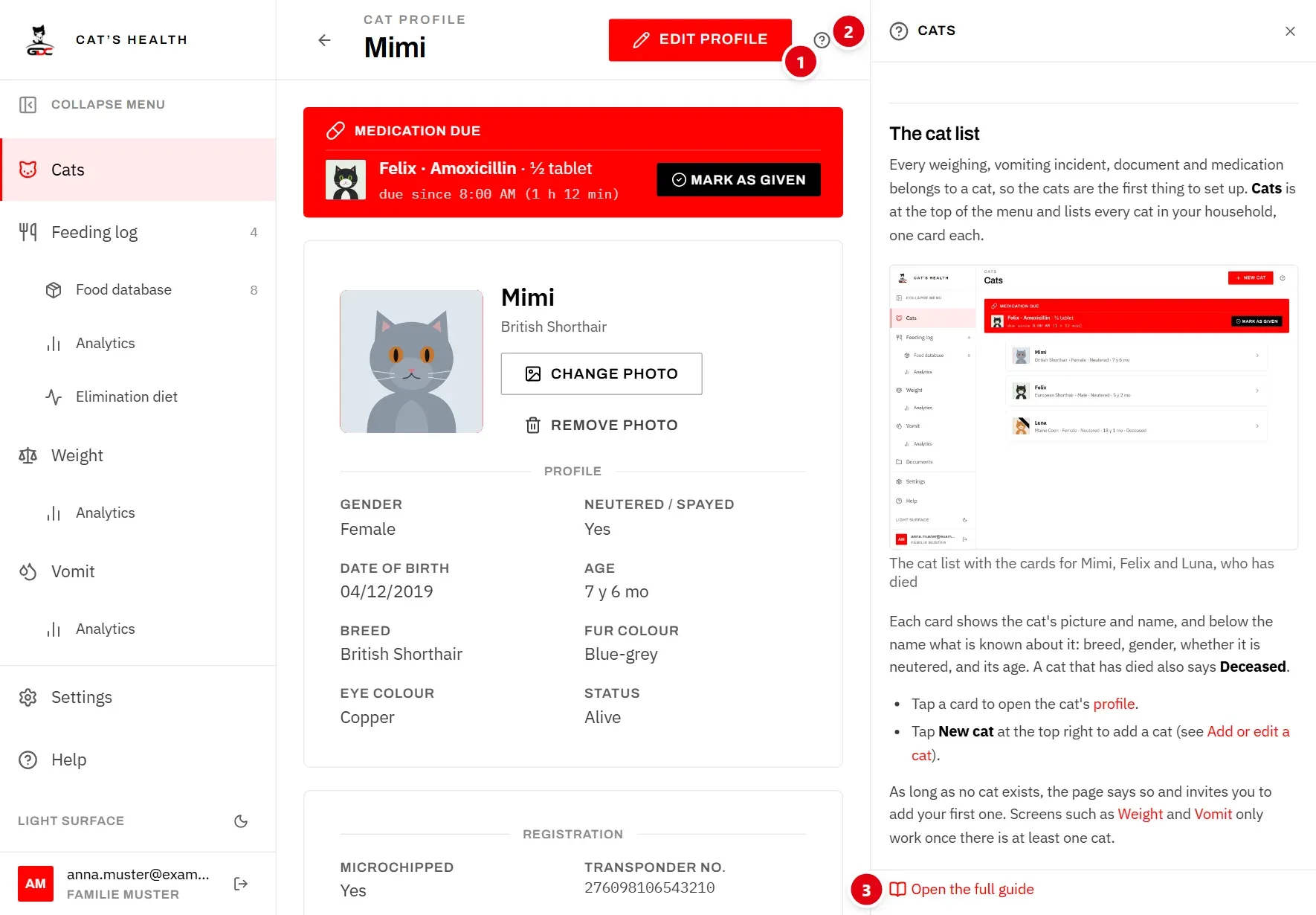
- Tap the ”?” button (Help for this screen) in the header. The help panel opens.
- At the top of the panel you see which topic it shows. The x closes it again (Close help). Tapping the ”?” again also closes it.
- Open the full guide at the bottom opens the same topic as a full page, with the whole guide in the menu.
What the panel does for you:
- It follows you. When you go to another screen while the panel is open, it switches to the help for that screen.
- It stays open until you close it, even after you leave and reopen the app. Each device remembers this for itself.
- On a wide screen, such as an iPad held sideways, the panel sits beside the screen, and the screen gets narrower. Everything stays usable.
- On a narrower screen, such as an iPad held upright or a phone, the panel slides in over the screen. Tap beside it to close it.
The full guide is also in the menu under Help. Its first page lists all topics under Contents.
The due-dose banner
When a cat’s medication is due, a red banner appears at the top of every screen. That way, whoever picks up the iPad or a phone sees straight away that a cat is waiting, whatever screen they are on.

Each line shows the cat, the medication and the amount, and since when the dose is due, for example “due since 8:00 AM (1 h 12 min)”.
- Give the cat its medication.
- Tap Mark as given in that line. The app records the dose with the current time and confirms it with “Dose recorded”.
- The line disappears. When all due doses are given, the whole banner goes away.
Good to know:
- The banner cannot be closed. It only goes away when the dose is marked as given. This is on purpose, so that nobody overlooks a dose.
- It shows today’s doses only. A dose from yesterday that was not marked does not appear here.
- When someone marks a dose as given on another device, the banner disappears here too, within about a minute.
- A dose that was given at a different time than planned can be corrected afterwards (see Medication history).
Where doses come from, and how to plan them, is explained under Drug plans.
Automatic updates
The app keeps itself up to date in two ways: it fetches what others have recorded, and it installs new versions of the app by itself.
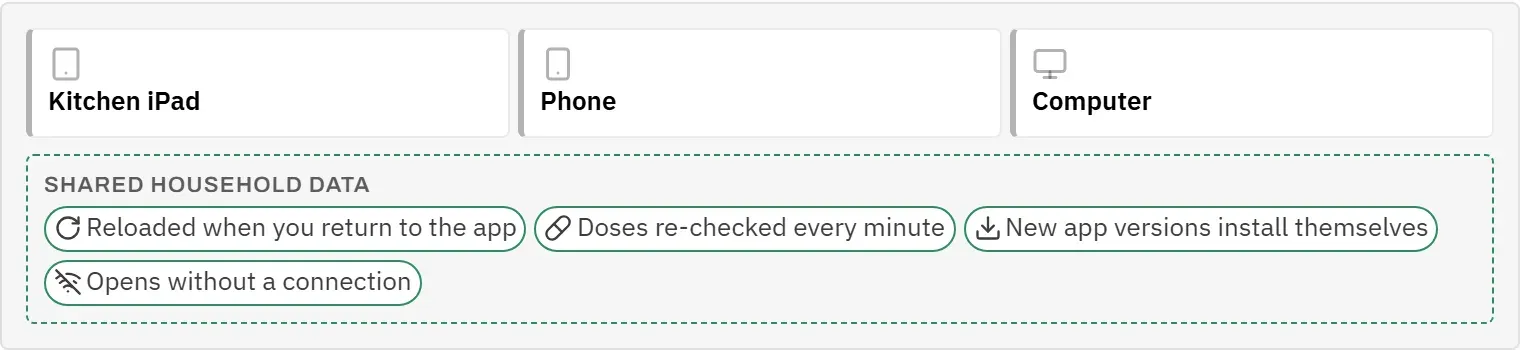
Data from other devices
Everyone in the household works on the same data. So that the iPad shows what was recorded on a phone, the app fetches the latest data:
- When you come back to the app after it was in the background for at least half a minute, for example when you unlock the iPad.
- When the connection comes back after it was lost.
- Every minute for the medication doses, while the app is on screen. That is what clears the banner when someone else has given a dose.
- When you open a screen, it loads its latest list.
On the Feeding log you can also tap the round arrow (Reload data) to fetch the latest entries right away.
New versions of the app
You never have to install updates. The app checks for a new version when it starts, when you come back to it, and every few minutes while it is on screen.
- If a new version arrives while you are opening the app or coming back to it, the app reloads straight away. You might see the screen flash once.
- If it arrives while you are using the app, the message “A new version is available” appears, with a Reload button. Tap it when it suits you. See The update prompt.
Working offline
On the kitchen iPad the Wi-Fi sometimes drops. The app is built so that you can still look things up, but anything you record needs a connection.
Works without a connection:
- Opening the app, if it was opened on this device before.
- Your cats, your foods and the settings lists, as they were the last time the app had a connection (if that was within the last week).
- Reading a can’s barcode with the camera. Photo identification needs a connection, and the app says so: “Photo identification needs a connection.”
- The help texts. Screenshots in the help work offline once you have viewed them.
Needs a connection:
- Saving anything: meals, ratings, weighings, incidents, documents, doses and changes in the settings. Without a connection the app shows “No connection to the server. Check your network and try again.” Your entry is not saved, so try again once you are back online.
- Loading the feeding log entries, weighings, incidents, documents and medication.
When the connection comes back, the app fetches the latest data by itself (see Automatic updates). If a screen says “Could not load your data.”, tap Try again once you are online.