
Create an account
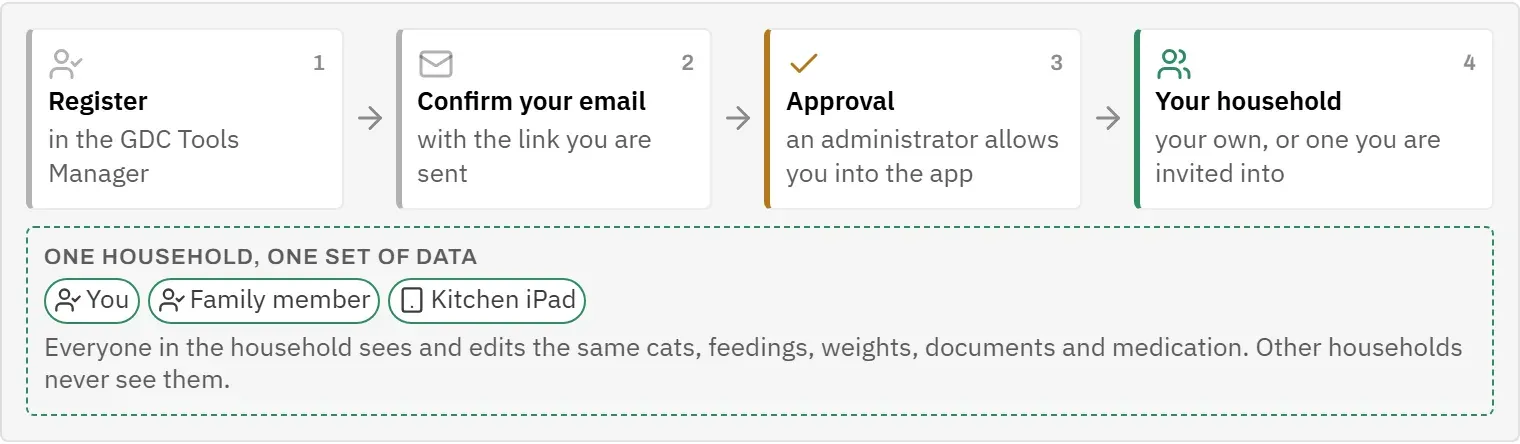
Cat’s Health has no sign-up of its own. You sign in with a GDC account, which you create once in the GDC Tools Manager. The same account works for the other GDC tools too.
- Open the app. You see the sign-in screen with the line “Use your GDC account.”
- Tap Create account. The GDC Tools Manager opens in a new tab. Its sign-up page says that access to Cat’s Health will be requested for you.
- Enter your e-mail address and choose a password.
- Confirm that you are not a robot (a small check box), and finish the registration there.
A new GDC account has no access to any tool yet. How you get access to Cat’s Health is explained under Confirmation and approval.
If you have forgotten your password later on, tap Forgot password? on the sign-in screen. That also takes you to the GDC Tools Manager, where you can set a new one.
Confirmation and approval
Before you can use the app, two things have to happen: you confirm your e-mail address, and an administrator approves your access. This keeps strangers out of your household’s data.
- Open the e-mail the GDC Tools Manager sent you and confirm your address with the link in it. An account that is not confirmed within 48 hours is deleted automatically; then simply register again.
- Once your address is confirmed, access to Cat’s Health is requested for you automatically, if you registered with Create account in this app. You do not need to request it again under My tools in the Tools Manager.
- Wait for an administrator to grant or decline your access. Either way, you get an e-mail and a notice in the Tools Manager. If nobody knows you are waiting, write to dev@gdc-world.de.
- Come back to the app, enter your E-mail and Password, and tap Sign in.
If you created your GDC account somewhere else, for example for another GDC tool, access to Cat’s Health has not been requested yet. The sign-in screen then shows Request access (see below).
Until both steps are done, the sign-in screen tells you what is missing:
| Message | What to do |
|---|---|
| “Please verify your e-mail address before signing in.” | Confirm your address with the link in the e-mail. |
| “You have not requested access to Cat’s Health yet.” | Tap Request access. My tools opens in the GDC Tools Manager with Cat’s Health at the top; request it there with one click. |
| “Your access is awaiting admin approval.” | Wait for the approval, or ask dev@gdc-world.de. |
| “Your access request was declined. You can request it again.” | Tap Request again and request it once more under My tools. |
| “Your sign-in is not linked to a household yet. Please contact an admin.” | See Your household. |
More messages are explained under Access messages.
Your household
Everything in the app belongs to a household: the cats, the food list, the feeding log, weighings, documents, medication and the settings lists. You only ever see the data of your own household.
When you create your GDC account on your own, the GDC Tools Manager gives you a household of your own. If someone invites you into theirs, you join that one instead (see Family members). A new household has no cats and no foods yet, so the first person in it sets it up (see First steps).
You can check which household you are in at any time:
- At the bottom of the menu, under your e-mail address, you see the household’s name.
- In Settings, under Household, you see its name again, and who else has access (see Settings).
If the name is not the one you expect, or all your lists are suddenly empty, you were probably put in a different household. Write to dev@gdc-world.de.
Family members
Everyone who looks after the cats can use the app with their own account. They all see and edit the same data, so a meal recorded on the kitchen iPad shows up on a phone as well.
To add a family member:
- In the GDC Tools Manager, open My household and invite them by e-mail. Only a household admin can do this; if you are not one, ask one of yours, or write to dev@gdc-world.de.
- They accept the invitation: with the link in the e-mail if they have no account yet, or under My tools if they already have one.
- They request access to Cat’s Health, either under My tools or with Request access on the app’s sign-in screen, and wait for an administrator to grant it.
- Once that is done, they sign in and see your cats and records straight away.
It is best if everyone has their own account rather than sharing one. Then each person signs in and out on their own devices.
In Settings, under Household, the line Also in this household lists everyone else who has access. If you are the only one, it says “Nobody else has access.”
Some things are set per device rather than per household: the language, the light or dark surface, whether the menu is collapsed, and whether the help panel is open. Changing them on the iPad does not change them on someone’s phone.
Install on the iPad
Cat’s Health is a web app that you can put on the home screen. It then opens full screen like a normal app, without Safari’s address bar, and keeps working when the connection drops for a while.
- Open the app’s address in Safari on the iPad.
- Sign in once.
- Tap the Share button (the square with the arrow pointing up).
- Choose Add to Home Screen, and then Add.
- From now on, open the app with its icon on the home screen.
The installed app keeps itself up to date (see Automatic updates), so you never have to reinstall it.
If the iPad stands in the kitchen, you can stop its screen from going dark: in Settings, switch on Keep the screen awake while mounted (see Settings).
On a phone or a computer, you can simply use the app in the browser, or add it to the home screen the same way.
First steps
A new household needs a little setting up before you can record the first meal. Do it in this order, because each step needs the one before it.
- Check the settings lists. Open Settings. A new household normally already has Meal times, Ratings and Vomit colours. Look through them and adjust them to your routine, for example the names and order of your meal times. Also check the Document kinds. See Settings.
- Add your cats. Open Cats and tap New cat. Weighings, incidents, documents and medication are always recorded for a cat, so the cats come first. See Add or edit a cat.
- Add your foods. Open Food database and tap Add food. If the can has a barcode, tap Scan barcode in the form, so you can later simply scan the can when feeding. See Food database. If you already keep your records in Excel, you can import foods and feedings instead (see Excel import).
- Start using it every day. Open the Feeding log and tap Scan a can when you feed. See Feeding log.
If a screen says Set this up first, something from this list is still missing. The screen tells you what, and takes you there (see “Set this up first” screens).
New to the app’s layout? Basics explains the menu, the header and the help.