
Access messages
These messages appear on the sign-in screen when the app cannot let you in yet. Each one tells you what is missing.
| Message | What to do |
|---|---|
| “Incorrect email or password.” | Check the e-mail address and the password and try again. If you have forgotten the password, tap Forgot password?. |
| “This account has been blocked.” | Your account has been blocked in the GDC Tools Manager. Only an administrator can unblock it: write to dev@gdc-world.de. |
| “Sign-in failed. Please try again.” | The sign-in service refused for a reason this app does not know. Try again; if it keeps happening, write to dev@gdc-world.de. |
| “Please verify your e-mail address before signing in.” | Open the e-mail from the GDC Tools Manager and confirm your address with the link in it. |
| “You have not requested access to Cat’s Health yet.” | Your account exists, but access to this app was never requested, or it was removed. Tap Request access: My tools opens in the GDC Tools Manager with Cat’s Health at the top, ready to request with one click. |
| “Your access is awaiting admin approval.” | Your account exists, but nobody has approved it for this app yet. Wait, or write to dev@gdc-world.de. |
| “Your access request was declined. You can request it again.” | An administrator declined your request. Tap Request again to request it once more under My tools. |
| “Your sign-in is not linked to a household yet. Please contact an admin.” | You are approved, but not in a household yet. Write to dev@gdc-world.de. |
| “Configuration error — this tool is not registered. Please contact an admin.” | Something is wrong with the app’s set-up, not with your account. Write to dev@gdc-world.de. |
| “Could not reach the login service. Please check your connection.” | The device has no connection. Check the Wi-Fi and try again. |
How you get an account and access is explained step by step under Getting started.
Back on the sign-in screen
Normally you stay signed in, even if you don’t open the app for days. The app renews your sign-in by itself in the background.
If it can no longer do that, for example because your access was withdrawn, the app returns to the sign-in screen. You may see “Your session has expired. Please sign in again.” Simply sign in again. If that does not work, one of the messages above tells you why. If your access was removed, you can request it again under My tools in the GDC Tools Manager.
A short loss of connection does not sign you out. The app keeps you signed in and tries again later.
The data looks wrong or is gone
If all lists are suddenly empty, or you see a different household’s data, check which household you are in. Its name is at the bottom of the menu, under your e-mail address, and in Settings under Household.
- If the name is wrong, write to dev@gdc-world.de. Only an administrator can move you to another household.
- If an administrator moves you while you are using the app, the app reloads by itself and then shows the new household’s data.
- If someone else is signed in on a shared iPad, tap Sign out at the bottom of the menu, then sign in with your own account.
“Set this up first” screens
Some screens need certain things on file before they can be used. Until then, instead of the screen you see Set this up first, with a card for each thing that is missing. This happens mostly in a new household.
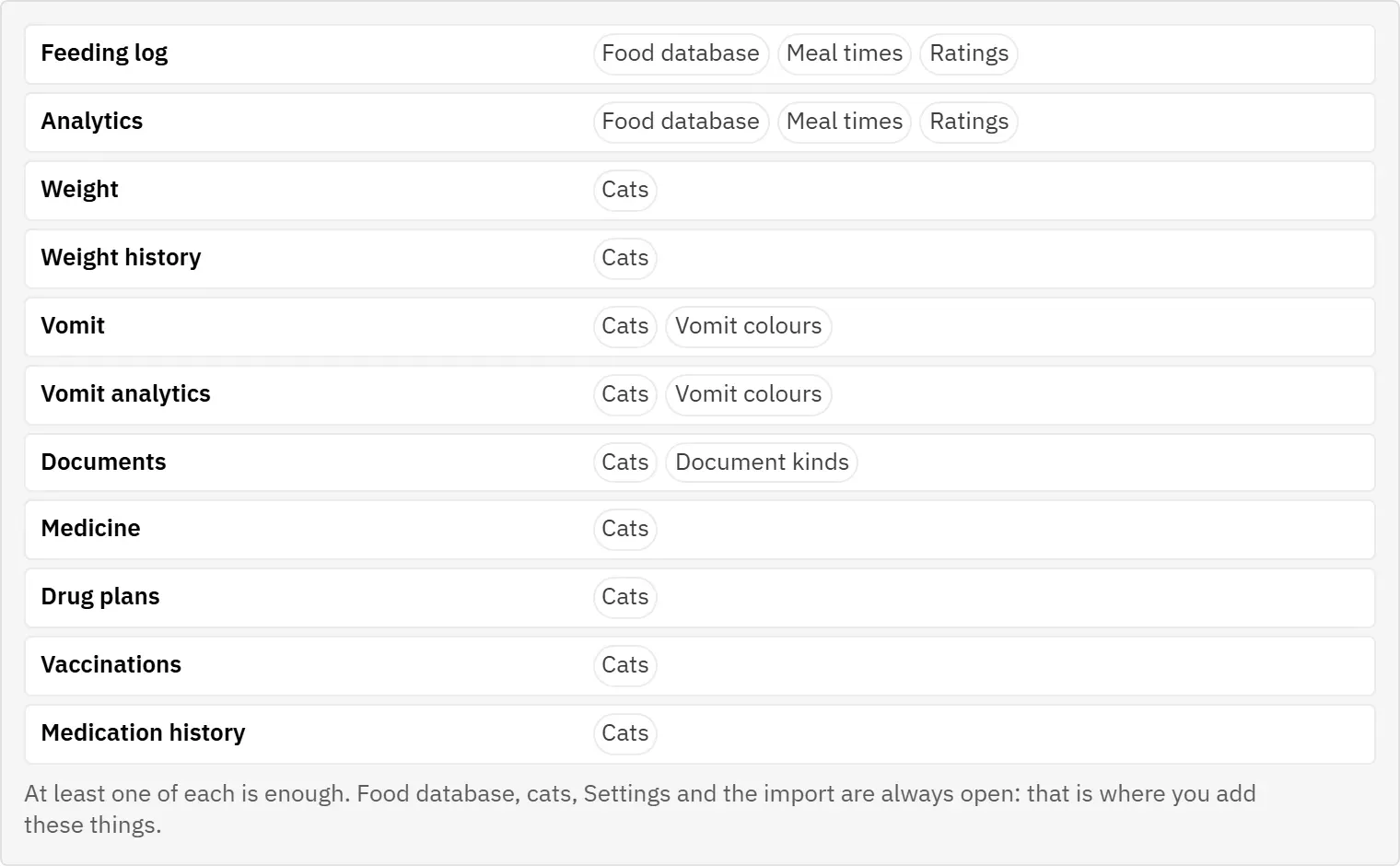
What each screen needs:
| Screen | Needs at least one |
|---|---|
| Feeding log, its Analytics | Food item, meal time, rating |
| Weight, its Analytics | Cat |
| Vomit, its Analytics | Cat, vomit colour |
| Documents | Cat, document kind |
| Medicine, Drug plans, Vaccinations, Medication history | Cat |
One of each is enough. The Food database, Cats and Settings screens never show this message, because they are where you add what is missing.
To fix it:
- Read the cards. Each one names what is missing and why the screen needs it.
- Tap the button on the card: Open food database, Add a cat or Open settings.
- Add at least one entry there and save it.
- Go back to the screen in the menu. It now opens normally.
While a screen shows Set this up first, its main button in the header is hidden too.
If someone else has just added the missing item on another device, it reaches your device the next time you come back to the app (see Automatic updates).
The error screen
Very rarely, a screen runs into a problem it cannot handle. Then, instead of the screen, you see “This screen ran into a problem.” with a short technical message below it and a Reload button.
- Tap Reload. The app loads again and usually works normally.
- Or choose another screen in the menu. The menu keeps working, and the problem stays on the one screen.
- If the same screen fails again, write down or take a photo of the technical message and send it to dev@gdc-world.de. That message is what helps find the cause.
“Could not load your data.”
This message replaces the whole screen when the app could not fetch your cats, foods and settings lists, usually because there is no connection.
- Check the device’s Wi-Fi.
- Tap Try again.
Messages at the bottom of the screen
When saving fails, a short message appears at the bottom of the screen, for example “No connection to the server. Check your network and try again.” or “Could not save. Please try again.” In both cases nothing was saved. Check the connection and do it again. See also Working offline.
The update prompt
When a new version of the app arrives while you are using it, the message “A new version is available” appears at the bottom of the screen, with a Reload button. The app does not reload by itself while you are in the middle of something, so that nothing you have typed is lost.
- Tap Reload when it suits you, for example after saving the entry you are working on. The app reloads into the new version.
- Close the message with its x (Dismiss) if you want to carry on first. The update is not lost: as soon as nobody has touched the screen for a minute and no window is open, the app reloads by itself.
- Ignore it. The same happens: on a kitchen iPad nobody is using, the app catches up by itself.
If you think the app is not on the newest version, close it completely and open it again. When it starts, it checks for a new version and loads it straight away (see Automatic updates).