
Vaccination status
The Vaccinations screen keeps track of every cat’s vaccinations and tells you when each one is due again, so you can book the vet in good time.
Each vaccine is repeated after a set time, its interval. When you record a vaccination, the app works out the next date from it:

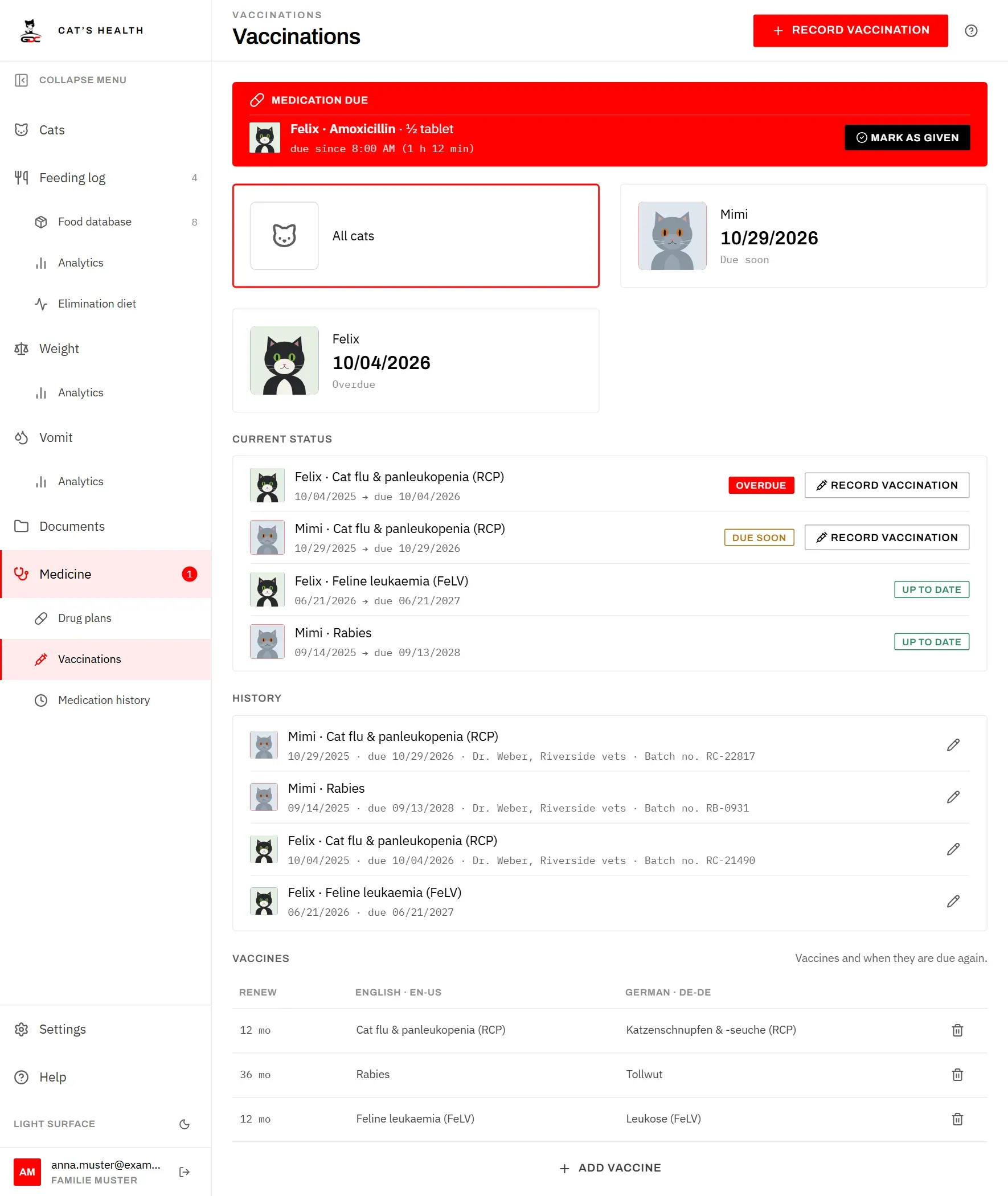
The screen has these parts:
- The cat cards at the top. Each shows the cat’s next due date and its status. Tap a card to see only that cat; tap it again, or All cats, to see all of them.
- Current status. One row per cat and vaccine, with the date of the latest vaccination and when it is due again. The most urgent are at the top.
- History. Every vaccination ever recorded, with the vet and the batch number if you entered them.
- Vaccines. The list of vaccines and their intervals, see Vaccines and intervals.
Each row in Current status has one of these labels:
| Label | Meaning |
|---|---|
| Up to date | Due again in more than 30 days |
| Due soon | Due within the next 30 days |
| Overdue | The due date has passed |
| Not repeated | No next date: this vaccination is not renewed |
Only the latest vaccination of each vaccine counts. As soon as you record the renewal, the old one stops being overdue.
Due and overdue vaccinations also appear on the Medicine screen. They are not counted in the red number in the menu: see The menu badge for why.
Record a vaccination
Record each vaccination when the cat comes back from the vet. The vaccination certificate has everything you need.
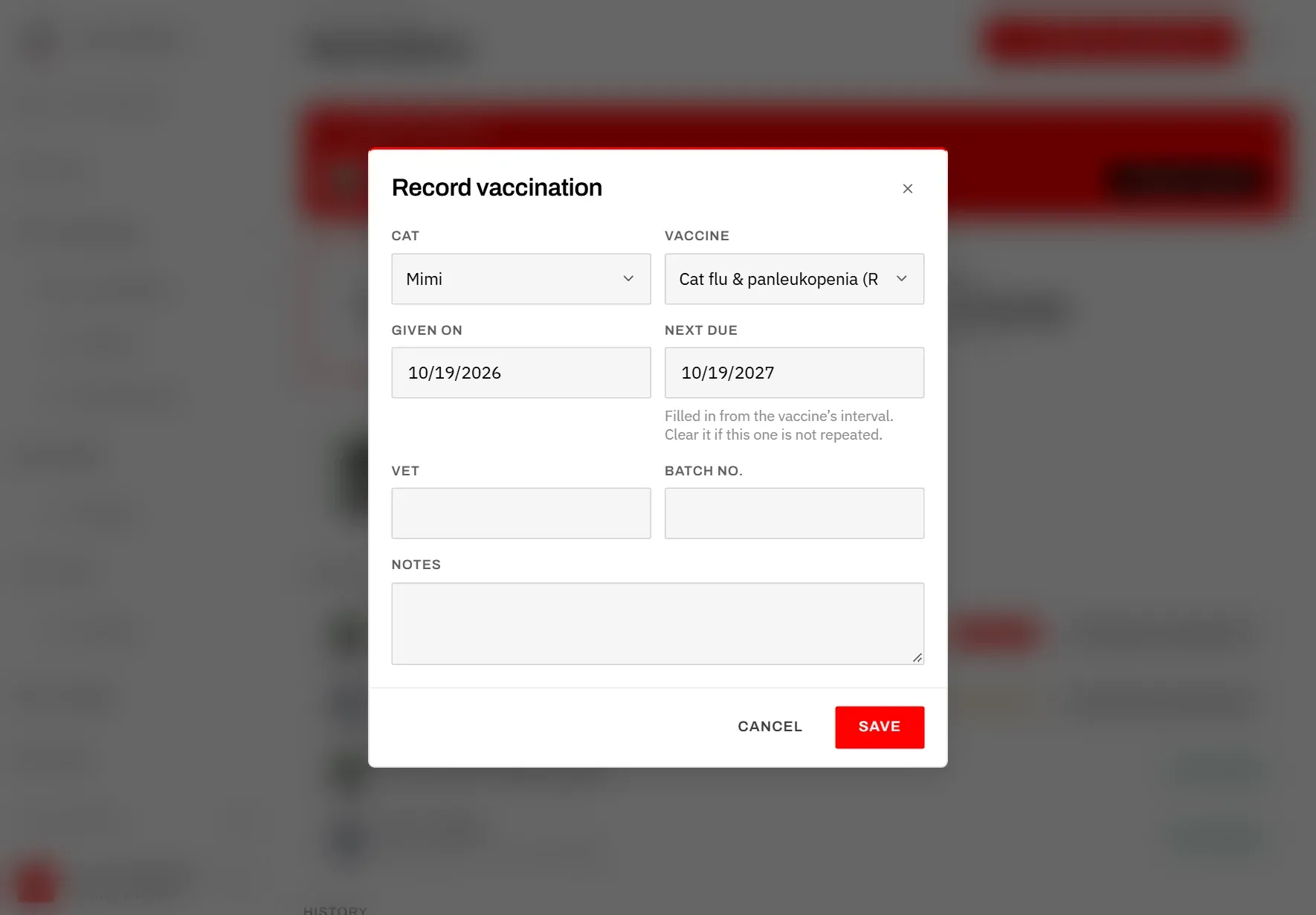
- Tap Record vaccination at the top of the screen.
- Choose the Cat and the Vaccine.
- Set Given on to the date of the vaccination. It starts at today.
- Next due is filled in for you: the date plus the vaccine’s interval. If your vet set a different date, change it. If this vaccination is not repeated, clear the field. Once you have changed Next due yourself, the app leaves it alone even if you change the date or vaccine afterwards.
- Enter the Vet and the Batch no. if you like. The batch number is on the sticker in the vaccination certificate.
- Add Notes if they help.
- Tap Save.
Next due must be after the vaccination date; otherwise the app asks you to correct it.
Record vaccination appears only once there is at least one living cat and at least one vaccine.
Renew a vaccination
When a vaccination is Due soon or Overdue, its row in Current status (and on the Medicine screen) has its own Record vaccination button. Tap it after the vet visit: the cat and the vaccine are already chosen, so you only need to check the date and tap Save. The new vaccination replaces the old one in Current status; the old one stays in History.
Change or delete a vaccination
Tap the pencil next to a vaccination in History. In Edit vaccination change what you need and tap Save. To delete it, tap the trash can and confirm; this cannot be undone.
Vaccines and intervals
At the bottom of the Vaccinations screen, under Vaccines, is the list of vaccines your household records, and after how long each is due again. You manage them here, next to the vaccinations that use them.
Each vaccine has a name in English and in German, so the app can show it in either language, and a Renew interval.
- Change the interval: tap the interval in the Renew column, for example “12 mo”, and pick 6, 12, 24 or 36 months, or Not repeated. Ask your vet which interval applies to your cats.
- Rename a vaccine: tap its English or German name, change the text, then tap the tick to save.
- Add a vaccine: tap Add vaccine, enter the English and German name (if you fill in only one, it is used for both) and tap Add. A new vaccine starts with 12 months; change it with one tap if needed.
- Delete a vaccine: tap the trash can and confirm. Vaccinations already recorded with it are kept and shown as Unknown vaccine. At least one vaccine must remain.
The interval is used to fill in Next due when you record a vaccination. Changing it later does not change the due dates of vaccinations already recorded; edit those in History if needed.