
Filter by cat
Cats vomit now and then, but how often, and what comes up, can be a sign that something is wrong. The Vomit page records every incident so you can tell the vet exactly what happened and when.
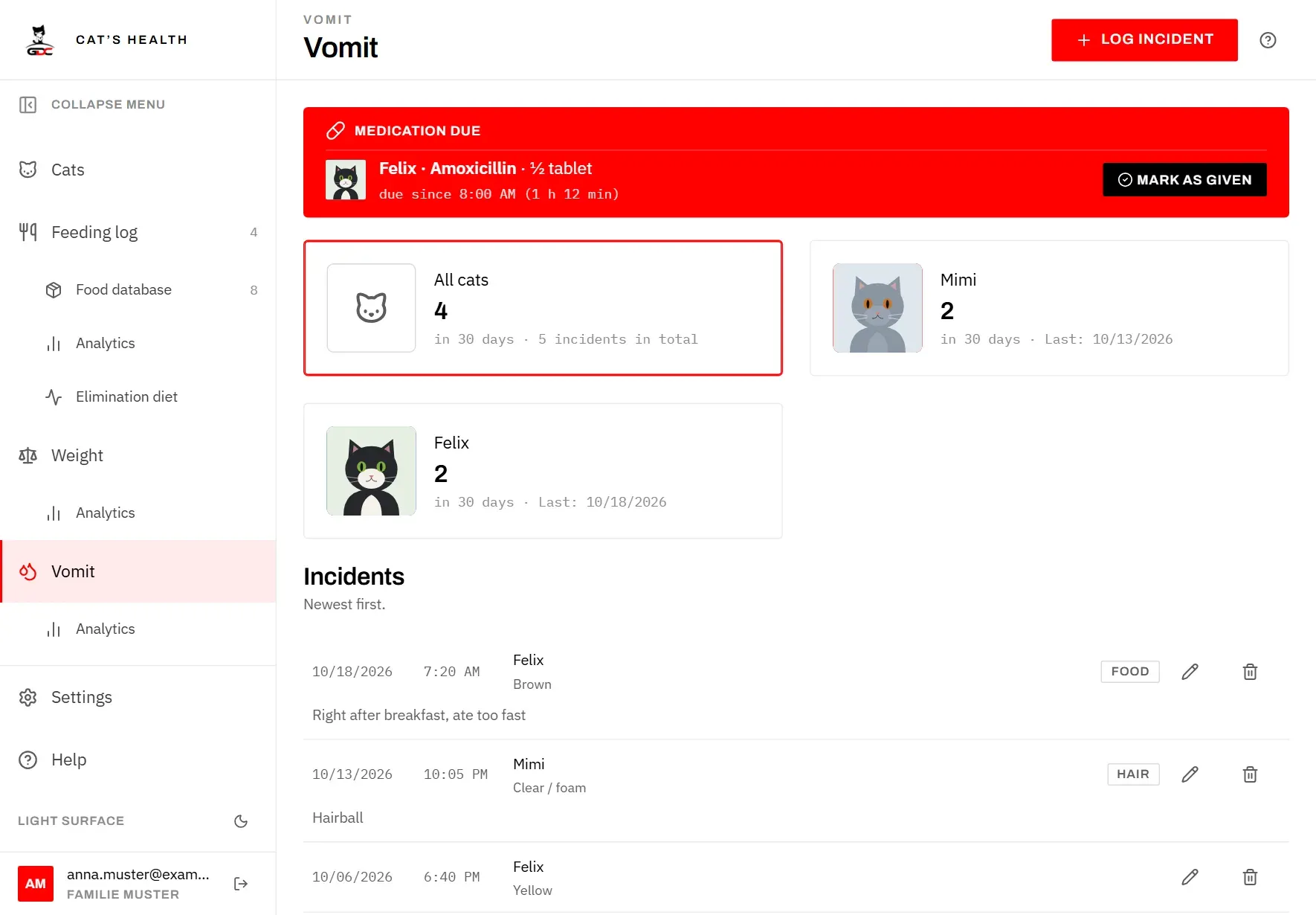
At the top there is one card per cat, with its picture, plus an All cats card:
- All cats shows how many incidents there were in the last 30 days, and how many are recorded in total.
- Each cat’s card shows its number of incidents in the last 30 days and the date of its last one, or No incidents.
To see only one cat’s incidents, tap its card. The card is highlighted and the others are dimmed. Tap the same card again, or All cats, to see all incidents again.
Good to know:
- The filter is kept in the page address. It survives reloading the page and the Back button, and the Vomiting incidents tile on a cat’s profile opens this page already filtered to that cat.
- A cat that has died has no card. Its incidents are still in the list under All cats.
- While a cat is selected, Log incident starts with that cat already chosen.
The page needs at least one cat and at least one vomit colour. The colours are set up in Settings under Vomit colours (see Settings: Vomit).
Log an incident
Enter an incident as soon as you find it, while you still remember the details.
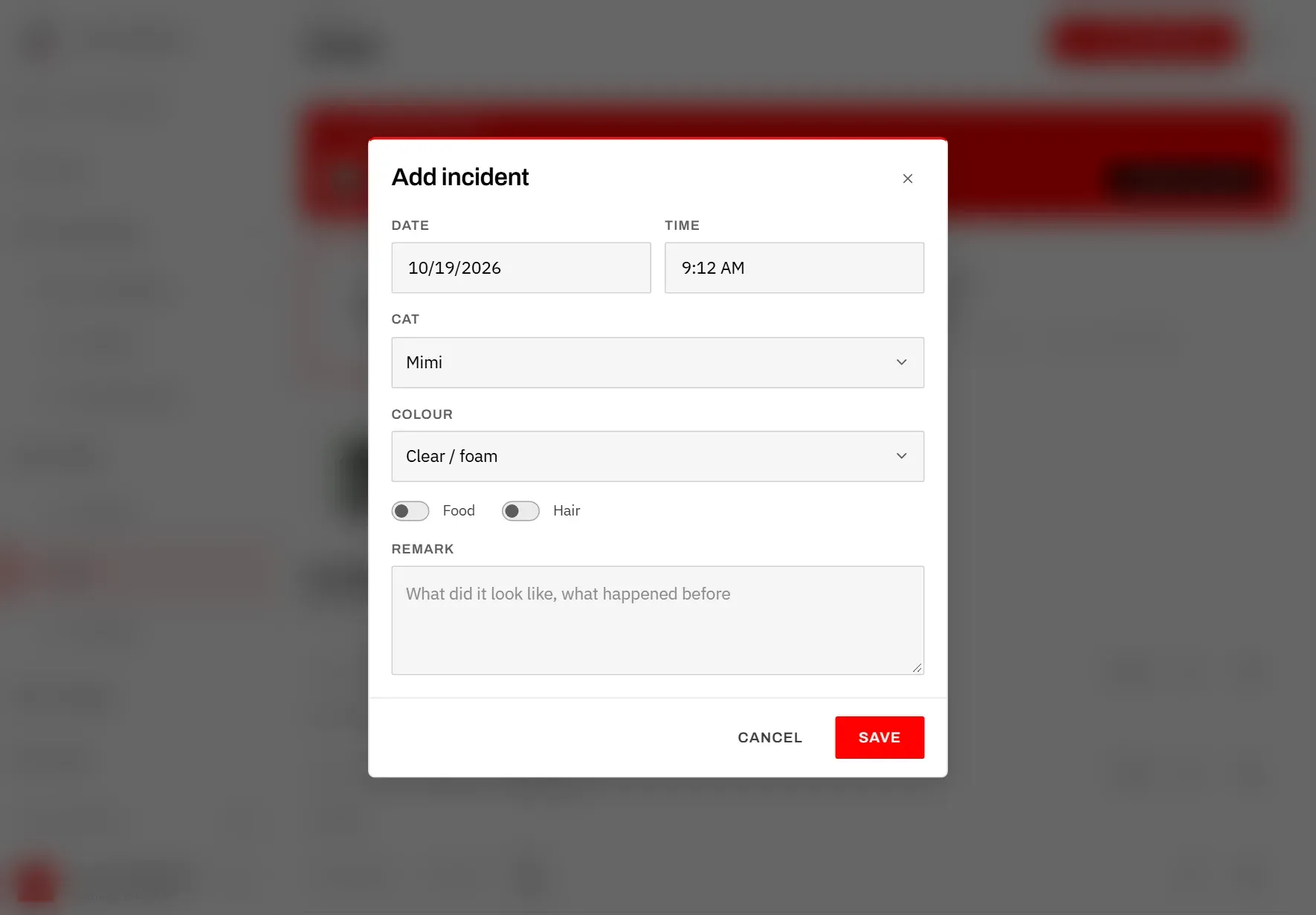
- Tap Log incident at the top right.
- Check Date and Time. Both are filled in with now; change them if you found it later than it happened.
- Choose the Cat. If a cat was selected in the filter, it is already chosen; otherwise the first cat is.
- Choose the Colour. The list comes from your colours in Settings.
- Switch on Food if there was food in it, and Hair if there was hair in it, for example a hairball.
- Add a Remark if it helps: what it looked like, what happened before.
- Tap Save.
You see Incident saved, and the incident appears in the list. Only living cats can be chosen.
Log incident only appears once there is at least one living cat and the colours are set up.
The incidents
Below the cards, Incidents lists every incident, newest first. Each row shows the date, time, cat and colour, a Food or Hair label if you switched those on, and the remark underneath. When a cat is selected in the filter, only its incidents are listed.
The list shows a dozen incidents at a time. Tap Load more at the end to see older ones.
To correct an incident:
- Tap the pencil next to it.
- In Edit incident, change the date, time, cat or findings.
- Tap Save.
To delete an incident, tap the bin next to it (or the bin at the bottom left of Edit incident). The app asks Delete this incident? and shows the cat, date and colour. Tap Delete to confirm. This can’t be undone.
If a colour is later deleted in Settings, older incidents with that colour show a dash instead.
To see patterns over the last weeks, open Analytics below Vomit in the menu (see Vomit analytics).