
Feeding
Settings holds the lists the rest of the app chooses from: meal times, ratings, protein sources, vomit colours and document kinds. It also has the Excel imports, the language and a few switches for this device. Open it from Settings at the bottom of the menu.
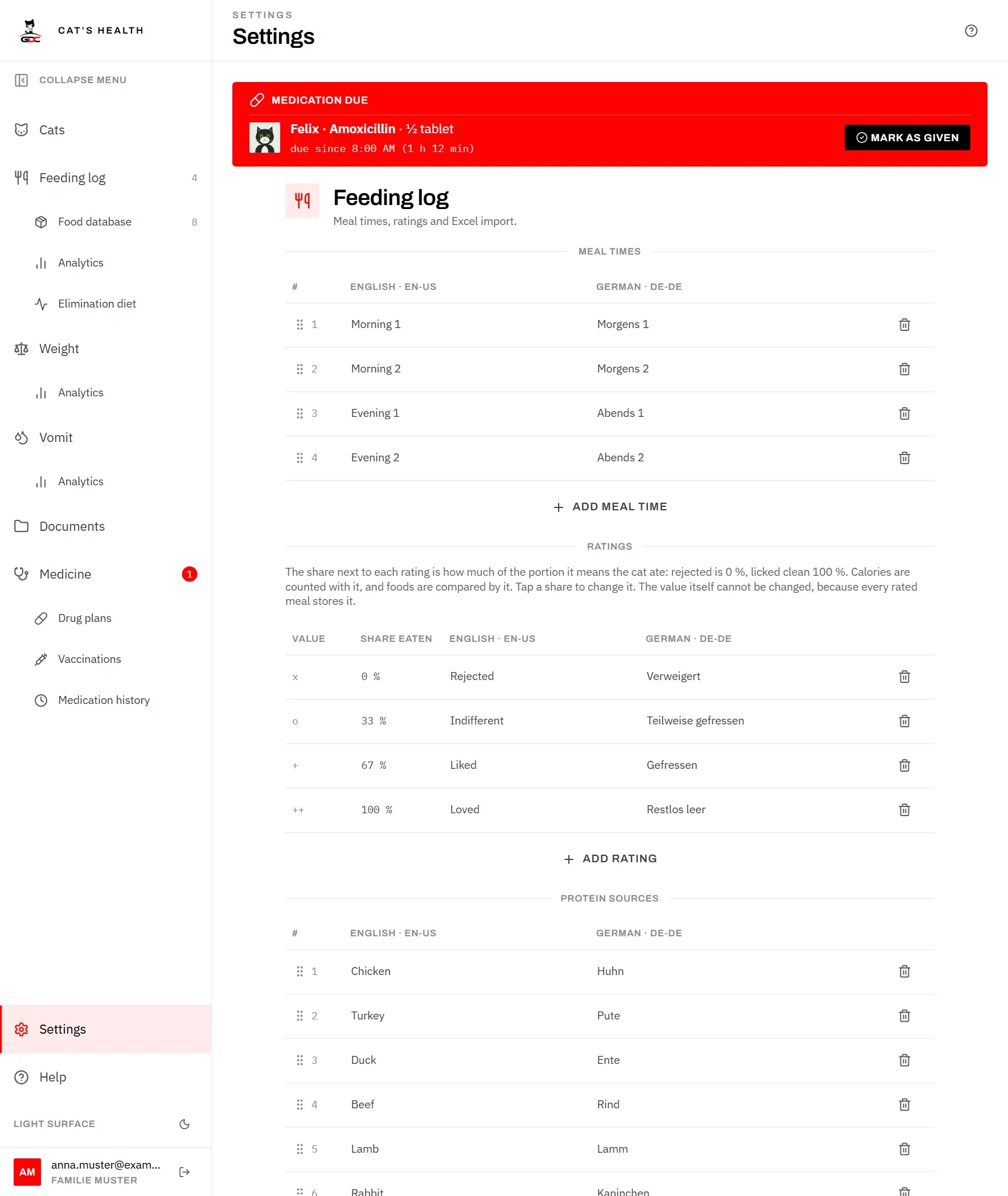
The page is split into groups, from top to bottom: Feeding log, Weight, Vomit, Documents, AI assistants (MCP) and All areas. Each part of the help below follows that order.
The lists all work the same way:
- Each row has an English and a German name. The app shows whichever name matches the language you have chosen.
- To rename a row, tap its English or German name. Both names become editable. Change them and tap the tick (or press Enter). The cross (or Escape) cancels. If you empty one of the two names, the other one is used for both languages.
- To add a row, tap the Add … button under the list. You only need to fill in one language; the other is filled in from it.
- To delete a row, tap the bin at the end of it and confirm with Delete. This cannot be undone.
Meal times
The Meal times list holds the fixed meals of your day, for example “Morning 1” and “Evening 2”. The feeding log shows one slot for each of them, every day (see The feeding log).
- Order: the number with the grip at the start of each row is the meal’s position. Drag the grip up or down to change the order, or select it and use the arrow keys. The feeding log uses this order for the meals of a day.
- Add: tap Add meal time, enter the name in English · EN-US and/or German · DE-DE, and tap Add.
- Rename: tap the name, as described above.
- Delete: tap the bin. The confirmation reminds you: “Existing entries keep their stored meal time.”
Why renaming is safe: when a meal time is added, the app stores a fixed name for it once, and every feeding entry refers to that stored name. The English and German names you see are only labels on top of it. You can change the labels as often as you like; all past entries stay with their meal time, and the history and analytics stay complete. The stored name itself can never be changed.
You cannot delete the last meal time. If you try, the app shows “At least one meal time is required” and you close the message with Understood. The feeding log needs at least one meal time to work.
Ratings
The Ratings list holds how well a cat liked a meal, for example x for a refused meal up to ++ for a bowl licked clean. You rate meals in the feeding log (see Ratings).
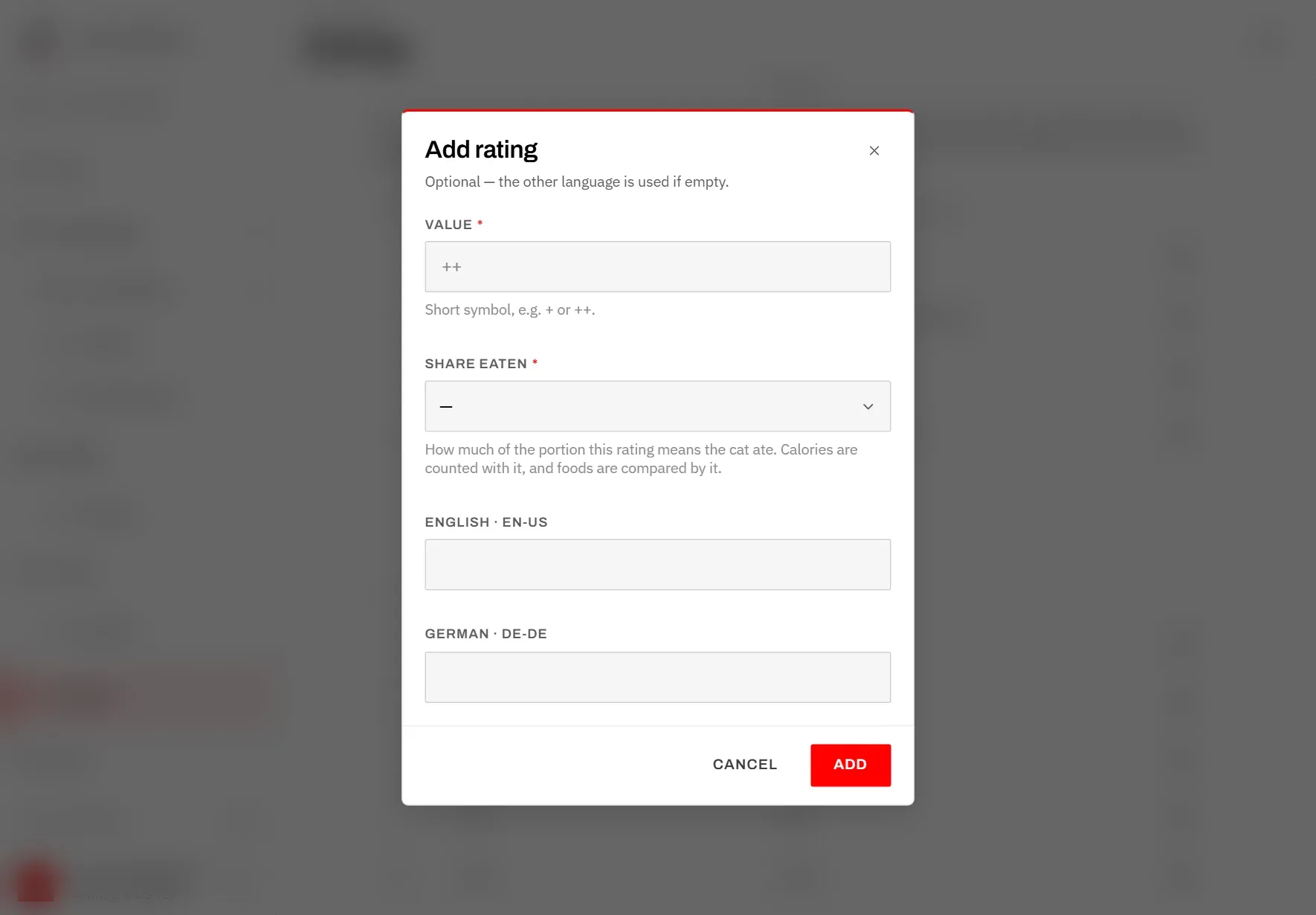
Each rating has a Value, a short symbol such as + or ++, a Share eaten and an English and German description.
The Share eaten says how much of the portion the cat ate when a meal gets this rating: 0 % for a refused meal, 100 % for a bowl licked clean, and every other rating somewhere in between, for example 33 % for partly eaten and 67 % for eaten. The app counts the calories a cat ate with it, and it compares how well foods are taken by it. Portions without a rating count for nothing until they are rated. You can have as many ratings as you like; the share puts each one in its place on the scale, and the lists of ratings in the app follow it.
- Add: tap Add rating. Enter the Value and choose the Share eaten (both required), add the description in one or both languages, then tap Add. Each value can only exist once; otherwise you see “That rating already exists.”
- Change the share: tap the share next to the value, for example 67 %, and pick a new share. It applies to all past meals with this rating too. Ratings from before shares existed show a suggested share marked with ≈, spread evenly along their order (with four ratings: 0, 33, 67 and 100 %). Tap it to confirm or change it.
- Rename: tap the description to change it. The value itself cannot be changed, because it is what is stored on every rated meal. Changing a description therefore keeps all past ratings as they are.
- Delete: tap the bin and confirm.
You cannot delete the last rating (“At least one rating is required”).
Protein sources
The Protein sources list holds the proteins a food can be tagged with — chicken, beef, salmon and so on. It starts with the common ones. Foods that share a protein are grouped for an elimination diet (see Tag foods with their proteins).
- Add: tap Add protein source and enter the name in one or both languages.
- Order and rename: as for meal times.
- Delete: tap the bin. A protein that foods still use cannot be deleted (“Foods still use this protein source”); change those foods first. You cannot delete the last one either.
Feeding import
Under Data, Import from Excel opens the import of food items and the feeding log from an .xlsx file. See Excel import.
Weight import
Directly below, the Weight group only holds Import from Excel for weighings from an .xlsx file. See Excel import.
Vomit
The Vomit group holds the colours you can choose when you record an incident (see Recording an incident), and the import of incidents.
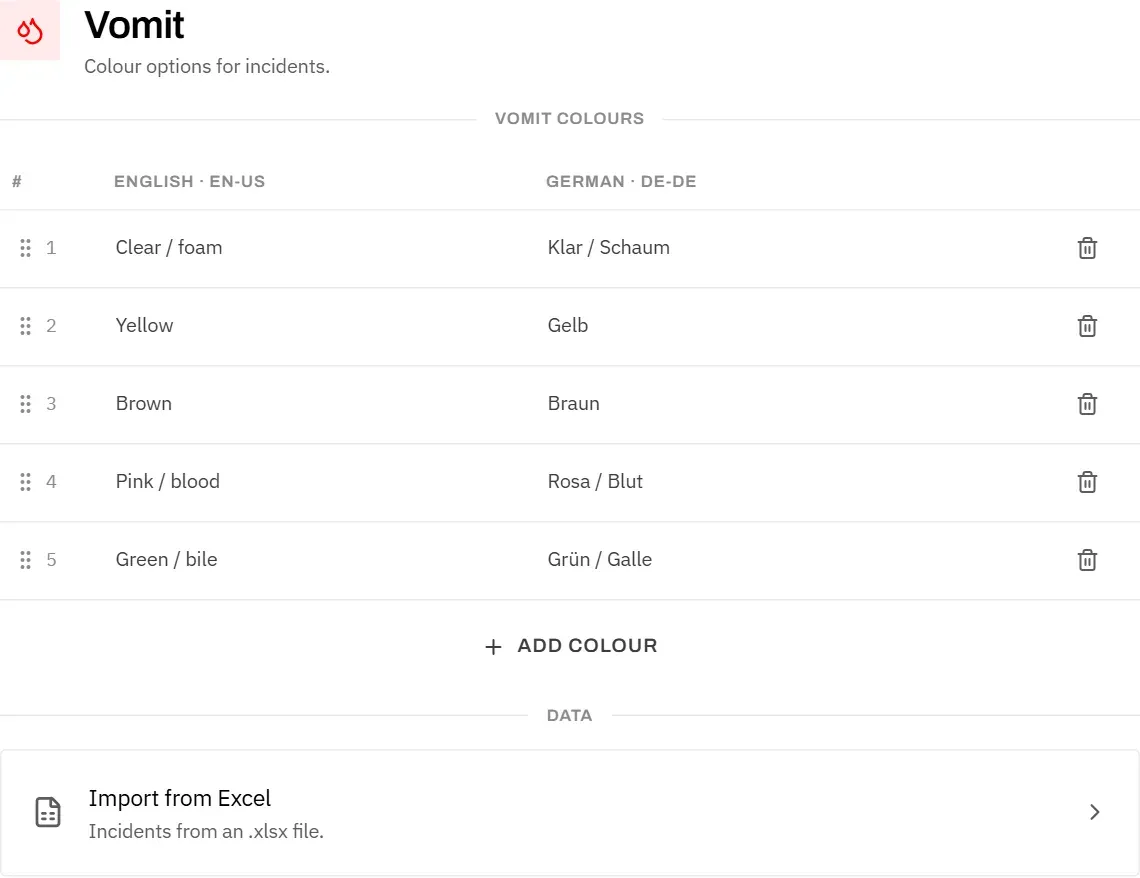
Vomit colours works like the other lists:
-
Add: tap Add colour, enter the name in one or both languages, and tap Add.
-
Rename: tap the name. An incident stores the colour itself, not its name, so renaming a colour keeps all past incidents with it.
-
Delete: tap the bin and confirm. You cannot delete the last colour (“At least one colour is required”).
-
Order: drag the grip at the start of a row up or down, or select it and use the arrow keys, just like the meal times.
The order of this list matters for the Excel import: when the import reads the colour from a free-text remark, it checks the colours from the top of this list down, and the first colour whose keywords appear wins. So put a more specific colour above a more general one. The keywords themselves are not set here but in the import, see Findings: colour, food and hair.
Under Data, Import from Excel opens the import of incidents from an .xlsx file.
Documents
The Documents group holds the Document kinds: the kinds of papers you file, such as a vet report or a lab result. You pick one of them when you add a document (see Adding a document).
- Add: tap Add document kind, enter the name in one or both languages, and tap Add.
- Rename: tap the name. Documents store the kind itself, not its name, so renaming a kind keeps all filed documents with it.
- Delete: tap the bin. The confirmation reminds you: “Documents already filed keep their stored kind.” The documents are not deleted.
You cannot delete the last document kind (“At least one kind is required”), because every document needs a kind.
AI assistants (MCP)
The AI assistants (MCP) group lets assistants such as Claude or ChatGPT read your records. Unlike the groups around it, it is a setting of the whole household, not of this device: what you choose here applies to every member.
Everything is in one box:
- Allow AI assistants to read this household’s data switches access on and off. It is off until someone switches it on. The line below says whether it is on and since when.
- The Server URL with a Copy button, and short instructions for Claude, ChatGPT and Claude Code.
- Switching it off disconnects every assistant in the household immediately.
How to connect an assistant, and what it can and cannot see, is described in AI assistants.
While access is on, a second switch appears in the box: Also allow assistants to flag foods for the elimination diet. With it, an assistant may mark a food as suspected for a cat and fill in missing protein sources — nothing else. It is off until someone switches it on, and it applies to the whole household too (see Elimination diet).
General
The All areas group applies to the whole app. Its settings are saved on this device only: the kitchen iPad can be dark and stay awake, while a phone stays light and in another language. Other members of the household are not affected.
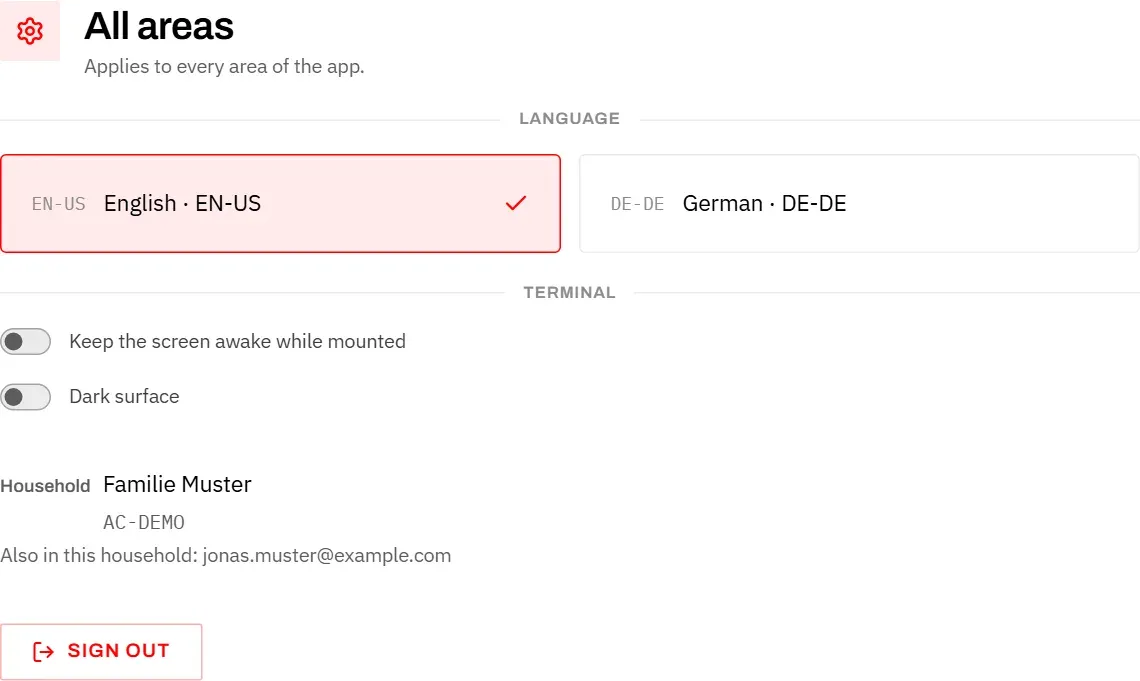
Language: tap English · EN-US or German · DE-DE. The app switches at once; the tick marks the current language.
Under Terminal there are two switches:
- Keep the screen awake while mounted stops the screen from turning off while the app is open. This is meant for an iPad that stands or hangs in the kitchen. Switch it off on phones, to save the battery.
- Dark surface switches the app to dark colours, which is easier on the eyes in the evening. It is the same setting as the switch at the bottom of the menu.
Household and account
At the bottom of the All areas group you can see which household you are working in, and you can sign out.
- Household shows the name of your household, for example “Familie Muster”, and its code underneath.
- Also in this household lists the e-mail addresses of the people who have access to this household. If nobody else has access, it says “Nobody else has access.”
The household’s name and members cannot be changed here. Family members are invited under My household in the GDC Tools Manager (see Family members). If the name is not the one you expect, write to dev@gdc-world.de.
Your GDC account itself is managed in the GDC Tools Manager, not in this app. If an administrator deletes it, you get an e-mail confirming that. The data saved in Cat’s Health belongs to the household and stays with it. To have it deleted too, get in touch through the contact form.
Sign out signs you out on this device. Your data stays in the household; sign in again to see it. On a shared kitchen iPad you normally stay signed in.